
Introduction
This manual provides detailed instructions for the installation, operation, and maintenance of your Roinvou Android Radio for Chevrolet Chevy Cruze models manufactured between 2009 and 2014. Please read this manual thoroughly before installation and use to ensure proper functionality and to avoid damage.

Image: The Roinvou Android Radio unit, shown installed in a Chevrolet Cruze dashboard, highlighting its 9-inch touchscreen display.
Setup and Installation
Compatibility and Pre-Installation Checks
This radio dash kit is specifically designed for Chevrolet Chevy Cruze models from 2009 to 2014. The package includes the in-dash head unit, wiring harness cables, a CANBUS decoder, and a frame panel. Before installation, verify that the power cable port on the provided wiring harness matches your vehicle's original car wiring. If your vehicle's dashboard display is in Chinese, contact Roinvou customer support for a protocol upgrade package.
Included Components
The following components are included in your package:
- Chevrolet Chevy Cruze Car Stereo Head Unit
- Power Cable
- CANBUS Decoder
- Original USB Cable
- Radio Antenna
- RCA Cable
- GPS Antenna
- AHD Backup Camera
- External Microphone
- Rear Camera Input Cable
- Dual USB Cable
- Installation Tool

Image: A visual representation of all items included in the product package, such as the head unit, cables, and accessories.
Wiring Connections
Refer to the following diagrams for proper wiring connections. Ensure all cables are securely connected to their corresponding ports.

Image: Detailed view of the rear ports on the Roinvou Android Radio, indicating connections for power, RCA, USB, CANBUS, reversing camera, GPS antenna, and radio antenna.
Backup Camera Wiring
It is crucial to connect the rearview input cable, even if you do not intend to use the rearview camera immediately. Failure to do so may affect the WiFi and Bluetooth signal stability.

Image: A wiring diagram illustrating how to connect the AHD backup camera to the head unit, including power and video signal connections.
Operating Instructions
System Overview
Your Roinvou Android Radio features a powerful Android system with an 8-core CPU and 6GB RAM + 128GB ROM, ensuring a smooth user experience. The 9-inch HD capacitive touch screen provides excellent color reproduction and responsiveness. You can customize your interface with 19 wallpaper options and 59 UI desktop themes.
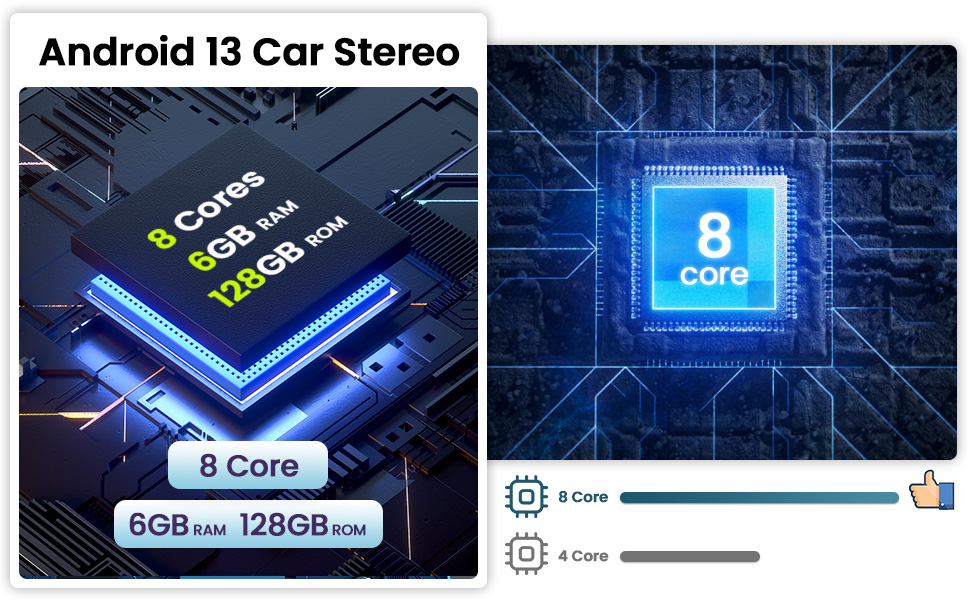
Image: Visual representation of the internal hardware, highlighting the 8-core processor, 6GB RAM, and 128GB storage for optimal performance.
CarPlay and Android Auto
The unit supports both wireless and wired Apple CarPlay and Android Auto. Connect your smartphone via Bluetooth (for wireless) or the original USB data cable (for wired connection). This allows for seamless integration of phone calls, music playback, GPS navigation, and voice control through Siri or Google Assistant, enhancing your driving experience.

Image: Screenshots of the unit displaying the Apple CarPlay and Android Auto interfaces, showing various app icons and connection methods.
GPS Navigation and WiFi Connectivity
The built-in GPS navigation allows you to download offline maps from the Play Store. When connected to WiFi, online maps function perfectly. WiFi connectivity also enables access to various applications, including online music streaming and video platforms like YouTube, turning your car stereo into a large smartphone for entertainment during your journey.

Image: Displays of the GPS navigation system showing a map route and the WiFi connection interface with various app icons.
Bluetooth 5.0 and Mirror Link
Bluetooth 5.0 provides a stable and uninterrupted connection for hands-free calls, phone book synchronization, and music streaming. The Mirror Link function allows you to synchronize your Android or iOS smartphone screen to the head unit, enabling video playback on the larger display.

Image: Screenshots showing the Bluetooth dialing interface for hands-free calls and the FM/RDS radio tuner with frequency display.
Audio Control and Radio
The unit features pre-installed car tuning software with 32-band EQ technology. You can adjust frequency and sound type settings to optimize audio quality. The built-in FM/RDS radio allows you to listen to broadcasts, real-time traffic updates, and weather forecasts.
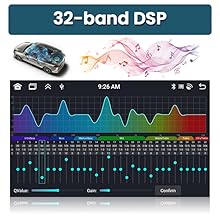
Image: A visual representation of the 32-band equalizer interface, allowing precise audio adjustments.
Steering Wheel Control and Backup Camera
The Android radio supports steering wheel controls, allowing you to manage functions without removing your hands from the steering wheel. It also automatically switches to the reverse image when the vehicle is put into reverse gear, providing a clear view for parking and maneuvering.

Image: Displays the steering wheel control learning interface and a clear view from the AHD reversing camera in a parking scenario.
Additional Features
- Split Screen Functionality: The unit supports split-screen mode, allowing you to run two applications simultaneously, such as navigation and music playback.
- High Resolution Display: Enjoy a clear visual experience with the 1280 x 720 resolution touchscreen.

Image: A screenshot showing the split-screen feature, with a radio interface on one side and a music player on the other.
Video Demonstration
Watch this video for a demonstration of the user interface functions, CarPlay, Android Auto, and navigation features.
Video: A demonstration of the Roinvou Android Radio's user interface, including CarPlay, Android Auto, and navigation functionalities.
Maintenance
To ensure the longevity and optimal performance of your Roinvou Android Radio, follow these maintenance guidelines:
- Screen Cleaning: Use a soft, lint-free cloth to gently wipe the touchscreen. For stubborn smudges, slightly dampen the cloth with water or a screen-safe cleaner. Avoid harsh chemicals or abrasive materials.
- Temperature Control: Avoid exposing the unit to extreme temperatures, both hot and cold, for extended periods.
- Software Updates: Periodically check for available software updates to ensure you have the latest features and performance enhancements.
- Cable Connections: Ensure all cables remain securely connected to prevent intermittent issues.
Troubleshooting
If you encounter issues with your Roinvou Android Radio, refer to the following common troubleshooting steps:
- No Power:
- Check all power cable connections to ensure they are secure.
- Verify that the power cable port matches your original car's wiring.
- Check the vehicle's fuse box for any blown fuses related to the car stereo.
- No Sound:
- Ensure speaker wires are correctly connected.
- Check volume settings on the unit and your connected device (if using CarPlay/Android Auto).
- Verify that the RCA cables are properly connected.
- WiFi/Bluetooth Signal Issues:
- Ensure the rearview input cable is connected, even if a camera is not in use, as it can affect signal stability.
- Check for obstructions around the WiFi/Bluetooth antenna.
- Restart the unit and your connected device.
- GPS Not Working/Inaccurate:
- Ensure the GPS antenna is properly installed and has a clear view of the sky.
- Verify that location services are enabled in the unit's settings.
- If using offline maps, ensure they are fully downloaded and updated.
- Dashboard Display in Chinese:
- Contact Roinvou customer support to obtain the necessary protocol upgrade package.
Specifications
| Brand | Roinvou |
| Model Number | Roinvou-A7090A3533H1MI2US31 |
| Operating System | Android |
| Screen Size | 9 Inches |
| Resolution | 1280 x 720 |
| Memory Storage Capacity | 128 GB |
| Connectivity Technology | Bluetooth, USB, Wi-Fi |
| Special Features | Wireless/Wired Apple CarPlay, Wireless/Wired Android Auto, Mirror Link, Voice Control, GPS Navigation, WiFi, Bluetooth, FM/RDS Radio, HD Touchscreen, SWC, 32-band EQ, 19 Backgrounds, 59 UI Themes, Split Screen |
| Supported Satellite Navigation System | GLONASS, GPS, Galileo |
| Item Weight | 2.5 Kilograms |
Warranty Information
The Roinvou Android Radio comes with a 1-Year Warranty from the date of purchase. This warranty covers manufacturing defects and malfunctions under normal use. Please retain your proof of purchase for warranty claims. For detailed terms and conditions, please contact Roinvou customer support.
Customer Support
For any questions, technical assistance, or warranty claims, please contact Roinvou customer support. We are committed to providing prompt and helpful service.
- Email: roinvouservices@163.com

Image: Customer service contact details, including the email address for support inquiries.


