
Product Overview
The Vissles LP85 is a 75% low-profile mechanical keyboard designed for both work and gaming. It features an anodized aluminum chassis, optical switches, and a slim design. This manual provides detailed instructions for setup, operation, maintenance, and troubleshooting.
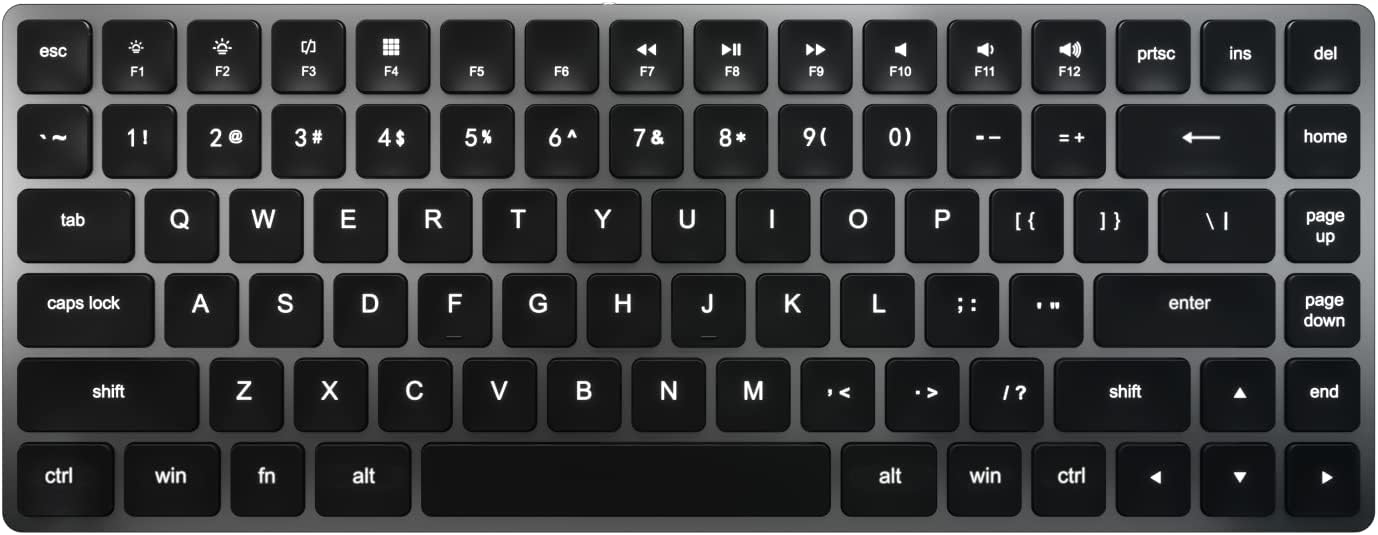
Figure 1: Vissles LP85 Keyboard Layout. This image displays the full layout of the Vissles LP85 keyboard, highlighting its compact 75% form factor with dedicated function row, navigation keys, and a standard alphanumeric section.
Setup
1. Unboxing and Initial Inspection
Carefully remove the keyboard from its packaging. Inspect the keyboard for any visible damage. Ensure all components listed in the package contents are present.
2. Charging the Keyboard
The Vissles LP85 keyboard is equipped with a built-in Lithium Ion battery. Before first use, it is recommended to fully charge the keyboard. Connect the provided USB cable to the keyboard's USB-C port and the other end to a USB power source (e.g., computer USB port, USB wall adapter).
- A charging indicator light will typically illuminate during charging and turn off or change color when fully charged.
- The keyboard is USB Powered and can be used while charging.
3. Connecting to a Device
The Vissles LP85 supports connectivity via Wi-Fi (wireless) and USB (wired).
Wired Connection (USB)
- Connect the USB cable from the keyboard to an available USB port on your computer or laptop.
- The keyboard should be automatically recognized by your operating system. No additional drivers are typically required for basic functionality.
Wireless Connection (Wi-Fi)
Refer to the keyboard's specific wireless pairing instructions, usually involving a combination of function keys to enter pairing mode. Ensure your device's Wi-Fi is enabled and search for the Vissles LP85 in the list of available devices.
Operating the Keyboard
1. Basic Key Functions
The Vissles LP85 features a standard QWERTY layout with additional function keys and navigation keys. The optical switches provide a responsive typing experience.
2. Function Key Combinations (Fn Key)
The Fn key (Function key) allows access to secondary functions printed on certain keys, particularly the F1-F12 row. These functions often control media playback, volume, screen brightness, and other system settings.
| Key Combination | Function |
|---|---|
| Fn + F1 | Decrease Backlight Brightness |
| Fn + F2 | Increase Backlight Brightness |
| Fn + F3 | Toggle Backlight Mode |
| Fn + F7 | Previous Track |
| Fn + F8 | Play/Pause |
| Fn + F9 | Next Track |
| Fn + F10 | Mute Volume |
| Fn + F11 | Decrease Volume |
| Fn + F12 | Increase Volume |
| Fn + PrtSc | Print Screen |
| Fn + Ins | Insert |
| Fn + Del | Delete |
Note: Specific function key mappings may vary slightly depending on the operating system (Windows/macOS) and keyboard firmware.
Maintenance
1. Cleaning the Keyboard
Regular cleaning helps maintain the keyboard's performance and appearance.
- General Cleaning: Use a soft, lint-free cloth slightly dampened with water or a mild cleaning solution. Avoid harsh chemicals or abrasive materials.
- Keycaps: For deeper cleaning, keycaps can be carefully removed (if designed to be removable) and cleaned with mild soap and water. Ensure they are completely dry before reattaching.
- Between Keys: Use compressed air to remove dust and debris from between the keycaps.
2. Battery Care
To prolong the life of the Lithium Ion battery:
- Avoid exposing the keyboard to extreme temperatures.
- Do not fully discharge the battery frequently.
- If storing the keyboard for an extended period, charge it to about 50% before storage.
Troubleshooting
This section addresses common issues you might encounter with your Vissles LP85 keyboard.
| Problem | Possible Cause | Solution |
|---|---|---|
| Keyboard not responding (wired) | Loose USB connection; Faulty USB port; Driver issue. | Ensure USB cable is securely connected. Try a different USB port. Restart your computer. |
| Keyboard not responding (wireless) | Low battery; Not paired; Interference. | Charge the keyboard. Re-pair the keyboard with your device. Move closer to the device or away from other wireless devices. |
| Keys not registering or double-typing | Debris under keycap; Software conflict. | Clean under the affected keycap using compressed air. Test on another computer to rule out software issues. |
| Backlight not working | Backlight turned off; Low battery. | Press Fn + F1/F2 to adjust brightness. Ensure keyboard is charged. |
Specifications
- Model Name: Vissles-LP85
- Brand: Vissles
- Color: Black-Win
- Material: Aluminum
- Keyboard Description: Multi Functional
- Special Features: Optical Switches
- Connectivity Technology: Wi-Fi (Wireless), USB (Wired)
- Compatible Devices: Laptop
- Power Source: USB Powered
- Batteries: 1 Lithium Ion battery required (included)
- Package Dimensions: 34.72 x 15.62 x 4.9 cm
- Weight: Approximately 1.04 kg
Warranty and Support
Warranty Information
For specific warranty terms and conditions, please refer to the warranty card included with your product or visit the official Vissles website. The warranty typically covers manufacturing defects for a specified period from the date of purchase.
Customer Support
If you encounter issues not covered in this manual or require further assistance, please contact Vissles customer support. Support contact information can usually be found on the official Vissles website or on the product packaging.
For the latest information and support resources, please visit the Official Vissles Website.


