
1. Introduction
This manual provides essential information for the safe and efficient operation of your iTek GGC 24-inch Curved Full HD 165Hz Monitor. Please read this manual thoroughly before using the product and retain it for future reference.
2. Safety Information
- Ensure the monitor is placed on a stable, level surface to prevent accidental falls.
- Do not expose the monitor to rain, moisture, or extreme temperatures.
- Avoid blocking ventilation openings to prevent overheating.
- Use only the power adapter and cables supplied or recommended by the manufacturer.
- Disconnect the power cable from the outlet before cleaning or if the monitor will not be used for an extended period.
- Do not attempt to repair the monitor yourself. Refer all servicing to qualified personnel.
3. Package Contents
Verify that all items are present in the package:
- iTek GGC 24-inch Curved Full HD 165Hz Monitor
- Monitor Stand (Base and Neck)
- Mounting Screws
- DisplayPort 1.2 Cable
- Power Adapter
- User Manual
4. Product Overview
The iTek GGC monitor features a 23.6-inch curved VA panel designed for an immersive viewing experience. It offers Full HD resolution (1920x1080), a 165Hz refresh rate, and a 1ms response time, making it suitable for both professional use and gaming. The monitor also incorporates FreeSync and Low Blue Light technologies for enhanced visual comfort and performance.

Figure 4.1: Front view of the iTek GGC 24-inch Curved Full HD 165Hz Monitor, highlighting its 23.6-inch curved display, 1ms response time, 165Hz refresh rate, and Full HD resolution.
4.1 Key Features
- 23.6-inch Curved VA Panel: Provides an immersive viewing experience with a 1200R curvature.
- Full HD Resolution (1920x1080): Delivers crisp and clear visuals.
- 165Hz Refresh Rate: Ensures smooth motion and reduced input lag, especially beneficial for gaming.
- 1ms MPRT Response Time: Minimizes motion blur for fast-paced content.
- AMD FreeSync Technology: Synchronizes the monitor's refresh rate with the graphics card's frame rate to eliminate screen tearing and stuttering. Compatible with G-Sync.
- Low Blue Light & Flicker-Free: Reduces eye strain during extended use.
- Frameless Design: Three-sided frameless design for a sleek look and multi-monitor setups.
- Ergonomic Stand: Features Height Adjustment (HAS) and tilt functionality for optimal viewing comfort.
- Connectivity: Includes 1x DisplayPort 1.2 and 2x HDMI ports, plus an audio output.
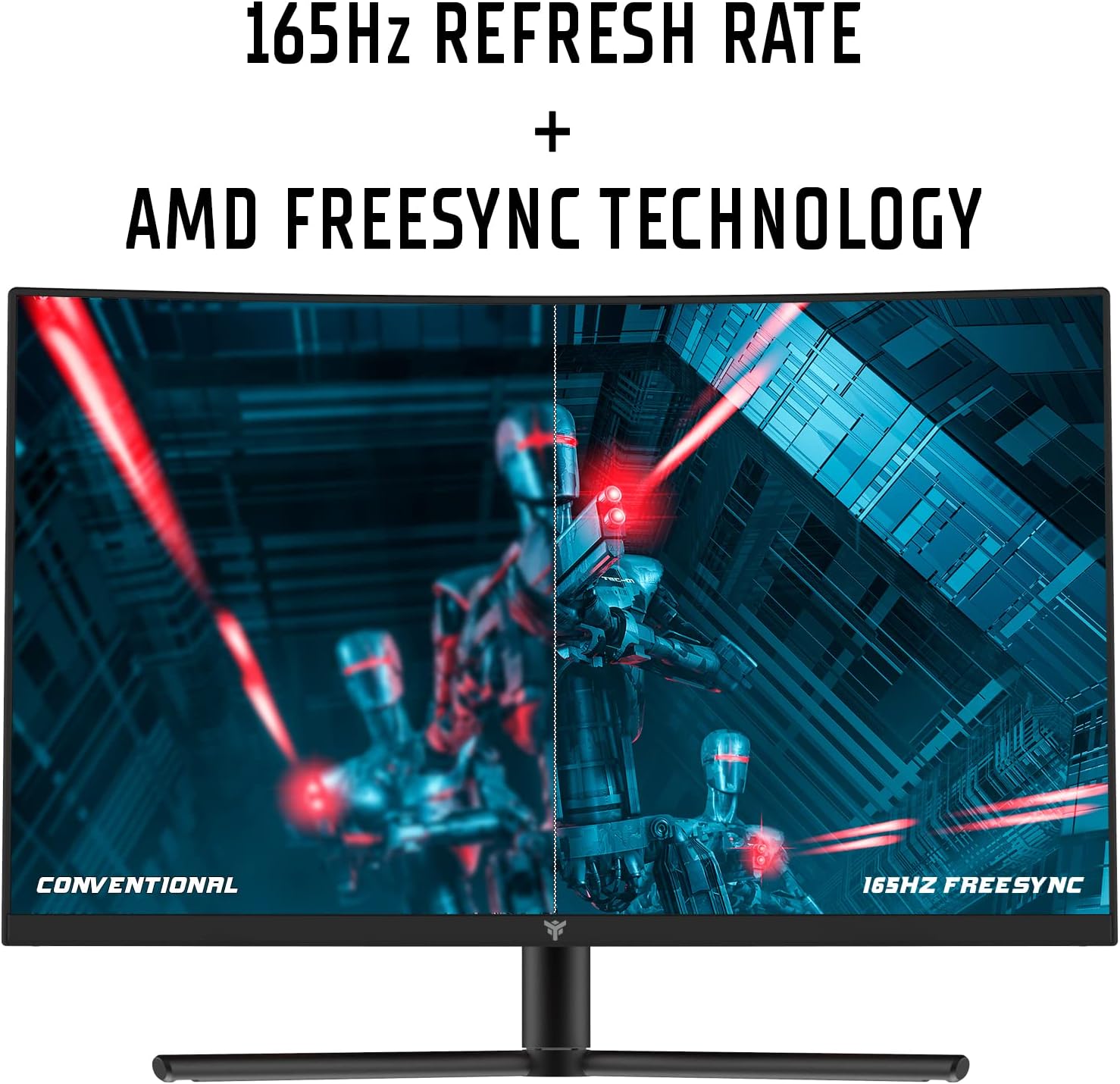
Figure 4.2: Visual representation of the 165Hz refresh rate and AMD FreeSync technology, showing smoother motion compared to a conventional display.

Figure 4.3: Diagram illustrating the 1200R curvature of the display, designed for an immersive and comfortable viewing experience.
4.2 Monitor Ports
The monitor provides various ports for connecting to your computer and other devices.

Figure 4.4: Rear view of the monitor detailing the available connection ports: two HDMI inputs, one DisplayPort 1.2 input, and one audio output jack.
- HDMI (x2): Connect to devices supporting HDMI output.
- DisplayPort 1.2 (x1): Connect to devices supporting DisplayPort output. Recommended for achieving 165Hz refresh rate.
- Audio Out (x1): Connect headphones or external speakers.
- Power Input: Connect the power adapter.
5. Setup Instructions
5.1 Assembling the Stand
- Carefully remove the monitor and stand components from the packaging.
- Attach the stand neck to the monitor panel using the provided screws.
- Secure the stand base to the stand neck.
- Place the assembled monitor on a stable, flat surface.
5.2 Connecting the Monitor
- Connect one end of the DisplayPort cable (recommended for 165Hz) or HDMI cable to the corresponding port on your computer's graphics card.
- Connect the other end of the cable to the DisplayPort or HDMI input on the monitor (refer to Figure 4.4).
- Connect the power adapter to the monitor's power input, then plug the adapter into a power outlet.
- (Optional) Connect headphones or external speakers to the Audio Out port.
5.3 Adjusting the Ergonomic Stand
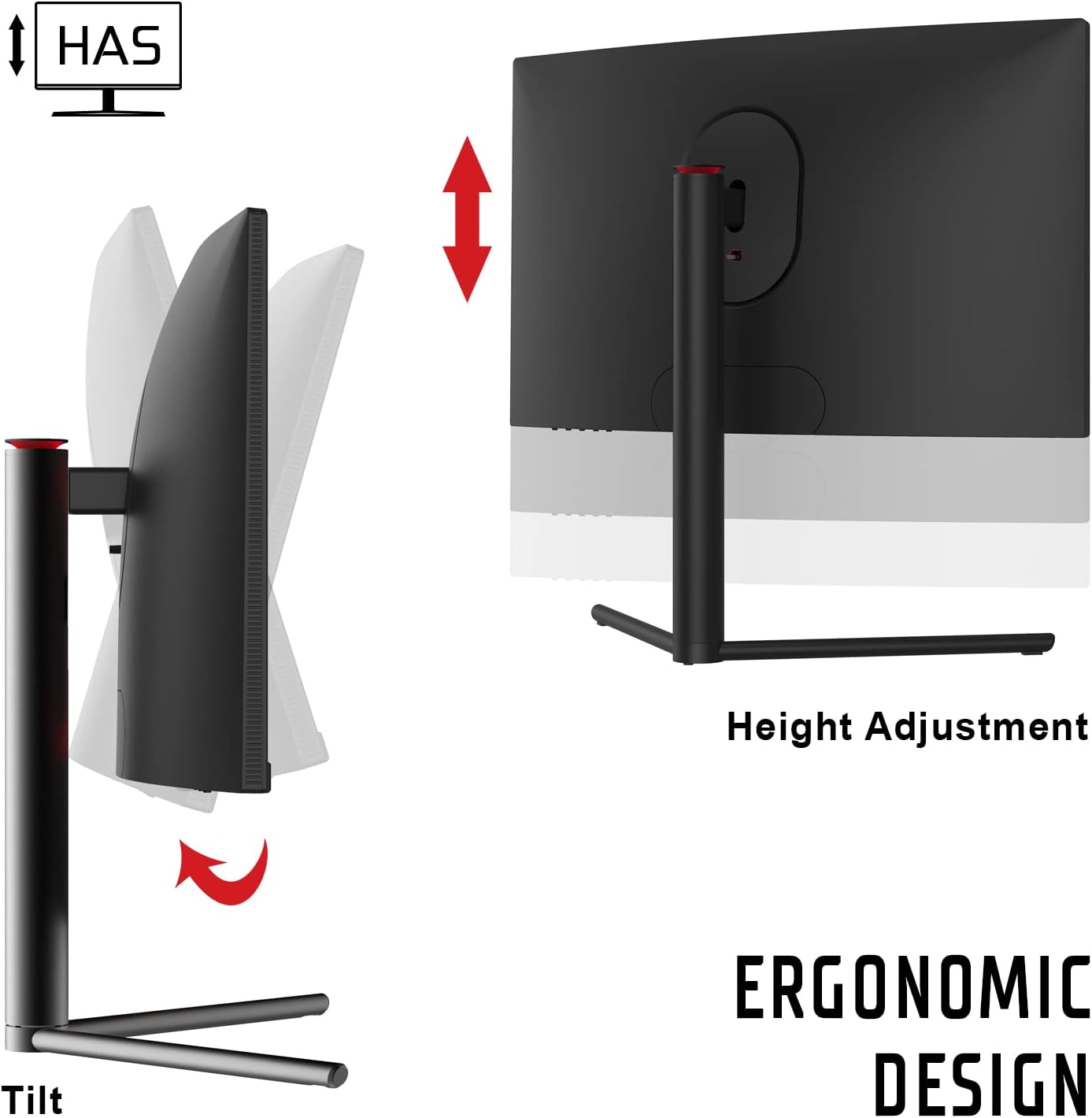
Figure 5.1: Illustration of the monitor's ergonomic stand features, including height adjustment (HAS) and tilt capabilities for customized viewing angles.
- Height Adjustment (HAS): Gently push or pull the monitor panel vertically to adjust its height to your preferred level.
- Tilt: Hold the sides of the monitor panel and gently tilt it forwards or backwards to adjust the viewing angle.
6. Operating Instructions
6.1 Powering On/Off
Press the power button, usually located on the back or bottom of the monitor, to turn it on or off. The power indicator light will illuminate when the monitor is on.
6.2 On-Screen Display (OSD) Menu
The OSD menu allows you to adjust various monitor settings. Use the control buttons (typically located on the back or bottom of the monitor) to navigate the menu.
Common OSD Settings:
- Brightness/Contrast: Adjust the overall luminance and contrast of the display.
- Color Settings: Modify color temperature, gamma, and individual RGB levels.
- Input Source: Manually select between HDMI 1, HDMI 2, or DisplayPort inputs.
- Picture Mode: Select preset display modes (e.g., Standard, Game, Movie, Text).
- FreeSync: Enable or disable AMD FreeSync technology. Ensure your graphics card supports FreeSync and it is enabled in your graphics driver settings.
- Low Blue Light: Activate this feature to reduce blue light emissions and minimize eye strain.
- Response Time (OD): Adjust the overdrive setting to optimize pixel response time.
- Refresh Rate: Verify the current refresh rate. For 165Hz, ensure your graphics card settings are configured correctly and you are using a DisplayPort cable.
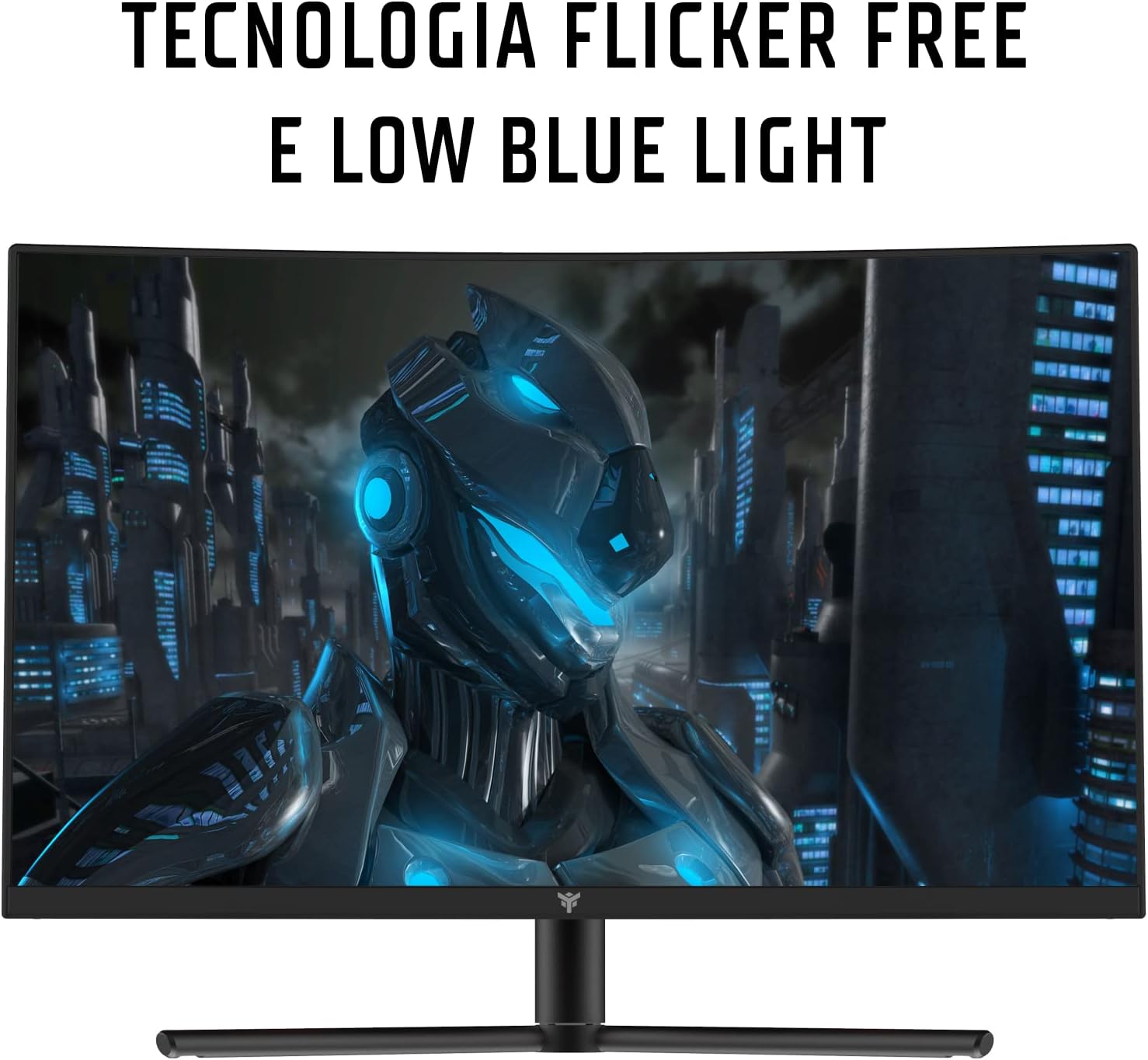
Figure 6.1: Visual representation of Flicker-Free and Low Blue Light technologies, designed to enhance user comfort and reduce eye fatigue during prolonged use.
7. Maintenance and Care
- Cleaning the Screen: Gently wipe the screen with a soft, lint-free cloth. For stubborn marks, dampen the cloth slightly with water or a non-abrasive screen cleaner. Do not spray liquid directly onto the screen.
- Cleaning the Casing: Use a soft, dry cloth to wipe the monitor casing. Avoid using strong detergents or abrasive cleaners.
- Storage: If storing the monitor for an extended period, disconnect it from power, cover it to protect from dust, and store in a cool, dry place.
8. Troubleshooting
| Problem | Possible Cause | Solution |
|---|---|---|
| No image on screen |
|
|
| Image is blurry or distorted |
|
|
| Cannot achieve 165Hz refresh rate |
|
|
| Screen tearing or stuttering |
|
|
9. Specifications
| Model Number | ITMC24V161FHD |
| Screen Size | 23.6 Inches |
| Panel Type | VA Curved (1200R) |
| Resolution | 1920 x 1080 (Full HD) |
| Aspect Ratio | 16:9 |
| Refresh Rate | 165 Hz |
| Response Time | 1 ms (MPRT) |
| Contrast Ratio | 3000:1 |
| Connectivity | 2x HDMI, 1x DisplayPort 1.2, 1x Audio Out |
| Ergonomics | Height Adjustment (HAS), Tilt |
| Special Features | AMD FreeSync, Low Blue Light, Flicker-Free, Frameless Design |
| Dimensions (L x W x H) | 21 x 53.9 x 39.8 cm |
| Weight | 3.9 Kilograms |
| Power Consumption | 28 Watt |
10. Warranty and Support
This iTek monitor comes with a 2-year manufacturer's warranty. For warranty claims or technical support, please contact iTek customer service through their official website or the retailer where the product was purchased. Please retain your proof of purchase for warranty validation.
For further assistance, visit the iTek Brand Store.


