
Introduction
This manual provides comprehensive instructions for the setup, operation, maintenance, and troubleshooting of your Oversteel Invar Wireless Gaming Mouse. Designed for precision and comfort, this mouse features a 10000 DPI optical sensor, 8 programmable buttons, and customizable RGB lighting. Please read this manual thoroughly to ensure optimal performance and longevity of your device.

Image: Oversteel Invar Wireless Gaming Mouse, showcasing its ergonomic design and RGB lighting.
Package Contents
- Oversteel Invar Wireless Gaming Mouse
- USB Wireless Receiver
- USB Charging Cable
- User Manual (this document)
Setup
1. Charging the Mouse
Before initial use, it is recommended to fully charge the mouse.
- Connect the small end of the USB charging cable to the charging port on the front of the mouse.
- Connect the larger end of the USB charging cable to an available USB port on your computer or a USB wall adapter.
- The battery indicator lights on the mouse will show charging status. A full charge provides up to 45 hours of gaming use.
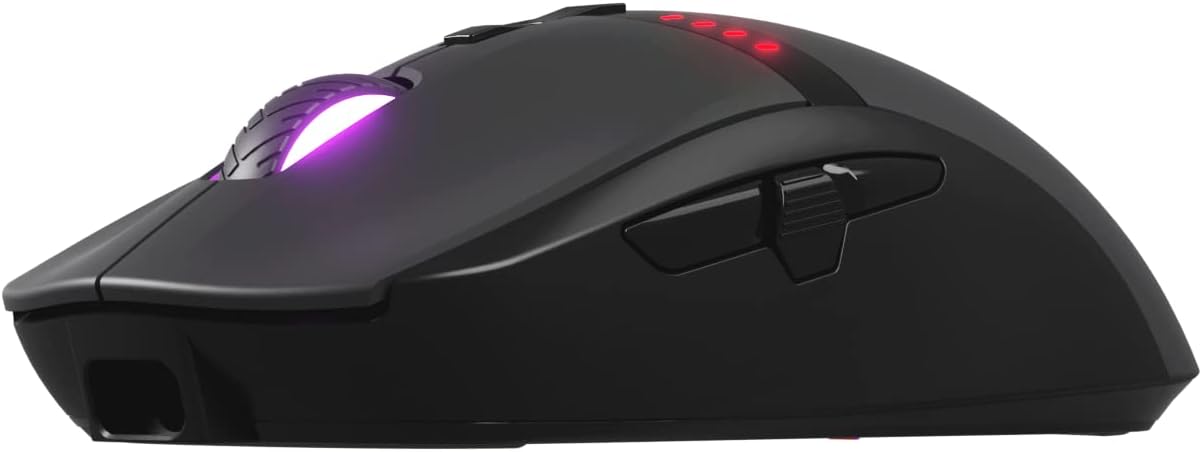
Image: Front view of the mouse, highlighting the USB charging port.
2. Connecting the Mouse
The Oversteel Invar mouse supports both wireless and wired modes.
Wireless Mode:
- Locate the USB wireless receiver, typically stored in a compartment on the underside of the mouse.
- Plug the USB wireless receiver into an available USB port on your computer.
- Turn on the mouse using the power switch located on the underside.
- Your computer should automatically detect and install the necessary drivers.
Wired Mode:
To use the mouse in wired mode, simply connect the USB charging cable from the mouse to your computer's USB port. The mouse will function as a wired device and charge simultaneously.
Operating Instructions
1. Button Functions
The Oversteel Invar mouse features 8 programmable buttons. Default functions are as follows:
- Left Click: Standard primary action.
- Right Click: Standard secondary action.
- Middle Click (Scroll Wheel): Activates middle click function.
- Scroll Up/Down: Navigates content vertically.
- Forward Button: Navigates forward in web browsers or file explorers.
- Back Button: Navigates backward in web browsers or file explorers.
- DPI+ Button: Increases DPI sensitivity.
- DPI- Button: Decreases DPI sensitivity.

Image: Software interface illustrating programmable button assignments.
2. DPI Adjustment
The mouse features a Pixart 3325 optical sensor with adjustable DPI up to 10000. Use the dedicated DPI+ and DPI- buttons to cycle through sensitivity levels. The current DPI setting may be indicated by the RGB lighting or a specific indicator on the mouse.
3. RGB Lighting Modes
The Oversteel Invar mouse offers up to 10 configurable RGB lighting modes. These modes can typically be cycled through using a combination of buttons (often the DPI button and another, or a dedicated button if available) or through the mouse's software. Refer to the software section for advanced customization.

Image: The mouse displaying its customizable RGB lighting effects.
4. Battery Indicator
The mouse includes a battery indicator that illuminates red to show the remaining battery percentage. Monitor this indicator to know when recharging is necessary.
Maintenance
1. Cleaning
- Disconnect the mouse from your computer before cleaning.
- Use a soft, dry cloth to wipe the surface of the mouse.
- For stubborn dirt, slightly dampen the cloth with water. Avoid harsh chemicals or abrasive materials.
- Use compressed air to clear dust from around the scroll wheel and sensor area.
2. Battery Care
- Avoid exposing the mouse to extreme temperatures.
- Do not attempt to replace the internal battery yourself. Contact support if battery issues arise.
- For optimal battery life, avoid completely draining the battery frequently.
Troubleshooting
Mouse Not Responding:
- Ensure the mouse is powered on.
- Check battery level and charge if necessary.
- For wireless mode, ensure the USB receiver is securely plugged into a working USB port. Try a different USB port.
- For wired mode, ensure the USB cable is securely connected to both the mouse and the computer.
- Try restarting your computer.
DPI/Sensitivity Issues:
- Use the DPI+ and DPI- buttons to adjust sensitivity.
- Ensure the mouse sensor is clean and free from obstructions.
- Check mouse settings in your operating system or gaming software.
RGB Lighting Not Working:
- Ensure the mouse is powered on and connected.
- Cycle through RGB modes using the designated buttons or software.
- Check for any software conflicts or updates.
Software/Driver Issues:
- If experiencing issues with button programming or macro functions, ensure you have the latest software/drivers installed from the official Oversteel website.
- Some users have reported software bugs; ensure your software is up-to-date.
Specifications
| Feature | Detail |
|---|---|
| Model Name | Oversteel Invar Wireless Gaming Mouse |
| Model Number | NAT-OV-INVARW |
| Connectivity | Wireless (USB Receiver), Wired (USB Cable) |
| Sensor Type | Pixart 3325 Optical Sensor |
| DPI Range | Up to 10000 DPI (Adjustable) |
| IPS (Inches Per Second) | 100 IPS |
| Acceleration | Up to 20G |
| Buttons | 8 Programmable Buttons |
| Switch Type | Huano Switches (20 million click lifespan) |
| RGB Lighting | 10 Configurable Modes |
| Battery Capacity | 800 mAh |
| Battery Life | Up to 45 hours (gaming) |
| Dimensions | 20.1 x 14.2 x 6.2 cm (approximate package dimensions) |
| Weight | 104 grams (approximate package weight) |
| Compatibility | PC/Mac (Windows, macOS) |
Warranty and Support
Oversteel products are designed for durability and performance. For specific warranty information, please refer to the warranty card included with your product or visit the official Oversteel website.
For technical support, driver downloads, or further assistance, please visit the Oversteel support page or contact their customer service.
- Official Website: www.oversteel.com (Note: This is a placeholder URL as no specific support link was provided in the product data.)
- Support Email: support@oversteel.com (Note: This is a placeholder email.)