
Important Safety Information
Please read all safety instructions carefully before using the television. Keep this manual for future reference.
- Power Supply: Only suitable for 12 Volt DC Powered on RV/CAMPER/BOAT /TRUCK/TRAILER. Ensure the correct voltage is used to prevent damage.
- Ventilation: Do not block ventilation openings. Ensure adequate space around the TV for proper airflow.
- Cleaning: Unplug the TV before cleaning. Use a soft, dry cloth. Do not use liquid cleaners or aerosol cleaners.
- Water and Moisture: Do not use this TV near water. Do not expose it to dripping or splashing.
- Placement: Place the TV on a stable, level surface. Avoid placing it in direct sunlight or near heat sources.
- On-mode power consumption: 10 watts.
- Visible screen diagonal: 19" / 47 cm.
What's in the Box
Verify that all components are present before beginning setup.
- Feihe 19-Inch LED Widescreen TV
- Remote Control
- Power Adapter (12V DC)
- TV Stand/Brackets
- User Manual (this document)

Image: The Feihe 19-inch LED Widescreen TV shown with its remote control, power adapter, stand, and user manual.
Setup Guide
Follow these steps to set up your Feihe 19-Inch LED Widescreen TV.
1. Installing the TV Stand/Brackets
- Carefully place the TV face down on a soft, clean surface to prevent screen damage.
- Attach the provided stand brackets to the designated slots on the bottom of the TV using the included screws. Ensure they are securely fastened.
- Once the brackets are installed, carefully lift the TV and place it on a stable, flat surface.
Video: This official product video demonstrates the installation of the TV stand brackets, power connection, antenna setup, and initial channel scanning process for the Feihe 19-inch TV.
2. Power Connection
- Locate the 12V DC power input port on the back of the TV.
- Connect the provided 12V DC power adapter to this port.
- Plug the other end of the power adapter into a compatible 12V DC power source (e.g., RV, camper, boat, truck).
3. Antenna Connection and Channel Scan
- Connect your ATSC antenna (not included) to the "Antenna In" port on the back of the TV.
- For optimal signal reception, place the antenna as close to a window as possible. For areas with weaker signals, a larger outdoor antenna (not included) may be required.
- Power on the TV using the remote control.
- Navigate to the "Channel" menu using the remote.
- Select "Air/Cable" and then "Auto Scan" to search for available digital channels. Wait patiently for the scan to complete.

Image: Rear view of the Feihe 19-inch TV, highlighting the various input ports including the antenna input, USB, AV, VGA, and HDMI ports.
Operating Instructions
1. Remote Control Usage
The TV comes with a unique remote control designed for easy operation. Please note that this TV is not compatible with Xfinity, Optimum, Direct TV, Comcast, Verizon cable TV, or other universal remotes. You will need to use the included remote for full functionality.

Image: A visual guide illustrating that the Feihe 19-inch TV is only compatible with its included remote control, showing various incompatible third-party remotes.
2. Connecting External Devices (HDMI, VGA, AV)
The TV supports multiple input sources for connecting various devices:
- HDMI: Connect devices like TV boxes, gaming consoles, or DVD players.
- VGA: Connect a computer to use the TV as a monitor.
- AV: Connect older devices such as DVD players or game systems using RCA cables.
To switch input sources, press the "Source" button on your remote control and select the desired input (e.g., HDMI, AV, VGA).

Image: A diagram illustrating various devices such as a laptop, TV box, game console, and streaming stick connecting to the Feihe TV via HDMI.
3. USB Media Playback
The built-in USB interface allows you to play various media files directly from a USB drive.
- Plug your USB drive into the USB port on the back of the TV.
- Press the "Source" button on the remote and select "USB".
- Navigate through the folders to select photos, music, or video files to play.
Supported formats include MPEG 1, MPEG 2, MPEG 3, MPEG4, AVC, MP4, FLV, MKV, MP3, JPEG, and 3GP.

Image: A comprehensive diagram illustrating various connectivity options for the Feihe TV, including external antenna, speakers, computer, USB drive, DVD player, game console, and TV box.
4. Audio Features
The TV features built-in dual speakers for clear audio. A headphone jack is also available for private viewing.

Image: Rear view of the Feihe 19-inch TV, emphasizing the location of the dual built-in speakers.
Specifications
| Feature | Specification |
|---|---|
| Brand | Feihe |
| Model Number | 19 tv |
| Screen Size | 18.5 Inches (19" / 47 cm visible diagonal) |
| Display Technology | LED |
| Resolution | 1080p (Supports 1366x768) |
| Aspect Ratio | 16:9 |
| Refresh Rate | 60 Hz |
| Connectivity Technology | RF, HDMI, VGA, RCA, USB |
| Special Features | Built-In Speaker, Digital ATSC Tuner, 12V DC Power Supply |
| Item Weight | 6.59 pounds |
| Product Dimensions | 0.9"D x 17.3"W x 12.6"H |
| Color | Black |
| Voltage | 12 Volts |
| Wattage | 10 watts (On-mode power consumption) |
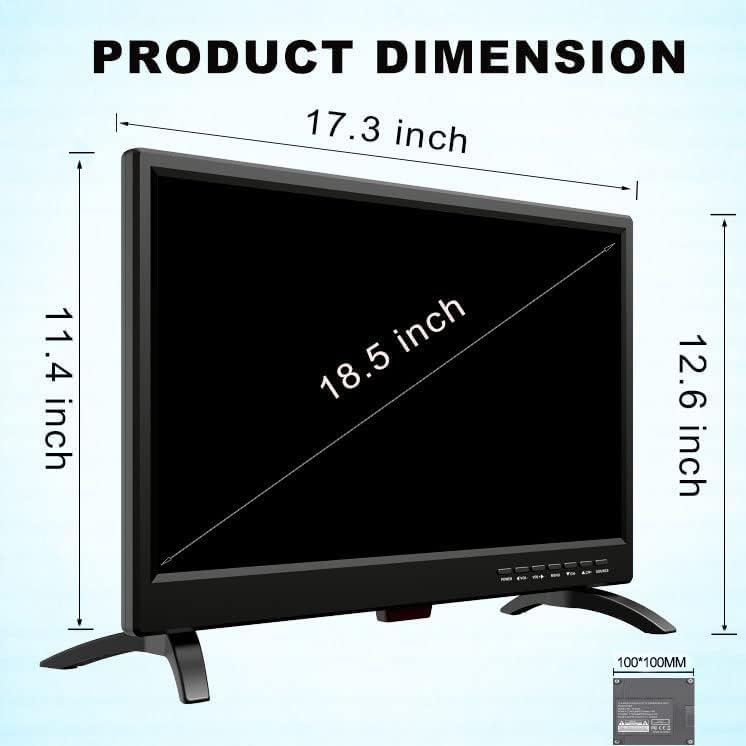
Image: A diagram illustrating the physical dimensions of the Feihe 19-inch TV, including its width (17.3 inches), height (12.6 inches), and screen diagonal (18.5 inches).

Image: The Feihe 19-inch TV screen displaying different resolution options (1366x768, 1280x768, 1024x768, 720x480) and highlighting its Full HD support and 16:9 aspect ratio.
Troubleshooting
If you encounter issues with your Feihe TV, refer to the following common troubleshooting steps:
- No Power:
- Ensure the 12V DC power adapter is securely connected to both the TV and the power source.
- Verify the 12V DC power source is active and providing power.
- No Signal / Poor Picture Quality (Antenna):
- Check if the antenna cable is securely connected to the "Antenna In" port.
- Perform an "Auto Scan" for channels (refer to Setup Guide).
- Adjust the antenna position, ideally near a window, for better reception.
- Consider using a larger outdoor antenna if local signals are weak.
- No Signal (HDMI/VGA/AV):
- Ensure the external device (TV box, DVD player, computer) is powered on.
- Verify the cable (HDMI, VGA, RCA) is securely connected to both the TV and the external device.
- Press the "Source" button on the remote and select the correct input (HDMI, VGA, AV).
- Remote Control Not Working:
- Check and replace the batteries in the remote control.
- Ensure there are no obstructions between the remote and the TV's IR sensor.
- Remember that the TV is not compatible with universal or cable provider remotes; use only the included Feihe remote.
- Low Volume:
- Adjust the volume using the TV's remote control.
- If external speakers are connected via the headphone jack, ensure their volume is also adjusted. Note that the headphone jack output may cut sound for built-in speakers.
- Screen Too Bright/Picture Settings:
- Access the "Picture" menu in the TV settings to adjust brightness, contrast, color, and other display options.
Maintenance and Care
Proper care will extend the life of your Feihe TV.
- Cleaning the Screen: Gently wipe the screen with a soft, lint-free cloth. For stubborn marks, slightly dampen the cloth with water or a screen-specific cleaning solution (do not spray directly on the screen).
- Cleaning the Casing: Use a soft, dry cloth to clean the TV casing. Avoid using abrasive cleaners or solvents.
- Storage: If storing the TV for an extended period, unplug it and store it in a cool, dry place, away from direct sunlight and extreme temperatures.
- Handling: Always handle the TV by its edges or frame. Avoid touching the screen directly.
Warranty and Support
Feihe is committed to providing quality products and customer satisfaction. For warranty information, technical support, or service inquiries, please refer to the contact information provided with your purchase documentation or visit the official Feihe website.
Note: Product specifications and features are subject to change without prior notice.