
CHESONA CHESONA-001
CHESONA Wireless/Wired Dual-Mode Keyboard User Manual
Model: CHESONA-001
1. Product Overview
The CHESONA Wireless/Wired Dual-Mode Keyboard is designed for seamless integration with Apple devices, offering both Bluetooth 5.1 wireless and USB-C wired connectivity. It features a full-size layout with a number pad and customizable function keys, optimized for MacOS, iPadOS, and iOS. The ultra-slim design incorporates quiet scissor-switch keys and includes a waterproof silicone membrane for protection.
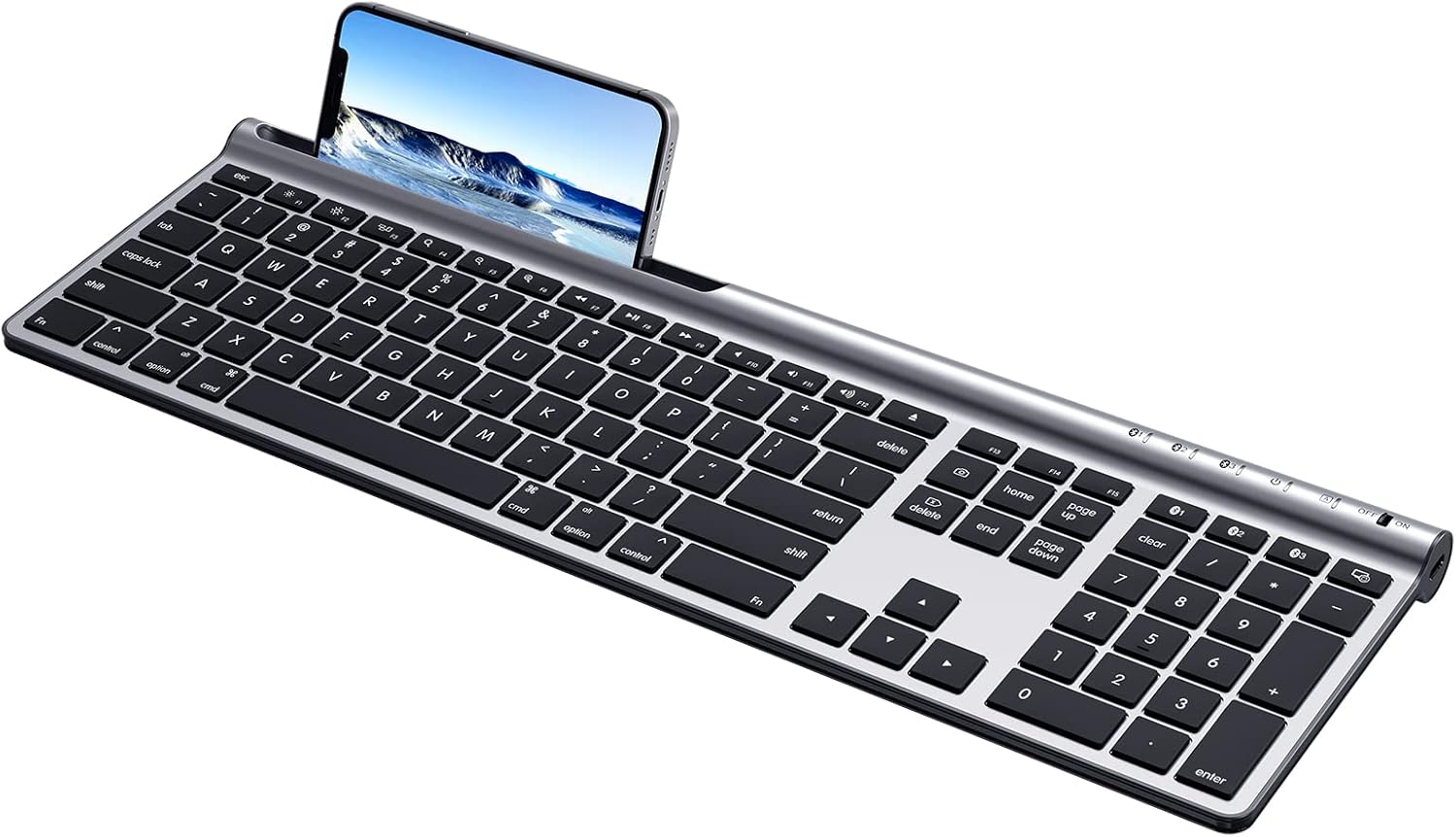
Image: The CHESONA Wireless Keyboard, showcasing its full-size layout and integrated slot for a smartphone or tablet.
2. Package Contents
Please verify that all items are present in the package:
- 1 × CHESONA Full-Size Keyboard for Mac OS
- 1 × USB-A to USB-C Charging Cable
- 1 × Silicone Keyboard Cover
- 1 × User Manual (this document)

Image: The CHESONA keyboard, USB-A to USB-C charging cable, and user manual as included in the package.
3. Features
- Dual-Mode Connectivity: Supports Bluetooth 5.1 wireless connection and USB-A to USB-C wired connection.
- Multi-Device Pairing: Connects to up to three Bluetooth devices simultaneously, allowing quick switching.
- Mac OS/iOS Compatibility: Optimized for Mac OS 10.0 and above, and iOS 9.2 and above.
- Rechargeable Battery: Built-in 280 mAh lithium battery, rechargeable via USB-C.
- Full-Size Layout: Includes a dedicated number pad for efficient data entry.
- Customizable Function Keys: Fn 13, Fn 14, and Fn 15 keys can be customized via operating system settings.
- Responsive Scissor-Switch Keys: Provides a quiet and tactile typing experience.
- Ultra-Slim Design: Constructed from ABS, silicone, and galvanized sheet for durability and portability.
- Waterproof Membrane: Includes a silicone cover to protect against accidental liquid spills.
4. Setup
4.1 Charging the Keyboard
The keyboard is equipped with a 280 mAh lithium battery. Before first use, or when the battery indicator is low, charge the keyboard using the provided USB-A to USB-C charging cable.
- Connect the USB-C end of the cable to the Type-C charging port on the keyboard (located on the right side).
- Connect the USB-A end of the cable to a power source (e.g., computer USB port, USB wall adapter).
- A full charge typically takes less than 2 hours and provides up to 110 hours of continuous use.

Image: The Type-C charging port on the side of the keyboard, with the charging cable inserted.
4.2 Wireless (Bluetooth) Connection
The keyboard can connect to up to three devices wirelessly via Bluetooth 5.1.
- Turn on the keyboard using the ON/OFF switch located on the right side.
- Press and hold one of the Bluetooth channel keys (BT1, BT2, or BT3) for 3-5 seconds until its indicator light flashes rapidly. This indicates pairing mode.
- On your device (Mac, iPad, iPhone), go to Bluetooth settings and select "CHESONA Keyboard" from the list of available devices.
- Once paired, the indicator light for the selected channel will stop flashing and remain solid for a few seconds before turning off.
- Repeat these steps for up to two additional devices using the other BT channel keys.

Image: Illustration of the keyboard's multi-device Bluetooth connectivity, showing connections to an iMac, MacBook, and iPad.
4.3 Wired Connection
The keyboard can also be used with a wired connection.
- Connect the USB-C end of the provided cable to the Type-C port on the keyboard.
- Connect the USB-A end of the cable to a USB-A port on your computer.
- The keyboard will be recognized automatically by your device.

Image: The keyboard connected to a device via its USB-C port, illustrating the wired connection capability.
5. Operating Instructions
5.1 Switching Between Devices
If you have paired the keyboard with multiple devices via Bluetooth, you can switch between them by pressing the corresponding Bluetooth channel key:
- Press BT1 to connect to the first paired device.
- Press BT2 to connect to the second paired device.
- Press BT3 to connect to the third paired device.

Image: The keyboard shown connected to a laptop, monitor, and smartphone, illustrating the multi-device switching function using BT1, BT2, and BT3 keys.
5.2 Function Keys (Fn)
The keyboard features a full row of Fn-function keys designed for Mac OS. These keys provide quick access to various system functions.
- Standard Fn Keys: F1-F12 perform their designated Mac OS functions (e.g., volume control, media playback).
- Customizable Keys: Fn 13, Fn 14, and Fn 15 can be assigned custom functions through your Mac OS or iOS settings to enhance workflow.
- Note: On Mac mini/Studio/Pro, the brightness adjustment functions (F1/F2) may not be supported. Other Fn keys will function normally.

Image: A visual representation of the keyboard's function key layout, indicating the standard and customizable Fn keys.
5.3 Automatic Sleep Mode
To conserve battery life, the keyboard will enter sleep mode if not used for more than 30 minutes. To wake it up, simply press any key.
6. Maintenance
6.1 Cleaning and Protection
The keyboard comes with a waterproof silicone membrane to protect against spills and dust.
- Regularly clean the keyboard surface with a soft, dry cloth.
- For spills, ensure the silicone cover is properly placed over the keys. If liquid gets under the cover, remove the cover, gently wipe the keys and surface with a damp cloth, and allow to dry completely before reattaching the cover or using the keyboard.
- Avoid using harsh chemicals or abrasive materials for cleaning.

Image: The CHESONA keyboard with its transparent silicone waterproof cover in place, demonstrating protection against liquid spills.
7. Troubleshooting
- Keyboard not connecting via Bluetooth:
- Ensure the keyboard is turned ON and fully charged.
- Make sure the correct BT channel key (BT1, BT2, or BT3) is selected and flashing, indicating pairing mode.
- Check that Bluetooth is enabled on your device and that the keyboard is within the 10-meter (33ft) range.
- Try unpairing and re-pairing the keyboard from your device's Bluetooth settings.
- Keys not responding:
- Check the battery level and charge the keyboard if necessary.
- Ensure the keyboard is properly connected (either via Bluetooth or wired USB-C).
- If using wired connection, try a different USB port on your computer.
- Restart your device.
- Brightness adjustment (F1/F2) not working on Mac mini/Studio/Pro:
- This is a known compatibility limitation for these specific Mac models. Other Fn keys should function as expected.
8. Specifications
| Model Number | CHESONA-001 |
| Connectivity Technology | Bluetooth 5.1, USB-C Wired |
| Compatible Devices | MacBook Air/Pro, iMac, Mac mini/Studio/Pro, iPad, iPhone, etc. |
| Operating System Support | Mac OS 10.0+, iOS 9.2+ |
| Battery Type | Lithium Polymer |
| Battery Capacity | 280 mAh |
| Charging Port | USB-C |
| Continuous Working Time | Up to 110 hours (on full charge) |
| Product Dimensions | 12.01 x 9.88 x 1.28 inches (30.5 x 25.1 x 3.25 cm) |
| Item Weight | 1.57 pounds (0.71 kg) |
| Material | ABS, Silicone, Galvanized Sheet |
| Special Features | Rechargeable, Waterproof (with cover), Multi-Device Support |
| Color | Silver Black |
9. Warranty and Support
For warranty information and technical support, please refer to the official CHESONA website or contact their customer service directly. Details are typically provided on the product packaging or the manufacturer's website.
You can visit the CHESONA Store on Amazon for more information.
Related documentsCHESONA-001


Ask a question about this manual
Ask about setup, troubleshooting, compatibility, parts, safety, or missing instructions. Manuals+ will review the question and use this page’s manual context to help answer it.