
Introduction
Thank you for purchasing the KitSound Boombar 30 Bluetooth Speaker. This manual provides essential information for setting up, operating, and maintaining your device. Please read these instructions carefully before use and retain them for future reference.
Package Contents
- KitSound Boombar 30 Bluetooth Speaker
- Charging Cable
- User Manual (this document)
Product Overview
Familiarize yourself with the components and controls of your KitSound Boombar 30 speaker.
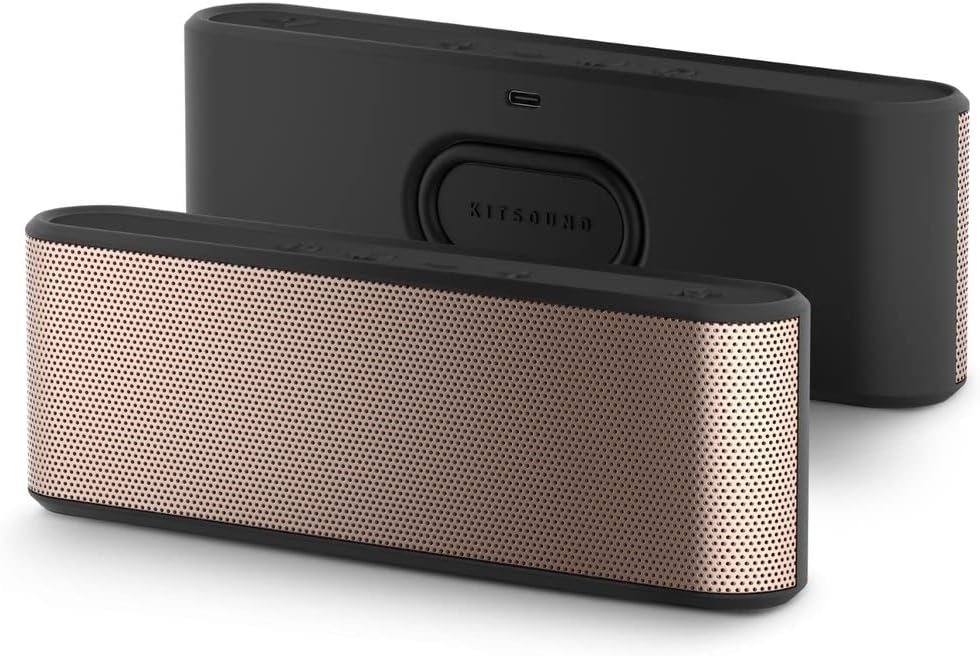
Image: Front and rear view of two KitSound Boombar 30 speakers. One speaker shows the rose gold grille, the other shows the black rear panel with a central button and charging port.

Image: Top view of the KitSound Boombar 30 speaker, highlighting the control panel. Buttons include power, Bluetooth pairing, volume up/next track, volume down/previous track, and a central multi-function button.
Controls and Indicators:
- Power Button: Turns the speaker on or off.
- Bluetooth Pairing Button: Initiates Bluetooth pairing mode.
- Volume Up / Next Track Button: Increases volume with a short press, skips to next track with a long press.
- Volume Down / Previous Track Button: Decreases volume with a short press, goes to previous track with a long press.
- Multi-function Button: Play/Pause, Answer/End Call, Activate TrueBass.
- Charging Port: USB-C port for charging the speaker.
- LED Indicator: Displays charging status and Bluetooth connection status.
Setup
1. Charging the Speaker
- Connect the provided charging cable to the charging port on the speaker.
- Connect the other end of the charging cable to a suitable USB power source (e.g., wall adapter, computer USB port).
- The LED indicator will illuminate to show charging status. A full charge provides up to 20 hours of playtime.
- Once fully charged, disconnect the charging cable.
2. Powering On/Off
- To power on, press and hold the Power Button until the LED indicator lights up.
- To power off, press and hold the Power Button again until the LED indicator turns off.
3. Bluetooth Pairing
- Ensure the speaker is powered on and within range of your Bluetooth-enabled device (smartphone, tablet).
- Press the Bluetooth Pairing Button on the speaker. The LED indicator will flash, indicating it is in pairing mode.
- On your device, go to Bluetooth settings and search for available devices.
- Select "KitSound Boombar 30" from the list.
- Once paired, the LED indicator on the speaker will stop flashing and remain solid. You are now connected and ready to play audio.
Operating the Speaker
Basic Audio Controls
- Play/Pause: Short press the Multi-function Button.
- Volume Up: Short press the Volume Up / Next Track Button.
- Volume Down: Short press the Volume Down / Previous Track Button.
- Next Track: Long press the Volume Up / Next Track Button.
- Previous Track: Long press the Volume Down / Previous Track Button.
Call Handling
- Answer Call: Short press the Multi-function Button when a call comes in.
- End Call: Short press the Multi-function Button during a call.
- Reject Call: Long press the Multi-function Button when a call comes in.
TrueBass EQ Mode
Activate the TrueBass EQ mode for enhanced bass performance.
- To activate/deactivate TrueBass, double-press the Multi-function Button.
- You will hear an audible cue indicating the mode change.
True Wireless Stereo (TWS) Pairing
Connect two KitSound Boombar 30 speakers for an immersive stereo sound experience.
- Ensure both Boombar 30 speakers are powered on and not connected to any other Bluetooth device.
- On one speaker (this will be the primary speaker), long press the Bluetooth Pairing Button until you hear a prompt.
- The two speakers will automatically search for and connect to each other. You will hear a confirmation tone once connected.
- Once TWS paired, connect your device to the primary speaker via Bluetooth as described in the "Bluetooth Pairing" section.
- Audio will now play in stereo through both speakers.
Maintenance
- Keep the speaker away from water, moisture, and extreme temperatures.
- Clean the speaker with a soft, dry cloth. Do not use abrasive cleaners or solvents.
- Avoid dropping or subjecting the speaker to strong impacts.
- When not in use for extended periods, store the speaker in a cool, dry place and charge it periodically to maintain battery health.
Troubleshooting
| Problem | Possible Cause | Solution |
|---|---|---|
| Speaker does not power on. | Low battery. | Charge the speaker using the provided charging cable. |
| Cannot pair with Bluetooth device. | Speaker not in pairing mode; device too far; previously paired. | Ensure speaker is in pairing mode (flashing LED). Move device closer. Forget "KitSound Boombar 30" from your device's Bluetooth list and try pairing again. |
| No sound or low volume. | Volume too low on speaker or device; speaker not connected. | Increase volume on both the speaker and your connected device. Ensure the speaker is successfully paired. |
| Sound distortion. | Volume too high; interference. | Reduce volume. Move speaker away from other electronic devices that may cause interference. |
| TWS pairing fails. | Speakers already connected to another device; incorrect pairing procedure. | Ensure both speakers are disconnected from other devices. Follow TWS pairing instructions carefully. |
Specifications
- Model Name: Boombar 30
- Item Model Number: KSBOO30RG
- Connectivity Technology: Bluetooth
- Speaker Maximum Output Power: 20 Watts
- Audio Output Mode: Stereo
- Playtime: Up to 20 hours
- Compatible Devices: Smartphone, Tablet
- Mounting Type: Tabletop
- Package Dimensions: 24.13 x 8.64 x 6.86 cm
- Weight: 360 g
- Manufacturer: KitSound
Safety Information
Please read and follow these safety precautions to ensure safe operation of your speaker:
- Do not expose the speaker to extreme temperatures, direct sunlight, or open flames.
- Do not immerse the speaker in water or expose it to excessive moisture.
- Do not attempt to disassemble or modify the speaker. This may void the warranty and cause damage.
- Use only the provided charging cable or a certified equivalent.
- Avoid listening at high volumes for extended periods to prevent hearing damage.
- Keep out of reach of children.
Warranty and Support
For warranty information or technical support, please refer to the documentation provided with your purchase or visit the official KitVision website. Keep your proof of purchase for any warranty claims.
For further assistance, you may contact KitVision customer support through their official channels.
