
TeleAdapt ChargeTime USB-C (TA-7835)
TeleAdapt LCD Display Alarm Clock with 3 USB Charging Ports
Instruction Manual
1. Introduction
Thank you for choosing the TeleAdapt LCD Display Alarm Clock. This device is designed to provide accurate timekeeping, reliable alarm functions, and convenient charging for your mobile devices. Its compact design and intuitive features make it an ideal addition to any bedside table, office, or living space. This manual will guide you through the setup, operation, and maintenance of your new alarm clock.
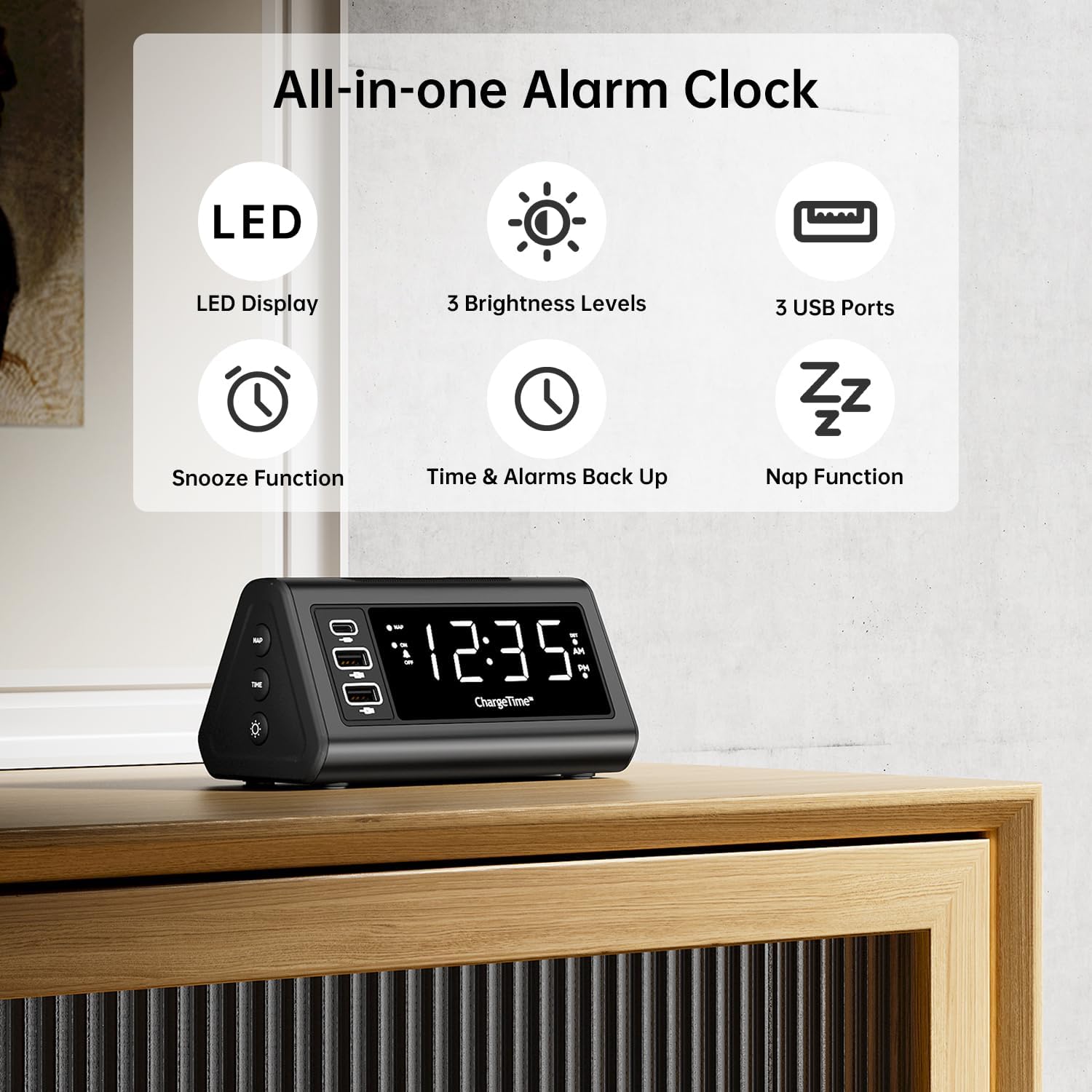
Figure 1: Overview of TeleAdapt Alarm Clock features.
2. Important Safety Information
Please read all safety instructions carefully before using this product. Failure to follow these instructions may result in electric shock, fire, or damage to the device.
- Do not expose the device to water or excessive moisture.
- Do not disassemble, repair, or modify the device. Refer all servicing to qualified personnel.
- Use only the provided AC power adapter. Using an incompatible adapter may damage the device.
- Ensure proper ventilation around the device. Do not cover ventilation openings.
- Keep the device away from direct sunlight, heat sources, and open flames.
- Dispose of batteries properly according to local regulations.
3. Package Contents
Verify that all items are present in the package:
- TeleAdapt LCD Display Alarm Clock
- AC Power Adapter with interchangeable plugs
- 2 x AAA Batteries (for backup)
- Instruction Manual (this document)
4. Product Overview
Familiarize yourself with the various parts and controls of your alarm clock:
Front Display and USB Ports:
- Large LED Display: Shows current time, AM/PM indicator, and DST status.
- USB-C Port (1x): For fast charging compatible devices (5V/3A output).
- USB-A Ports (2x): For charging various devices (5V/2.4A each output).
- NAP Indicator: Lights up when Nap function is active.
- Alarm Indicator: Lights up when alarm is set.
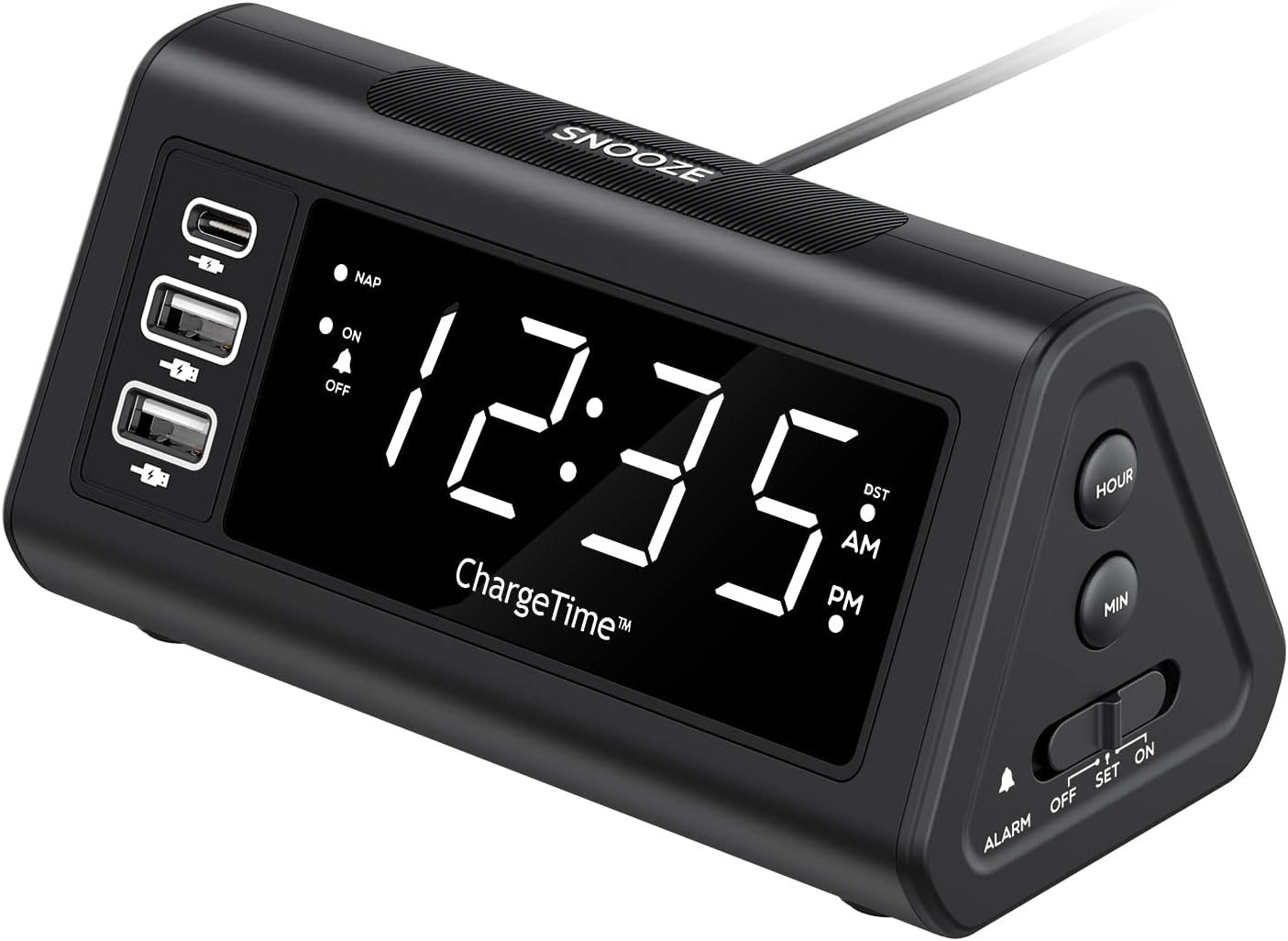
Figure 2: Front view with display and USB ports.
Side Controls:
- NAP Button: Activates and adjusts the nap timer.
- ON-OFF Button: Toggles the alarm on or off.
- TIME Button: Used in conjunction with SNOOZE to set time.
- DIMMER Button: Adjusts display brightness (Off, Low, High).

Figure 3: Side controls for various functions.
Top and Back:
- SNOOZE Button: Large button on top for snooze and dimmer adjustment.
- ALARM Switch (OFF/SET/ON): Slider switch to control alarm setting and activation.
- HOUR Button: Adjusts hour during time/alarm setting.
- MIN Button: Adjusts minute during time/alarm setting.
- Battery Compartment: Holds 2 x AAA batteries for backup power.
- DC 12V/5A Input: Power input for the AC adapter.
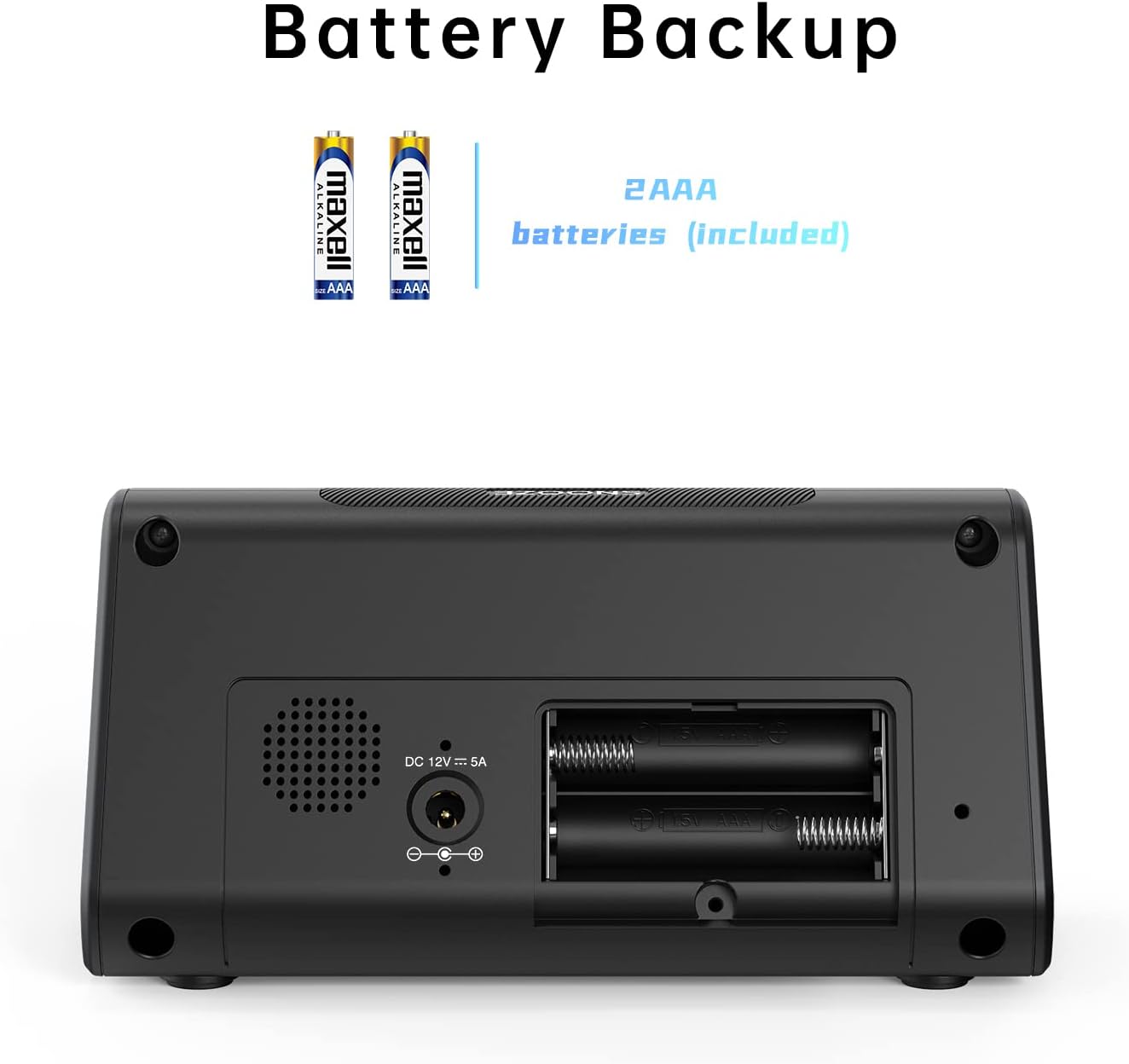
Figure 4: Back view with battery compartment and power input.
5. Setup
5.1. Power Connection
- Insert the 2 x AAA batteries into the battery compartment on the back of the alarm clock. Ensure correct polarity. These batteries provide backup power to retain time and alarm settings during a power outage.
- Connect the provided AC power adapter to the DC 12V/5A input port on the back of the alarm clock.
- Plug the AC power adapter into a standard wall outlet. The display will light up.

Figure 5: Connecting the AC power adapter.
5.2. Setting the Current Time
- Press and hold the TIME button and the SNOOZE button simultaneously for 3 seconds. The display will begin to flash, indicating time setting mode.
- Use the HOUR and MIN buttons on the side to adjust the year, month, and date in sequence. Press the TIME button to confirm each setting and move to the next.
- After setting the date, adjust the current hour and minute using the HOUR and MIN buttons.
- Press the TIME button again to confirm the time.
- You can enable or disable the Auto DST (Daylight Saving Time) feature in this menu. Use the HOUR or MIN buttons to select ON or OFF, then press TIME to confirm. (Note: Auto DST is only available in US time zones).

Figure 6: Setting the time on the alarm clock.
6. Operating Instructions
6.1. Setting the Alarm
- Slide the ALARM switch on the side to the SET position. The time display will flash.
- Use the HOUR and MIN buttons to set your desired wake-up time.
- Slide the ALARM switch to the ON position to activate the alarm. The alarm indicator light will illuminate on the display.
6.2. Snooze Function
When the alarm sounds, press the large SNOOZE button on top to temporarily silence the alarm. The alarm will sound again after the set snooze duration.
To set the snooze duration (5, 10, or 15 minutes):
- Press and hold the SNOOZE button for 3 seconds. The current snooze time will flash on the display.
- Repeatedly press the SNOOZE button to cycle through 5, 10, or 15 minutes.
- Press the SNOOZE button again to confirm your selection.

Figure 7: Using the Snooze function.
6.3. Nap Function
The Nap function allows you to set a short-term alarm for a nap without affecting your main alarm setting.
- Press the NAP button on the side of the clock. The display will show a nap duration (e.g., 90, 75, 60, 45, 30, 15 minutes) or OFF.
- Continue pressing the NAP button to cycle through the desired nap times or select OFF to disable. The “NAP” indicator will light when active.
- To stop the nap alarm when it sounds, press either the SNOOZE or NAP button.

Figure 8: Utilizing the Nap function.
6.4. Adjusting Display Brightness
The alarm clock features three levels of display brightness: Off, Low, and High.
- Repeatedly press the SNOOZE/DIMMER button on the top of the clock to cycle through the brightness levels.

Figure 9: Display brightness options.
6.5. Charging Devices
The alarm clock includes three USB charging ports for your convenience:
- 1 x USB-C Port: Provides 5V/3A output for fast charging compatible devices.
- 2 x USB-A Ports: Provide 5V/2.4A output each for charging various smartphones, tablets, and other USB-powered devices.
Simply connect your device's charging cable to the appropriate USB port on the alarm clock. No additional charging station is required.
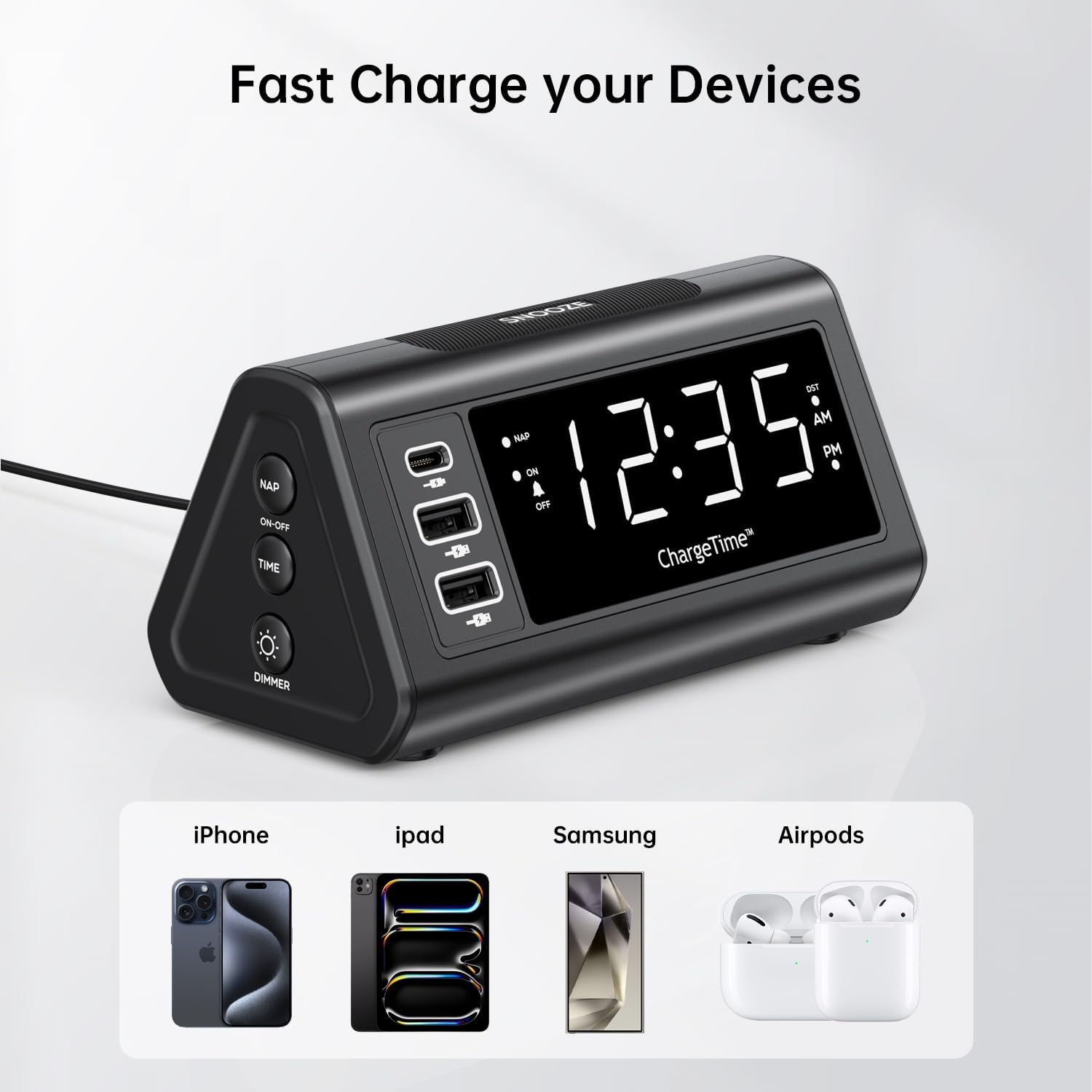
Figure 10: Charging devices via USB ports.
7. Maintenance
7.1. Cleaning
To clean the alarm clock, gently wipe the surface with a soft, dry cloth. Do not use abrasive cleaners, waxes, or solvents as they may damage the finish. Ensure the device is unplugged from the power outlet before cleaning.
7.2. Battery Replacement
The 2 x AAA batteries are for backup only and do not power the main functions. Replace them periodically (e.g., once a year) to ensure settings are retained during power outages. To replace, open the battery compartment on the back, remove old batteries, and insert new ones with correct polarity.
8. Troubleshooting
| Problem | Possible Cause | Solution |
|---|---|---|
| Display is blank or not lighting up. | No power, power adapter not connected, or display brightness set to OFF. | Ensure AC adapter is securely plugged into the clock and wall outlet. Press the SNOOZE/DIMMER button repeatedly to adjust brightness. |
| Alarm does not sound. | Alarm is not set, alarm switch is OFF, or volume is too low (if applicable). | Verify alarm time is set correctly. Slide the ALARM switch to the ON position. |
| Time settings are lost after power outage. | Backup batteries are dead or not installed. | Ensure 2 x AAA batteries are installed correctly and are not depleted. Replace if necessary. |
| Cannot set time/alarm. | Incorrect button combination or sequence. | Refer to Section 5.2 for time setting (TIME + SNOOZE for 3 seconds) and Section 6.1 for alarm setting (ALARM switch to SET). |
| Devices not charging via USB ports. | Device not compatible, cable faulty, or clock not powered. | Ensure the alarm clock is powered by the AC adapter. Try a different USB cable or device to confirm functionality. |
9. Specifications
- Brand: TeleAdapt
- Model: ChargeTime USB-C (TA-7835)
- Color: Black
- Display Type: Digital LED
- Power Source: Corded Electric (AC mains), Battery Powered (backup)
- USB-C Output: 5V/3A
- USB-A Output: 5V/2.4A (each port)
- Battery Backup: 2 x AAA batteries (included)
- Dimensions: Approximately 7.48 x 5.35 x 3.43 inches
- Item Weight: Approximately 1.54 pounds
- Special Features: 3-level display brightness, Snooze function (5/10/15 min), Nap timer (15-90 min), Auto-DST (US time zones only)
10. Warranty and Support
For warranty information or technical support, please contact TeleAdapt customer service. Details can typically be found on the manufacturer's official website or through your point of purchase. Please retain your proof of purchase for warranty claims.
Manufacturer: TeleAdapt
Website: www.teleadapt.com (Please note: This is a placeholder URL. Refer to your product packaging or official documentation for the correct support contact information.)
Related documentsChargeTime USB-C (TA-7835)

Ask a question about this manual
Ask about setup, troubleshooting, compatibility, parts, safety, or missing instructions. Manuals+ will review the question and use this page’s manual context to help answer it.