
Introduction
This manual provides detailed instructions for the setup, operation, maintenance, and troubleshooting of your Oversteel KOVAR USB Gaming Keyboard. Please read this manual thoroughly before using the product to ensure proper functionality and longevity.
The Oversteel KOVAR keyboard features a full layout with 108 keys, RGB illumination, Outemu Blue mechanical switches, and anti-ghosting technology for precise input.
Package Contents
Verify that all items are present in the package:
- Oversteel KOVAR USB Gaming Keyboard
- USB Cable (attached)
- Instruction Manual (this document)
Setup
System Requirements
- Operating System: Windows, macOS, Android compatible
- Available USB port
Connecting the Keyboard
- Unpack the Oversteel KOVAR keyboard from its packaging.
- Locate an available USB port on your computer or compatible device.
- Insert the USB connector of the keyboard cable into the USB port.
- The operating system will automatically detect and install the necessary drivers. This process may take a few moments.
- Once installation is complete, the keyboard is ready for use.
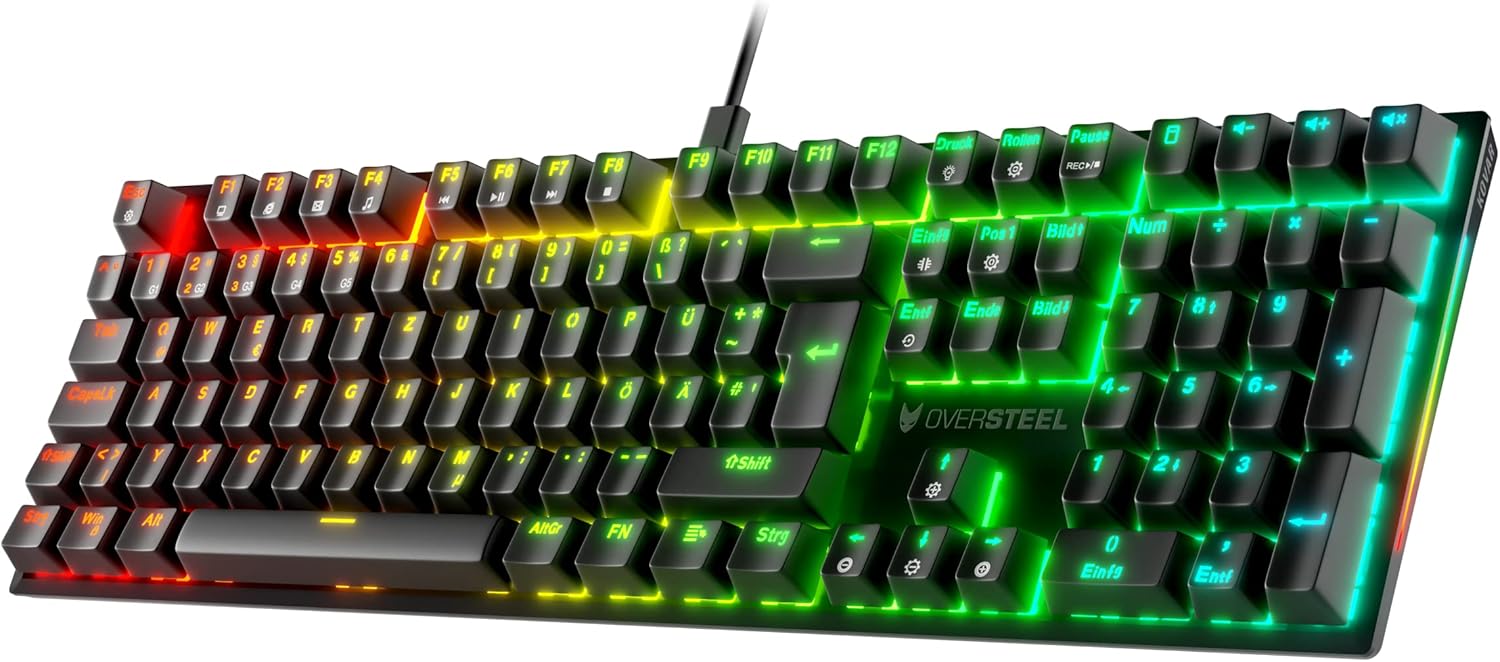
Image: The Oversteel KOVAR USB Gaming Keyboard, showcasing its full layout and RGB illumination, connected via its USB cable.
Operating Instructions
Basic Keyboard Functions
The KOVAR keyboard functions as a standard 108-key layout keyboard. All standard alphanumeric keys, function keys (F1-F12), navigation keys, and the numeric keypad operate as expected.
RGB Lighting Control
The keyboard features customizable RGB lighting with 22 modes. Use the following key combinations to control the lighting effects:
- Fn + Esc: Toggles the keyboard backlighting On/Off.
- Fn + Print Screen (Druck): Cycles through different lighting effects/modes.
- Fn + Scroll Lock (Rollen): Changes colors for single-color lighting effects.
- Fn + Home (Pos 1): Activates specific lighting modes (may vary by mode).
- Fn + Up Arrow (↑): Increases backlight brightness.
- Fn + Down Arrow (↓): Decreases backlight brightness.
- Fn + Left Arrow (←): Decreases the speed of dynamic lighting effects.
- Fn + Right Arrow (→): Increases the speed of dynamic lighting effects.

Image: A detailed view of the Oversteel KOVAR keyboard, highlighting the RGB illuminated keys and the German layout.
Anti-Ghosting and N-Key Rollover
The KOVAR keyboard features anti-ghosting technology on every key and full N-Key Rollover. This ensures that all key presses are registered accurately, even when multiple keys are pressed simultaneously, which is beneficial for fast-paced typing and gaming.
Maintenance
Cleaning the Keyboard
- Disconnect the keyboard from your computer before cleaning.
- Use a soft, lint-free cloth slightly dampened with water or a mild cleaning solution to wipe the surface of the keyboard.
- For dust and debris between keys, use compressed air or a small brush.
- Do not immerse the keyboard in water or use harsh chemicals.
- Ensure the keyboard is completely dry before reconnecting it.
Storage
When not in use for extended periods, store the keyboard in a clean, dry environment away from direct sunlight and extreme temperatures.
Troubleshooting
Keyboard Not Responding
- Check USB Connection: Ensure the USB cable is securely plugged into both the keyboard and the computer's USB port. Try a different USB port.
- Restart Computer: A system restart can often resolve connectivity issues.
- Test on Another Device: Connect the keyboard to another computer or compatible device to determine if the issue is with the keyboard or the original device.
- Driver Reinstallation: On Windows, go to Device Manager, find the keyboard, uninstall the driver, and then restart your computer to allow it to reinstall automatically.
RGB Lighting Not Working or Incorrect
- Check Brightness: Ensure the brightness is not set to the lowest level (Fn + Up Arrow to increase).
- Toggle Lighting: Use Fn + Esc to turn the lighting off and on again.
- Cycle Modes: Use Fn + Print Screen to cycle through all available lighting modes.
- Software (if applicable): If Oversteel provides specific software for lighting control, ensure it is installed and updated.
Keys Not Registering or Double-Typing
- Clean Keys: Dust or debris under the keycap can interfere with switch operation. Use compressed air to clean around the affected keys.
- Test Specific Keys: Use an online keyboard tester to identify if specific keys are consistently failing.
- Firmware Update: Check the Oversteel support website for any available firmware updates for the KOVAR keyboard.
Specifications
| Model Name | Oversteel KOVAR |
| Model Number | NAT-OV-KOVAR-DE-BLUE |
| Connectivity | USB |
| Switch Type | Outemu Blue Mechanical Switches |
| Key Layout | Full Layout (108 keys), German (DE) |
| Backlighting | RGB, 22 modes |
| Anti-Ghosting | Full N-Key Rollover |
| Dimensions (L x W x H) | 17.13 x 5.04 x 1.54 inches (43.5 x 12.8 x 3.9 cm) |
| Weight | 2.27 pounds (1.03 kg) |
| Material | Plastic |
| Compatible OS | PC (Windows), MAC, Android |

Image: An angled view of the Oversteel KOVAR keyboard, showing its full size and keycap profile.
Warranty Information
Oversteel products are covered by a limited warranty against defects in materials and workmanship. The specific duration and terms of the warranty may vary by region and retailer. Please retain your proof of purchase for warranty claims.
This warranty does not cover damage caused by accident, abuse, misuse, natural disaster, or unauthorized modification or repair.
Customer Support
For technical assistance, warranty inquiries, or further information, please visit the official Oversteel website or contact their customer support department.
Website: www.oversteel.com
Please have your product model number (KOVAR) and proof of purchase ready when contacting support.