
FreedConn R1plus
Contents
FreedConn R1plus Motorcycle Helmet Headset with Camera User Manual
Model: R1plus
1. Introduction
This manual provides detailed instructions for the installation, operation, and maintenance of your FreedConn R1plus Motorcycle Helmet Headset with Camera. Please read this manual thoroughly before using the device to ensure proper function and safety. Keep this manual for future reference.

Image 1.1: FreedConn R1plus Motorcycle Helmet Headset with Camera. This image shows the main unit of the R1plus headset, highlighting its compact design and integrated camera lens.
2. Product Features
- Integrated 1080P Camera: Features a 120-degree wide-angle lens for high-definition video recording.
- WiFi Connectivity: Allows viewing captured videos and photos on a smartphone via the GoPlus Cam app.
- Bluetooth 5.0 Intercom: Supports communication among up to 6 riders with a range of up to 1000 meters (200 meters between 2 riders). Connects to two Bluetooth devices simultaneously.
- CVC Noise Cancellation: Ensures clear audio during calls and intercom communication by reducing background noise.
- Music Sharing: Enables sharing music with other connected riders.
- One-Touch Operation: Rotating button for easy control of calls, music, FM radio, and GPS navigation audio. Supports voice assistants like Siri/Bixby.
- IP65 Dustproof and Waterproof: Designed for reliable performance in various weather conditions, including rain and snow.
- Long Battery Life: 1500mAh battery provides up to 30 hours of talk time and 4-5 hours of video recording. Supports charging while in use.
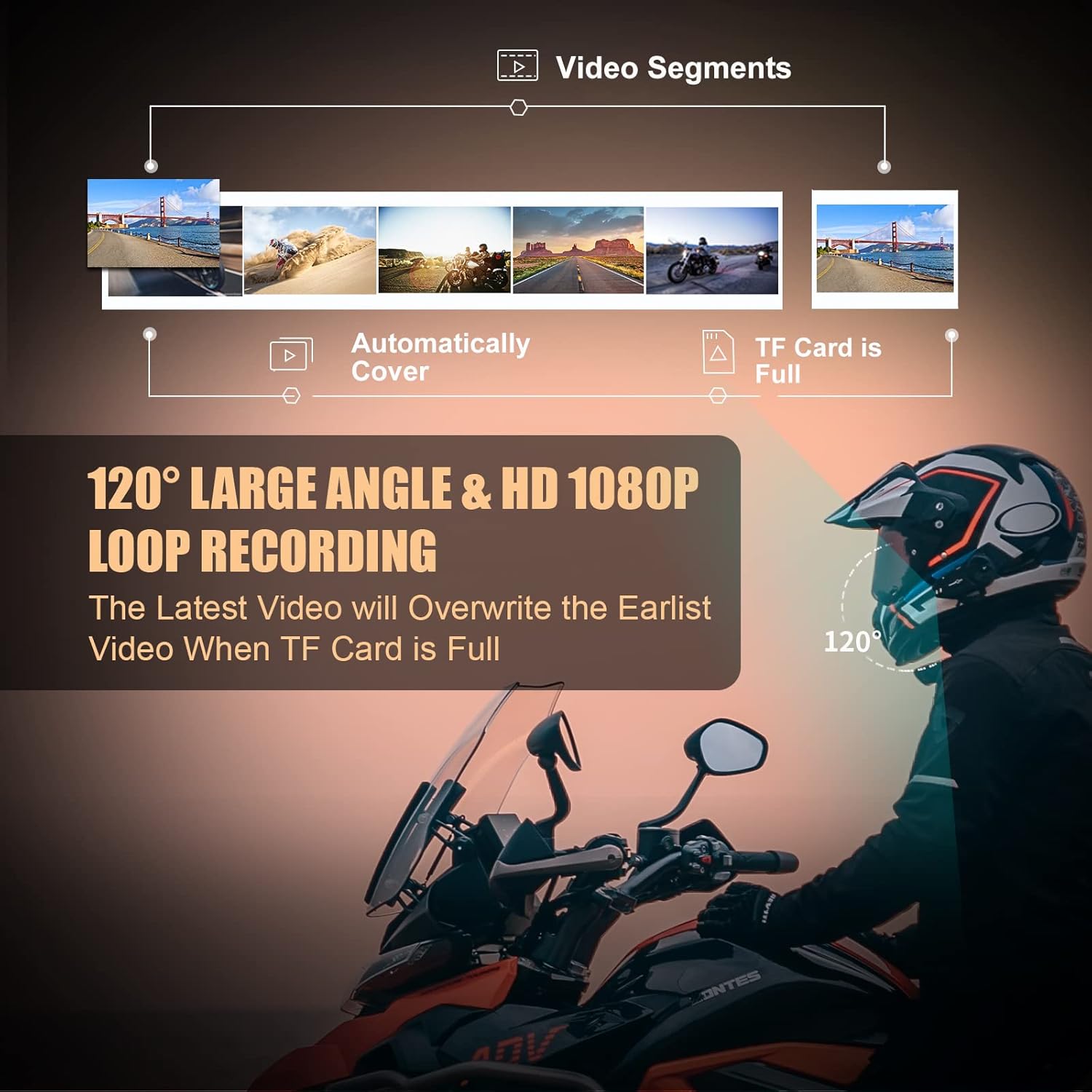
Image 2.1: The FreedConn R1plus mounted on a motorcycle helmet, illustrating the 120-degree wide-angle camera for recording.

Image 2.2: Two riders with FreedConn R1plus units, demonstrating the 6-rider group intercom capability with a range of up to 1000 meters.

Image 2.3: A smartphone displaying the GoPlus Cam app interface, connected to the R1plus unit, illustrating WiFi functionality for video and photo management.
3. Package Contents
Verify that all items are present in your package:
- FreedConn R1plus Bluetooth Intercom Unit
- 2-in-1 Soft & Hard Mic Earphone Set
- Hook Clip and Velcro Clip for Helmet Mounting
- Headphone Velcro Pads
- USB Type-C Charging Cable
- Allen Key
- User Manual
- Packing Box

Image 3.1: A visual representation of all components included in the FreedConn R1plus package, such as the intercom unit, earphones, mounting clips, and cables.
4. Setup and Installation
4.1 Charging the Device
Before first use, fully charge the R1plus unit. Connect the provided USB Type-C cable to the charging port on the device and to a USB power source. The LED indicator will show charging status. A full charge takes approximately 2 hours.

Image 4.1: The R1plus unit with an illustration of its 1500mAh battery, indicating its long battery life and the ability to charge while in use.
4.2 Mounting to Helmet
- Choose a suitable location on the left side of your helmet.
- Use either the hook clip or the Velcro clip to securely attach the R1plus unit to the helmet shell. Ensure it is firmly in place.
4.3 Installing Speakers and Microphone
- Attach the headphone Velcro pads inside the helmet, aligning them with your ears.
- Secure the speakers to the Velcro pads.
- Position the microphone in front of your mouth, ensuring it is close enough for clear voice pickup but does not obstruct your vision or comfort.
- Connect the speaker/microphone cable to the R1plus unit.
4.4 App Download
To utilize the WiFi camera features, download the GoPlus Cam app from your smartphone's app store. This app allows you to view, manage, and download recorded videos and photos.

Video 4.1: An instructional video demonstrating the setup and features of the FreedConn R1plus, including app download and basic operation. This video provides a visual guide to assist with initial setup.
5. Operating Instructions
5.1 Power On/Off
- Power On: Press and hold the Power button until the LED indicator lights up.
- Power Off: Press and hold the Power button until the LED indicator turns off.
5.2 Bluetooth Pairing (Phone)
- Ensure the R1plus is powered off.
- Press and hold the Power button until the LED flashes red and blue alternately, indicating pairing mode.
- On your smartphone, enable Bluetooth and search for "FreedConn R1plus".
- Select the device to pair. Once connected, the LED will flash blue.
5.3 Intercom Communication
The R1plus supports group intercom for up to 6 riders. Follow the specific pairing instructions in the full manual for multi-unit intercom setup. Once paired, press the Intercom button to initiate or end intercom communication.
5.4 Camera Operation
- Start Recording: Press the Camera button once to begin video recording. The LED will indicate recording status.
- Stop Recording: Press the Camera button again to stop recording.
- Take Photo: While recording is stopped, press and hold the Camera button to take a still photo.
- WiFi Connection for App: Activate WiFi on the R1plus (refer to the full manual for specific button presses). Connect your smartphone to the R1plus's WiFi network (SSID and password usually found in the manual or on the device). Open the GoPlus Cam app to view live footage, manage recordings, and adjust settings.
Image 5.1: The R1plus unit connected to a smartphone via WiFi, demonstrating how to access camera functions and media through the GoPlus Cam application.
5.5 Phone Functions
- Answer Call: Press the rotating button once.
- Reject Call: Press and hold the rotating button.
- Voice Assistant: Double-press the rotating button to activate Siri, Bixby, or other smartphone voice assistants.
5.6 Music Playback & FM Radio
- Play/Pause Music: Press the rotating button once during music playback.
- Next/Previous Track: Rotate the button clockwise/counter-clockwise.
- FM Radio: Press the FM button (if available) to toggle FM radio on/off. Use the rotating button to change stations.
5.7 Volume Control
Rotate the main control button to adjust the volume up or down during any audio playback or communication.
6. Maintenance
- Cleaning: Use a soft, damp cloth to clean the device. Do not use harsh chemicals or abrasive cleaners.
- Water Resistance: The device is IP65 waterproof and dustproof. While it can withstand rain, avoid submerging it in water. Ensure the USB port cover is securely closed.
- Storage: Store the device in a cool, dry place when not in use. Avoid extreme temperatures.
- Battery Care: For optimal battery life, charge the device regularly and avoid fully discharging it for extended periods.

Image 6.1: The FreedConn R1plus unit mounted on a helmet, shown in rainy conditions, highlighting its IP65 waterproof and dustproof capabilities.
7. Troubleshooting
- Device not powering on: Ensure the battery is charged. Connect to a power source and try again.
- No sound from speakers: Check if the speaker cable is securely connected. Verify volume levels.
- Cannot pair with phone/intercom: Ensure the device is in pairing mode (flashing red/blue). Turn off and on Bluetooth on your phone. Clear previous pairings and try again.
- Camera not recording/WiFi connection unstable: Ensure a TF card is inserted and has sufficient space. Restart the device and the GoPlus Cam app. Reconnect to the R1plus WiFi network.
- Poor audio quality: Ensure the microphone is positioned correctly. Check for obstructions. CVC noise cancellation should help, but extreme wind noise may still affect clarity.
8. Specifications
| Feature | Specification |
|---|---|
| Brand | FreedConn |
| Model Name | R1plus |
| Model Number | R1-64 |
| Bluetooth Version | 5.0 |
| Intercom Range | Up to 1000 meters (6 riders) |
| Camera Resolution | 1080P (120-degree wide-angle) |
| Battery Capacity | 1500mAh |
| Talk Time | Up to 30 hours |
| Video Recording Time | 4-5 hours |
| Charging Time | Approx. 2 hours (USB Type-C) |
| Water Resistance | IP65 Waterproof |
| Noise Control | CVC Noise Cancellation |
| Item Weight | 0.38 kg |
9. Warranty and Support
For warranty information and technical support, please refer to the documentation included with your purchase or visit the official FreedConn website. If you encounter any issues not covered in this manual, please contact FreedConn customer service for assistance.
Documents and downloads
Ask a question about this manual
Ask about setup, troubleshooting, compatibility, parts, safety, or missing instructions. Manuals+ will review the question and use this page’s manual context to help answer it.