
1. Introduction
Thank you for choosing the LIQUIPEL Powertek Glow MFi Certified 5ft Lightning to USB Charging Cable. This cable is designed to provide reliable and efficient charging and data transfer for your Apple devices. Its unique glow-in-the-dark feature enhances visibility in low-light conditions. This manual provides essential information for the proper use and care of your cable.
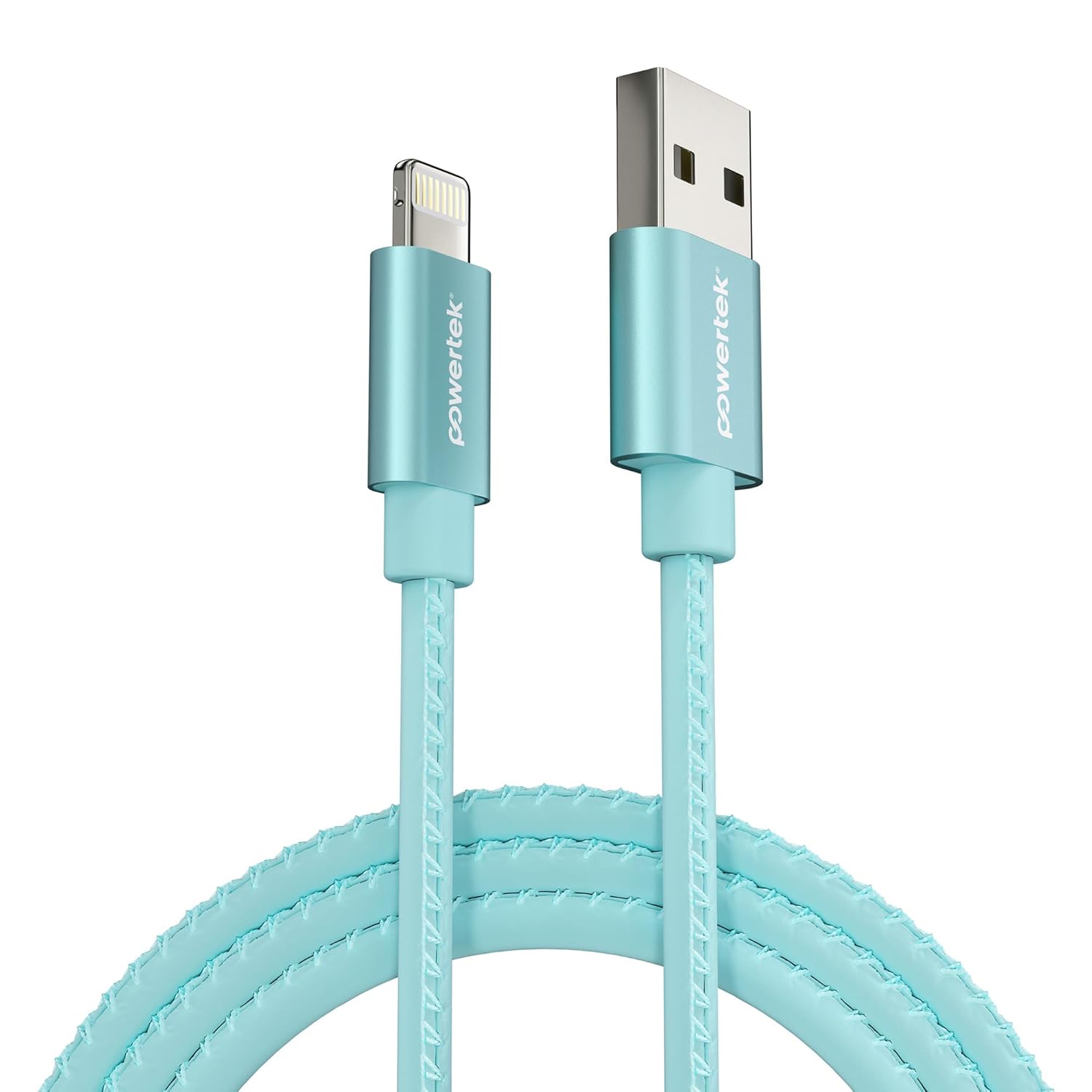
Image 1.1: The LIQUIPEL Powertek Glow Lightning to USB Cable in blue.
2. Safety Information
- Do not expose the cable to extreme temperatures, direct sunlight, or moisture.
- Avoid bending or twisting the cable excessively, as this may damage internal wires.
- Keep out of reach of children.
- Do not attempt to disassemble or modify the cable.
- Use only with compatible Apple devices and certified power adapters.
3. Package Contents
- 1 x LIQUIPEL Powertek Glow MFi Certified 5ft Lightning to USB Charging Cable
4. Setup
To set up your LIQUIPEL Powertek Glow cable for charging or data transfer, follow these steps:
- Connect to Power Source: Insert the USB-A end of the cable into a compatible USB power adapter (not included), a computer's USB port, or a power bank.
- Connect to Device: Insert the Lightning connector end of the cable into the charging port of your Apple iPhone, iPad, or iPod.
- Verify Connection: Ensure both ends are securely connected. Your device should indicate that it is charging or connected for data transfer.

Image 4.1: The LIQUIPEL Powertek Glow cable connected to an iPhone and a power bank for charging.
5. Operating Instructions
5.1 Charging Your Device
Once connected as described in the Setup section, your Apple device will begin charging. This MFi certified cable supports fast charging, allowing your device to charge efficiently.

Image 5.1: The glowing connectors of the LIQUIPEL Powertek cable, indicating fast and efficient charging capabilities.
5.2 Data Transfer
When connected to a computer, the cable facilitates high-speed data transfer between your Apple device and the computer. This allows for syncing photos, videos, and other files.

Image 5.2: The LIQUIPEL Powertek Glow cable designed for high-speed data transfers.
5.3 Glow Feature
The cable features a glow-in-the-dark design. To activate the glow, expose the cable to light for a period. The cable will then emit a soft glow in dark environments, making it easier to locate and connect your device at night.
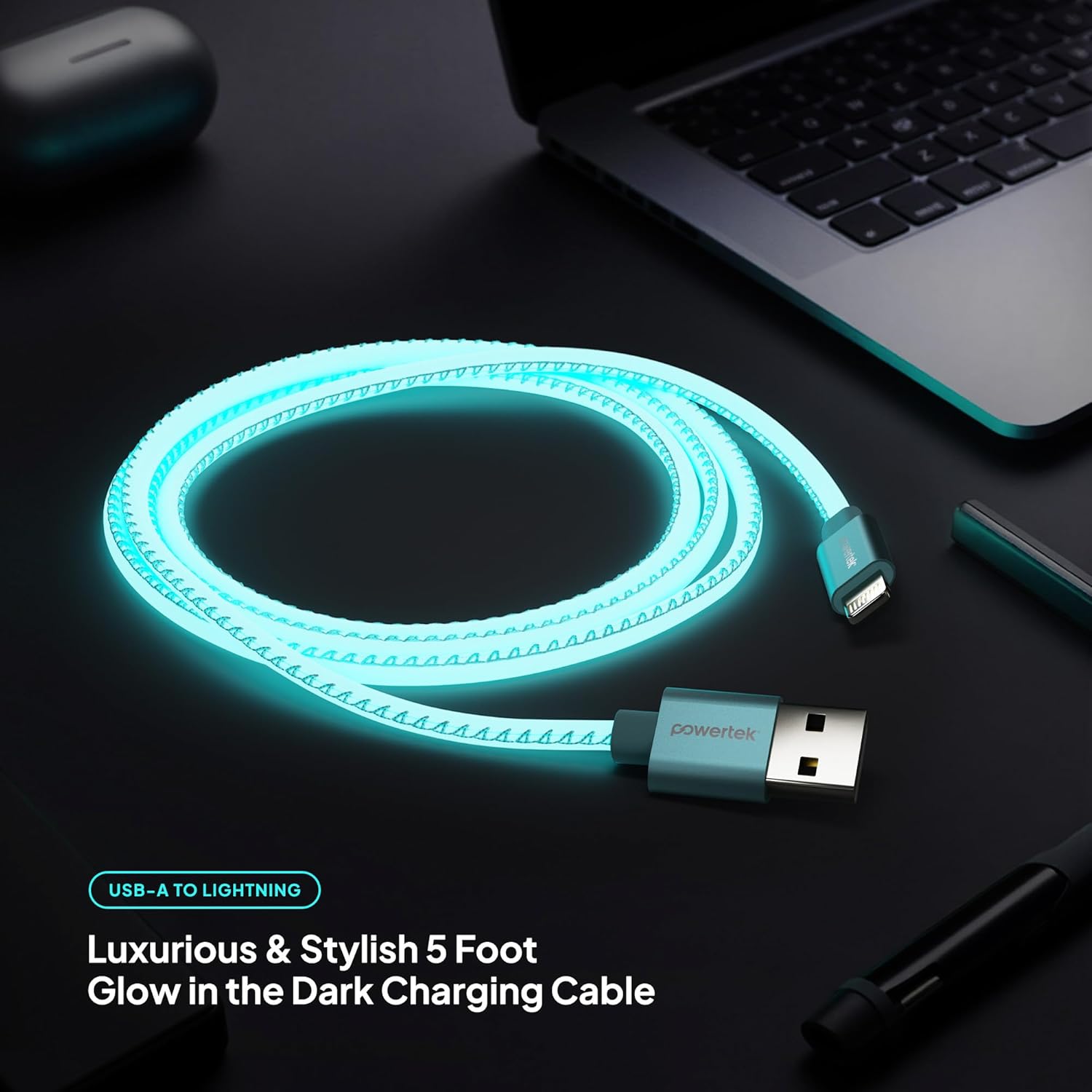
Image 5.3: The LIQUIPEL Powertek Glow cable illuminated in a dark setting, showcasing its glow feature.
5.4 Product Video
For a visual demonstration of the LIQUIPEL Powertek Glow cable, please watch the official product video below.
Video 5.4: An official video demonstrating the LIQUIPEL Powertek Glow Lightning Cable, highlighting its features and glow-in-the-dark functionality.
6. Maintenance
- Cleaning: Use a soft, dry cloth to gently wipe the cable. Do not use liquid cleaners or abrasive materials.
- Storage: When not in use, coil the cable loosely to prevent kinks and store it in a cool, dry place.
- Inspection: Periodically inspect the cable and connectors for any signs of wear, fraying, or damage. Discontinue use if damage is observed.
7. Troubleshooting
| Problem | Possible Cause | Solution |
|---|---|---|
| Device not charging | Loose connection, faulty power source, damaged cable, incompatible device. | Ensure connections are secure. Try a different power adapter or USB port. Inspect the cable for damage. Confirm device compatibility. |
| Slow charging | Low-power USB port, background apps on device, cable damage. | Use a high-power USB wall adapter. Close unnecessary apps on your device. Check cable for damage. |
| Data transfer issues | Loose connection, computer driver issues, cable damage. | Ensure connections are secure. Restart your computer and device. Check for updated drivers. Inspect cable for damage. |
| Cable not glowing | Insufficient light exposure. | Expose the cable to a bright light source for a few minutes to charge its glow properties. |
8. Specifications
| Feature | Detail |
|---|---|
| Model Number | LIGHTNING-GLOW |
| Brand | LIQUIPEL |
| Connector Type | Lightning to USB-A |
| Cable Length | 5 feet (approximately 1.5 meters) |
| Special Feature | Fast Charging, Glow-in-the-Dark, MFi Certified |
| Compatible Devices | Apple iPhone, iPad, iPod (all Lightning-enabled models) |
| Package Dimensions | 6.1 x 3.98 x 1.18 inches |
| Item Weight | 2.08 ounces |
9. Warranty and Support
For warranty information and customer support, please refer to the LIQUIPEL official website or contact their customer service directly. Keep your purchase receipt for warranty claims.