
1. Introduction
The SHAKS S2b Blackstorm is a high-performance wireless game controller designed for a wide range of devices, including Android, Windows, and iOS. Featuring Qualcomm technology, it offers low-latency gaming and is compatible with major streaming services such as Blacknut, Stadia, X-Cloud, and G-Force. This controller is engineered for precise control and an immersive gaming experience.
Key features include 360-degree analog joysticks, an 8-way D-Pad, and 256-point pressure trigger buttons. The controller also provides dual vibration feedback for enhanced realism during gameplay. Its ergonomic design ensures comfortable use for extended gaming sessions.

Image 1.1: Front view of the SHAKS S2b Blackstorm controller.
2. Product Overview
2.1 Package Contents
Upon opening the package, you should find the following items:
- SHAKS S2b Blackstorm Wireless Game Controller
- USB to Micro-USB Charging Cable
- User Manual
Note: A phone holder is not included with this product, despite some marketing images that may suggest otherwise.
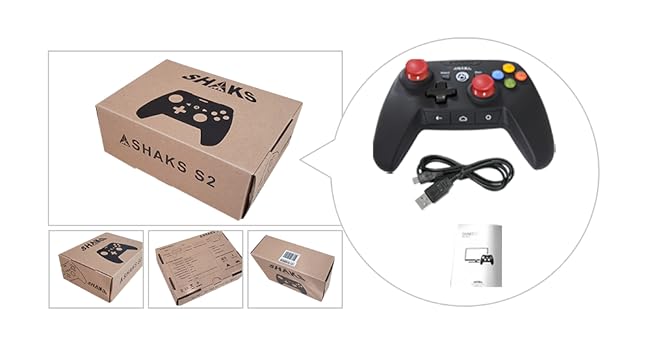
Image 2.1: Package contents of the SHAKS S2b Blackstorm controller.
2.2 Controller Layout
The SHAKS S2b Blackstorm controller features a standard gamepad layout with several key components:
- Analog Joysticks: Two 360-degree analog joysticks (red caps) for precise movement and camera control.
- D-Pad: An 8-way directional pad for accurate input.
- Action Buttons: A, B, X, Y buttons (colored).
- Shoulder Buttons: LB (Left Bumper), RB (Right Bumper).
- Trigger Buttons: LT (Left Trigger), RT (Right Trigger) with 256-point pressure sensitivity.
- System Buttons: Select, Start, and SHAKS logo button.
- Android Navigation Buttons: Back, Home, and Overview buttons (located between the grips).
- LED Indicators: For battery status and connection mode.
- Micro-USB Port: For charging and wired connection.
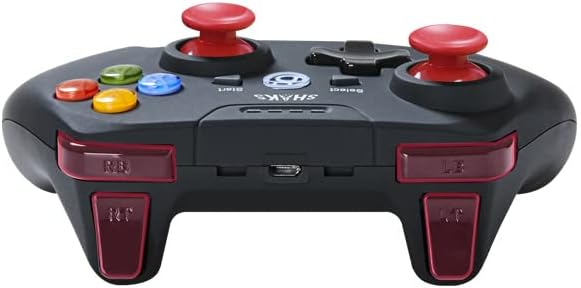
Image 2.2: Top view of the controller, highlighting shoulder buttons and the Micro-USB port.

Image 2.3: Side view of the controller, illustrating its ergonomic design.
3. Setup
3.1 Charging the Controller
Before initial use, fully charge the SHAKS S2b Blackstorm controller. Connect the provided USB to Micro-USB cable to the controller's Micro-USB port and the other end to a USB power source (e.g., computer USB port, USB wall adapter). The LED indicators will show charging status and turn off or change color when fully charged. A full charge typically provides up to 8 hours of battery life.
3.2 Pairing with Devices
The SHAKS S2b Blackstorm supports multiple operating systems. The pairing method varies depending on the device you wish to connect to. Ensure your device's Bluetooth is enabled before attempting to pair.
- Android Devices: Press and hold a specific button combination (refer to the quick start guide or SHAKS website for exact combination, often involving 'Select' + 'Start' or 'A' + 'SHAKS button') until the LED indicator flashes, indicating pairing mode. Then, select 'SHAKS S2b' from your device's Bluetooth settings.
- iOS Devices: Press and hold a specific button combination (e.g., 'Start' + 'SHAKS button') until the LED indicator flashes. Select 'SHAKS S2b' from your iOS device's Bluetooth settings.
- Windows PC/Mac: Press and hold a specific button combination (e.g., 'Select' + 'Start') until the LED indicator flashes. Select 'SHAKS S2b' from your computer's Bluetooth settings.
- Wired Connection: For PC or other compatible devices, you can connect the controller directly using the USB to Micro-USB cable. This also charges the controller while playing.
It is recommended to note down the specific pairing button combinations for your frequently used devices for quick reference.

Image 3.1: Pairing instructions for various operating systems.
4. Operating the Controller
4.1 Game Compatibility
The SHAKS S2b Blackstorm controller is compatible with a vast library of games, supporting over 500 titles. It works seamlessly with:
- Cloud Gaming Services: Blacknut, Xbox Game Pass, NVIDIA GeForce NOW, Stadia, Luna.
- Local Games: Google Play, Steam, Apple Arcade, Epic Games.

Image 4.1: Overview of supported cloud and local gaming platforms.
4.2 SHAKS GameHub App (Android Only)
For Android users, the SHAKS GameHub app enhances the controller's functionality. Download the app from the Google Play Store to access advanced features:
- Button Mapping: Customize button layouts for games that do not natively support controllers, converting touch signals into key presses. This is particularly useful for devices like the Galaxy Z Fold or Z Flip.
- Turbo Mode: Adjust speed or sensitivity for rapid inputs.
- Sniper Function: Enhance aiming precision.
- Virtual Mouse: Utilize the controller as a mouse.
- Firmware Updates: Keep your controller's software up-to-date.
- Key Test: Verify button functionality.
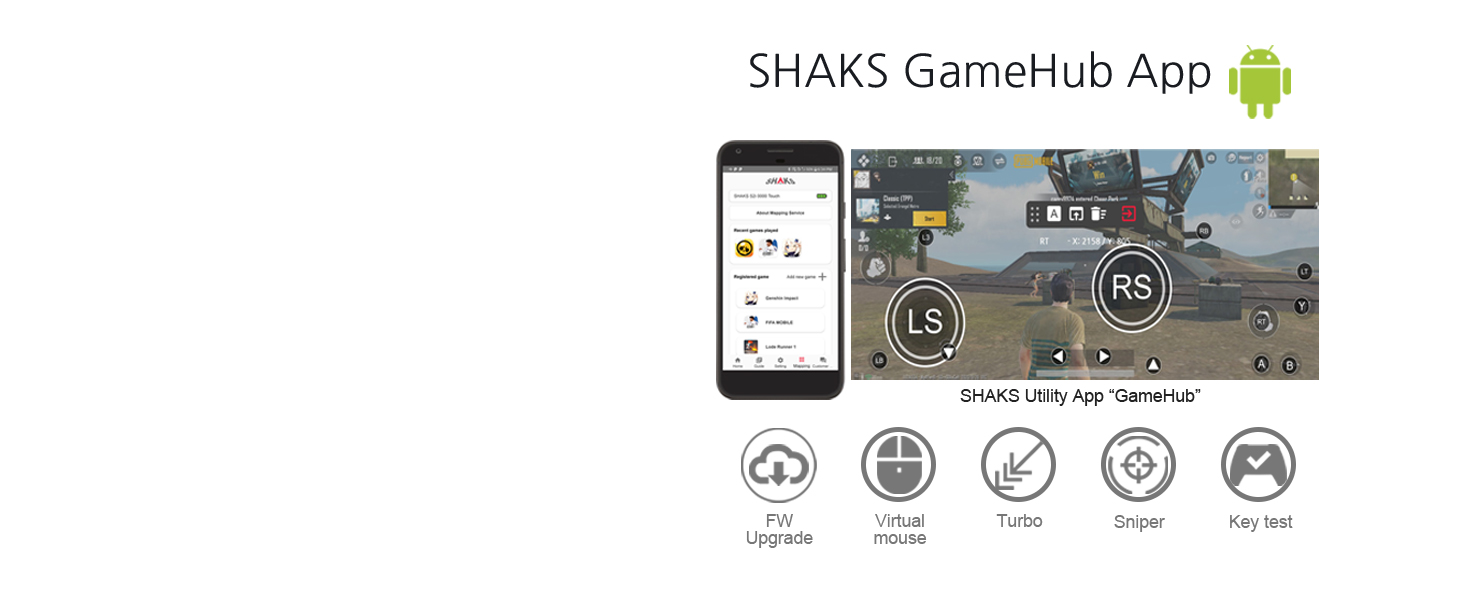
Image 4.2: Features and capabilities of the SHAKS GameHub app.
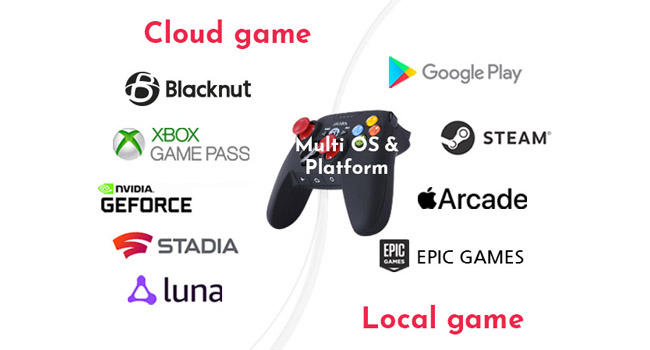
Image 4.3: SHAKS GameHub app interface demonstrating button mapping.
4.3 Multi-Device Gaming
The SHAKS S2b Blackstorm allows for seamless transitions between devices. You can start a game on one device, save your progress to the cloud (if supported by the game/service), and continue playing on another device without heavy loads or delays.
5. Maintenance
5.1 Battery Care
The controller is equipped with a built-in Lithium-Ion battery. To maximize battery life:
- Avoid fully discharging the battery frequently.
- Store the controller in a cool, dry place when not in use for extended periods.
- Charge the controller regularly, even if not used, to maintain battery health.
5.2 Cleaning
To clean your controller, use a soft, dry cloth. For stubborn dirt, a slightly damp cloth can be used, ensuring no moisture enters any openings. Avoid using harsh chemicals or abrasive cleaners.
6. Troubleshooting
If you encounter issues with your SHAKS S2b Blackstorm controller, try the following steps:
- Controller Not Turning On: Ensure the controller is fully charged. Connect it to a power source using the USB cable.
- Unable to Pair:
- Verify that the correct pairing button combination for your device's operating system is being used.
- Ensure your device's Bluetooth is enabled and discoverable.
- Try restarting both the controller and your device.
- If previously paired, remove the controller from your device's Bluetooth list and attempt to pair again.
- Buttons Unresponsive/Lag:
- Check battery level; low battery can affect performance.
- Ensure no physical obstructions are preventing button presses.
- For Android, use the SHAKS GameHub app's 'Key Test' function to diagnose button issues.
- Try a wired connection to rule out Bluetooth interference.
- Game Not Recognizing Controller:
- Ensure the game supports external controllers.
- For Android, use the SHAKS GameHub app's mapping feature for games without native controller support.
- Check game settings for controller configuration options.
For further assistance, refer to the official SHAKS website for detailed video tutorials and support resources.
7. Specifications
| Feature | Specification |
|---|---|
| Model Number | S2b Blackstorm |
| Dimensions | 11 x 15.3 x 5.8 cm |
| Weight | 200 g |
| Battery Type | 1 Lithium Ion battery (included) |
| Battery Life | Up to 8 hours (approx.) |
| Connectivity | Wireless (Bluetooth), Wired (USB) |
| Compatibility | Android, Windows, iOS, Blacknut, Stadia, X-Cloud, G-Force, Steam, Apple Arcade, Epic Games |
8. Warranty and Support
For information regarding warranty coverage, returns, and technical support, please visit the official SHAKS website or contact their customer service directly. The website also provides additional manuals and video tutorials in various languages to assist with configuration and pairing.
SHAKS Official Website: Visit the SHAKS Store on Amazon


