1. Product Overview
The Uiosmuph U30 is a versatile triple-mode wireless mouse designed for seamless connectivity across multiple devices. It supports two Bluetooth 5.1 connections and one 2.4G USB connection, allowing you to switch between devices effortlessly. This mouse features a silent click design, is rechargeable via a Type-C port, and includes a visible battery indicator for convenience.

Image: The Uiosmuph U30 mouse demonstrating its ability to connect to three devices simultaneously: a laptop via 2.4G USB, a tablet via Bluetooth 1 (BT1), and a smartphone via Bluetooth 2 (BT2).
2. Setup Instructions
2.1. Unpacking and Initial Charge
Before first use, it is recommended to fully charge the mouse. Connect the included USB Type-C cable to the charging port on the front of the mouse and to a USB power source.
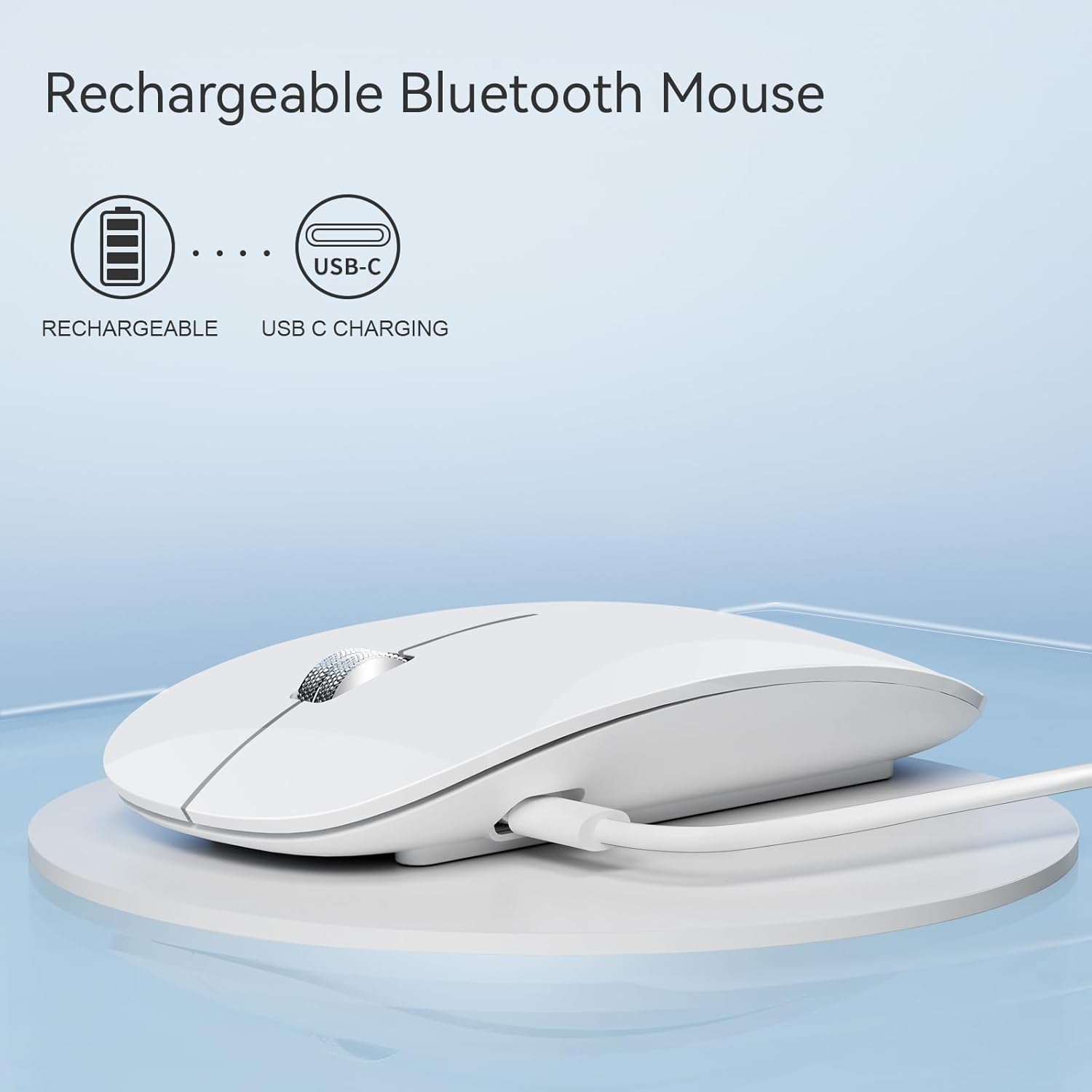
Image: The Uiosmuph U30 mouse being charged via its USB-C port, with the charging cable connected.
2.2. Connecting via 2.4G USB Mode
- Locate the USB receiver: The 2.4G USB receiver is stored in a compartment on the bottom of the mouse. Gently slide open the cover to retrieve it.
- Insert the receiver: Plug the USB receiver directly into an available USB-A port on your computer. If your computer only has USB-C ports, use the provided USB-C adapter by plugging the USB receiver into the adapter first, then the adapter into your computer's USB-C port.
- Switch to 2.4G mode: Turn on the mouse. Press the mode switch button on the bottom of the mouse until the green indicator light (for 2.4G USB) illuminates.
- The mouse should now be connected and ready for use.

Image: The Uiosmuph U30 mouse, illustrating its included USB receiver and a USB-C adapter for broader compatibility.
2.3. Connecting via Bluetooth Mode (BT1 / BT2)
The mouse supports two independent Bluetooth 5.1 connections (BT1 and BT2).
- Turn on the mouse.
- Select a Bluetooth channel: Press the mode switch button on the bottom of the mouse to select either BT1 (red indicator light) or BT2 (blue indicator light).
- Enter pairing mode: Press and hold the mode switch button for 3-5 seconds until the selected Bluetooth indicator light (red for BT1, blue for BT2) starts flashing rapidly. This indicates the mouse is in pairing mode.
- Enable Bluetooth on your device: Go to your device's Bluetooth settings (e.g., computer, tablet, smartphone).
- Search for devices: Look for "Uiosmuph Mouse" or a similar name in the list of available Bluetooth devices.
- Pair the mouse: Select the mouse to complete the pairing process. The indicator light on the mouse will stop flashing and remain solid for a few seconds, then turn off, indicating a successful connection.
- Repeat these steps for the second Bluetooth channel (BT2) if you wish to connect to another device.
3. Operating Instructions
3.1. Switching Between Connected Devices
Once paired, you can easily switch between the 2.4G USB mode, BT1, and BT2 by pressing the mode switch button on the bottom of the mouse. The corresponding indicator light (green for 2.4G, red for BT1, blue for BT2) will briefly illuminate to confirm the selected mode.
3.2. Silent Click Feature
The Uiosmuph U30 mouse is designed with silent left and right click buttons, minimizing noise during use. This feature is ideal for quiet environments such as offices, libraries, or shared living spaces.

Image: A side view of the Uiosmuph U30 mouse, emphasizing its low-profile, ergonomic shape and silent operation.
3.3. Battery Indicator
The mouse features a visible battery indicator on its underside. This indicator lights up during use to show the current battery level, allowing you to know when to recharge.

Image: The underside of the Uiosmuph U30 mouse, clearly displaying the battery indicator lights.
3.4. Automatic Sleep Mode
To conserve battery life, the mouse will automatically enter sleep mode after 8 minutes of inactivity. To wake the mouse, simply click any button.
4. Maintenance
- Cleaning: Use a soft, dry cloth to clean the mouse. Avoid using harsh chemicals or abrasive materials.
- Charging: Recharge the mouse when the battery indicator shows low power. Use the provided Type-C cable or a compatible charging cable. Do not use damaged cables or chargers.
- Storage: When not in use for extended periods, store the mouse in a cool, dry place.
- Environmental Conditions: Avoid exposing the mouse to extreme temperatures, direct sunlight, or excessive moisture.
5. Troubleshooting
- Mouse not responding:
- Ensure the mouse is turned on.
- Check the battery level and recharge if necessary.
- If using 2.4G USB mode, ensure the receiver is securely plugged in and the mouse is set to 2.4G mode (green light). Try a different USB port.
- If using Bluetooth mode, ensure Bluetooth is enabled on your device and the mouse is set to the correct BT channel (red for BT1, blue for BT2). Re-pair the mouse if necessary.
- Cursor movement is erratic or slow:
- Clean the optical sensor on the bottom of the mouse.
- Ensure you are using the mouse on a suitable surface. Avoid highly reflective or transparent surfaces.
- Check for low battery and recharge if needed.
- Cannot pair via Bluetooth:
- Ensure the mouse is in pairing mode (flashing red or blue light).
- Make sure your device's Bluetooth is turned on and discoverable.
- Remove any previous pairings of the mouse from your device's Bluetooth list and try pairing again.
- Ensure your device's operating system is compatible (Windows 8/10, iPad/iPhone iOS 13+, Mac OS 10.10+, Android 5.0+).
6. Specifications
| Feature | Description |
|---|---|
| Brand | Uiosmuph |
| Model Name | U30 |
| Connectivity Technology | Bluetooth 5.1 (BT1, BT2), 2.4G USB Wireless |
| Special Features | Portable, Rechargeable, Wireless, Silent Click |
| Compatible Devices | Windows 8/10, iPad/iPhone iOS 13+, Mac OS 10.10+, Android 5.0+ |
| Battery Composition | Lithium-ion (1 included) |
| Number of Buttons | 3 |
| Hand Orientation | Ambidextrous |
| Movement Detection Technology | Optical |
| Color | White |
7. Warranty and Support
7.1. Warranty Information
The Uiosmuph U30 mouse comes with a standard manufacturer's warranty. Please refer to the product packaging or the seller's website for specific warranty terms and conditions, including duration and coverage details.
7.2. Customer Support
For technical assistance, troubleshooting not covered in this manual, or warranty claims, please contact Uiosmuph customer support through the retailer where you purchased the product or visit the official Uiosmuph website for contact information.