
XTOOL D9S PRO
XTOOL D9S Pro V2.0 Automotive Diagnostic Tool User Manual
Comprehensive Guide for Operation and Maintenance
1. Introduction
The XTOOL D9S Pro V2.0 is an advanced professional automotive diagnostic tool designed for mechanics and workshops. This device offers comprehensive OE-level diagnostics, including topological mapping, ECU programming and coding, over 45 special functions, and bi-directional control. It supports modern vehicle protocols such as FCA, DoIP, and CAN FD, ensuring broad compatibility and efficient vehicle maintenance.
2. Safety Information
Always observe the following safety precautions when operating the XTOOL D9S Pro V2.0 to prevent personal injury or damage to the vehicle or device:
- Ensure the vehicle is in a well-ventilated area.
- Wear appropriate personal protective equipment, including eye protection.
- Do not operate the device while driving.
- Keep the device dry and away from extreme temperatures.
- Refer to the vehicle's service manual for specific procedures and precautions.
- Avoid touching hot engine components or moving parts.
3. Package Contents
The XTOOL D9S Pro V2.0 package typically includes the following items:
- XTOOL D9S Pro V2.0 Tablet
- WIFI VCI (Vehicle Communication Interface)
- Main Cable
- Power Adapter (US, EU, UK plugs)
- Type-C to B Cable
- Type-C to C Cable
- Type-C to A Cable
- Cigar Lighter Cable
- OBDII Non-Standard Adapters (16 types, e.g., for HONDA-3, TOYOTA-17, BMW-20, KIA-20, MAZDA-17R, NISSAN-14, GM/DAEWOO-12, SUZUKI-3, FIAT-3, HYUNDAI/KIA-10, AUDI-4, MITSUBISHI-12+16, UNIVERSAL-3, CITROEN-2, BENZ-38, BENZ-14)
- User Manual
- KIT KOOL (if applicable)

Figure 3.1: XTOOL D9S Pro V2.0 main unit and VCI module.

Figure 3.2: Overview of the XTOOL D9S Pro V2.0 package contents, including the tablet, VCI, cables, and adapters.
Video 3.1: An unboxing video demonstrating the contents of a similar XTOOL diagnostic system, showing the tablet, VCI, and various accessories.
4. Setup
4.1 Initial Device Preparation
- Charge the Device: Connect the power adapter to the XTOOL D9S Pro V2.0 tablet and a power outlet. Ensure the device is fully charged before first use.
- Power On: Press and hold the power button located on the device until the screen illuminates.
- Language Selection: Upon first startup, you may be prompted to select your preferred language. Navigate to Settings > Language to change if needed.
- Wi-Fi Connection: Connect the device to a stable Wi-Fi network via Settings > Wi-Fi. A stable internet connection is crucial for software updates and online functions.
4.2 VCI Connection
The VCI (Vehicle Communication Interface) connects the diagnostic tablet to the vehicle's OBD-II port.
- Locate the vehicle's OBD-II port, usually under the dashboard on the driver's side.
- Plug the VCI module into the OBD-II port. Ensure a secure connection.
- The VCI will automatically establish a wireless connection with the D9S Pro V2.0 tablet. Verify the connection status indicator on the tablet.

Figure 4.1: Detailed view of the XTOOL D9S Pro V2.0 tablet and VCI, highlighting ports and buttons for setup.
5. Operating Instructions
5.1 Main Interface Navigation
The main interface provides access to key functions:
- Diagnosis: For vehicle system scanning and fault code retrieval.
- Report: To view, save, and print diagnostic reports.
- Special Function: Access to various maintenance and service functions.
- Updates: For software and firmware updates.
- Settings: Device configuration, language, units, etc.
- Remote Control: For remote technical assistance.
Video 5.1: A demonstration of the XTOOL D8S interface, which is similar to the D9S Pro, showing navigation through diagnosis, reports, special functions, and updates.
5.2 Vehicle Diagnosis
To begin a diagnosis, select Diagnosis from the main menu.
- Automatic Scan / VIN Scan: The device can automatically detect the vehicle's VIN for quick identification and system scanning.
- OE-Level All Systems Diagnosis: Perform a comprehensive scan of all available electronic control units (ECUs) to read and clear diagnostic trouble codes (DTCs), view live data, and retrieve ECU information.
- Topology Mapping: This feature provides an intuitive visual representation of the vehicle's communication network, allowing for quick identification of faulty modules and their relationships.
- Bi-directional Control / Active Tests: Send commands to vehicle systems and components to perform active tests, such as turning on/off lights, operating windows, or testing fuel pumps, to verify functionality and pinpoint issues.
- Live Data Stream: View real-time data parameters from various sensors and modules. Data can be displayed in text, graph, or combined formats for detailed analysis.
- Diagnostic Reports: Generate professional PDF reports of diagnostic results, which can be saved, printed, or shared via email or Bluetooth.

Figure 5.1: The OE-Level All Systems Diagnosis screen, showing a comprehensive scan of vehicle modules.

Figure 5.2: An example of the OEM Topology Mapping feature, illustrating the communication network between vehicle modules.

Figure 5.3: The bi-directional control interface, demonstrating active tests on various vehicle components.

Figure 5.4: Live data stream displayed in a combined graphing format for detailed parameter analysis.
5.3 Special Functions (45+ Services)
The D9S Pro V2.0 offers a wide range of special functions for various vehicle maintenance and service tasks. Access these via Special Function on the main menu.
- ECU Programming & Coding: Perform online/offline ECU programming for specific brands (e.g., Audi, Skoda, Benz, BMW F/G Chassis) and offline ECU programming for Ford/Mazda/Lincoln. This includes reflashing/reprogramming used or blank ECUs and flashing hidden features to enhance vehicle performance.
- FCA AutoAuth V2.0: Supports Chrysler 2018+ vehicles (Chrysler, Dodge, Jeep, Fiat) to access FCA SGW for diagnostics and bi-directional control. An FCA account is required.
- Guided Functions for V.A.G: Provides step-by-step guided procedures for Volkswagen, Audi, and Skoda vehicles.
- Common Resets & Calibrations: Includes Oil Reset, EPB (Electronic Parking Brake), SAS (Steering Angle Sensor), BMS (Battery Management System), ABS Bleeding, Injector Coding, Throttle Relearn, TPMS Reset, Gearbox Match, DPF Reset, Headlight, Airbag Repair, Suspension, Seat Match, Transport Mode, A/C Relearn, Stop/Start Reset, A/F Reset, ADAS Calibration, and many more.
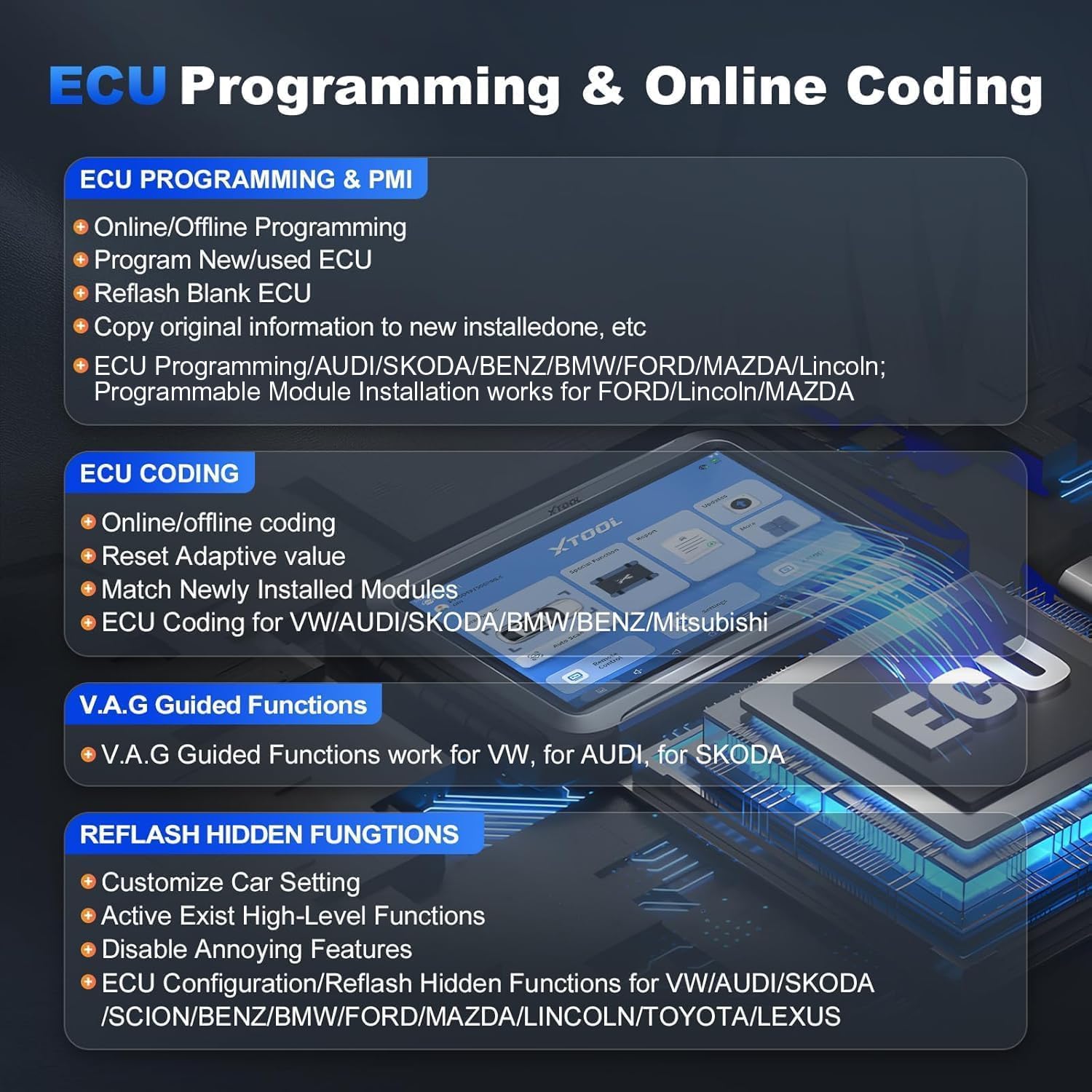
Figure 5.5: Details on ECU Programming and Online Coding capabilities of the device.

Figure 5.6: A visual representation of some of the 45+ special functions available on the XTOOL D9S Pro V2.0.
Video 5.2: A video showcasing special functions and maintenance procedures on a similar XTOOL D7 device, illustrating the range of capabilities.
6. Maintenance
6.1 Software Updates
Regular software updates ensure your D9S Pro V2.0 has the latest vehicle coverage, bug fixes, and new features.
- Ensure the device is connected to a stable Wi-Fi network.
- From the main menu, select Updates.
- The device will check for available updates. Select Update All or choose specific updates to download and install.
- Follow the on-screen prompts to complete the update process. Do not power off the device during updates.
6.2 Device Care
- Clean the screen with a soft, lint-free cloth.
- Store the device in its protective case when not in use.
- Avoid exposing the device to direct sunlight, moisture, or corrosive substances.
7. Troubleshooting
If you encounter issues with your XTOOL D9S Pro V2.0, refer to the following common solutions:
| Problem | Possible Cause | Solution |
|---|---|---|
| Device does not power on | Low battery; faulty power adapter | Charge the device for at least 30 minutes; check power adapter connection. |
| VCI not connecting | Loose connection; VCI not powered; software issue | Ensure VCI is securely plugged into OBD-II port; check vehicle ignition; restart device and VCI; update software. |
| Unable to perform special functions | Vehicle incompatibility; outdated software; incorrect procedure | Verify vehicle compatibility; update software; follow specific function instructions carefully. |
| Slow operation | Too many applications running; low storage | Close unnecessary applications; clear cache; ensure sufficient storage space. |
If the problem persists, contact XTOOL customer support for further assistance.
8. Specifications
Key technical specifications of the XTOOL D9S Pro V2.0:
- Operating System: Android 10.0
- Processor: Quad-core 1.8 GHz
- Memory: 4GB RAM, 128GB ROM
- Display: 9.7-inch, 1024x768 resolution
- Battery: 6400 mAh (7.4V) / 12800 mAh (3.7V)
- Camera: 8MP with Flash
- Connectivity: Enhanced Wireless Wi-Fi (2.4GHz & 5GHz), USB
- Supported Protocols: DoIP, CAN FD, FCA AutoAuth V2.0, and standard OBD-II protocols.
- Vehicle Coverage: Over 10,000+ car models, 150+ brands (European, Asian, American).
- Languages: Supports 23+ languages including English, French, German, Spanish, Italian, etc.
- Dimensions: Approximately 11 x 28 x 32 cm
- Weight: Approximately 2.17 kg

Figure 8.1: Illustration of the wide vehicle coverage and multi-language support of the XTOOL D9S Pro V2.0.

Figure 8.2: The multilingual settings screen, showing the extensive language options available on the device.
9. Warranty and Support
XTOOL provides comprehensive support for the D9S Pro V2.0:
- Free Updates: Enjoy 3 years of free software updates from the date of purchase. After 3 years, you can retain the functions of the last updated version without renewal.
- Warranty: The device comes with a 2-year warranty.
- Technical Support: Lifetime technical support is available to assist with any operational or technical queries.
For technical assistance or warranty claims, please refer to the contact information provided in your product packaging or visit the official XTOOL website.

Figure 9.1: Information regarding the 3 years of free updates and support services.
Related documentsD9S PRO


Ask a question about this manual
Ask about setup, troubleshooting, compatibility, parts, safety, or missing instructions. Manuals+ will review the question and use this page’s manual context to help answer it.