
WSTER Wireless Bluetooth Handheld Microphone User Manual
Model: RR - 2811 | Brand: WSTER
1. Introduction
The WSTER Wireless Bluetooth Handheld Microphone is a versatile 2-in-1 device, combining a microphone and a speaker, designed for portable audio entertainment. It allows users to enjoy karaoke, practice singing, listen to music, and record songs without the need for additional connections. Its compact and portable design makes it ideal for various applications, including outdoor entertainment, car stereo use, and podcasting.
This device is equipped with a built-in lithium battery, offering extended usage time, and supports connection with almost any singing software on mobile phones or computers.
2. Safety Information
- Do not expose the device to extreme temperatures, direct sunlight, or high humidity.
- Avoid dropping or subjecting the device to strong impacts.
- Keep away from water and other liquids. If the device gets wet, turn it off immediately and allow it to dry completely before use.
- Do not attempt to disassemble, repair, or modify the device yourself. Refer to qualified service personnel.
- Use only the specified charging voltage (5V current 1A / 2A) to prevent damage to the battery and device.
- Keep out of reach of children.
3. Package Contents
Please check the package for the following items:
- WSTER Wireless Bluetooth Handheld Microphone (Model: RR - 2811)
- Built-in Lithium Battery (pre-installed)
- USB Charging Cable
- Audio Cable
- User Manual (this document)
4. Product Overview
The WSTER Wireless Bluetooth Handheld Microphone features an intuitive design with easily accessible controls. Below are images illustrating the product and its various color options.
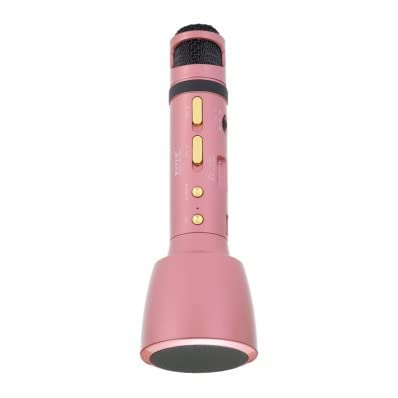
Figure 4.1: Front view of the WSTER Wireless Bluetooth Handheld Microphone (Pink). This image displays the microphone head, control panel with buttons, and the integrated speaker base.
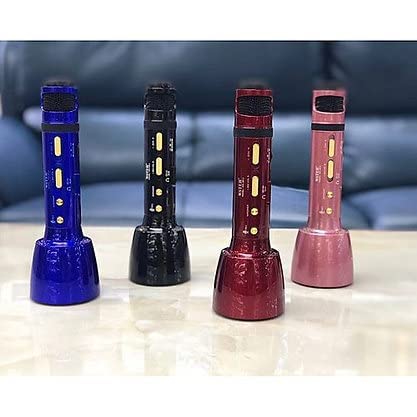
Figure 4.2: A collection of WSTER Wireless Bluetooth Handheld Microphones showcasing different color variants including blue, black, red, and pink. This illustrates the aesthetic options available for the product.
Control Panel (Typical Layout)
- Power Button: Long press to turn on/off. Short press to switch modes (e.g., Bluetooth, AUX).
- Volume Controls (+/-): Adjust microphone and speaker volume.
- Echo/Reverb Control: Adjust the echo effect for singing.
- Play/Pause Button: Control music playback.
- Previous/Next Track Buttons: Navigate through music tracks.
- Recording Button: Initiate or stop audio recording (functionality may vary).
- USB Port: For charging the device.
- 3.5mm Audio Jack: For wired connection to other devices.
5. Setup
5.1 Charging the Device
- Connect the USB charging cable to the microphone's USB port.
- Connect the other end of the USB cable to a compatible USB power adapter (Input voltage: 220V, Output voltage: 5V current 1A / 2A) or a computer's USB port.
- The charging indicator light will illuminate (color may vary, refer to device for specifics).
- A full charge typically takes 3 to 5 hours. The indicator light will change or turn off once charging is complete.
- A fully charged battery provides approximately 5-8 hours of playing time at mid-level volume.
5.2 Powering On/Off
- To Power On: Long press the Power button until the device powers on and you hear an audible prompt.
- To Power Off: Long press the Power button again until the device powers off.
6. Operating Instructions
6.1 Bluetooth Connection
- Turn on the microphone. It will automatically enter Bluetooth pairing mode, indicated by a flashing light or audible prompt.
- Enable Bluetooth on your smartphone, tablet, or other Bluetooth-enabled device.
- Search for available Bluetooth devices. The microphone will appear as "WSTER" or a similar name (e.g., "WS-2811").
- Select the microphone from the list to pair. Once successfully paired, you will hear a confirmation sound.
- You can now play music from your device through the microphone's speaker and use the microphone for singing.
6.2 Karaoke Mode
- Connect the microphone to your device via Bluetooth (as per 6.1).
- Open your preferred karaoke or music application on your connected device.
- Play a song. The music will play through the microphone's speaker.
- Sing into the microphone. Adjust the microphone volume and echo/reverb effects using the controls on the microphone for desired sound.
6.3 Audio Recording
- Ensure the microphone is connected to your smartphone or computer.
- Open a recording application on your connected device.
- Start recording within the application. The microphone will capture your voice.
- Some models may have a dedicated recording button on the microphone itself. Refer to your specific model's button functions.
6.4 Wired Connection (AUX Mode)
- Use a 3.5mm audio cable.
- Connect one end of the cable to the microphone's 3.5mm audio jack.
- Connect the other end to the audio output jack of your device (e.g., phone, computer).
- The microphone will automatically switch to AUX mode or you may need to short press the Power button to cycle modes.
7. Maintenance
- Cleaning: Use a soft, dry cloth to clean the exterior of the microphone. Do not use abrasive cleaners or solvents.
- Storage: Store the device in a cool, dry place away from direct sunlight and extreme temperatures when not in use.
- Battery Care: To prolong battery life, avoid fully discharging the battery frequently. Charge the device regularly, even if not in use for extended periods.
8. Troubleshooting
| Problem | Possible Cause | Solution |
|---|---|---|
| Device does not turn on. | Battery is low or dead. | Charge the device for 3-5 hours. |
| Cannot connect via Bluetooth. | Bluetooth is off on the device or microphone; microphone is not in pairing mode; too far from connected device. | Ensure Bluetooth is enabled on both devices. Restart the microphone to enter pairing mode. Move closer to the connected device (within 10 meters). |
| No sound from speaker. | Volume is too low; device is not properly connected; wrong mode selected. | Increase volume on both the microphone and the connected device. Re-establish Bluetooth or wired connection. Ensure correct mode (Bluetooth/AUX) is selected. |
| Microphone not picking up voice. | Microphone volume is too low; microphone is too far from mouth; recording app settings. | Increase microphone volume on the device. Speak closer to the microphone. Check input settings in your recording application. |
| Sound distortion or static. | Interference; low battery; volume too high. | Move away from other electronic devices. Charge the battery. Reduce volume levels. |
9. Specifications
| Model Number | RR - 2811 |
| Brand | WSTER |
| Connectivity Technology | Bluetooth |
| Speaker Power | 4Ω 4W *1 |
| Signal-to-Noise Ratio | ≥ 85dB |
| Frequency Response Range | 150 ~ 20KHZ |
| Audio Interface | 3.5mm stereo headphone plug |
| Battery Type | Built-in 1800MA lithium battery |
| Charging Time | 3 ~ 5 hours |
| Playing Time | 5-8 hours (at mid-level volume) |
| Power Adapter Requirements | Input: 220V, Output: 5V current 1A / 2A |
| Compatible Devices | Karaoke Machine, Personal Computer, Smartphone, Speaker |
| Color | Pink |
| Polar Pattern | Omnidirectional |
| Audio Sensitivity | 85 dB |
| Impedance | 4 Ohm |
| Signal-to-Noise Ratio | 100 dB |
| Frequency Range | 100 Hz - 10 KHz |
| Noise Level | 85 dB |
10. Warranty and Support
For warranty information and technical support, please refer to the documentation provided at the time of purchase or contact WSTER customer service directly. Contact details can typically be found on the product packaging or the official WSTER website.
Please retain your proof of purchase for any warranty claims.