
1. Product Overview
The SONOFF R5 is a sophisticated 6-key wireless scene remote controller designed to enhance your smart home experience. It operates by communicating with a compatible SONOFF eWeLink-Remote gateway, enabling seamless control over a wide range of smart devices, including both Zigbee and WiFi-enabled products, all managed through the eWeLink application.
This device offers unparalleled flexibility with its no-wiring installation, allowing it to be easily mounted on walls using 3M adhesive or magnetic accessories, or used as a portable remote. Each of the six buttons supports three distinct trigger actions (single-click, double-click, and long-press), providing up to 18 different control possibilities for your smart home scenes and devices.

Image: The SONOFF SwitchMan Scene Controller R5, a 6-key free-wiring scene remote controller.
2. Key Features
- eWeLink-Remote Gateway Required: This wireless smart scene switch button requires a SONOFF “eWeLink-Remote” gateway. This gateway facilitates control over other Zigbee or WiFi devices via the eWeLink APP.
- Customized Scene Control: When connected to a network, you can set up smart scenes via the eWeLink APP to control all your SONOFF devices. Even when offline, the R5 can control paired devices within a 90-meter range through the eWeLink-Remote gateway function.
- 18 Trigger Modes: Each of the six smart buttons supports single-click, double-click, and long-press actions, allowing you to trigger up to 18 different devices or scenes, enabling comprehensive smart home automation.
- Dual-control Mode: Achieve two-way or multi-way control by pairing the R5 with an M5 smart wall switch via eWeLink-Remote. This allows both the M5 and R5 to control the same lamp or device simultaneously.
- No-Wiring Installation: The R5 requires no electrical wiring. It can be easily attached to a wall using the included 3M adhesive or a magnetic accessory, or removed at any time for use as a portable remote control.
- Broad Gateway Compatibility: As an eWeLink sub-device, the R5 is compatible with various eWeLink-enabled gateways, including but not limited to T5, M5, M5 Matter, NSPanelPro, DualR3, MiniR4, S40, and B05.

Image: Visual representation of R5 features including scene control, 90M remote range, peel-and-stick installation, and multiple trigger actions.
3. Specifications
| Specification | Detail |
|---|---|
| Model Number | R5 |
| Product Dimensions | 3.39 x 3.39 x 0.53 inches |
| Weight | 3.88 ounces |
| Batteries Required | 2 x CR2032 batteries |
| Operation Mode | ON-OFF |
| Current Rating | 30 Milliamps |
| Operating Voltage | 6 Volts |
| Contact Type | Normally Closed |
| Connector Type | Paste |
| Circuit Type | 6-way |
| Actuator Type | Push Button |
| Contact Material | Metal |
| Manufacturer | SONOFF |

Image: The back of the SONOFF R5 packaging, detailing product specifications and manufacturer information.
4. Setup and Installation
4.1 Physical Installation
The SONOFF R5 is designed for flexible, no-wiring installation. You can choose to mount it permanently or use it as a portable remote.
- Wall Mounting: Use the provided 3M adhesive tape to securely attach the R5 to any flat surface. Ensure the surface is clean and dry before application.
- Magnetic Attachment: The R5 can also be attached to metallic surfaces using its magnetic accessory, allowing for easy removal and repositioning.
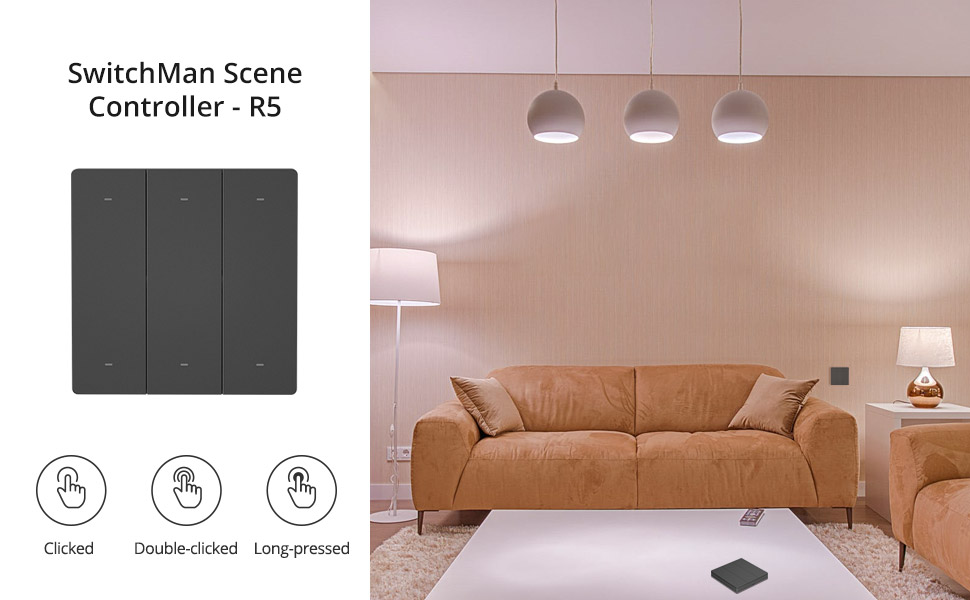
Image: The R5 demonstrating its long battery life and wireless stick-on installation method, including the CR2032 batteries.
4.2 Pairing with eWeLink-Remote Gateway
The R5 functions as a sub-device and must be paired with a compatible SONOFF eWeLink-Remote gateway. Follow these steps to add your R5 to the eWeLink APP:
- Ensure your eWeLink-Remote gateway (e.g., M5, NSPanel Pro) is powered on and connected to the eWeLink APP.
- Open the eWeLink APP and navigate to the settings interface of your eWeLink-Remote gateway.
- Look for and click on the option labeled "eWeLink- Remote sub-devices" and then select "Add".
- The APP will prompt you to trigger a button on the R5. Press any button on your R5 to complete the pairing process. A successful addition will be confirmed in the APP.
Video: An official SONOFF video demonstrating the setup and pairing process of the SONOFF R5 6-key scene remote controller with an eWeLink-Remote gateway. This video shows how to add the R5 as a sub-device and configure scene controls.
5. Operation
5.1 Scene Control
Once paired, the R5 can be used to trigger smart scenes configured in the eWeLink APP. This allows you to control multiple devices or execute complex automations with a single press.
- Creating Scenes: In the eWeLink APP, navigate to the 'Scene' section. Create a new scene and set the R5 button action (single-click, double-click, or long-press) as the trigger condition. Then, define the actions that should occur (e.g., turn on lights, adjust thermostat, activate a group of devices).
- Offline Control: The R5 can control devices paired to its eWeLink-Remote gateway within a 90-meter range even if your internet connection is down, ensuring local control reliability.

Image: An illustration depicting how the SONOFF R5 can act as a central controller for smart devices distributed across different rooms in a home.
5.2 Trigger Modes
Each of the six buttons on the R5 supports three distinct trigger actions:
- Single-Click: A quick press and release.
- Double-Click: Two quick presses in succession.
- Long-Press: Press and hold the button for a few seconds.
These 18 combinations (6 buttons x 3 actions) allow for highly customized control over your smart devices and scenes.

Image: Visual examples of how single-click, double-click, and long-press actions on the R5 can be used to control different lighting scenarios in a bedroom.
5.3 Dual-Control Functionality
The R5 can be integrated with SONOFF M5 SwitchMan Smart Wall Switches to create a two-way or multi-way control system without complex wiring. This means you can control the same light or device from two different locations using both the R5 and an M5 switch, even if the M5 is offline.

Image: A diagram illustrating how the SONOFF R5 and an M5 SwitchMan Smart Wall Switch can provide two-way control for a single light fixture, eliminating the need for traditional wiring.
6. Maintenance
6.1 Battery Replacement
The SONOFF R5 is powered by two CR2032 button cell batteries. When the device's performance degrades or it stops responding, it's likely time to replace the batteries. Refer to the product's physical design for battery compartment access, typically on the back of the unit.
6.2 Cleaning
To maintain the appearance and functionality of your R5, wipe it regularly with a soft, dry cloth. Avoid using abrasive cleaners or solvents that could damage the surface.
7. Troubleshooting
- R5 not responding: Ensure the batteries are correctly installed and have sufficient charge. Replace batteries if necessary.
- Cannot pair R5 with gateway:
- Verify that your SONOFF eWeLink-Remote gateway is powered on and connected to the eWeLink APP.
- Ensure the gateway is in pairing mode (refer to your gateway's specific instructions).
- Make sure you are pressing any button on the R5 to trigger the pairing signal during the APP's countdown.
- Confirm the R5 is within the effective range of the gateway during pairing.
- Scene control not working:
- Check the eWeLink APP to ensure the scene is correctly configured with the R5 button action as the trigger.
- Verify that the target devices in the scene are online and functioning correctly.
- For offline control, ensure the R5 is within 90 meters of the eWeLink-Remote gateway.
- Buttons feel loose or misaligned: While the product is designed for durability, if buttons feel excessively loose, contact customer support.
8. Support and Warranty
For technical support, product inquiries, or warranty information, please contact SONOFF directly.
- Manufacturer: SONOFF
- Official Website: https://sonoff.tech
- Support Email: support@itead.cc


