
1. Introduction
The Phomemo Q31 Mini Label Maker is a portable, Bluetooth-enabled thermal label printer designed for ease of use and versatility. It allows users to create and print custom labels for various organizational needs, including kitchen, school, office, and home applications. This manual provides detailed instructions for setting up, operating, and maintaining your Q31 label maker.

Figure 1.1: Phomemo Q31 Mini Label Maker and label roll.
2. Product Features
- Compact and Portable Design: Small footprint (approximately 8cm x 8cm) for easy carrying and storage.
- Wireless Bluetooth Connectivity: Connects to your smartphone or tablet via the Print Master APP for convenient label creation.
- Thermal Printing Technology: Inkless printing, providing clear and smudge-proof labels.
- Versatile Label Creation: Supports multi-line printing, various fonts (35+), icons (660+), and frames (85+).
- Continuous and Pre-cut Label Support: Compatible with both continuous and pre-cut label tapes for diverse labeling needs.
- Durable Labels: Labels are water-proof, oil-proof, scratch-resistant, and feature strong adhesion with no residue glue upon removal.
- Dual Power Supply Options: Can be powered by 4 AAA batteries or via a Type-C USB cable.

Figure 2.1: Compact design and internal view of the Phomemo Q31.

Figure 2.2: Versatile applications of labels created with the Q31.

Figure 2.3: Key durability features of Phomemo labels.
3. Setup
3.1. Power Supply and Label Tape Installation
The Phomemo Q31 can be powered by 4 AAA batteries or directly via a Type-C USB cable.
- Open the top cover of the machine by pressing the release button.
- Insert 4 No.7 (AAA) batteries into the battery compartment, ensuring correct polarity, or plug in the Type-C USB cable.
- Insert the label tape roll with the printed side facing towards the batteries.
- Pull approximately 5mm of the label tape out through the slot.
- Align the long column of the upper cover with the notch and close it securely.
- Long press the power button to turn on the device. The indicator light will turn green.
Video 3.1: Installation of batteries and label tape in the Phomemo Q31 label maker.
3.2. App Installation and Bluetooth Connection
The Phomemo Q31 operates via the 'Print Master' application, available for both iOS and Android devices.
- Download the 'Print Master' APP from the App Store (iOS) or Google Play Store (Android).
- Ensure Bluetooth is enabled on your smartphone or tablet.
- Open the 'Print Master' APP. The app will search for available printers.
- Select 'Q31' from the list of found devices to connect. The app will indicate a successful connection.
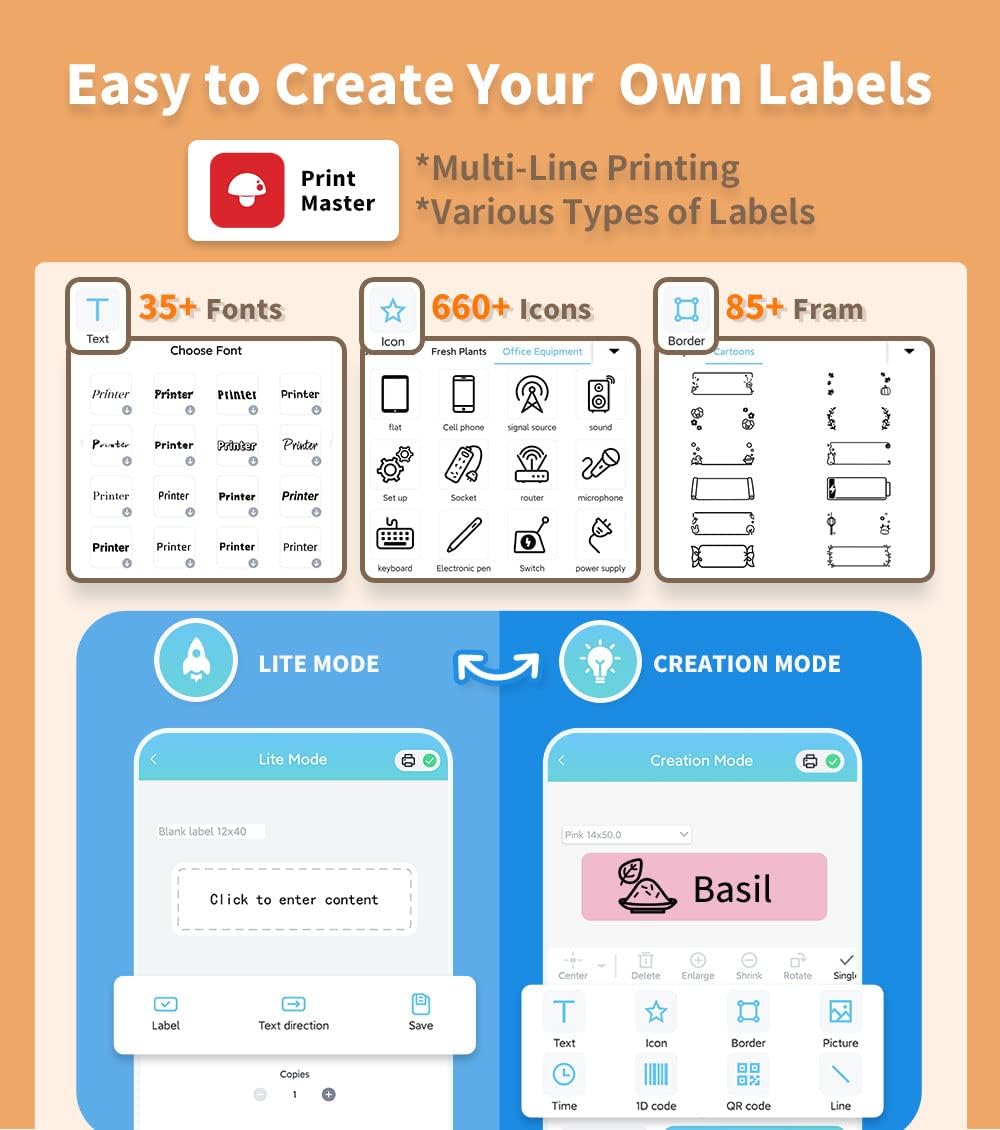
Figure 3.1: Print Master APP interface and download options.
Video 3.2: Connecting the Phomemo Q31 label maker to the Print Master APP via Bluetooth.
4. Operating Instructions
4.1. Creating and Printing Labels
The Print Master APP offers two modes for label creation: Lite Mode for quick labels and Creation Mode for advanced customization.
- Open the Print Master APP and ensure your Q31 is connected.
- Choose between Lite Mode for simple text labels or Creation Mode for advanced design options.
- In Creation Mode, select the desired label size and pattern.
- Enter your desired text. You can customize font, size, style (bold, italic), alignment, and add icons, borders, 1D/QR codes, and images.
- Preview your label to ensure it meets your requirements.
- Tap the 'Print' button. The label maker will quickly print your design.

Figure 4.1: Easy label creation with various customization options in the Print Master APP.
Video 4.2: Demonstration of creating and printing a label using the Phomemo Q31.
Video 4.3: Example of creating labels for various items with the Phomemo D30/Q31.
4.2. Continuous vs. Pre-cut Labels
The Q31 supports both continuous and pre-cut label tapes. The Print Master APP allows you to select the appropriate label type and adjust settings accordingly.
- Continuous Labels: Ideal for custom lengths. The app will guide you on setting the desired length before printing.
- Pre-cut Labels: Perfect for standardized labels. The app automatically recognizes the pre-cut size.
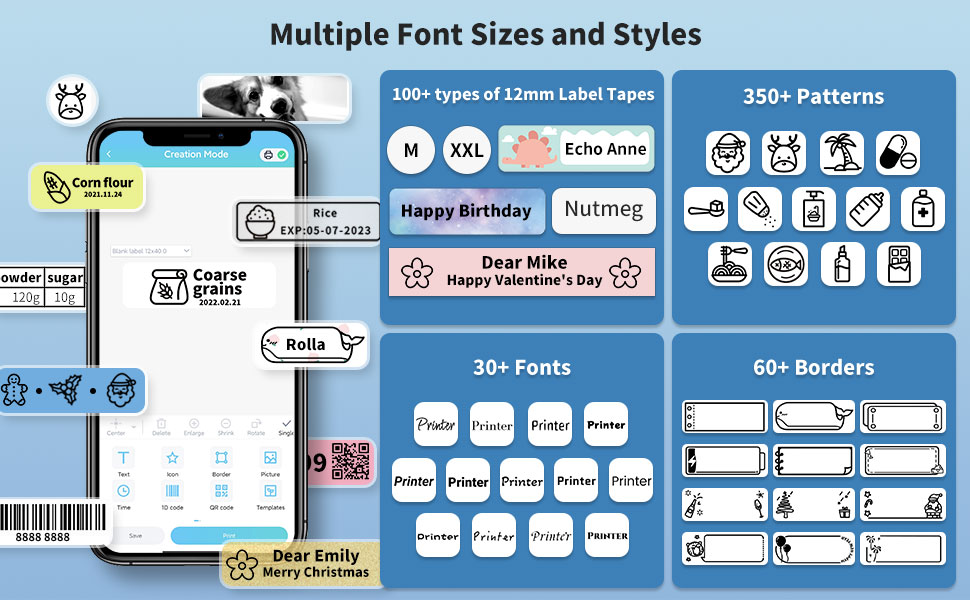
Figure 4.2: The Q31 supports both continuous and pre-cut label types.
5. Maintenance
5.1. Cleaning the Print Head
To ensure optimal print quality, regularly clean the print head.
- Turn off the label maker and open the top cover.
- Gently wipe the print head with a cotton swab lightly dampened with isopropyl alcohol.
- Allow the print head to dry completely before closing the cover and resuming use.
5.2. Storage
Store the label maker in a cool, dry place away from direct sunlight and extreme temperatures. Remove batteries if the device will not be used for an extended period to prevent leakage.
6. Troubleshooting
6.1. Common Issues and Solutions
| Issue | Possible Cause | Solution |
|---|---|---|
| Device not turning on | Low or no battery power; incorrect battery insertion. | Replace batteries or connect via USB-C. Ensure batteries are inserted correctly. |
| Unable to connect via Bluetooth | Bluetooth off; device too far; app not recognizing. | Ensure Bluetooth is on. Move device closer. Restart app and label maker. |
| Poor print quality (faded, lines) | Dirty print head; low battery; incorrect label type. | Clean print head. Replace batteries. Ensure correct label type is selected in app. |
| Label jam or misfeed | Improper label tape installation. | Open cover, clear jam, re-install label tape correctly. |
7. Specifications
| Feature | Detail |
|---|---|
| Brand | Phomemo |
| Model Name | Q31-wh (D30) |
| Printing Technology | Thermal |
| Connectivity Technology | Bluetooth |
| Resolution | 203 x 203 DPI |
| Max Print Speed (Monochrome) | 15 Pages per second |
| Compatible Devices | iOS/Android Smartphones, Laptops (via USB) |
| Item Weight | 3.17 ounces (90 Grams) |
| Power Supply | 4 x AAA Batteries or USB-C |
| Max Input Sheet Capacity | 34 |
| Output Sheet Capacity | 34 |
| Memory Storage Capacity | 64 MB |
| Date First Available | May 25, 2022 |
8. Warranty and Support
For warranty information, technical support, or any inquiries regarding your Phomemo Q31 Mini Label Maker, please refer to the official Phomemo website or contact their customer service directly. Keep your purchase receipt for warranty claims.


