Introduction
Thank you for choosing the DOGNESS App Wi-Fi Control Automatic Pet Feeder. This device is designed to provide convenient and reliable feeding for your cat or small dog, ensuring they receive their meals on time, even when you are away. This manual provides detailed instructions for setup, operation, maintenance, and troubleshooting to help you get the most out of your new feeder.

Image: The DOGNESS Automatic Pet Feeder, showcasing its design, a full food bowl, and the accompanying mobile application for remote control.
Key Features
- Wi-Fi App Control: Schedule feedings, adjust portions, and monitor feeding history remotely via the DOGNESS app.
- Timed Feeding: Dispense up to 6 meals per day with up to 15 portions per meal.
- Voice Recorder: Record a 10-second message to call your pet at meal times.
- Dual Power Supply: Operates with a power adapter and can use 3 x D batteries (not included) for backup during power outages.
- Clog-Free Design: Engineered to prevent food blockages.
- Suitable for: Cats and small dogs.

Image: Diagram illustrating the dual power supply capability of the feeder, highlighting both AC adapter and battery backup options.
Setup Guide
1. Unpacking and Assembly
- Carefully remove all components from the packaging.
- Place the stainless steel food bowl into the designated slot at the base of the feeder.
- Open the lid of the food storage compartment and ensure it is clean and dry before adding dry pet food.
2. Powering the Feeder
- Primary Power: Connect the power adapter to the feeder's power port and plug it into a standard wall outlet.
- Battery Backup (Optional): For power outage protection, insert 3 x D-size batteries (not included) into the battery compartment at the bottom of the feeder. Ensure correct polarity.
3. Connecting to the DOGNESS App

Image: Visual guide for connecting the feeder to the DOGNESS mobile application, detailing app download, device pairing, and Wi-Fi setup.
- Download the DOGNESS App: Search for "DOGNESS" in the Apple App Store or Google Play Store and download the application.
- Register/Log In: Open the app and create a new account or log in if you already have one.
- Add Device:
- In the app, click the "+" button to add a new device.
- Select "Feeder Mini F05" or similar model from the list.
- Reset Button: Press and hold the "Reset" button on the feeder for 6 seconds until you hear a "beep" three three times. The Wi-Fi indicator light will flash green.
- Enter your 2.4GHz Wi-Fi network name and password. Note: The app only supports 2.4GHz Wi-Fi networks. If you have a 5GHz router, ensure your 2.4GHz band is enabled and connect your phone to it during setup.
- Follow the on-screen prompts to complete the connection. The Wi-Fi indicator light will turn solid green once connected successfully.
If you encounter issues during setup, please refer to the Troubleshooting section or contact customer support at support@dogness.com.
Operating Instructions
1. Filling the Food Hopper
- Open the top lid of the feeder.
- Pour dry pet food into the hopper. Ensure the food is suitable for automatic feeders (kibble size should be appropriate to prevent clogging).
- Close the lid securely to maintain food freshness.
2. Scheduling Feedings via App
- Open the DOGNESS app and select your feeder.
- Navigate to the "Feeding Schedule" or "Timer" section.
- Set the desired feeding times (up to 6 meals per day).
- Choose the number of portions for each meal (up to 15 portions). One portion is approximately 10g of dry food.
- Save your settings. The feeder will now dispense food automatically at the scheduled times.
3. Manual Feeding
- From the app's main screen for your feeder, you can manually dispense food by tapping the "Feed Now" or similar button.
- You can usually select the number of portions to dispense manually.
4. Voice Recording
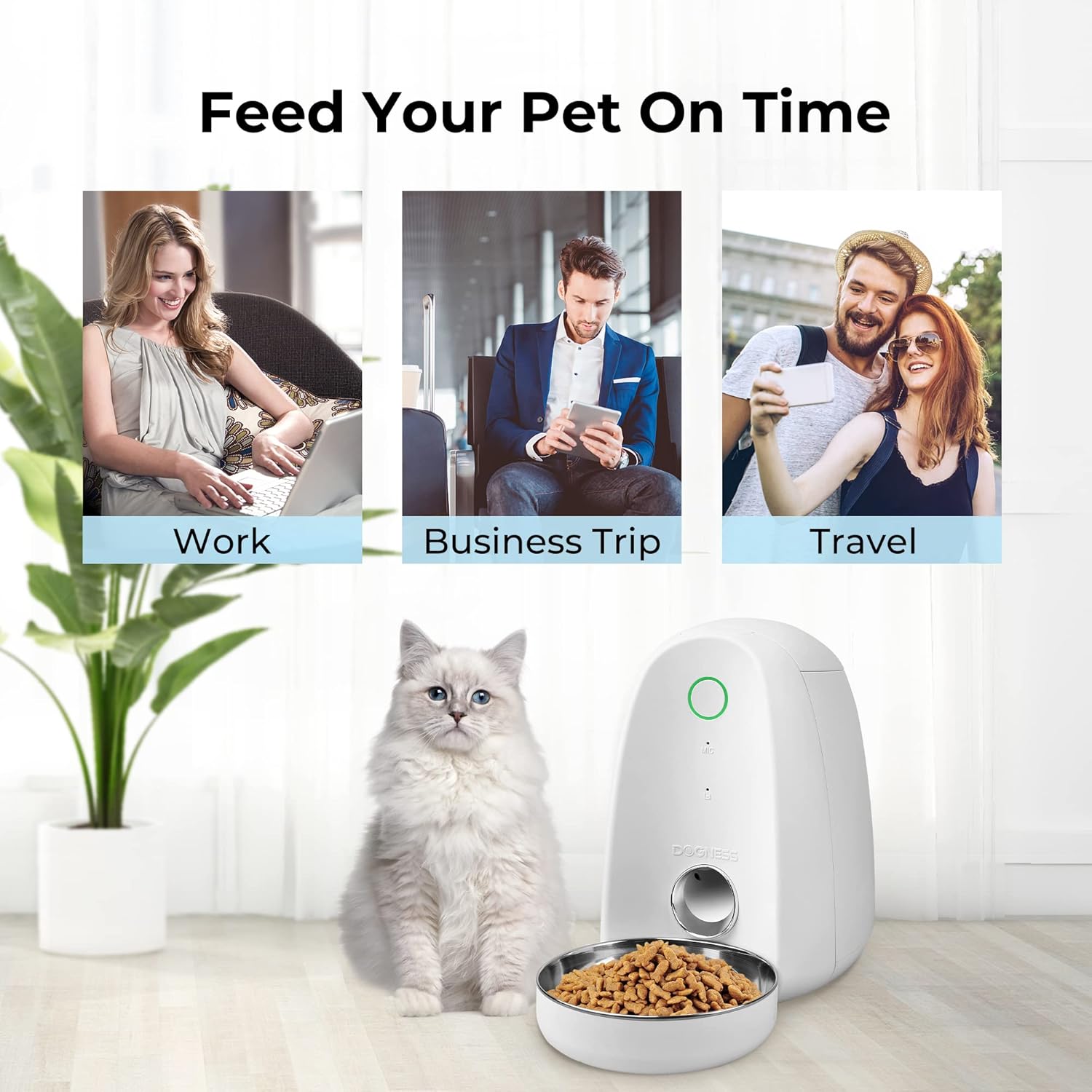
Image: Depiction of the feeder's voice recording function, showing a pet responding to a recorded message.
- In the DOGNESS app, find the "Voice Recording" or "Record Message" option.
- Press and hold the record button in the app to record a 10-second message.
- This message will play automatically at each scheduled feeding time to call your pet.
Maintenance and Cleaning
Regular cleaning ensures the longevity and hygienic operation of your pet feeder.
- Food Bowl: The stainless steel food bowl is removable and can be hand-washed with mild soap and water. Rinse thoroughly and dry completely before reattaching.
- Food Hopper: Wipe the inside of the food hopper with a damp cloth. Ensure it is completely dry before refilling with food. Do not immerse the main unit in water.
- Dispenser Mechanism: Periodically check the dispenser mechanism for any food residue or blockages. Use a soft brush or cloth to clean.
- Exterior: Wipe the exterior of the feeder with a soft, dry cloth.
- Battery Replacement: If using battery backup, replace batteries when the low battery indicator appears or if the feeder stops functioning during a power outage.
Care Instructions: Hand Wash Only for removable parts. Do not put any electronic components in the dishwasher.
Troubleshooting
| Problem | Possible Cause | Solution |
|---|---|---|
| Feeder not dispensing food. |
|
|
| Cannot connect to Wi-Fi. |
|
|
| Voice recording not playing. |
|
|
If the problem persists, please contact DOGNESS customer support for further assistance.
Specifications
| Model | B09TVMDDWR |
| Dimensions (LxWxH) | 9 x 8 x 12 inches |
| Weight | 3.84 Pounds |
| Material | Plastic, Stainless Steel |
| Power Supply | Power Adapter, 3 x D Batteries (not included) |
| Wi-Fi Frequency | 2.4GHz only |
| Max Meals/Day | 6 |
| Max Portions/Meal | 15 |
| Voice Recording | 10 seconds |
| Target Species | Cat, Dog (Small to Medium Breeds) |
Warranty and Support
DOGNESS products come with a standard manufacturer's warranty. Please refer to the warranty card included with your product or visit the official DOGNESS website for detailed warranty terms and conditions.
For technical support, product inquiries, or warranty claims, please contact DOGNESS customer service:
- Email: support@dogness.com
- Website: www.dogness.com (Please check the official website for the most current contact information.)
When contacting support, please have your product model number (B09TVMDDWR) and purchase information ready.


