Introduction
This manual provides detailed instructions for setting up, operating, maintaining, and troubleshooting your ASUS ROG Strix XG27AQ-W 27-inch 1440P HDR Gaming Monitor. Please read this manual thoroughly before using the product to ensure proper and safe operation.
Package Contents
Verify that all items listed below are present in your product package:
- XG27AQ-W Monitor
- DisplayPort cable
- HDMI cable
- USB cable
- Power cord & Adapter
- Quick Start Guide
- Warranty Card
- Color Calibration Report
- ROG Sticker

Setup Instructions
1. Assembling the Stand
Carefully place the monitor face down on a soft, clean surface to prevent scratches. Attach the stand base to the stand arm, securing it with the provided screw. Then, align the stand assembly with the mounting slot on the back of the monitor and push until it clicks into place. No screws are necessary for attaching the stand to the monitor panel.

2. Connecting Cables
Connect the DisplayPort or HDMI cable from your computer's graphics card to the corresponding input port on the monitor. For USB functionality, connect the upstream USB cable from your computer to the monitor's USB upstream port. Finally, connect the power adapter to the monitor and then to a power outlet.

Key Features
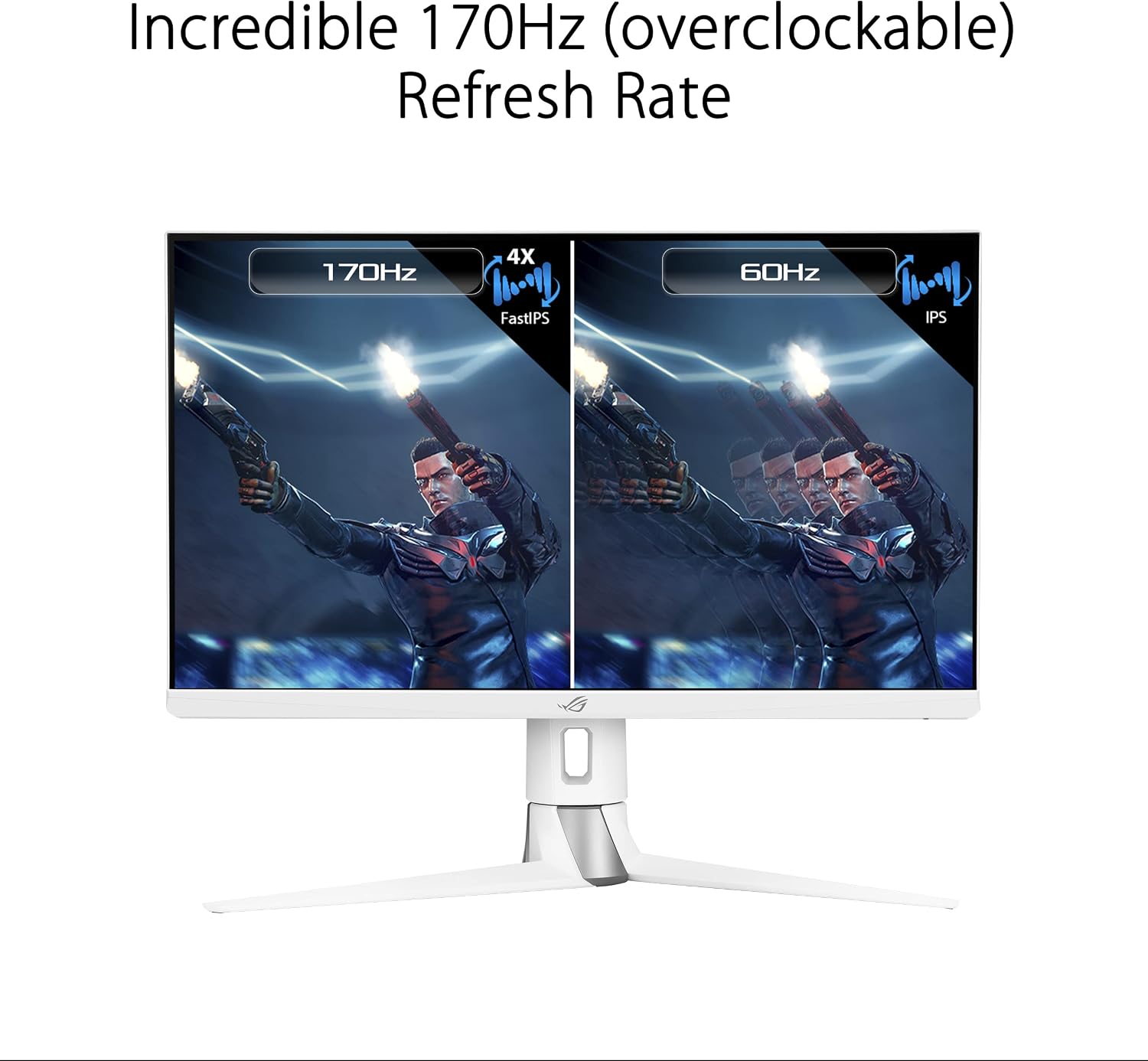
- 27-inch QHD (2560 x 1440) FastIPS Display: Offers an ultrafast 170Hz (overclocked) refresh rate, ideal for professional gamers and immersive gameplay.
- 1ms (GTG) Response Time: ASUS FastIPS technology ensures sharp gaming visuals with high frame rates and minimal motion blur.
- G-SYNC Compatible: Delivers a seamless, tear-free gaming experience by enabling Variable Refresh Rate (VRR) by default.
- Extreme Low Motion Blur Sync (ELMB SYNC): This technology works with G-SYNC Compatible to eliminate ghosting and tearing, providing sharp visuals at high frame rates.
- High Dynamic Range (HDR) Technology: Features a professional color gamut that meets DCI-P3 95% and DisplayHDR 400 certification for superior contrast and color performance.
- Ergonomic Design: The monitor stand offers extensive adjustments including height (0-100mm), swivel (+25°~-25°), pivot (0°~90°), and tilt (+20°~-5°).



Operating Instructions
On-Screen Display (OSD) Menu
The monitor features a 5-way OSD navigation joystick located on the rear right side for easy menu control. Press the joystick to access the main OSD menu. Use the joystick to navigate through options and adjust settings such as display modes, color settings, and gaming features.

Eye Care Technology
The monitor incorporates ASUS Eye Care technology, including Blue Light Filter and Flicker-Free technology, to reduce eye strain during prolonged use. These features can be adjusted or enabled through the OSD menu.
Video: An official ASUS video demonstrating the benefits of ASUS EyeCare technology, including anti-glare screen, blue light filter, flicker-free technology, and ergonomic design for improved user comfort and eye health.
Specifications
| Feature | Specification |
|---|---|
| Screen Size | 27 Inches |
| Screen Resolution | 2560 x 1440 (QHD) |
| Max Screen Resolution | 2560 x 1440 Pixels |
| Panel Type | Fast IPS |
| Refresh Rate | 170Hz (overclocked) |
| Response Time | 1ms (GTG) |
| Adaptive Sync Technology | G-SYNC Compatible |
| HDR Support | DisplayHDR 400 |
| Color Gamut | DCI-P3 95% |
| Connectivity | 2x HDMI (v2.0), 1x DisplayPort (v1.2), 1x USB 2.0 (upstream), 2x USB 3.0 (downstream), Earphone Jack |
| Ergonomics | Height, Swivel, Pivot, Tilt adjustable |
| Dimensions (LxWxH) | 24 x 16 x 10 inches |
| Item Weight | 19 pounds |
| Color | WHITE |
Maintenance
- Cleaning the Screen: Use a soft, lint-free cloth lightly dampened with water or a non-ammonia, non-alcohol based screen cleaner. Do not spray cleaner directly onto the screen.
- Cleaning the Casing: Use a soft, dry cloth to wipe the monitor casing. Avoid abrasive cleaners.
- Ventilation: Ensure the monitor's ventilation openings are not blocked to prevent overheating.
- Power Off: Always power off the monitor and unplug it from the power outlet before cleaning or if it will be unused for an extended period.
Troubleshooting
| Problem | Solution |
|---|---|
| No power | Ensure the power cord is securely connected to the monitor and a working power outlet. Check the power adapter. |
| No image on screen | Verify the video cable (DisplayPort/HDMI) is correctly connected to both the monitor and your computer. Ensure the correct input source is selected via the OSD menu. |
| Image is blurry or distorted | Check the display resolution settings on your computer and ensure they match the monitor's native resolution (2560x1440). Adjust OSD settings like sharpness or aspect ratio. |
| Flickering screen | Ensure the video cable is properly connected. Try a different video cable. Enable or disable Flicker-Free technology in the OSD menu if available. |
| No sound from earphone jack | Check the audio output settings on your computer. Ensure the volume on the monitor (via OSD) and your connected device is not muted or too low. |
Warranty and Support
Your ASUS ROG Strix XG27AQ-W monitor comes with a manufacturer's warranty. Please refer to the included Warranty Card for specific terms, conditions, and duration of coverage. For technical support, driver downloads, or further assistance, please visit the official ASUS support website or contact their customer service.
Online Support: www.asus.com/support/


