
UPBRIGHT AuKing M8-F Mini Projector Cable
UpBright 2-Prong AC Power Cord for AuKing M8-F A008 Mini Projector User Manual
Model: AuKing M8-F Mini Projector Cable
1. Product Overview
This manual provides instructions for the UpBright 2-Prong AC Power Cord. This cable is designed to supply AC power to compatible electronic devices, such as mini projectors. It features a standard 2-prong US plug (Type A) on one end and a 2-slot connector on the other, suitable for devices requiring a 2-slot AC input.
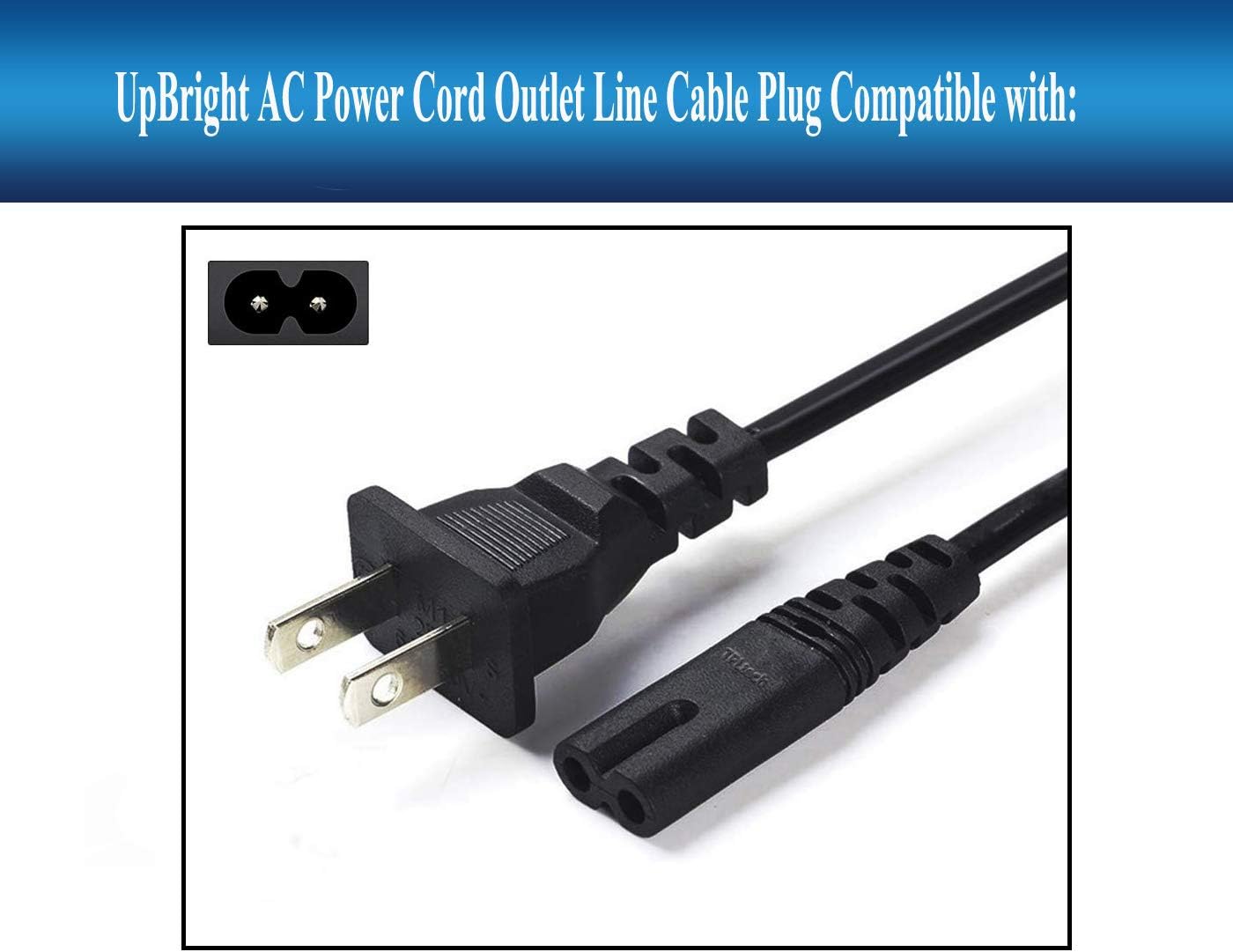
Figure 1: UpBright 2-Prong AC Power Cord. This image displays the full length of the black power cord, featuring a standard 2-prong US plug on one end and a 2-slot connector on the other.
2. Safety Information
- Electrical Safety: Always ensure the power outlet and the device's power input are compatible with the cable's specifications (120 Volts, 0.42 Amps, 50 Watts).
- Proper Connection: Insert the plugs fully into the outlet and device to prevent loose connections, which can cause overheating or electrical hazards.
- Avoid Damage: Do not bend, twist, or crimp the power cord excessively. Avoid placing heavy objects on the cord.
- Indoor Use Only: This power cord is designed for indoor use. Do not expose it to moisture or extreme temperatures.
- Unplug When Not in Use: Disconnect the power cord from the outlet when the device is not in use for extended periods or during electrical storms.
3. Setup and Installation
Follow these steps to properly connect your UpBright AC Power Cord to a compatible device:
- Identify Connectors: Locate the 2-prong male plug and the 2-slot female connector on the power cord.
- Connect to Device: Insert the 2-slot female connector firmly into the AC power input port of your compatible device (e.g., AuKing Mini Projector). Ensure it is fully seated.
- Connect to Power Outlet: Insert the 2-prong male plug into a standard 120V AC wall outlet.
- Verify Connection: Ensure both ends of the cable are securely connected. The device should now receive power.

Figure 2: Example of a compatible device. This image shows an AuKing Mini Projector, illustrating the type of device this power cord is designed to power.
4. Compatibility
This UpBright 2-Prong AC Power Cord is compatible with various devices requiring a 2-slot AC power input. Known compatible models include, but are not limited to:
- AuKing Mini Projector M8-F A008 (2022 Upgraded Portable Video-Projector)
- ONOAYO ONO1 Model No.C50 5G WiFi Projector
- TMY V08 Projector
- BIGASUO Outdoor Movie Projector
- DBPOWER RD828 Wireless Video Projector
Always verify the power input requirements of your device before connecting.
5. Specifications
| Feature | Detail |
|---|---|
| Brand | UPBRIGHT |
| Model Number | AuKing M8-F Mini Projector Cable |
| Color | Black |
| Connector Gender | Male-to-Female (2-prong male plug to 2-slot female connector) |
| Voltage | 120 Volts |
| Input Current | 0.42 Amps |
| Wattage | 50 Watts |
| Plug Type | Type A (US Standard 2-prong) |
| Number of Conductors | 2 |
| Item Length | 6 Feet |
| UL Listed | No |
6. Troubleshooting
If your device is not receiving power after connecting the UpBright AC Power Cord, consider the following:
- Check Connections: Ensure both ends of the power cord are fully and securely inserted into the device and the wall outlet.
- Verify Outlet Functionality: Test the wall outlet with another known working appliance to confirm it is supplying power.
- Inspect Cable for Damage: Visually inspect the entire length of the power cord for any cuts, frayed wires, or bent prongs. Do not use a damaged cable.
- Device Power Switch: Confirm that the power switch on your device is in the "On" position.
- Compatibility Check: Double-check that your device's power input requirements match the specifications of this power cord.
7. Warranty and Support
The UpBright AC Power Cord comes with the following warranty and support:
- Refund Policy: 30 Days Refund
- Exchange Policy: 24 Months Exchange
For support or warranty claims, please contact UpBright customer service through your purchase platform.
Ask a question about this manual
Ask about setup, troubleshooting, compatibility, parts, safety, or missing instructions. Manuals+ will review the question and use this page’s manual context to help answer it.