
1. Introduction
This manual provides instructions for the proper setup, operation, and maintenance of your XIRON Stylus Pen and Paper Screen Protector. Please read this manual carefully before use to ensure optimal performance and longevity of your products.
2. Compatibility
The XIRON Stylus Pen and Paper Screen Protector are specifically designed for the iPad Mini 6th Generation (2021). The stylus pen is also compatible with various iPad models from 2018-2021 that support Apple Pencil. It is not compatible with iPad models released before 2018, iPhones, Android devices, or Microsoft devices.
Please verify your iPad model before use. Refer to the image below for a detailed compatibility chart.

Image: Compatibility chart for XIRON Stylus Pen. This chart displays various iPad models and their corresponding model numbers that are compatible with the stylus pen. It explicitly states that the stylus is not compatible with iPad Pro 12.9 (1st & 2nd Gen), iPad Pro 9.7", iPad Pro 10.5", and iPhone models.
3. Setup
3.1. Stylus Pen Setup
- Charging the Stylus: The stylus pen comes with a built-in rechargeable battery. Connect the stylus to a USB power source using the provided charging cable. The indicator light will show charging status and turn off when fully charged.
- Power On/Off: To turn on the stylus, gently touch the top of the digital pen. The indicator light will illuminate. To turn it off, touch the top again.
- Connection: The XIRON Stylus Pen does not require Bluetooth pairing. Simply turn it on, and it will be ready for use with your compatible iPad.
3.2. Paper Screen Protector Setup
Follow these steps for optimal application of the screen protector:
- Clean the Screen: Thoroughly clean your iPad screen using the provided cleaning kit (if included) or a microfiber cloth and screen cleaner. Ensure there is no dust, smudges, or fingerprints.
- Align the Protector: Carefully align the screen protector with your iPad screen, paying attention to the camera cutout and edges.
- Apply: Slowly peel off the protective film from one end of the screen protector and gently lay it onto the iPad screen. Use a squeegee or a credit card wrapped in a cloth to smooth out any air bubbles as you apply.
- Remove Top Film: Once applied, remove the top protective film (if present).
4. Operating Instructions
4.1. Using the Stylus Pen
- Palm Rejection: The stylus features palm rejection technology, allowing you to rest your palm comfortably on the iPad screen while writing or drawing without interfering with the stylus input. This eliminates the need for a special glove.
- Precision and Responsiveness: The stylus is equipped with a 1.2mm carbon fiber tip designed for high precision and smooth writing, ensuring accurate input with no lag or skips.

Image: Stylus tip comparison and palm rejection feature. This image illustrates the benefits of the carbon fiber tip for precision and the palm rejection feature, allowing comfortable use without unintended screen input.
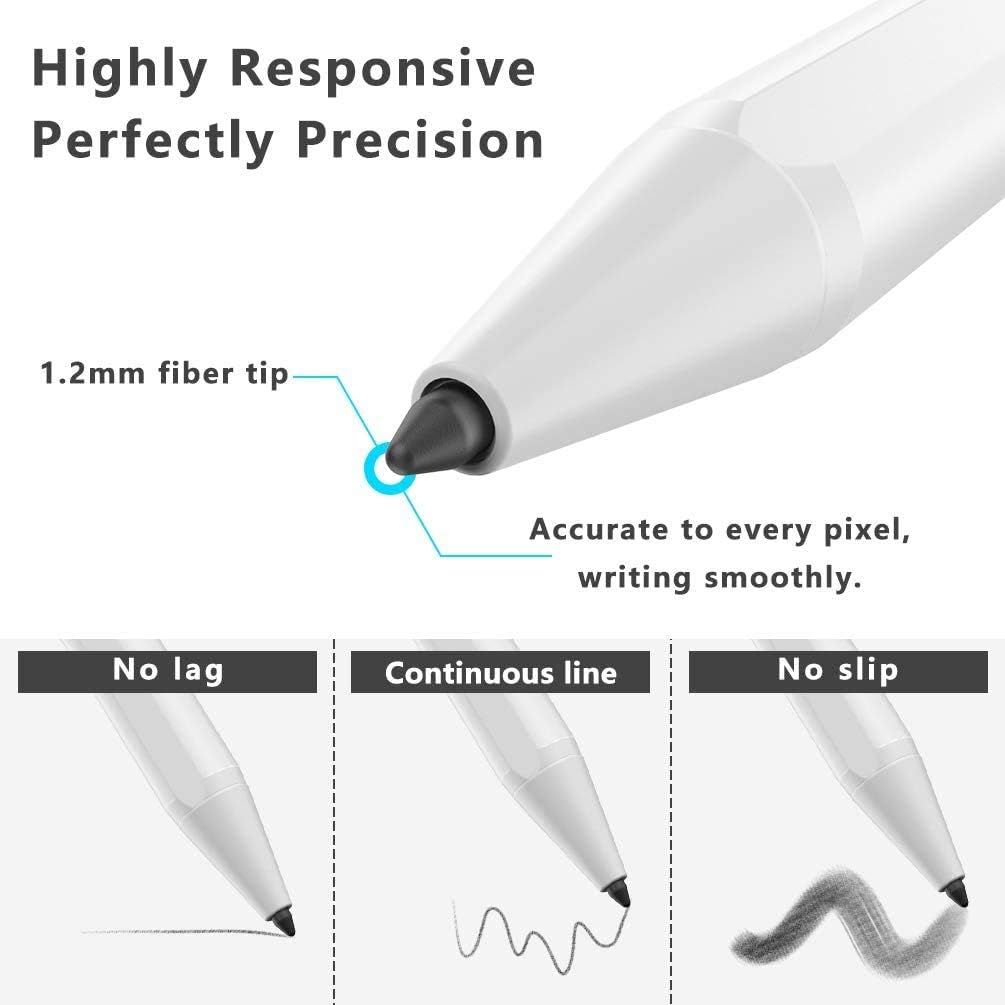
Image: Stylus precision and responsiveness. This image highlights the 1.2mm fiber tip, emphasizing its accuracy, smooth writing, and lack of lag, continuous line capability, and no-slip performance.
- Versatile Use: The stylus is suitable for various tasks including sketching, writing, drawing, and taking notes.
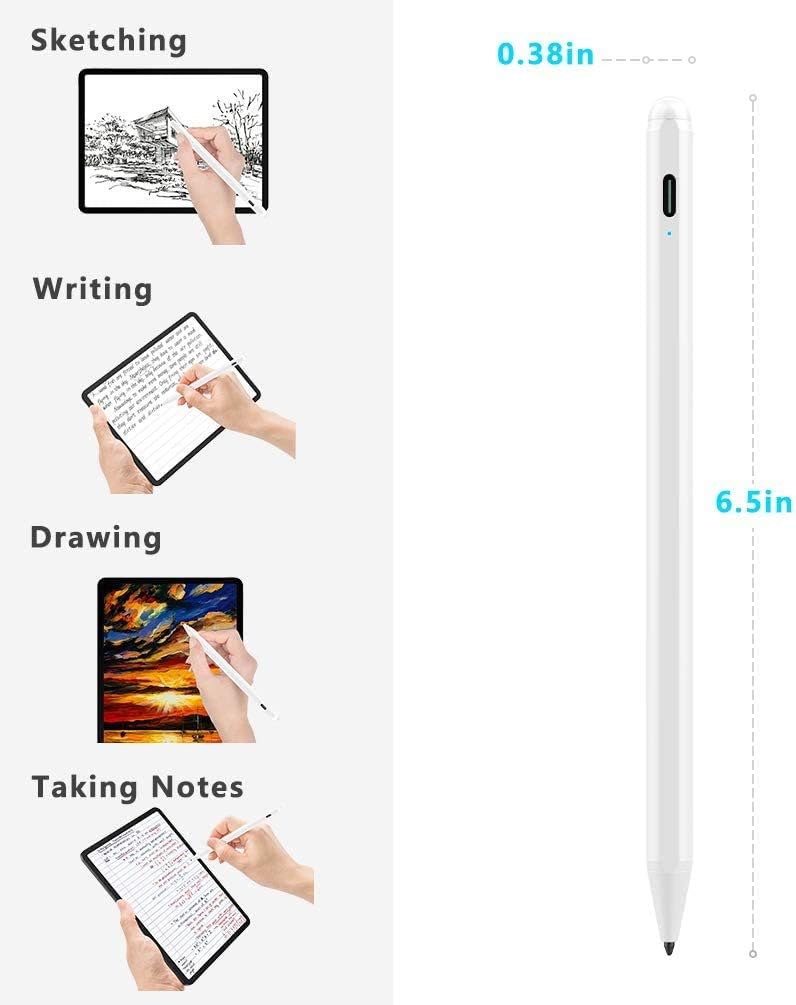
Image: Stylus applications and dimensions. This image demonstrates the stylus's utility for sketching, writing, drawing, and note-taking, alongside its physical dimensions.
4.2. Using the Paper Screen Protector
- Paper-like Feel: The PET film provides a tactile surface that mimics the feel of writing or drawing on paper, offering better control than a smooth glass surface.
- Reduced Glare and Fingerprints: The matte texture helps reduce screen glare and minimizes fingerprint smudges, improving visibility and user comfort during extended use.
- Maintains Screen Clarity: Despite its matte finish, the screen protector is designed to retain the original color and definition of your iPad's display.
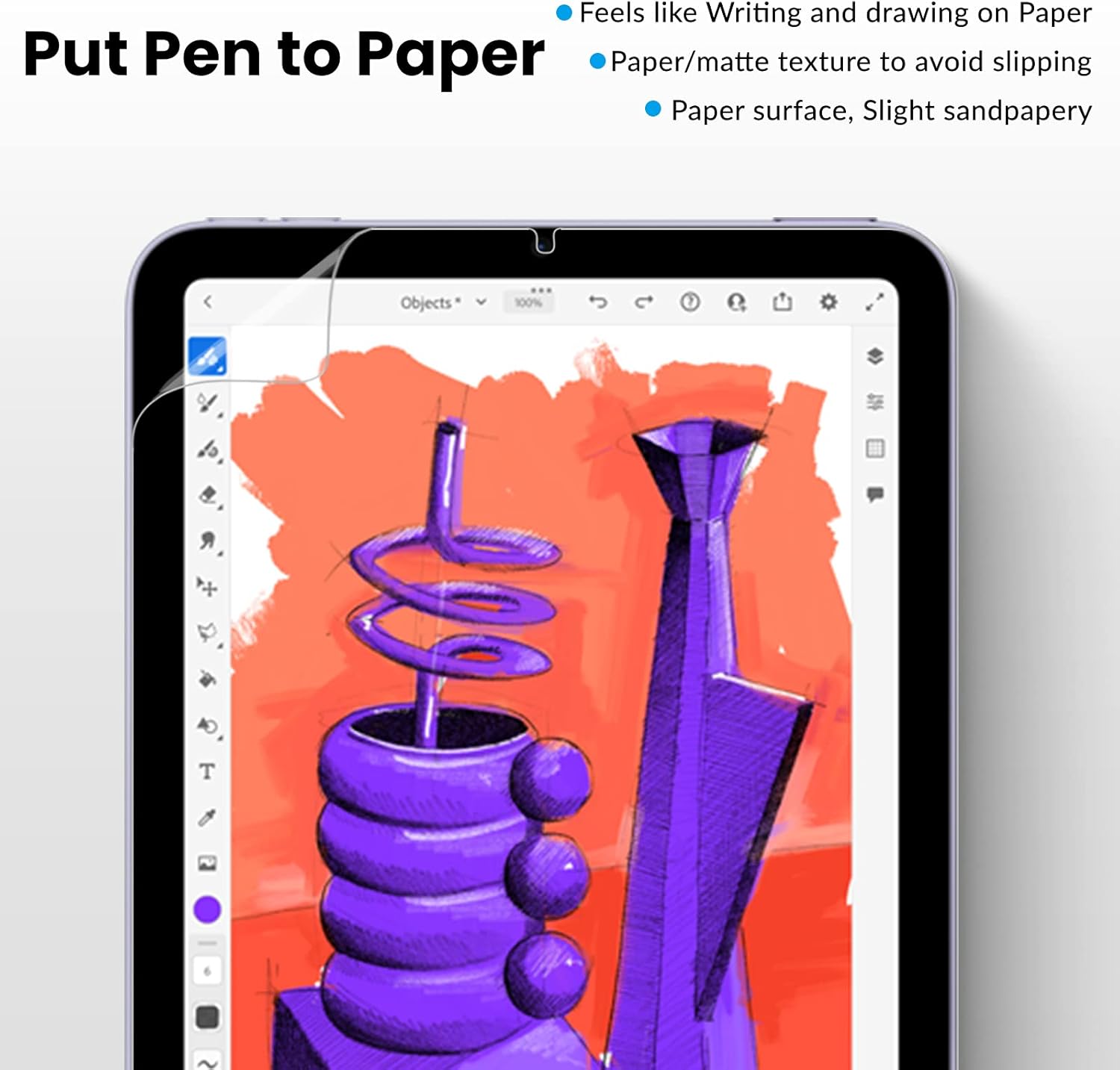
Image: Paper-like writing experience. This image illustrates how the screen protector provides a tactile, paper-like surface for writing and drawing, enhancing control and reducing slippage.

Image: Screen protector clarity. This image demonstrates that the screen protector maintains the original screen's color and resolution due to its high light transmittance PET material.

Image: Thinness and touch sensitivity. This image highlights the ultra-thin design of the screen protector, ensuring it maintains the device's slim profile and preserves touch sensitivity without interruption to pen lines.
5. Maintenance
5.1. Stylus Pen Maintenance
- Cleaning: Use a soft, dry, lint-free cloth to clean the body of the stylus. If the tip becomes dirty, gently wipe it with a slightly damp cloth and allow it to dry completely before use.
- Storage: Store the stylus in a safe place to prevent damage to the tip when not in use.
5.2. Screen Protector Maintenance
- Cleaning: The screen protector is designed to be less prone to fingerprints. For cleaning, gently wipe the surface with a soft, lint-free cloth. For stubborn smudges, a slightly damp cloth can be used.
- Protection: The screen protector offers anti-scratch properties. However, avoid sharp objects that could potentially damage the surface.

Image: Screen protector features for maintenance. This image highlights the waterproof, less-fingerprint, and anti-scratch properties of the screen protector, aiding in its maintenance.
6. Troubleshooting
- Stylus not responding:
- Ensure the stylus is charged and turned on.
- Verify your iPad model is compatible (refer to Section 2).
- If you have previously paired an Apple Pencil with your iPad, disconnect it in iPad Settings > Bluetooth.
- Restart your iPad.
- Inaccurate or skipping lines:
- Check if the stylus tip is clean and free from debris.
- Ensure the stylus is adequately charged.
- Screen protector bubbles:
- Small bubbles may disappear over 24-48 hours.
- For larger bubbles, gently lift the nearest edge of the protector and re-apply, using a squeegee to push out the air.
7. Specifications
| Feature | Description |
|---|---|
| Brand | XIRON |
| Model Number (ASIN) | B09TR591SX |
| Stylus Tip | 1.2mm Carbon Fiber |
| Stylus Features | Palm Rejection, Smart Touch Switch, High Precision, No Lag |
| Stylus Dimensions | Approximately 6.5 inches (length) x 0.38 inches (diameter) |
| Stylus Battery | Rechargeable (Batteries Included: Yes, Batteries Required: No) |
| Screen Protector Material | PET Film |
| Screen Protector Hardness | 3H |
| Screen Protector Features | Paper-like texture, Anti-glare, Less-fingerprint, Anti-scratch, Ultra-thin, High light transmittance |
| Compatible Devices | iPad Mini 6th Generation (2021), and other compatible iPad models from 2018-2021 |
8. Warranty and Support
For warranty information or technical support, please refer to the product packaging or contact XIRON customer service directly through the retailer where the product was purchased. Keep your purchase receipt as proof of purchase.
