
Introduction
This manual provides detailed instructions for the setup, operation, and maintenance of your ASAKUKI 5G WiFi Projector (Model 455W). Please read this manual thoroughly before using the projector to ensure proper functionality and longevity of the device.

Image: The ASAKUKI 5G WiFi Projector, a compact white device with a lens on the front and control buttons on top. A smartphone is shown on top of the projector, indicating wireless connectivity.
Package Contents
Verify that all items listed below are included in your package:
- 1x ASAKUKI 1080P Projector
- 1x Power Cable
- 1x HDMI Cable
- 1x AV Cable
- 1x Remote Control (batteries not included)
- 1x Projector Lens Cover
Note: A carrying bag is not included with this product.
Setup
1. Placement
Choose a flat, stable surface for the projector. Ensure adequate ventilation around the device. The projection distance can range from 5 feet to 24 feet, allowing for a screen size between 40 inches and 240 inches. Adjust the projector's position to achieve the desired screen size and focus.

Image: An outdoor scene at dusk showing the projector on a tripod projecting a large image onto a screen, illustrating the versatile screen size and portability.
2. Power Connection
- Connect the provided power cable to the projector's power input port.
- Plug the other end of the power cable into a standard electrical outlet.
- Press the power button on the projector or remote control to turn on the device.
3. Initial Focus Adjustment
Once powered on, adjust the focus ring on the projector lens until the projected image appears clear and sharp on your screen or wall.
Operating Instructions
1. Connecting Devices
The projector offers multiple connectivity options:
- HDMI: Connect your TV Box, Laptop, PS5, or other HDMI-enabled devices using the provided HDMI cable to either HDMI 1 or HDMI 2 ports. Select the corresponding HDMI input from the projector's menu.
- USB: Insert a USB flash drive into one of the USB ports to play media files (movies, music, photos, text). Navigate to the 'Movie', 'Music', 'Photo', or 'Text' section in the projector's main menu.
- AV: Use the AV cable to connect older devices like DVD players. Select the AV input from the menu.
- Audio Out: Connect external headphones or speakers to the Audio port for enhanced sound. The projector features dual 5W stereo speakers with noise reduction for immersive sound.

Image: A close-up of the projector's side, highlighting the internal components of the dual 5W stereo speakers and rubber diaphragm for improved bass.
2. Wireless Connection (Screen Mirroring)
The projector supports 2.4G and 5G WiFi for screen mirroring from your smartphone or Miracast-enabled device. This provides low latency and stable data transmission.
- Select 'Screen Mirroring' from the projector's main menu.
- Ensure your smartphone or device is connected to the same WiFi network as the projector.
- On your device, enable screen mirroring (e.g., 'Screen Cast', 'Smart View', 'AirPlay').
- Select the projector's name from the list of available devices.
Important Note: Due to copyright restrictions, content from streaming services like Hulu, Netflix, Xfinity, and similar platforms cannot be mirrored or screencast directly. To view content from these services, please connect a TV stick (e.g., Roku, Amazon Fire Stick) to the projector's HDMI port.
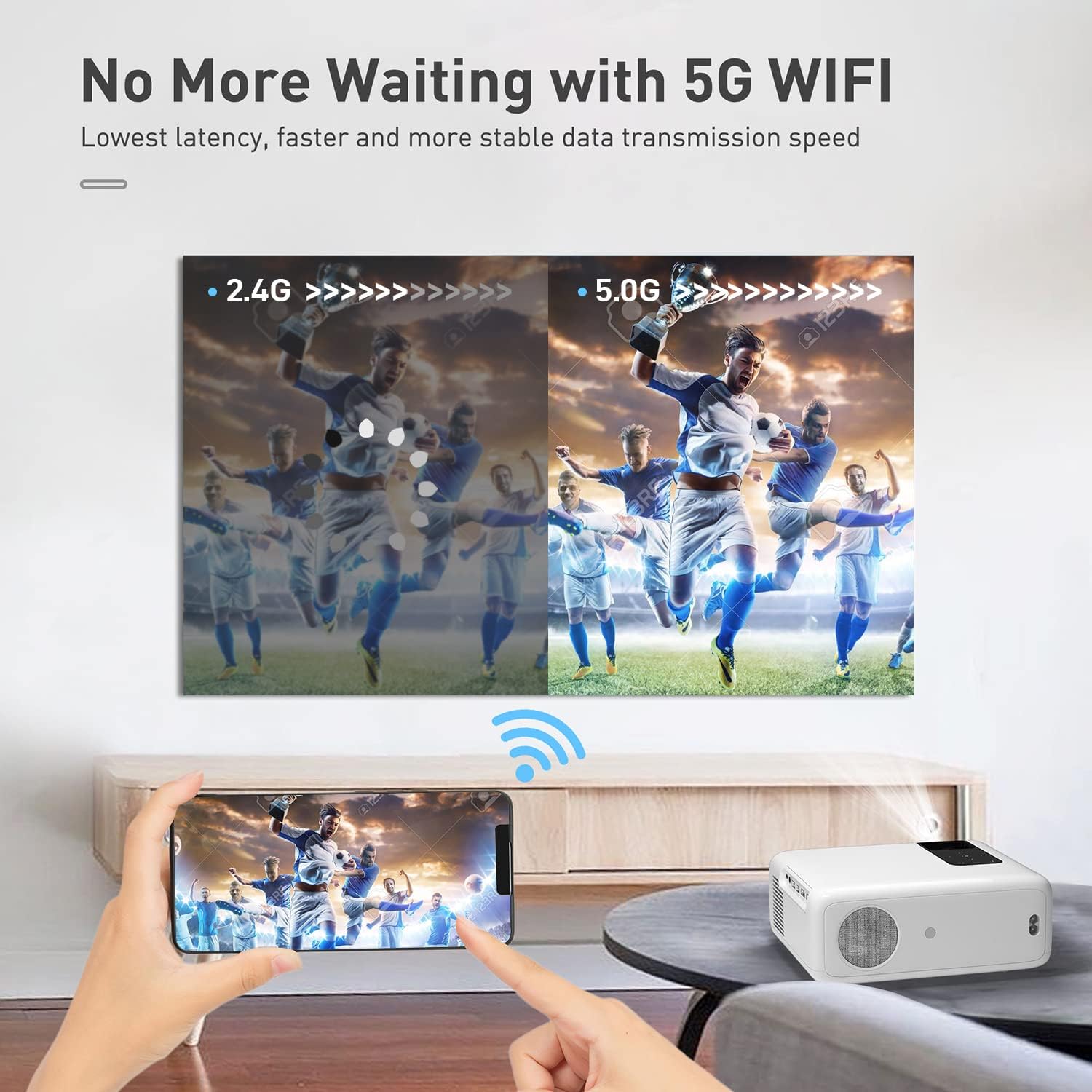
Image: A split image comparing 2.4G and 5G WiFi performance, showing a clearer, faster image with 5G, emphasizing the low latency and stable data transmission.
3. Image Adjustment (Zoom Function)
The projector features a ZOOM function that allows you to reduce the image size from 100% to 75% without physically moving the projector. This is useful for fine-tuning the display to your screen or wall space.
Maintenance
1. Cleaning the Lens
Use a soft, lint-free cloth specifically designed for optical lenses to gently wipe the projector lens. Avoid using abrasive cleaners or cloths that could scratch the lens surface.
2. Dust Removal
Regularly clean the projector's vents to prevent dust buildup, which can affect performance and lead to overheating. Use a soft brush or compressed air to remove dust from the ventilation openings.

Image: An illustration showing the internal dual fan design of the projector, with arrows indicating airflow for cooling and noise reduction.
3. Storage
When not in use, cover the projector lens with the provided lens cover. Store the projector in a cool, dry place away from direct sunlight and extreme temperatures.
Troubleshooting
| Problem | Possible Cause | Solution |
|---|---|---|
| No image projected. | Power cable not connected; incorrect input source selected; lens cap on. | Ensure power is connected and unit is on. Select correct HDMI/AV/USB input. Remove lens cap. |
| Image is blurry. | Focus not adjusted; projector too close/far from screen. | Adjust the focus ring on the lens. Reposition the projector within the recommended distance (5ft-24ft). |
| No sound. | Volume too low; external speakers not connected properly; audio settings. | Increase volume. Check external speaker connections. Verify audio output settings on connected device. |
| Screen mirroring not working. | Not connected to same WiFi; copyrighted content; device compatibility. | Ensure both devices are on the same 2.4G/5G WiFi network. Use a TV stick for copyrighted content. Check device's Miracast/AirPlay compatibility. |
| Projector overheating. | Blocked vents; prolonged use in hot environment. | Ensure vents are clear of obstructions. Allow projector to cool down. Use in a well-ventilated area. |
Specifications
| Feature | Detail |
|---|---|
| Brand | ASAKUKI |
| Model Number | 455W |
| Native Resolution | 1920 x 1080P (Full HD) |
| Supported Resolution | Up to 4K |
| Brightness | 350 ANSI Lumen |
| Contrast Ratio | 10000:1 |
| Projection Size | 40" - 240" (Visible screen diagonal: 610 cm) |
| Projection Distance | 5ft - 24ft |
| Connectivity | 2x HDMI, 2x USB, AV, Audio (3.5mm) |
| Wireless Connectivity | 2.4G + 5G WiFi |
| Speakers | Dual 5W Stereo Speakers |
| Noise Level | Less than 40 dB |
| Product Dimensions | 8.34 x 2.9 x 5.78 inches |
| Item Weight | 3.5 pounds |
Warranty & Support
ASAKUKI offers a 3-year warranty service for this projector, ensuring peace of mind regarding manufacturing defects and performance issues. Additionally, a 6-month free replacement service is provided for eligible issues.
For technical support, warranty claims, or any inquiries regarding your ASAKUKI 5G WiFi Projector, please contact ASAKUKI customer service through the official website or the contact information provided in your purchase documentation.
You can also visit the official ASAKUKI store for more information and products: ASAKUKI Official Store
