1. Introduction
This user manual provides comprehensive instructions for the Eseesmart Fingerprint Lock (Model: YL-P10BF). This smart padlock offers multiple unlocking methods including fingerprint recognition, mobile application control, and traditional keys, ensuring versatile and secure access. It is designed for various applications, both indoor and outdoor, thanks to its durable and waterproof construction.
2. Product Features
- Multiple Unlocking Methods: Unlock using fingerprint, mobile app (Bluetooth), or physical keys.
- Fast Fingerprint Recognition: Unlocks in less than 0.5 seconds with 360° recognition. Supports up to 15 sets of fingerprints.
- Mobile App Control: Register fingerprints, manage authorized users, remotely authorize unlocking, and view the last 1000 unlock records via the dedicated app.
- Long Battery Life: Built-in 230mAh battery provides approximately 2000 unlocks per charge and over 6 months of standby time.
- TYPE-C Charging: Convenient and fast charging via a Type-C port.
- Rugged and Durable Construction: Made from Zinc alloy body and stainless steel lock beam for enhanced sturdiness.
- IP65 Weatherproof: Protects against dust and water, suitable for outdoor use.
- Sliding Cover Protection: Fingerprint module is protected by a sliding cover.

Figure 2.1: The Eseesmart Fingerprint Lock can be unlocked via mobile app, fingerprint, or physical keys.
3. Package Contents
Upon unboxing, please verify that all the following items are included:
- 1 x Eseesmart Fingerprint Lock
- 2 x Physical Keys
- 1 x Type-C Charging Cable
- 1 x User Manual (this document)

Figure 3.1: Contents typically included with the Eseesmart Fingerprint Lock.
4. Setup and Initial Use
4.1 Charging the Device
Before first use, fully charge the padlock using the provided Type-C cable. Connect the cable to the lock's Type-C port and a compatible USB power source (e.g., computer, wall adapter, power bank). The indicator lights will show charging status.

Figure 4.1: The padlock can be charged using various Type-C compatible power sources.
4.2 Registering the First Administrator Fingerprint
The first fingerprint registered will automatically be set as the administrator. This administrator fingerprint is required to add or delete other fingerprints.
- Ensure the lock is charged.
- Press and hold the fingerprint sensor until the blue indicator light flashes.
- Place your finger on the sensor. Lift and repeat several times, adjusting the angle slightly each time, until the green light confirms successful registration.
- The lock will beep to confirm the administrator fingerprint has been successfully added.
Video 4.1: This video demonstrates the process of registering the first administrator fingerprint on the Eseesmart Fingerprint Lock, as well as adding subsequent user fingerprints and deleting all registered fingerprints to restore factory settings. It also shows the product's various sizes and how to use the mobile app for management.
4.3 Adding Additional User Fingerprints (2nd to 15th)
After the administrator fingerprint is set, up to 14 additional user fingerprints can be registered.
- Use the administrator fingerprint to unlock the device.
- Immediately after unlocking, press and hold the fingerprint sensor until the blue indicator light flashes.
- Place the new user's finger on the sensor. Lift and repeat several times, adjusting the angle slightly each time, until the green light confirms successful registration.
- The lock will beep to confirm the new fingerprint has been successfully added.
4.4 Mobile App Setup
The Eseesmart Fingerprint Lock can be managed via a mobile application (iOS/Android).
- Download the "eSmartLock" app from your device's app store.
- Open the app and create an account if prompted.
- Ensure Bluetooth is enabled on your smartphone.
- In the app, search for and pair with your Eseesmart Fingerprint Lock. Follow the on-screen instructions to complete the pairing process.
- Once connected, you can use the app for user management, adding/deleting fingerprints, remote unlocking authorization, and viewing unlock history.
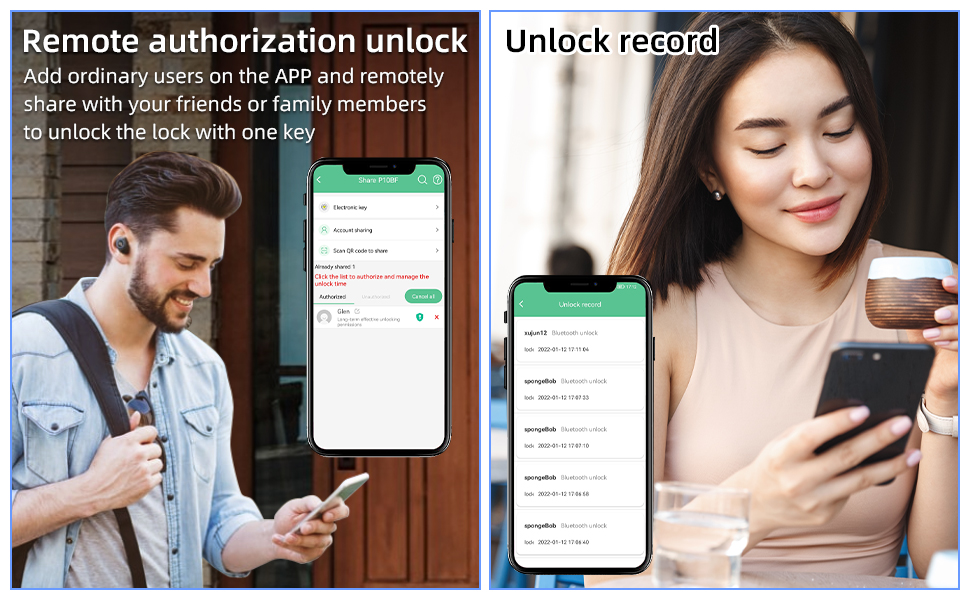
Figure 4.2: The mobile app allows for remote authorization and viewing of unlock records.
5. Operating Instructions
5.1 Unlocking with Fingerprint
To unlock the padlock using a registered fingerprint:
- Slide down the protective cover to reveal the fingerprint sensor.
- Place a registered finger firmly on the sensor.
- The blue indicator light will flash, and the lock will unlock if the fingerprint is recognized.

Figure 5.1: The fingerprint sensor is protected by a sliding cover.
5.2 Unlocking with Mobile App (Bluetooth)
To unlock the padlock using the mobile app:
- Ensure your smartphone's Bluetooth is on and the lock is within range.
- Open the "eSmartLock" app.
- Select your lock from the device list.
- Tap the "Unlock" button within the app. The lock will unlock.
5.3 Unlocking with Physical Key
In case of low battery or other issues, the physical keys can be used as a backup.
- Locate the keyhole on the padlock.
- Insert one of the provided keys and turn it to unlock the padlock.
6. Battery and Charging
The Eseesmart Fingerprint Lock is equipped with a rechargeable 230mAh Lithium Ion battery. A full charge typically takes about 1 hour and provides power for approximately 2000 unlocks or 6 months of standby time.
- Low Battery Indication: The indicator lights on the lock will signal when the battery is low.
- Charging: Use the included Type-C cable to charge the lock.
- Power Source: Any standard USB power source (5V/1A) can be used for charging.
7. Maintenance
- Cleaning: Wipe the lock body and fingerprint sensor with a soft, dry cloth. Avoid using abrasive cleaners or solvents.
- Fingerprint Sensor: Keep the fingerprint sensor clean and dry for optimal performance.
- Weather Protection: While IP65 rated, prolonged exposure to extreme weather conditions (e.g., heavy rain, direct sunlight, freezing temperatures) should be minimized to extend product lifespan.
- Battery Care: For long-term storage, ensure the battery is charged to at least 50% to prevent deep discharge. Recharge periodically if stored for extended periods.

Figure 7.1: The IP65 rating ensures protection against dust and water splashes.
8. Troubleshooting
| Problem | Possible Cause | Solution |
|---|---|---|
| Lock does not respond to fingerprint. | Finger not properly placed; unregistered fingerprint; low battery; dirty sensor. | Ensure finger covers the sensor completely. Try different angles. Register the fingerprint if not already done. Charge the lock. Clean the sensor. |
| Cannot connect to mobile app. | Bluetooth off; lock out of range; app not updated; lock not paired. | Ensure Bluetooth is on and lock is nearby. Update the app. Re-pair the lock through the app settings. |
| Lock not charging. | Faulty cable/adapter; dirty charging port. | Try a different Type-C cable and USB adapter. Clean the charging port gently. |
| Forgot administrator fingerprint. | Administrator fingerprint lost or forgotten. | Use the physical key to unlock. To reset all fingerprints and restore factory default mode, press and hold the fingerprint sensor for approximately 10 seconds until the red light flashes, then release and press again until the green light flashes. This will delete all registered fingerprints. You can then register a new administrator fingerprint. |
9. Specifications
| Feature | Detail |
|---|---|
| Brand | Eseesmart |
| Model Name | YL-P10BF |
| Lock Type | Biometric, Padlock with Keys, Bluetooth Lock |
| Material | Zinc alloy, Stainless Steel |
| Dimensions (L x W x H) | 2.3 x 0.8 x 3.7 inches |
| Item Weight | 0.4 Pounds (6.4 ounces) |
| Color | Black |
| Special Features | Fingerprint, APP Control, With keys, Outdoor Waterproof (IP65) |
| Battery Type | Lithium Ion (230mAh) |
| Charging Port | Type-C |
| Connectivity | Bluetooth |
| Controller Type | iOS, Android |
| Fingerprint Capacity | Up to 15 fingerprints |

Figure 9.1: Product dimensions of the Eseesmart Fingerprint Lock.
10. Recommended Uses
The Eseesmart Fingerprint Lock is versatile and suitable for a wide range of applications, including:
- Outdoor gates and fences
- Gym lockers
- Cabinets and toolboxes
- Warehouses and trucks
- Bicycles and other personal belongings

Figure 10.1: Examples of common applications for the Eseesmart Fingerprint Lock.
11. Warranty and Support
Eseesmart offers a 6-month limited warranty for this product. Additionally, free lifetime customer service is provided. For any questions or assistance regarding the product, please contact Eseesmart customer support through your order details page on the platform where the product was purchased.
For further information or to explore other products, visit the official Eseesmart Store: Eseesmart Store


