1. Introduction
The My Arcade Gamer V Classic is a portable gaming system designed for on-the-go entertainment. This device comes preloaded with 220 classic video games, offering a wide variety of genres including entertainment, sports, and adventure. Its compact size and 2.5-inch color display make it suitable for use at home, during travel, or at social gatherings. This manual provides essential information for setting up, operating, maintaining, and troubleshooting your Gamer V Classic.
2. What's in the Box
- Gamer V Classic Portable Gaming System
- User Guide (this document)
3. Product Features
- Kids Friendly Design: No console or controllers required.
- Excellent Gaming Experience: Perfect for travel, birthday parties, gifts, and more.
- Rich Collection of Classic Games: Includes 220 preloaded video games including various types such as entertainment, sports, and adventure.
- Convenient: 2.5" color display, suitable for playing portable games outdoors.
- Volume Control: Integrated volume control for adjustable audio.
- Small and Lightweight: Designed for easy portability.
- Power Source: Powered by 3 AAA batteries (not included).
4. Setup
4.1 Battery Installation
- Locate the battery compartment on the back of the Gamer V Classic unit.
- Open the battery compartment cover.
- Insert 3 new AAA batteries, ensuring correct polarity (+/-) as indicated inside the compartment.
- Close the battery compartment cover securely.
Note: Batteries are not included. Alternatively, the unit can be powered via a USB-C cable (not included) connected to a 5V power source.
4.2 Powering On
Press and hold the power button (usually located on the top left of the device) for a few seconds until the screen illuminates and the My Arcade logo appears.

Image: The Gamer V Classic in use, showing its compact design and screen.
5. Operating Instructions
5.1 Controls Overview
- D-Pad (Directional Pad): Located on the left, used for movement and menu navigation.
- A/B Buttons: Action buttons located on the right, used for jumping, firing, selecting, etc.
- Start Button: Initiates games and pauses gameplay.
- Reset Button: Returns to the main menu or restarts the current game.
- Home Button: Returns to the game selection screen.
- Volume Control: Adjusts the audio level of the device.
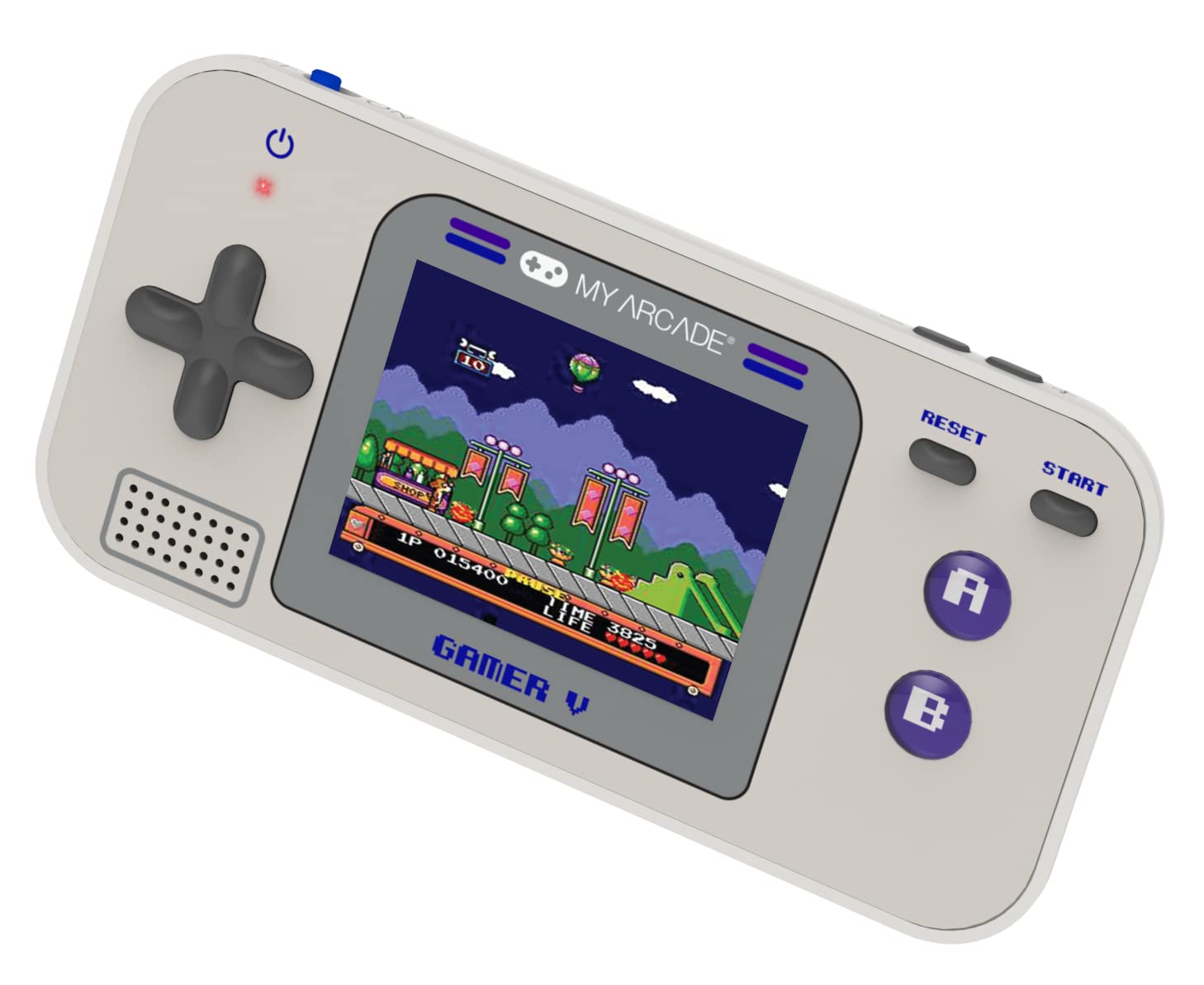
Image: Detailed view of the Gamer V Classic controls.
5.2 Game Selection and Play
- After powering on, the device will display the main game selection menu.
- Use the D-Pad to scroll through the list of available games.
- Press the 'A' button or 'Start' button to select and launch a game.
- Follow on-screen instructions for specific game controls.
- To return to the game selection menu, press the 'Home' button.
5.3 Adjusting Volume
Use the dedicated volume control buttons or switch (location may vary slightly by unit) to increase or decrease the sound output.
6. Maintenance
- Cleaning: Use a soft, dry cloth to clean the device. Do not use liquid cleaners or aerosols.
- Storage: Store the device in a cool, dry place away from direct sunlight and extreme temperatures. If storing for an extended period, remove the batteries.
- Battery Care: Replace all batteries at the same time. Do not mix old and new batteries or different types of batteries. Dispose of used batteries responsibly.
- Avoid Impact: Do not drop or subject the device to strong impacts, as this may damage internal components or the screen.
7. Troubleshooting
| Problem | Possible Cause | Solution |
|---|---|---|
| Device does not turn on. | Low or dead batteries. Incorrect battery installation. | Replace batteries with new ones, ensuring correct polarity. Try powering via USB-C cable. |
| Screen is blank or distorted. | Low battery power. Device malfunction. | Replace batteries or connect to USB-C power. If problem persists, contact customer support. |
| No sound or low volume. | Volume set too low. Mute function activated. | Adjust volume using the volume controls. Ensure no external headphones are connected if not intended. |
| Buttons are unresponsive. | Device frozen. Low battery power. | Try pressing the 'Reset' button. Replace batteries. Power cycle the device (turn off and on). |
8. Specifications
- Product Dimensions: 5"L x 2.5"W x 0.75"H
- Controller Type: Button Control
- Item Weight: 0.15 Kilograms (5.3 ounces)
- Screen Size: 2.5 Inches
- Power Source: Battery Powered (3 AAA batteries required, not included)
- Hardware Interface: Internal with removable media
- Age Range (Description): Kid, Teen
- Display Type: LCD or LED
- Material: Plastic
- Form Factor: Handheld
- Item Model Number: DGUN-3920
- Manufacturer: My Arcade
9. Warranty and Support
For warranty information and customer support, please refer to the official My Arcade website or contact their customer service department. Keep your purchase receipt as proof of purchase.


