Introduction
This manual provides essential information for setting up, operating, maintaining, and troubleshooting your Samsung Galaxy Book Pro 360 15.6-inch touchscreen laptop. This device combines the power of a laptop with the versatility of a tablet, featuring a 360-degree hinge and S Pen compatibility. Please read this manual thoroughly to ensure proper use and to maximize your product's lifespan.

Image: The Samsung Galaxy Book Pro 360 showcasing its convertible design and the included S Pen.
Setup
1. Initial Power-On and Charging
Connect the provided USB-C power adapter to the laptop's Thunderbolt 4 or USB-C port and then to a power outlet. The battery icon on the screen will indicate charging status. Press the power button located on the side of the laptop to turn it on.
2. Windows 11 Setup
Follow the on-screen prompts to complete the initial Windows 11 setup. This includes selecting your region, language, accepting terms, and creating a user account.
3. Network Connection
During the Windows setup, you will be prompted to connect to a Wi-Fi network. Select your network from the list and enter the password. The device supports Wi-Fi 6E for fast wireless connectivity.
4. Fingerprint Reader Setup
For enhanced security, set up the fingerprint reader. Navigate to Settings > Accounts > Sign-in options > Fingerprint recognition (Windows Hello) and follow the instructions to register your fingerprints.
5. S Pen Pairing and Usage
The S Pen is typically pre-paired. To use it, simply remove it from its storage slot (if applicable) or ensure it is charged. The S Pen allows for precise input on the touchscreen, including writing, drawing, and navigating the interface.
Operating
1. Convertible Modes
The Galaxy Book Pro 360 features a 360-degree hinge, allowing it to be used in various modes:
- Laptop Mode: Standard laptop configuration for typing and productivity.
- Tablet Mode: Fold the screen back completely to use as a tablet.
- Tent Mode: Position the device like a tent for media consumption or presentations.
- Stand Mode: Flip the keyboard face down to use the screen as a display.
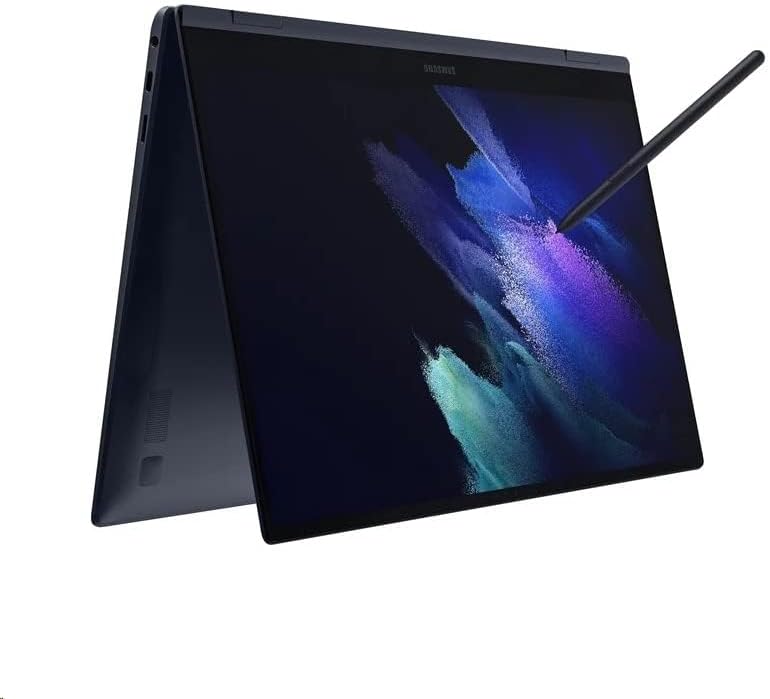
Image: The Samsung Galaxy Book Pro 360 configured in tablet mode, demonstrating its flexibility.
2. Touchscreen and S Pen Interaction
The 15.6-inch FHD AMOLED touchscreen supports multi-touch gestures. Use the S Pen for precise input, note-taking, drawing, and navigating the interface. Air Command features can be accessed by hovering the S Pen over the screen and pressing its button.
3. Keyboard and Trackpad
The full-sized keyboard includes a backlight, adjustable via function keys (e.g., F9). The large trackpad supports multi-touch gestures for navigation. For external input, connect a mouse to a USB port.
4. Port Usage
- Thunderbolt 4: High-speed data transfer, video output, and charging.
- USB-C: Data transfer, video output, and charging.
- USB-A: Connect standard USB devices like external drives or peripherals.
- HDMI: Connect to external displays or projectors.
- Micro SD Card Reader: Expand storage or transfer files from memory cards.
- Mic/Headphone Combo Jack: Connect headphones or an external microphone.
5. Audio and Webcam
Experience enhanced audio with Dolby Atmos speakers. The integrated HD webcam is suitable for video calls and conferences.
Maintenance
1. Cleaning
Use a soft, lint-free cloth slightly dampened with water or a screen cleaner to wipe the display. For the body and keyboard, use a dry or slightly damp cloth. Avoid harsh chemicals or abrasive materials.
2. Battery Care
To prolong battery life, avoid fully discharging the battery frequently. Store the laptop in a cool, dry place. If storing for an extended period, charge the battery to around 50-70%.
3. Software Updates
Regularly check for and install Windows updates and Samsung software updates to ensure optimal performance, security, and compatibility. Go to Settings > Windows Update.
4. Storage Management
Periodically review and delete unnecessary files to maintain sufficient free space on the 1TB SSD. Utilize cloud storage or external drives for large files.
Troubleshooting
1. Laptop Does Not Power On
- Ensure the power adapter is securely connected to both the laptop and a working power outlet.
- Check if the power outlet is functional by plugging in another device.
- If the battery is completely drained, it may take a few minutes of charging before the laptop can power on.
2. Display Issues
- If the screen is blank, try adjusting the brightness using the function keys.
- Ensure no external display is connected and set as the primary output.
- Restart the laptop.
3. Wi-Fi Connectivity Problems
- Verify that Wi-Fi is enabled in Windows settings.
- Restart your router and modem.
- Forget the network and reconnect, entering the password again.
- Update Wi-Fi drivers through Device Manager.
4. S Pen Not Responding
- Ensure the S Pen is properly seated in its storage slot (if applicable) to charge.
- Check if the S Pen settings are correctly configured in Windows.
- Restart the laptop.
Specifications
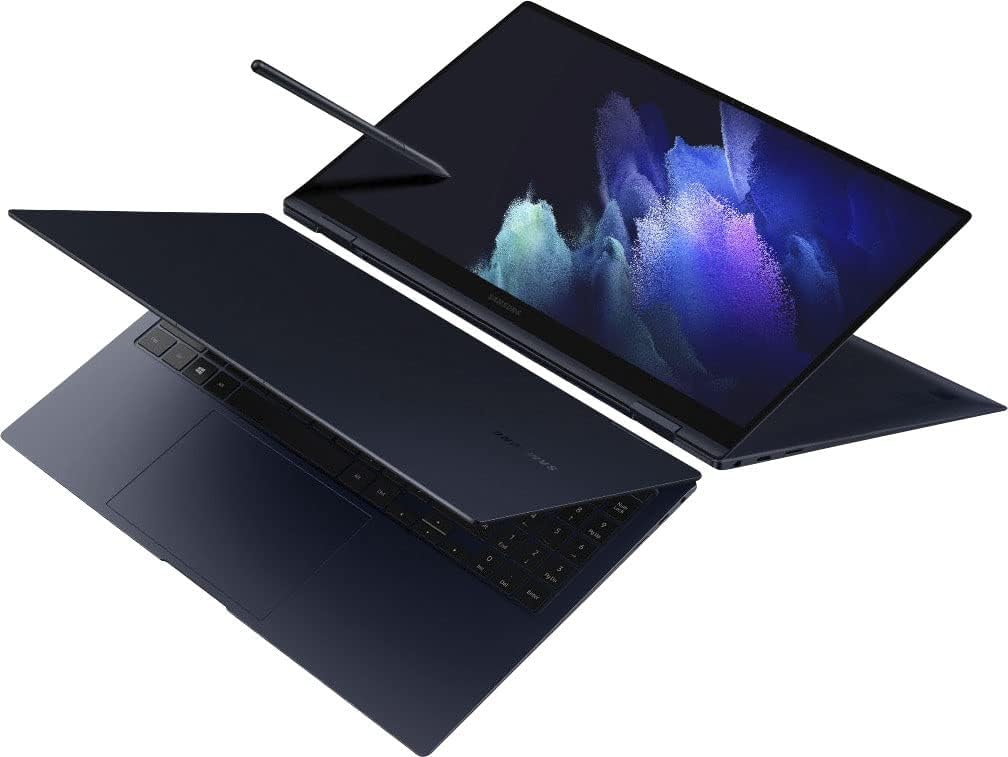
Image: A top-down view of the Samsung Galaxy Book Pro 360 in traditional laptop mode.
| Feature | Detail |
|---|---|
| Model Number | NP950QDB-KB3US |
| Display | 15.6-inch FHD (1920 x 1080) AMOLED Touchscreen |
| Processor | Intel Core i7-1165G7 (2.8 GHz, up to 4.7 GHz) |
| Graphics | Intel Iris Xe Graphics (Integrated) |
| RAM | 16 GB DDR4 |
| Storage | 1 TB SSD |
| Operating System | Windows 11 Home |
| Ports | 1 x Thunderbolt 4, 1 x USB-C, 1 x USB-A, 1 x HDMI, 1 x Micro SD Card Reader, 1 x Mic/Headphone Combo |
| Wireless Connectivity | Wi-Fi 6E, Bluetooth 5.1 |
| Audio | Dolby Atmos Speakers |
| Webcam | HD Webcam |
| Special Features | Backlit Keyboard, Fingerprint Reader, S Pen Support |
| Color | Mystic Navy |
| Dimensions (LxWxH) | 19.29 x 11.42 x 2.64 inches |
| Weight | 4.1 pounds |
| Battery Life (Average) | Up to 20 Hours |
Warranty Information
Your Samsung Galaxy Book Pro 360 is covered by a limited manufacturer's warranty. Specific warranty terms, conditions, and duration may vary by region and point of purchase. Please refer to the warranty card included with your product packaging or visit the official Samsung support website for detailed information.
Support
For further assistance, technical support, or service inquiries, please visit the official Samsung support website or contact Samsung customer service in your region. You can find contact details and extensive FAQs on the Samsung website.
Samsung Support Website: www.samsung.com/us/support/


