
Dxyiitoo Bluetooth Native 1080P Projector
Dxyiitoo Bluetooth Native 1080P Projector User Manual
Model: Bluetooth Native 1080P Projector
Brand: Dxyiitoo
1. Introduction
Thank you for purchasing the Dxyiitoo Bluetooth Native 1080P Projector. This manual provides detailed instructions for setting up, operating, and maintaining your projector. Please read this manual thoroughly before using the product to ensure proper operation and to extend its lifespan.

Image: The Dxyiitoo Bluetooth Native 1080P Projector, a white rectangular device with a prominent lens, displaying WiFi and Bluetooth symbols, and a smartphone screen indicating "WiFi Bluetooth 1080P Native".
2. What's in the Box
Please check the contents of your package upon opening:
- Projector
- HDMI Cable
- AV Cable
- Remote Control
- Power Adapter
3. Product Overview
3.1. Front and Top Panel
The front of the projector features the projection lens. The top panel includes control buttons for navigation and settings.
3.2. Rear Panel and Connectivity
The rear panel provides various input and output ports for connecting external devices.

Image: The rear view of the Dxyiitoo projector, showing multiple input ports including VGA, HDMI, USB, and AV, along with the power input and a keystone adjustment dial. Icons below indicate compatibility with various devices like Desktop PC, USB drives, PS4, TV Stick, Camera, Switch, Xbox, Tablet/Phone/Laptop, DVD Player, and Audio Player.
Common ports include:
- HDMI Ports: For connecting devices like laptops, gaming consoles (PS4, Switch, Xbox), TV sticks, and Blu-ray players.
- USB Ports: For connecting USB drives to play media files directly.
- VGA Port: For connecting older computers.
- AV Port: For connecting legacy audio/video devices.
- Audio Out: For connecting external speakers or headphones.
- Power Input: For connecting the power adapter.
4. Setup
4.1. Placement
Place the projector on a stable, flat surface or mount it to the ceiling. Ensure there is adequate ventilation around the projector. For optimal viewing, position the projector perpendicular to the projection surface (screen or wall).

Image: A Dxyiitoo projector mounted from the ceiling, projecting a large, vibrant image of a lake and autumn trees onto a wall. An inset shows the effect of keystone adjustment, correcting a trapezoidal image into a rectangular one.
The projector supports a display size of up to 450 inches (1143 cm) diagonal, providing a large viewing experience.
4.2. Power Connection
- Connect the power adapter to the projector's power input port.
- Plug the other end of the power adapter into a power outlet.
- Press the power button on the projector or remote control to turn it on.
5. Operating Instructions
5.1. Focus and Keystone Adjustment
- Focus Ring: Rotate the focus ring around the lens until the projected image is clear and sharp.
- Keystone Correction: If the projected image appears trapezoidal (wider at the top or bottom), use the keystone adjustment dial on the rear panel to correct the image shape. This projector supports ±15° keystone adjusting.
5.2. Input Source Selection
Use the "Source" button on the projector or remote control to select the desired input source (HDMI1, HDMI2, USB, AV, VGA, Screen Mirroring).
5.3. Wireless Connectivity (WiFi)
The projector supports WiFi connectivity for screen mirroring from iOS and Android devices.

Image: A Dxyiitoo projector projecting a large image of a surfer on a wave, with icons indicating WiFi connection to an iOS device (iPhone) and an Android device (tablet) placed in front of the projector. This illustrates seamless wireless screen mirroring.
- Select "Screen Mirroring" or "WiFi" as the input source.
- Follow the on-screen instructions to connect your projector to your home WiFi network.
- On your iOS or Android device, enable screen mirroring/casting and select the projector from the list of available devices.
5.4. Bluetooth Connectivity
Connect external Bluetooth audio devices like headphones or speakers for an enhanced audio experience.

Image: A Dxyiitoo projector projecting a scene from an animated movie. In the foreground, the projector is shown connected via Bluetooth to a pair of over-ear headphones on a stand and a portable Bluetooth speaker, illustrating the Bluetooth 5.2 audio output capability.
- Navigate to the Bluetooth settings menu on the projector.
- Enable Bluetooth on the projector and your audio device.
- Select your audio device from the list of available devices on the projector to pair.
5.5. Direct Media Playback (USB)
Insert a USB drive into the USB port. The projector will typically prompt you to select the media type (photos, music, videos, documents) to browse and play files directly.

Image: A Dxyiitoo projector displaying a data chart slide, with icons for Excel, PPT, Word, and PDF documents on the left, indicating its capability for business presentations and document viewing.
6. Specifications
| Feature | Detail |
|---|---|
| Brand | Dxyiitoo |
| Display Resolution | 1920 x 1080 (Native 1080P) |
| Connectivity Technology | WiFi, Bluetooth, HDMI, USB, VGA, AV |
| Visible Screen Diagonal | Up to 450 inches / 1143 cm |
| Special Features | Built-In Speaker, Built-In Wi-Fi |
| Speaker Type | Built-In, Stereo, Surround |
| Item Weight | 7.56 pounds |
| Product Dimensions | 12.99 x 8.66 x 3.94 inches |
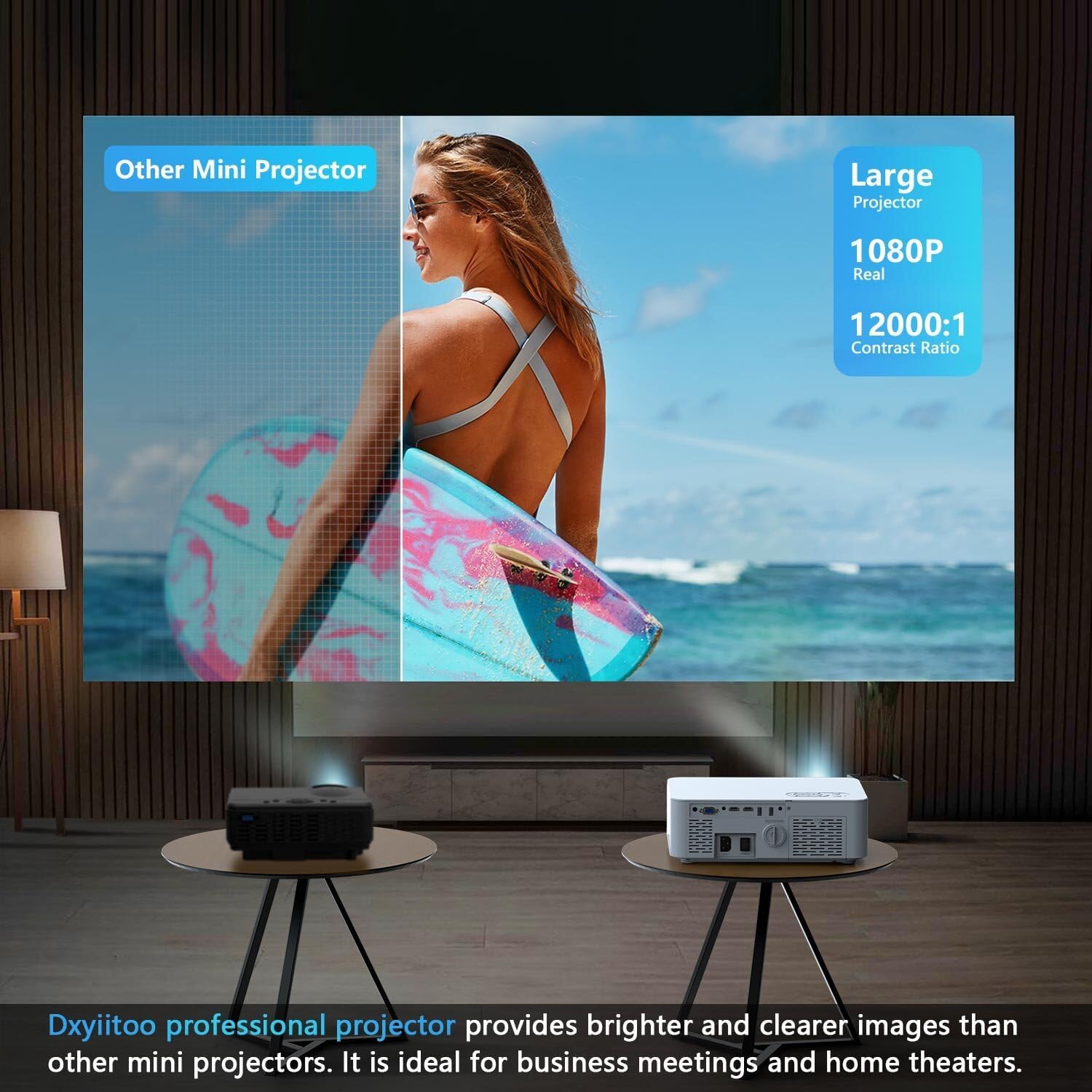
Image: A visual comparison showing the superior image quality of the Dxyiitoo projector (labeled "Large Projector" with "1080P Real" and "12000:1 Contrast Ratio") compared to another mini projector, highlighting brighter and clearer images.
7. Troubleshooting
7.1. No Picture
- Ensure the power cable is securely connected and the projector is turned on.
- Verify the input source selected on the projector matches the connected device (e.g., HDMI1, USB).
- Check the HDMI/AV/VGA cable connection between the projector and the source device. Try a different cable if possible.
- If using screen mirroring, ensure both devices are on the same WiFi network and mirroring is enabled correctly.
7.2. No Sound
- Increase the volume on both the projector and the source device.
- If using external speakers or headphones, ensure they are properly connected or paired via Bluetooth.
- Check audio settings on the source device to ensure audio is outputting correctly.
7.3. Blurred Image
- Adjust the focus ring on the projector lens until the image is clear.
- Adjust the keystone correction dial if the image is distorted (trapezoidal).
- Ensure the projection distance is within the recommended range for optimal clarity.
8. Maintenance
- Lens Cleaning: Use a soft, lint-free cloth specifically designed for optical lenses to gently wipe the projector lens. Do not use abrasive cleaners.
- Dust Removal: Regularly clean the air vents to prevent dust buildup, which can affect performance and lifespan. Use a soft brush or compressed air.
- Storage: When not in use for extended periods, store the projector in a cool, dry place, away from direct sunlight and extreme temperatures.
- Power Off Properly: Always turn off the projector using the power button and allow it to cool down before unplugging or moving.
9. Warranty and Support
This Dxyiitoo projector comes with a standard manufacturer's warranty. Please refer to the warranty card included in your package for specific terms and conditions. For technical support, troubleshooting assistance, or warranty claims, please contact Dxyiitoo customer service through the contact information provided with your purchase or on the official Dxyiitoo website.
Dxyiitoo is committed to providing high-quality products and professional support to ensure a satisfactory user experience.
Ask a question about this manual
Ask about setup, troubleshooting, compatibility, parts, safety, or missing instructions. Manuals+ will review the question and use this page’s manual context to help answer it.