
Samsung Galaxy S22, S22+, S22 Ultra
Samsung Galaxy S22 Series User Guide
The Illustrated Manual for Samsung Galaxy S22, S22+, and S22 Ultra
Introduction
This user guide provides comprehensive instructions for operating the Samsung Galaxy S22, S22+, and S22 Ultra smartphones. It is designed to help users understand and utilize the full range of features available on their device, ensuring an optimal user experience.
The Samsung Galaxy S22 series offers advanced functionalities for communication, productivity, and entertainment. This manual covers essential setup procedures, daily operations, maintenance tips, and troubleshooting steps.
Product Overview

Image Description: The front cover of the "Samsung Galaxy S22 User Guide for Seniors" book. The title is prominently displayed at the top. Below the title, a hand holds a purple Samsung Galaxy S22 series phone with its S Pen stylus. The author's name, Joseph F. Morris, is at the bottom.
The Samsung Galaxy S22, S22+, and S22 Ultra are flagship smartphones known for their powerful processors, high-quality cameras, and vibrant displays. Key features include advanced camera systems, S Pen integration (on Ultra models), robust battery life, and comprehensive connectivity options.
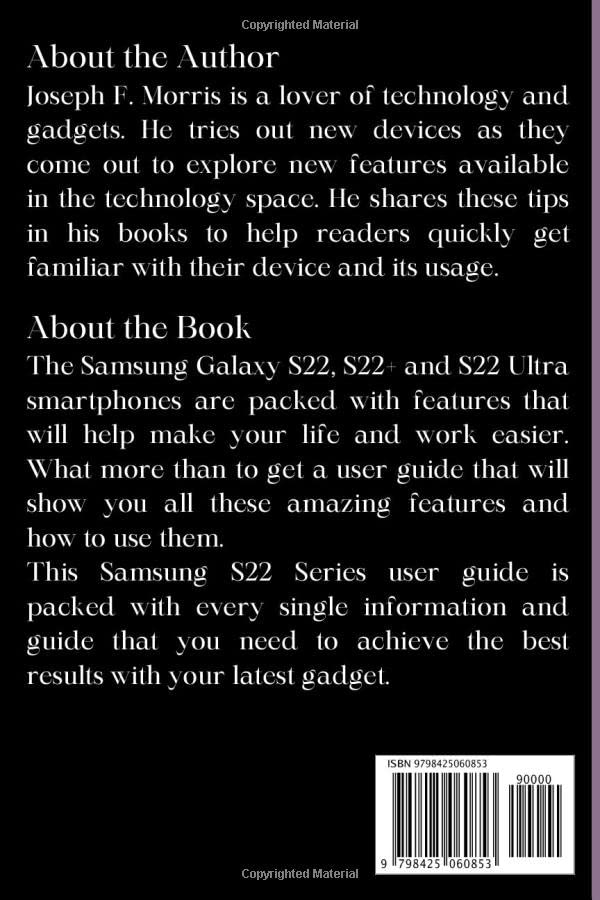
Image Description: The back cover of the "Samsung Galaxy S22 User Guide for Seniors" book. It contains sections titled "About the Author" and "About the Book," providing a brief biography of Joseph F. Morris and a summary of the book's content, including a list of topics covered. An ISBN barcode is visible at the bottom right.
Setup and Initial Configuration
This section guides you through the initial setup process for your Samsung Galaxy S22 series device.
1. Device Activation and Basic Setup
- Power On: Press and hold the Power button until the Samsung logo appears.
- Language Selection: Choose your preferred language from the list.
- Wi-Fi Connection: Connect to a Wi-Fi network to proceed with setup and download necessary updates.
- Terms and Conditions: Read and accept the End User License Agreement and Privacy Policy.
- Google Account Setup: Sign in with your Google account or create a new one. This is essential for accessing the Google Play Store and other Google services.
- Samsung Account Setup: Sign in with your Samsung account or create a new one for access to Samsung-specific features and services.
- Security Setup: Set up a screen lock (PIN, pattern, password, fingerprint, or face recognition) for device security.
2. Transferring Data from Another Device
You can easily transfer data from your old device to your new Galaxy S22 using Samsung Smart Switch.
- Ensure both devices are charged and have Smart Switch installed (pre-installed on new Samsung devices).
- On your new Galaxy S22, open Smart Switch.
- Select "Receive data" and choose your old device type (Galaxy/Android, iPhone/iPad, Windows Phone, BlackBerry).
- Follow the on-screen prompts to connect the devices (wirelessly or via USB cable) and select the data you wish to transfer.
3. Setting Up Emergency Contacts
It is recommended to set up emergency contacts for quick access in critical situations.
- Go to Settings > Safety and emergency.
- Tap on Medical info or Emergency contacts.
- Add contacts who can be reached in an emergency. These contacts can be accessed from the lock screen without unlocking the phone.
4. eSIM Setup
The Galaxy S22 series supports eSIM functionality, allowing you to use a digital SIM card.
- Go to Settings > Connections > SIM card manager.
- Tap Add eSIM.
- Follow the on-screen instructions to scan a QR code provided by your carrier or enter activation code manually.
Operating Your Device
This section covers various aspects of daily operation for your Samsung Galaxy S22 series smartphone.
1. Camera Tips and Tricks
Maximize your photography with these camera features:
- Pro Mode: For advanced users, Pro mode allows manual control over ISO, shutter speed, focus, white balance, and exposure.
- Single Take: Capture multiple types of photos and videos with one tap. The AI analyzes the scene and suggests the best shots.
- Night Mode: Use Night mode in low-light conditions to capture brighter and clearer photos.
- Director's View: Record video using multiple cameras simultaneously, allowing you to switch perspectives while filming.
2. S Pen Tips and Tricks (Galaxy S22 Ultra)
For Galaxy S22 Ultra users, the integrated S Pen offers enhanced productivity and creativity.
- Air Command: Remove the S Pen to automatically launch Air Command, providing quick access to features like Create note, Smart select, Screen write, and Live message.
- Screen Off Memo: Quickly jot down notes even when the screen is off by simply removing the S Pen.
- Air Actions: Use the S Pen as a remote control for your phone, performing actions like taking photos, controlling media playback, or navigating presentations with gestures.
- Text Extraction: Use Smart select to extract text from images or non-selectable areas.
3. Mail Services and Communication
Manage your emails and communication effectively.
- Adding Email Accounts: Go to Settings > Accounts and backup > Manage accounts > Add account. Select your email provider and follow the prompts.
- Calls and Call Settings: Access the Phone app to make calls. Customize call settings such as call forwarding, call blocking, and voicemail by tapping the three-dot menu in the Phone app and selecting Settings.
4. Media and Media Playback Options
Enjoy your multimedia content on your device.
- Gallery: View and organize your photos and videos.
- Samsung Music/Google Play Music: Play your audio files.
- Video Player: The default video player supports various formats.
5. Wireless Charging
The Galaxy S22 series supports wireless charging and Wireless PowerShare.
- Wireless Charging: Place your device on a compatible Qi-certified wireless charger. Ensure the phone is centered on the charging pad.
- Wireless PowerShare: Share your phone's battery power with other compatible devices (e.g., Galaxy Buds, smartwatches, or other Qi-enabled phones). To activate, pull down the Quick Settings panel and tap the Wireless PowerShare icon. Place the device you want to charge on the back of your Galaxy S22.
6. Calendar and Time Converter
- Calendar App: Use the pre-installed Calendar app to manage your schedule, set reminders, and create events.
- Time Converter: While not a dedicated app, you can use the World Clock feature within the Clock app to view times in different time zones, effectively acting as a time converter.
Maintenance and Optimization
Regular maintenance helps ensure your device performs optimally.
1. Battery Optimization Tips
- Adaptive Battery: Enable Adaptive Battery in Settings > Battery and device care > Battery to limit battery usage for infrequently used apps.
- Power Saving Mode: Activate Power Saving mode for extended battery life when needed.
- Screen Brightness: Reduce screen brightness or enable Adaptive brightness.
- Background App Usage: Restrict background data and refresh for apps that consume excessive power.
- Dark Mode: Using Dark mode can save battery on AMOLED displays.
2. Device Care
The Device Care feature helps you manage your phone's performance, storage, and security.
- Go to Settings > Battery and device care.
- Here you can optimize your phone, check battery usage, manage storage, memory, and device security.
Troubleshooting
Common issues and their solutions.
- Device Not Responding: If your device is frozen, press and hold the Volume Down button and the Power button simultaneously for about 7-10 seconds to force restart.
- App Crashing: Clear the app's cache and data (Settings > Apps > [App Name] > Storage > Clear cache/Clear data). If the issue persists, reinstall the app.
- Network Connectivity Issues:
- Toggle Wi-Fi/Mobile Data off and on.
- Restart your device.
- Reset network settings (Settings > General management > Reset > Reset network settings).
- Find My Mobile Setting: If your device is lost or stolen, use Samsung's Find My Mobile service. Ensure it's enabled beforehand by going to Settings > Biometrics and security > Find My Mobile. You can then locate, lock, or wipe your device remotely via the Find My Mobile website.
Specifications
Key specifications for the Samsung Galaxy S22 series (general information based on the book's scope).
| Feature | Description |
|---|---|
| Models Covered | Samsung Galaxy S22, S22+, S22 Ultra |
| Operating System | Android (version at time of release) with One UI |
| Processor | Octa-core (specific chipset varies by region) |
| Display | Dynamic AMOLED 2X (sizes vary by model) |
| Camera System | Multi-lens rear camera setup, high-resolution front camera |
| Battery | Built-in rechargeable battery with fast and wireless charging support |
| Connectivity | 5G, Wi-Fi, Bluetooth, NFC, USB-C |
| S Pen Support | Integrated for Galaxy S22 Ultra, external support for other models |
Warranty and Support
For detailed warranty information, please refer to the official Samsung website or the warranty card included with your device. Warranty terms and conditions may vary by region and retailer.
For technical support, software updates, or service inquiries, please visit the official Samsung Support website or contact Samsung customer service directly. You can find contact details and support resources on the Samsung website specific to your region.
Online Resources:
- Official Samsung Support: https://www.samsung.com/us/support/
- Samsung Community Forums: https://us.community.samsung.com/
Related Documents - Galaxy S22, S22+, S22 Ultra
 |
Samsung Galaxy S22, S22+, S22 Ultra User Guide Comprehensive user guide for Samsung Galaxy S22, S22+, and S22 Ultra smartphones, covering setup, features, camera, gallery, apps, and settings. |
 |
Samsung Galaxy S22, S22+, S22 Ultra User Guide Comprehensive user guide for Samsung Galaxy S22, S22+, and S22 Ultra smartphones. Learn about features, setup, camera, apps, and settings. |
 |
Samsung Galaxy S22 Series User Guide Comprehensive user guide for Samsung Galaxy S22, S22+, and S22 Ultra smartphones, covering setup, features, apps, settings, camera, and more. |
 |
Samsung Galaxy S22 Series: Quick Start Guide & Terms Get started with your Samsung Galaxy S22, S22+, or S22 Ultra. This guide covers device setup, SIM card insertion, data transfer, and essential terms and conditions. |
 |
Samsung Galaxy S22, S22+, S22 Ultra User Manual Comprehensive user guide for Samsung Galaxy S22, S22+, and S22 Ultra smartphones, covering setup, features, camera, apps, settings, and troubleshooting. Includes model numbers S901, S906, S908. |
 |
Samsung Galaxy S22 Series Quick Start Guide - AT&T Get started with your Samsung Galaxy S22, S22+, or S22 Ultra phone from AT&T. This quick start guide covers what's in the box, phone setup, SIM card insertion, and support resources. |
Ask a question about this manual
Ask about setup, troubleshooting, compatibility, parts, safety, or missing instructions. Manuals+ will review the question and use this page’s manual context to help answer it.