Introduction
The Brother MFC-J5740DW is a versatile 4-in-1 multifunction inkjet printer designed for small office environments. It offers printing, copying, scanning, and faxing capabilities with support for up to A3 paper size. This manual provides essential information for setting up, operating, maintaining, and troubleshooting your device to ensure optimal performance.
Key features include:
- 4-in-1 functionality: Print, Copy, Scan, Fax.
- Full duplex (double-sided) printing, scanning, copying, and faxing up to A4.
- Dual paper trays, each holding 250 sheets, plus a 100-sheet multi-purpose tray for up to A3 paper.
- Fast print speeds of up to 28 pages per minute (ISO/IEC 24734).
- High-quality pigment ink for durable prints.
- Connectivity via LAN, Wi-Fi, and USB.
- Compatibility with the Brother Mobile Connect app for mobile printing and scanning.
Setup
1. Unpacking and Initial Placement
Carefully remove the printer from its packaging. Ensure all protective tapes and packing materials are removed from the exterior and interior of the device. Place the printer on a stable, level surface with adequate space for ventilation and paper trays.
2. Installing Ink Cartridges
Open the ink cartridge cover located on the front of the printer. Install the four starter ink cartridges (Black, Cyan, Magenta, Yellow) into their corresponding slots. Ensure they click into place securely.
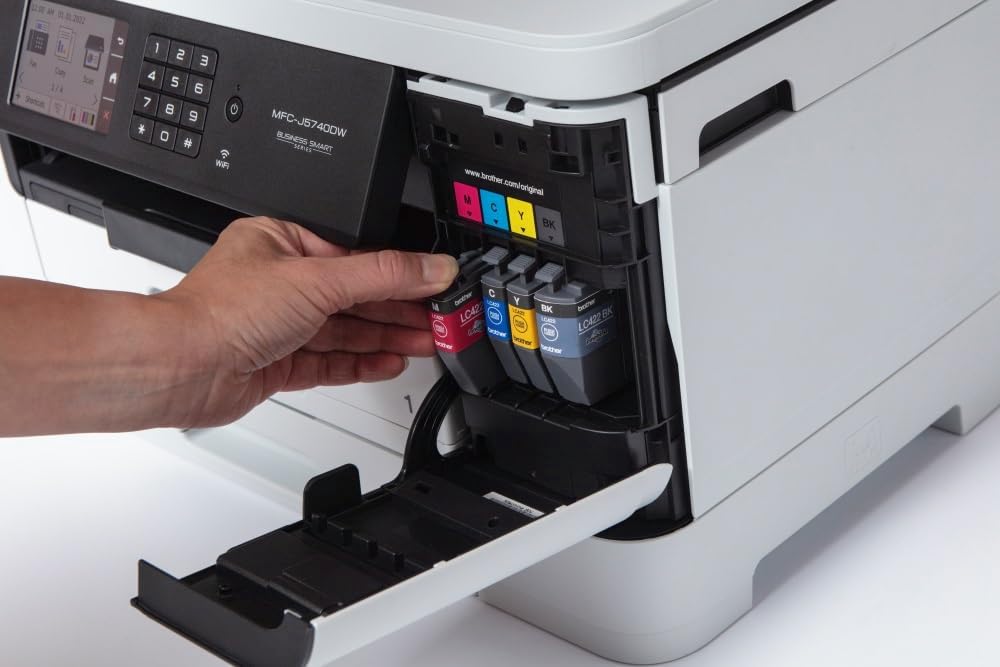
Image: A hand inserting a yellow ink cartridge into its designated slot in the Brother MFC-J5740DW printer. The other three cartridges (black, cyan, magenta) are already in place.
3. Loading Paper
The MFC-J5740DW features two main paper trays and a multi-purpose tray. For standard printing, open one of the paper trays, adjust the paper guides to fit your paper size (e.g., A4), and load the paper stack. For special media or larger sizes like A3, use the multi-purpose tray.

Image: A hand pulling out the lower paper tray from the Brother MFC-J5740DW printer, revealing the paper guides and loading area.

Image: A hand loading a stack of white paper into the open paper tray of the Brother MFC-J5740DW printer, with paper guides visible.
4. Connecting to Power and Network
Connect the power cable to the printer and then to an electrical outlet. For network connectivity, you can use an Ethernet cable for a wired connection or configure Wi-Fi directly from the printer's control panel. USB connection is also available for direct computer connection.
5. Software and Driver Installation
Install the necessary drivers and software from the Brother support website or the included installation disc (if applicable). For mobile devices, download the Brother Mobile Connect app from your device's app store.
Operating the Printer
1. Using the Control Panel
The printer features an 8.8 cm LCD touchscreen for easy navigation and operation. Use the touchscreen to select functions like Print, Copy, Scan, or Fax, and to adjust settings.

Image: A hand touching the LCD screen of the Brother MFC-J5740DW printer's control panel, which displays various function icons.
2. Printing Documents
Send print jobs from your computer or mobile device. Select the desired paper source (tray 1, tray 2, or multi-purpose tray) and print settings (e.g., color, black & white, duplex, paper size up to A3).
3. Copying Documents
Place your document on the scanner glass or in the Automatic Document Feeder (ADF). Use the control panel to select 'Copy', choose settings like quantity, color/mono, and duplex, then start the copy process. The 50-sheet ADF supports duplex copying for A4 documents.

Image: A hand placing a document with text and graphics onto the flatbed scanner glass of the Brother MFC-J5740DW printer.

Image: A hand inserting a brown envelope into the automatic document feeder (ADF) of the Brother MFC-J5740DW printer.
4. Scanning Documents
Place your document on the scanner glass or in the ADF. Select 'Scan' from the control panel and choose your scan destination (e.g., computer, email, cloud service, or mobile device via Brother Mobile Connect app). Adjust scan settings such as resolution and color mode.
5. Faxing Documents
Load your document into the ADF or place it on the scanner glass. Enter the recipient's fax number using the control panel and select 'Fax'. The printer supports duplex faxing for A4 documents.
Maintenance
1. Replacing Ink Cartridges
When an ink cartridge is low or empty, a message will appear on the LCD screen. Open the ink cartridge cover and replace the indicated cartridge with a new Brother LC422 series cartridge (LC422BK, LC422C, LC422M, LC422Y).
2. Cleaning the Printer
Regularly clean the exterior of the printer with a soft, lint-free cloth. If print quality deteriorates, perform a print head cleaning or alignment from the printer's maintenance menu on the LCD screen. This helps prevent clogs and ensures clear prints.
3. Clearing Paper Jams
If a paper jam occurs, follow the instructions displayed on the LCD screen. Open the necessary covers and carefully remove any jammed paper, ensuring no torn pieces remain inside the printer.
Troubleshooting
This section addresses common issues you might encounter with your Brother MFC-J5740DW printer.
1. Printer Not Responding
- Check power connections.
- Verify network connectivity (Wi-Fi or Ethernet).
- Ensure the printer is selected as the default printer on your computer.
- Restart the printer and your computer/router.
2. Poor Print Quality
- Check ink levels and replace any low or empty cartridges.
- Perform a print head cleaning and alignment from the printer's maintenance menu.
- Ensure you are using appropriate paper for your print settings.
3. Paper Jams
- Follow the on-screen instructions to locate and remove jammed paper.
- Ensure paper is loaded correctly and not overfilled in the trays.
- Use paper that meets the printer's specifications.
For more detailed troubleshooting, refer to the Brother support website or the full electronic manual.
Specifications
| Feature | Specification |
|---|---|
| Brand | Brother |
| Model Name | MFC-J5740DW |
| Item Model Number | MFCJ5740DW |
| Printing Technology | Inkjet |
| Printer Output | Color |
| Special Feature | Automatic Duplexing |
| Connectivity Technology | Ethernet, USB, Wi-Fi |
| Max Print Speed (Color) | 28 Pages per minute |
| Max Print Speed (Monochrome) | 28 Pages per minute |
| Max Print Resolution (Color) | 600 x 600 dpi |
| Max Print Resolution (Monochrome) | 600 x 600 dpi |
| First Page Print Time | 2 Seconds |
| Scanner Type | Automatic Document Feeder (ADF) |
| Scanner Resolution | 1200 x 1200 dpi |
| Max Copy Speed (Black & White) | 10 Pages per minute |
| Max Copy Resolution (Color) | 600 x 600 dpi |
| Max Media Size | A3 |
| Max Paper Capacity (Input) | 600 sheets |
| Output Sheet Capacity | 50 sheets |
| Number of Trays | 3 (2 main, 1 multi-purpose) |
| Display Type | LCD |
| Item Weight | 20.5 Kilograms |
| Power Consumption | 4 Watt |
| Compatible Cartridge | LC422BK, LC422C, LC422M, LC422Y |
Warranty and Support
Warranty Information
The Brother MFC-J5740DW comes with a 3-year limited warranty. Please refer to the warranty documentation included with your product or visit the official Brother website for detailed terms and conditions. Your statutory consumer rights remain unaffected by this warranty.
Customer Support
For further assistance, technical support, or to download the latest drivers and software, please visit the official Brother support website. You can also utilize the Brother Mobile Connect app for convenient access to printer functions and support resources from your smartphone or tablet.


