
1. Introduction
This manual provides comprehensive instructions for the setup, operation, maintenance, and troubleshooting of your GEEKOM Mini IT8 Mini PC. The GEEKOM Mini IT8 is a compact desktop computer equipped with an Intel Core i5-8279U processor, 16GB of DDR4 RAM, and a 512GB NVMe SSD, running Windows 11 Pro. Its design emphasizes performance, expandability, and portability for various applications including home offices, media centers, and commercial displays.

Front and rear views of the GEEKOM Mini IT8 Mini PC, highlighting the various input/output ports available for connectivity.
2. Package Contents
Verify that all items are present in the package:
- GEEKOM Mini IT8 Mini PC
- Power Adapter
- HDMI Cable
- VESA Mount with Screws
- User Manual (this document)
3. Setup Instructions
3.1 Connecting Peripherals
Before powering on your Mini IT8, connect all necessary peripherals such as a monitor, keyboard, and mouse.
- Connect to a Display: Use the provided HDMI cable to connect the Mini IT8 to your monitor or TV. The device also supports Mini DisplayPort and USB-C for video output.
- Connect Keyboard and Mouse: Plug your USB keyboard and mouse into the available USB 3.2 Gen 2 ports. Wireless peripherals can be connected via Bluetooth 5.2.
- Network Connection: For a wired internet connection, connect an Ethernet cable to the LAN port. For wireless connectivity, the device supports Wi-Fi 6.
- Power Connection: Connect the power adapter to the DC 19V input port on the Mini IT8, then plug the adapter into a power outlet.

An annotated diagram detailing the location and function of each port on the GEEKOM Mini IT8 Mini PC, including USB-C, USB 3.2 Gen 2, HDMI, MiniDP, LAN, SD Card Slot, Headphone Jack, Kensington Security Slot, and Power Button.
3.2 Initial Power On
After connecting all peripherals and power, press the power button located on the front of the Mini IT8. The device will boot into Windows 11 Pro. Follow the on-screen instructions for initial Windows setup.
3.3 VESA Mount Installation
The GEEKOM Mini IT8 includes a VESA mount for attaching the PC to the back of a compatible monitor or TV, saving desk space.
- Attach the VESA bracket to the back of your monitor using the provided screws. Ensure the bracket is securely fastened.
- Slide the Mini IT8 onto the VESA bracket until it clicks into place.

Illustrations showing the process of attaching the GEEKOM Mini IT8 Mini PC to the back of a monitor using the included VESA mount.
4. Operating Instructions
4.1 Basic Operation
The GEEKOM Mini IT8 operates like a standard Windows 11 Pro desktop computer. Use your connected keyboard and mouse to navigate the operating system, launch applications, and manage files.
4.2 Multi-Display Setup
The Mini IT8 supports up to four 4K displays simultaneously, offering enhanced productivity. Connect additional monitors using the available HDMI, Mini DisplayPort, and USB-C ports. Once connected, configure display settings within Windows 11 Pro (Right-click on desktop > Display settings) to extend or duplicate your desktop.
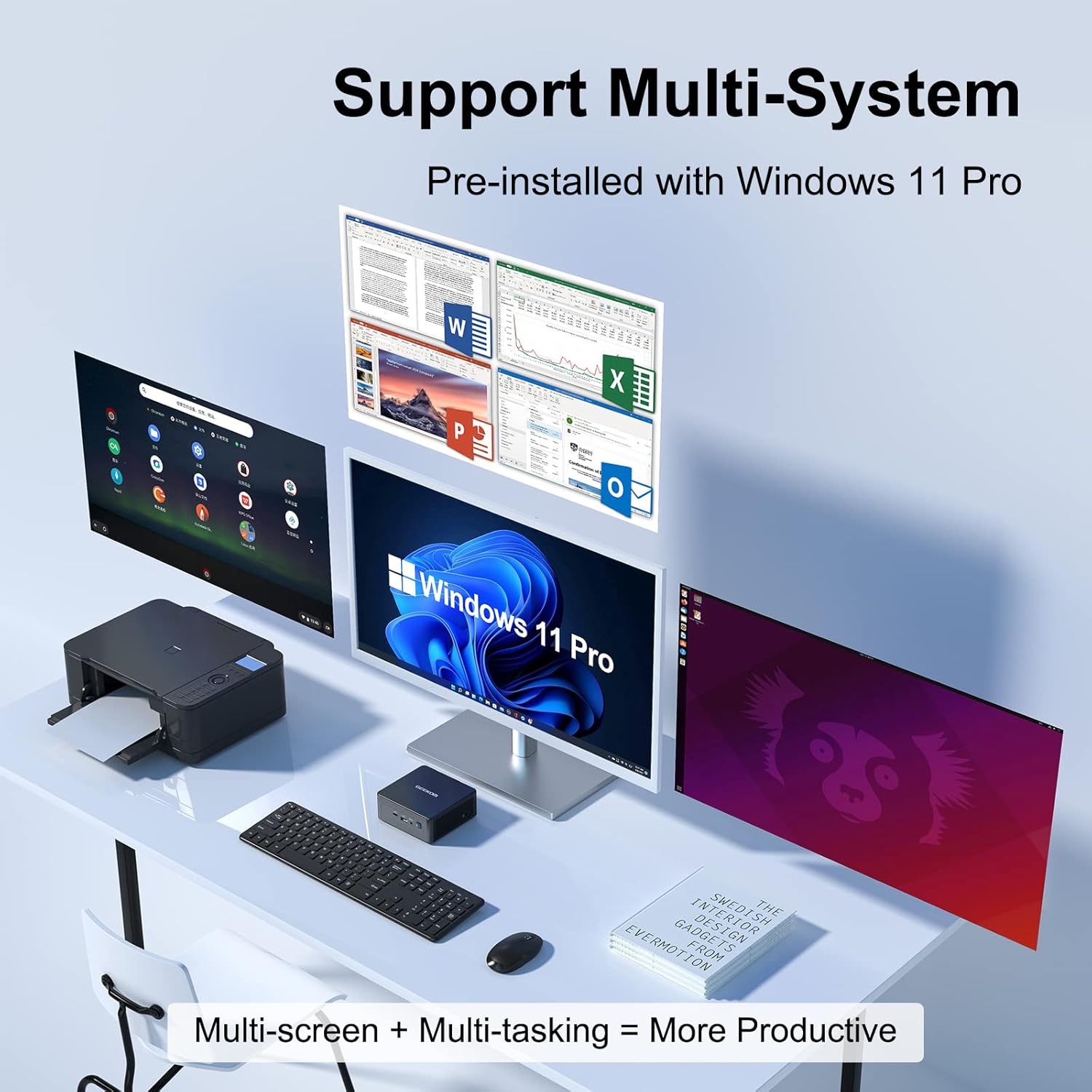
The GEEKOM Mini IT8 Mini PC set up on a desk, demonstrating its capability to connect to multiple monitors and various peripherals for a multi-tasking environment.
4.3 Storage Expansion
The Mini IT8 offers flexible storage expansion options:
- M.2 2280 NVMe PCIe Gen4x4 SSD: Supports up to 2TB. The device comes with a 512GB SSD pre-installed.
- 2.5-inch SATA HDD/SSD: An additional slot is available for a 2.5-inch SATA drive (7mm height), supporting up to 2TB.
To install or upgrade storage, refer to the detailed instructions in the maintenance section or consult a qualified technician.

A visual representation of the internal storage options, including the M.2 SSD slot and the 2.5-inch SATA HDD slot, demonstrating how to expand the device's storage capacity.
5. Maintenance
5.1 Cleaning
To maintain optimal performance, regularly clean the exterior of the Mini IT8 with a soft, dry cloth. Ensure ventilation openings are free from dust accumulation. Do not use liquid cleaners directly on the device.
5.2 Cooling System
The Mini IT8 features an advanced Iceblast cooling system. Ensure the device is placed in a location with adequate airflow and that the ventilation grilles are not obstructed. This helps maintain optimal operating temperatures and quiet performance.

An internal view highlighting the cooling fan and heat dissipation components within the GEEKOM Mini IT8 Mini PC, designed for efficient thermal management.
6. Troubleshooting
- No Power: Ensure the power adapter is securely connected to both the Mini IT8 and a working power outlet. Try a different outlet if necessary.
- No Display: Verify that the HDMI, Mini DisplayPort, or USB-C cable is correctly connected to both the Mini IT8 and the monitor. Ensure the monitor is powered on and set to the correct input source.
- Peripheral Not Detected: Check USB connections. For Bluetooth devices, ensure Bluetooth is enabled in Windows settings and the device is properly paired.
- Fan Noise: While the Iceblast cooling system is designed for quiet operation, excessive fan noise might indicate dust buildup or obstructed vents. Refer to the maintenance section for cleaning instructions. If the issue persists, contact support.
- Multi-Monitor Display Issues: If attempting to use four displays and only three are active, ensure all cables are correctly connected and that your display settings in Windows are configured to extend to all desired monitors. Some configurations may require specific adapter types or active cables.
- Slow Performance: Check for background applications consuming resources. Ensure sufficient free storage space. Consider upgrading RAM or SSD if performance issues persist during demanding tasks.
7. Specifications
| Feature | Specification |
|---|---|
| Processor | Intel Core i5-8279U (4 Cores, 8 Threads, up to 4.10 GHz) |
| Graphics | Intel Iris Plus Graphics 655 |
| RAM | 16GB DDR4 3200MHz (Dual-Channel, expandable up to 64GB) |
| Storage | 512GB M.2 2280 NVMe PCIe Gen4x4 SSD (expandable up to 2TB) |
| Additional Storage Slot | 1 x 2.5" SATA HDD/SSD slot (7mm, expandable up to 2TB) |
| Operating System | Windows 11 Pro |
| Video Output | 2 x USB-C (with DisplayPort Alt Mode), 1 x HDMI 2.0, 1 x Mini DisplayPort (Supports Quad 4K UHD Displays) |
| USB Ports | 2 x USB-C (data only), 3 x USB 3.2 Gen 2, 2 x USB 3.2 Gen 1 |
| Network | Wi-Fi 6, Bluetooth 5.2, 1000Mbps Ethernet (LAN) |
| Audio | 1 x 3.5mm Headphone Jack |
| Other Ports | SD Card Slot, Kensington Security Slot, DC 19V Power Input |
| Dimensions (LxWxH) | 4.61 x 4.41 x 1.8 inches (11.7 x 11.2 x 4.6 cm) |
| Weight | 1.26 pounds (0.57 kg) |
8. Warranty and Support
8.1 Warranty Information
The GEEKOM Mini IT8 Mini PC comes with a 3-Year Warranty. This warranty covers manufacturing defects and ensures free repair or replacement of eligible components. Please retain your proof of purchase for warranty claims.
8.2 Customer Support
For technical assistance, troubleshooting, or warranty inquiries, please contact GEEKOM customer support:
- Online Support: Log into your Amazon buyer's account, find your order, and click 'Get help' to contact the seller directly.
- Email Support: Send an email to shirley.li@geekom.tw. You will receive a response as soon as possible.
- 24/7 Customer Support: GEEKOM provides continuous customer support for all product-related queries.