
NexiGo LT10S
NexiGo Smart Sunrise Alarm Clock User Manual
Model: LT10S
Brand: NexiGo
Introduction
Thank you for purchasing the NexiGo Smart Sunrise Alarm Clock. This device is designed to enhance your waking and sleeping experience with its advanced features, including sunrise and sunset simulations, natural sounds, and smart control options. Please read this manual thoroughly before use to ensure proper operation and to fully utilize all functions.
Safety Information
- Ensure the device is placed on a stable, flat surface.
- Do not expose the device to water or excessive humidity.
- Use only the provided power adapter.
- Keep out of reach of children.
- Do not attempt to disassemble or repair the device yourself. Contact customer support if issues arise.
- Avoid placing the device near heat sources or in direct sunlight for prolonged periods.
Package Contents
Please check the box for the following items:
- NexiGo Smart Sunrise Alarm Clock
- Power Adapter
- User Manual (this document)
Product Overview
Familiarize yourself with the components of your NexiGo Smart Sunrise Alarm Clock.

Figure 1: Front view of the NexiGo Smart Sunrise Alarm Clock showing the light panel, digital display, and control buttons, alongside a smartphone demonstrating the companion app.
- Light Panel: Emits various colors and brightness levels for sunrise/sunset simulation and ambient lighting.
- Digital Display: Shows time, alarm indicators, and other settings.
- Control Buttons: Buttons located on the front for manual operation (e.g., time setting, alarm, light, volume).
- Power Port: Located at the back for connecting the power adapter.
Setup
1. Power Connection
Connect the provided power adapter to the power port on the back of the alarm clock and plug it into a wall outlet. The display will light up.
2. App Installation and Connection
For full functionality and smart control, download the "NexiGo Home" app on your smartphone. The app is available for both iOS and Android devices.

Figure 2: Steps for connecting the alarm clock to the NexiGo Home app.
- Download the "NexiGo Home" app from your device's app store.
- Open the app and create an account or log in.
- Ensure both Wi-Fi and Bluetooth are enabled on your smartphone.
- In the app, select "Add Device" or the "+" icon.
- Choose the "Sunrise Alarm Clock" from the list of devices.
- Follow the on-screen prompts to connect the device to your 2.4GHz Wi-Fi network. Note: This device only supports 2.4GHz Wi-Fi networks and does not function with 5GHz Wi-Fi.
- Once connected, you can control the alarm clock via the app.
Operating Instructions
1. Sunrise and Sunset Simulation
The alarm clock features a sunrise simulation to gently wake you up and a sunset simulation to help you fall asleep.

Figure 3: Visual representation of sunrise and sunset simulation features.
- Sunrise Simulation: The light gradually brightens from a dim red to a bright yellow over a set period (e.g., 10-60 minutes) before your alarm time, mimicking a natural sunrise.
- Sunset Simulation: The light gradually dims from a bright light to darkness over a set period, helping you relax and fall asleep.
- These features can be configured through the "NexiGo Home" app.
2. Alarm Settings
The device supports up to four independent alarm settings, each customizable with different times, sounds, and light behaviors.
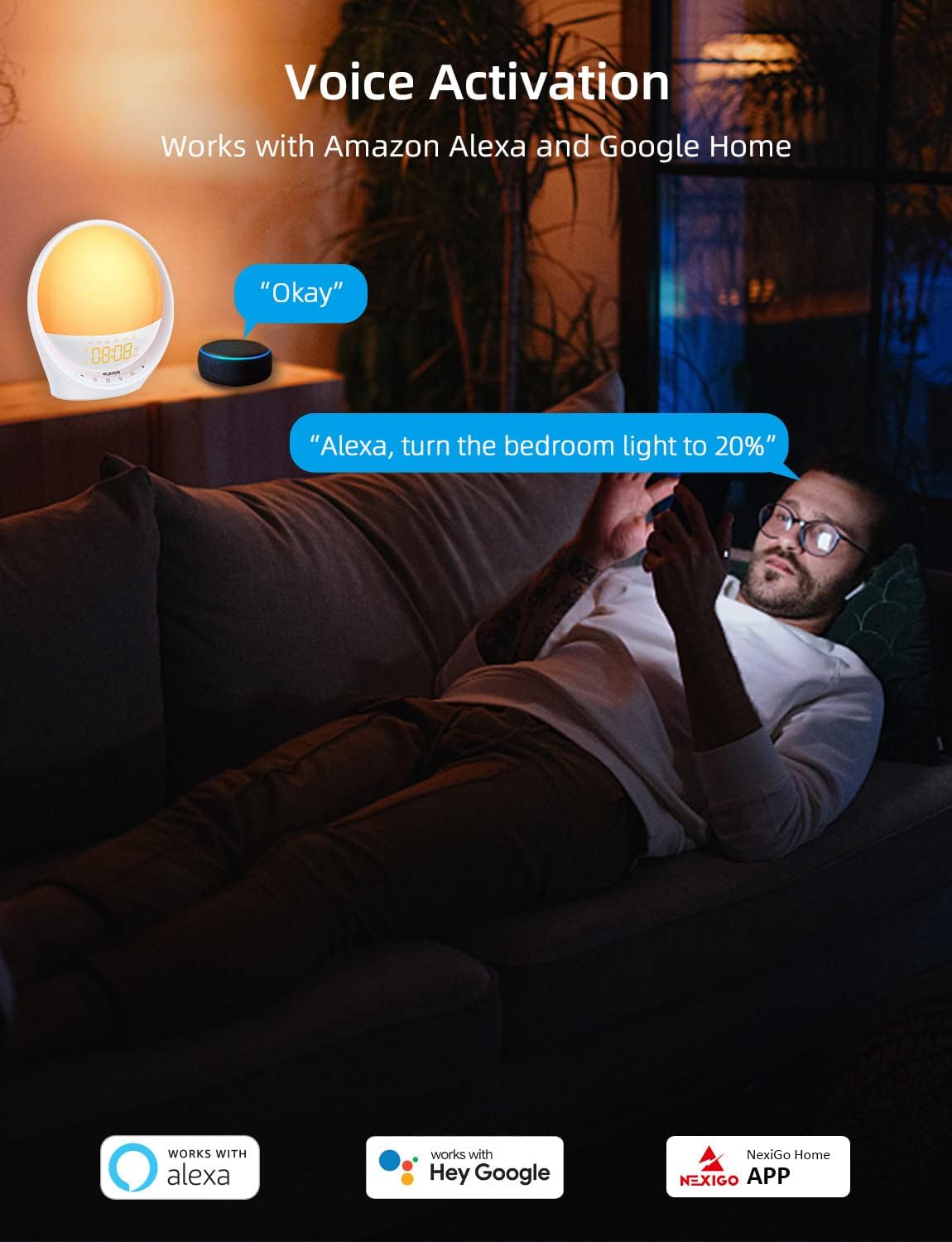
Figure 4: Setting multiple alarms via the NexiGo Home app.
- Setting Alarms: Use the "NexiGo Home" app to set up to four alarms. You can specify the time, alarm sound, light brightness, and snooze duration for each.
- Snooze Function: When an alarm sounds, press the snooze button (usually the large button on top or front) to get an additional 5-30 minutes of sleep. The light and sound will resume after the snooze period.

Figure 5: Activating the snooze function.
3. Natural Sounds
Choose from 17 natural soothing sounds for your alarms or for relaxation.

Figure 6: Selection of 17 natural sounds available on the alarm clock.
- Available sounds include Ocean, Thunder, Rain, Stream, Rainforest, Wind, Meditation, Bird, Cricket, Whale, White noise, Pink noise, Fan, Hairdryer, Lullaby, Piano, and Wind chimes.
- Select your preferred sound via the "NexiGo Home" app.
4. Light Settings
The device offers 7 colored lights and 20 levels of dimmable brightness to create various atmospheres or serve as a night light.

Figure 7: Demonstrating the 7 color options and 20 brightness levels.
- Adjust brightness from 1 to 20 levels using the app or physical buttons.
- Choose from 7 distinct colors for ambient lighting.
- The light can be used for various purposes, such as a soft night light for baby feeding or a bright reading light.
5. Voice Control
The NexiGo Smart Sunrise Alarm Clock is compatible with Amazon Alexa and Google Assistant for convenient voice control.

Figure 8: Voice control integration with Alexa and Google Assistant.
- Link your NexiGo Home account to your Alexa or Google Home app.
- Once linked, you can use voice commands to turn the light on/off, change colors, adjust brightness, and manage alarms.
- Example commands: "Alexa, turn on the bedroom light," "Hey Google, set the alarm for 7 AM."
Maintenance
- Cleaning: Use a soft, dry cloth to wipe the surface of the alarm clock. Do not use abrasive cleaners or solvents.
- Storage: If storing the device for an extended period, unplug it and keep it in a cool, dry place.
- Avoid Liquids: Do not spray liquids directly onto the device.
Troubleshooting
| Problem | Possible Cause | Solution |
|---|---|---|
| Device does not power on. | Power adapter not connected or faulty outlet. | Ensure the power adapter is securely plugged into the device and a working wall outlet. Try a different outlet. |
| Cannot connect to Wi-Fi. | Incorrect Wi-Fi band (5GHz) or incorrect password. | Ensure your router is broadcasting a 2.4GHz Wi-Fi network. Double-check the Wi-Fi password. Move the device closer to the router. |
| Alarm does not sound or light up. | Alarm not enabled or volume/brightness too low. | Check the "NexiGo Home" app to ensure the alarm is enabled and the volume/brightness settings are appropriate. |
| Voice control not working. | Not linked to Alexa/Google Assistant or incorrect commands. | Ensure your NexiGo Home account is correctly linked in the Alexa/Google Home app. Use the correct voice commands. Check internet connection. |
Specifications
| Feature | Detail |
|---|---|
| Model Number | LT10S |
| Brand | NexiGo |
| Dimensions | 7.87 x 2.76 x 8.27 inches |
| Item Weight | 1.72 pounds |
| Power Source | Corded Electric |
| Wattage | 5 watts |
| Light Source Type | LED |
| Brightness Levels | 20 |
| Light Colors | 7 (RGB) |
| Natural Sounds | 17 |
| Alarm Settings | Up to 4 |
| Snooze Duration | Adjustable (5-30 minutes) |
| Connectivity | Wi-Fi (2.4GHz only) |
| Control Methods | App, Voice (Alexa, Google Assistant), Manual Buttons |
Warranty and Support
NexiGo products come with a standard warranty. For detailed warranty information, please refer to the warranty card included with your product or visit the official NexiGo website.
For technical support, troubleshooting assistance, or any questions regarding your NexiGo Smart Sunrise Alarm Clock, please contact NexiGo Customer Support:
- Website: www.nexigo.com
- Email: Refer to the NexiGo website for support email address.
- Phone: Refer to the NexiGo website for support phone number.
Please have your model number (LT10S) and purchase information ready when contacting support.
Ask a question about this manual
Ask about setup, troubleshooting, compatibility, parts, safety, or missing instructions. Manuals+ will review the question and use this page’s manual context to help answer it.