
onn 100027813
Contents
ONN 24 Inch Gaming Monitor User Manual
Model: 100027813
Brand: onn
Introduction
Thank you for purchasing the ONN 24 Inch Gaming Monitor. This manual provides essential information for setting up, operating, and maintaining your monitor. Please read this manual thoroughly before using the product to ensure proper operation and to prevent damage.
For optimal performance and longevity, please follow all instructions carefully.
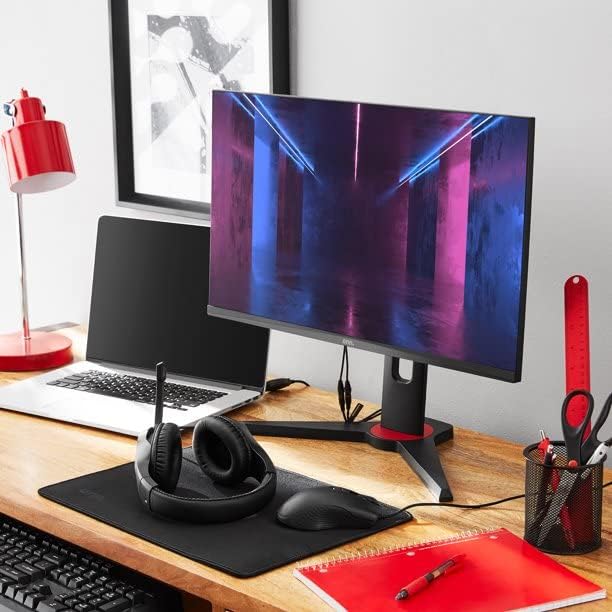
Image: The ONN 24 Inch Gaming Monitor integrated into a typical desk setup, alongside a laptop and other peripherals.
Important Safety Information
- Do not expose the monitor to rain or moisture to prevent fire or electric shock.
- Do not open the monitor casing. There are no user-serviceable parts inside. Refer all servicing to qualified service personnel.
- Place the monitor on a stable, flat surface to prevent it from falling.
- Ensure proper ventilation around the monitor. Do not block ventilation openings.
- Use only the power adapter supplied with the monitor.
- Unplug the monitor from the power outlet during lightning storms or when unused for long periods.
- Keep the monitor away from direct sunlight, heat sources, and extreme temperatures.
Package Contents
Please check the package contents upon unboxing. If any items are missing or damaged, contact your retailer.
- ONN 24 Inch Gaming Monitor
- Monitor Stand (Base and Neck)
- Power Adapter
- HDMI Cable
- User Manual (this document)
Setup Guide
1. Assembling the Stand
Carefully attach the monitor stand to the back of the monitor. Ensure it clicks securely into place or is fastened with screws if provided. The monitor is designed for tabletop mounting.

Image: Front view of the ONN 24 Inch Gaming Monitor with its stand assembled, ready for use.
2. Connecting to a Device
The monitor supports multiple input options. Connect your computer or gaming console using one of the available ports.
- HDMI: Connect an HDMI cable from your device's HDMI output to either the HDMI 1 or HDMI 2 port on the monitor.
- DisplayPort (DP): Connect a DisplayPort cable from your device's DP output to the DP port on the monitor.

Image: Close-up of the monitor's rear input panel, showing HDMI 1, HDMI 2, and DisplayPort connections.
3. Power Connection
Connect the power adapter to the monitor's power input port, then plug the other end into a wall outlet. Ensure the connection is secure.
Operating Instructions
Power On/Off
Press the power button, usually located on the back or bottom right of the monitor, to turn the monitor on or off. The power indicator light will illuminate when the monitor is on.
Input Source Selection
If you have multiple devices connected, you may need to manually select the input source. Use the monitor's OSD (On-Screen Display) menu or a dedicated input button to switch between HDMI 1, HDMI 2, and DisplayPort.
On-Screen Display (OSD) Menu
The OSD menu allows you to adjust various display settings. Typically, there are buttons on the back or bottom of the monitor to navigate this menu.
- Brightness/Contrast: Adjust the overall luminance and contrast ratio.
- Color Settings: Modify color temperature, hue, and saturation.
- Picture Mode: Select preset modes like Standard, Game, Movie, etc.
- Aspect Ratio: Choose between Full, 4:3, 16:9, etc.
- Input Select: Manually switch between connected video sources.
Refer to the on-screen prompts for specific button functions (e.g., Menu, Up, Down, Enter, Exit).
Maintenance
- Cleaning the Screen: Gently wipe the screen with a soft, lint-free cloth. For stubborn marks, dampen the cloth slightly with water or a non-abrasive screen cleaner. Do not spray liquid directly onto the screen.
- Cleaning the Casing: Use a soft, dry cloth to wipe the monitor casing. Avoid using strong detergents or solvents.
- Ventilation: Ensure the ventilation openings on the monitor are not blocked by dust or debris.
- Storage: If storing the monitor for an extended period, unplug it and store it in a cool, dry place, preferably in its original packaging.
Troubleshooting
| Problem | Possible Cause | Solution |
|---|---|---|
| No image on screen |
|
|
| Image is blurry or distorted |
|
|
| No sound (if monitor has speakers/audio out) |
|
|
If the problem persists after trying these solutions, please contact customer support.
Specifications
| Model Number | 100027813 |
| Screen Size | 24 Inches |
| Resolution | 1920 x 1080 (FHD 1080p) |
| Aspect Ratio | 16:9 |
| Screen Surface | Glossy |
| Mounting Type | Tabletop |
| Input Ports | 2 x HDMI, 1 x DisplayPort (DP) |
| Item Weight | 13.47 pounds |
| Package Dimensions | 27 x 19 x 5.8 inches |
Warranty and Support
This ONN monitor comes with a limited warranty. Please refer to the warranty card included in your package for specific terms and conditions. Keep your purchase receipt as proof of purchase.
For technical support, troubleshooting assistance, or warranty claims, please contact ONN customer service. Contact information can typically be found on the manufacturer's website or on the product packaging.
Online Resources: For the latest drivers, firmware updates, and additional support resources, visit the official ONN support website.
Ask a question about this manual
Ask about setup, troubleshooting, compatibility, parts, safety, or missing instructions. Manuals+ will review the question and use this page’s manual context to help answer it.