1. Product Overview
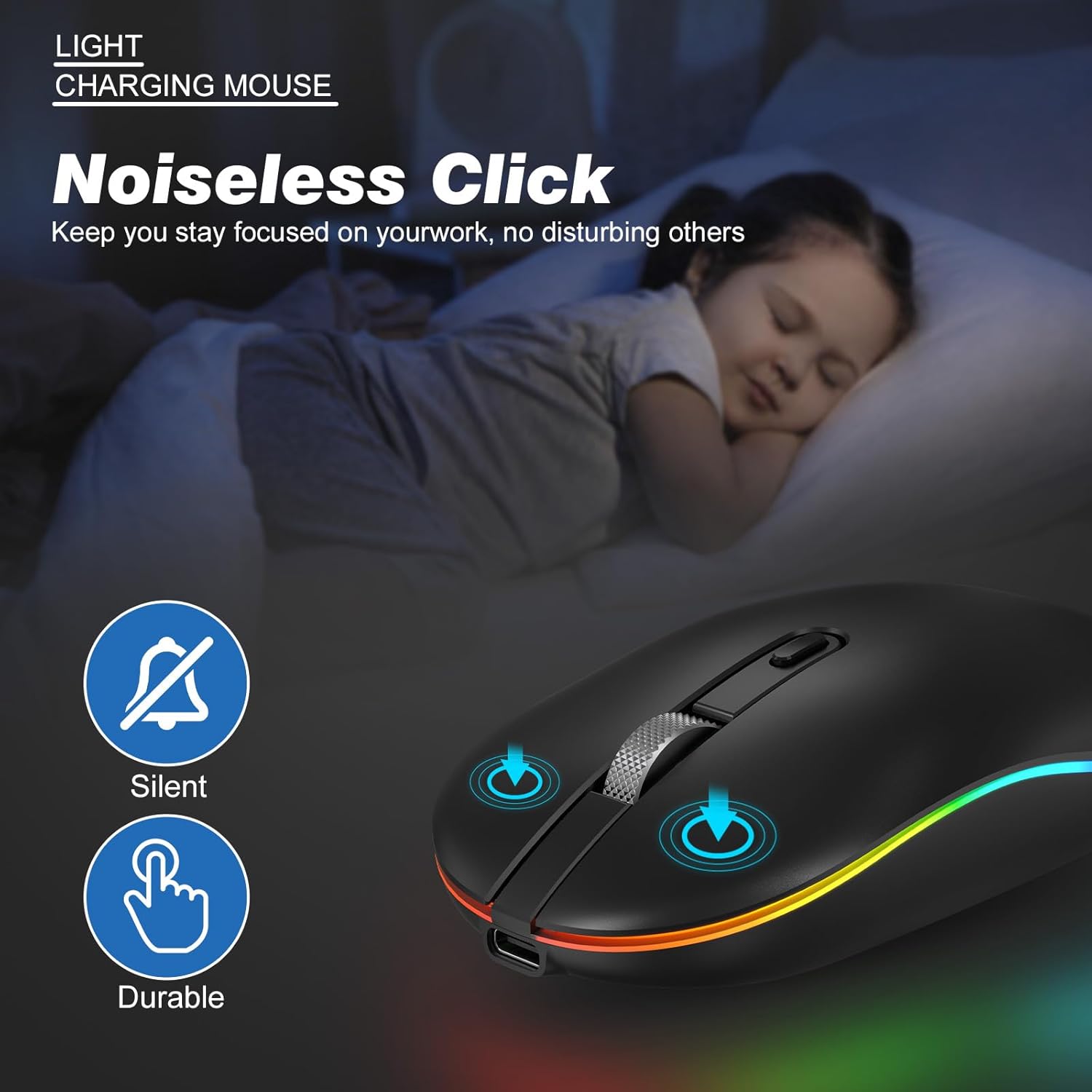
The RaceGT LED Wireless Mouse M013 is a rechargeable, silent, and ergonomic mouse designed for various computing devices. It features 2.4G wireless connectivity, a Type-C charging port, and adjustable DPI settings. The mouse includes an LED light strip for visual indication.

2. Package Contents
- RaceGT LED Wireless Mouse (M013)
- 2.4G USB Receiver
- Type-C Adapter
- USB-A to Type-C Charging Cable
- User Manual
3. Setup Instructions
3.1 Charging the Mouse
Before initial use, fully charge the mouse. The mouse features a built-in rechargeable battery.
- Locate the Type-C charging port at the front of the mouse.
- Connect the provided USB-A to Type-C charging cable to the mouse and a power source (e.g., computer USB port, USB wall adapter).
- The LED lights may indicate charging status. Allow the mouse to charge until fully powered.

3.2 Connecting the Mouse to Your Device
The mouse uses a 2.4G wireless connection via a USB receiver. A Type-C adapter is included for devices without standard USB-A ports.
- Locate the USB receiver stored in the slot on the bottom of the mouse (refer to Image 1.2).
- For devices with a USB-A port: Plug the USB receiver directly into an available USB-A port on your computer.
- For devices with a Type-C port: Attach the Type-C adapter to the USB receiver, then plug the combined unit into an available Type-C port on your computer.
- Turn on the mouse using the ON/OFF switch on its bottom.
- Your computer should automatically detect and install the necessary drivers. The mouse is plug-and-play, requiring no manual driver installation.

4. Operating Instructions
4.1 Power On/Off
Use the ON/OFF switch located on the bottom of the mouse to power it on or off. Turning the mouse off when not in use conserves battery life.
4.2 DPI Adjustment
The mouse offers three adjustable DPI (Dots Per Inch) settings to control cursor sensitivity. Press the DPI button, usually located behind the scroll wheel, to cycle through the settings.
- 800 DPI: Lower sensitivity for precise movements.
- 1200 DPI: Medium sensitivity for general use.
- 1600 DPI: Higher sensitivity for faster cursor movement.

4.3 LED Light Control
The mouse features an LED light strip. A dedicated light switch is located on the bottom of the mouse (refer to Image 1.2) to turn the LED lights on or off according to user preference.
4.4 Sleep Mode and Activation
To conserve power, the mouse will automatically enter standby mode after a period of inactivity and then auto-sleep. To reactivate the mouse, simply click any button.

5. Maintenance
5.1 Cleaning
To clean the mouse, use a soft, dry cloth. For stubborn dirt, a slightly damp cloth can be used, ensuring no moisture enters the internal components. Avoid using harsh chemicals or abrasive materials.
5.2 Battery Care
The mouse contains a built-in rechargeable lithium metal battery. To prolong battery life:
- Avoid fully discharging the battery frequently.
- Charge the mouse regularly, even if not completely depleted.
- Store the mouse in a cool, dry place when not in use for extended periods.
6. Troubleshooting
6.1 Mouse Not Responding or Connecting
- Ensure the mouse is powered on using the switch on its bottom.
- Verify the USB receiver is securely plugged into a working USB or Type-C port on your device. Try a different port if available.
- Ensure the mouse is charged. Connect it to a power source using the Type-C cable.
- Restart your computer.
- If using a USB hub, try connecting the receiver directly to the computer.
6.2 Erratic Cursor Movement or Poor Tracking
- Clean the optical sensor on the bottom of the mouse with a soft, dry cloth.
- Ensure you are using the mouse on a suitable surface. Reflective, transparent, or uneven surfaces can affect tracking performance. A mouse pad is recommended.
- Adjust the DPI setting to a lower value if the cursor is too sensitive or jumps erratically.
- Ensure there are no strong wireless interference sources nearby.
6.3 Charging Issues
- Verify the charging cable is properly connected to both the mouse and the power source.
- Try a different USB port or wall adapter.
- Ensure the charging cable is not damaged.
6.4 Buttons Not Functioning
- Ensure the mouse is powered on and connected.
- Restart your computer.
- If specific buttons are not working, check for any software conflicts or custom settings on your operating system.
7. Specifications
| Feature | Specification |
|---|---|
| Model | M013 |
| Connectivity Technology | 2.4G Wireless (USB Receiver, Type-C Adapter) |
| Movement Detection Technology | Optical |
| Adjustable DPI | 800 / 1200 / 1600 |
| Charging Port | Type-C |
| Battery Type | Rechargeable Lithium Metal (included) |
| Item Weight | 1.94 ounces |
| Compatibility | Windows 7/8/10/XP, Vista 7/8, Linux, macOS (Laptop, Desktop, MacBook, PC) |
8. Warranty and Support
RaceGT products are designed for reliability and performance. For information regarding warranty coverage, please refer to the documentation provided with your purchase or visit the official RaceGT website.
If you encounter any issues or have questions regarding your RaceGT LED Wireless Mouse, please contact the RaceGT customer service team. They are available to provide professional assistance.
Contact Information: Refer to your product packaging or the official RaceGT website for the most current support contact details.