
1. Introduction
The TOUCAN Outdoor Floodlight Security Camera is designed to provide comprehensive outdoor surveillance with integrated lighting. This manual provides detailed instructions for the installation, operation, and maintenance of your device. Please read this manual thoroughly before using the product to ensure proper setup and functionality.
2. Package Contents
Verify that all items listed below are included in your package:
- TOUCAN Security Light Camera
- Secure camera mount
- Power supply (2m)
- Power extension cable (6m)
- Screws and wall anchors
3. Product Overview
Familiarize yourself with the components of your TOUCAN Outdoor Floodlight Security Camera.

Image: Front view of the TOUCAN Outdoor Floodlight Security Camera, showing the integrated LED floodlight, camera lens, and antenna.
- LED Floodlight: Provides 1200 lumens of illumination.
- Camera Lens: Captures 1080P Full HD video with a 143-degree viewing angle.
- Motion Sensor: Radar-based motion detection for accurate alerts.
- Microphone & Speaker: Enables two-way audio communication.
- Antenna: For Wi-Fi connectivity.
- Reset Button: Located on the back of the camera.
4. Setup
4.1 App Installation
To begin, download the Toucan Smart Home app on your smartphone. The app is available for both iOS and Android devices.
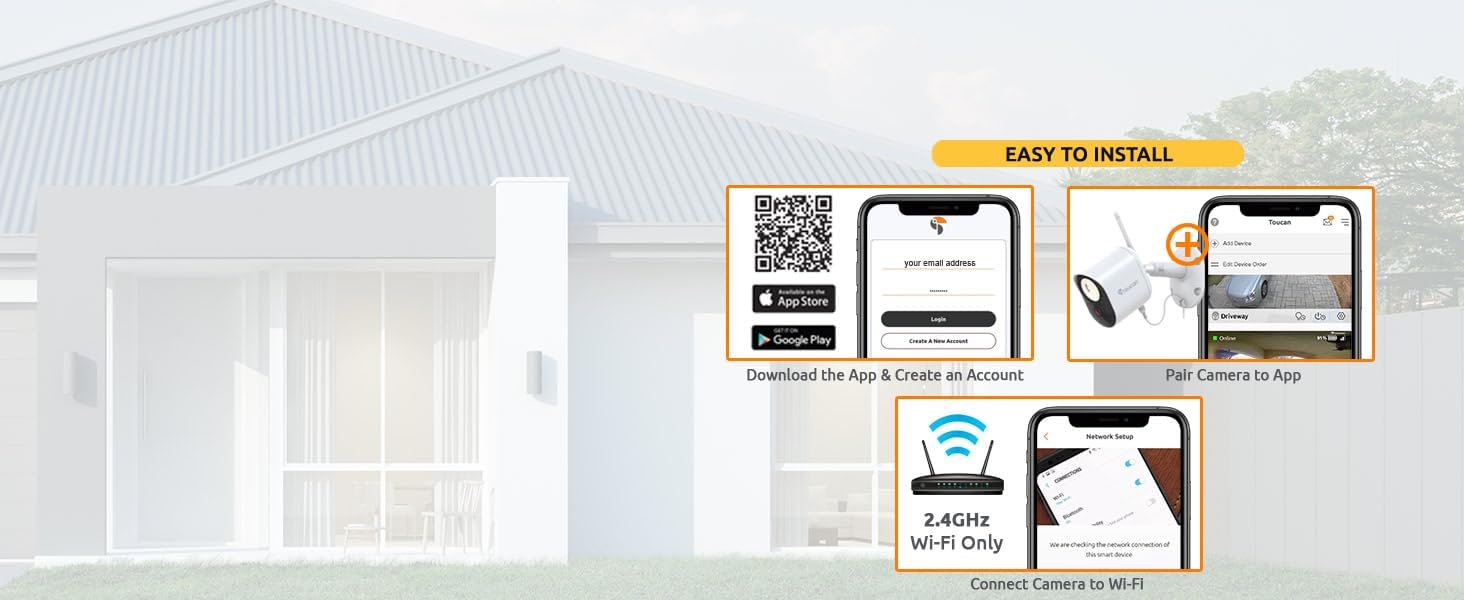
Image: Visual guide for app download, account creation, and initial device pairing.
- Scan the QR code provided in the quick start guide or visit toucansmarthome.com/pages/smarthomeapp to download the Toucan Smart Home app.
- Install the app on your mobile device.
4.2 Device Pairing and Wi-Fi Connection
Follow the in-app instructions to pair your camera and connect it to your home Wi-Fi network.
- Open the Toucan Smart Home app and create a new account or log in.
- Tap the '+' icon to add a new device and select your camera model.
- Follow the on-screen prompts to connect the camera to your 2.4GHz Wi-Fi network only. 5GHz networks are not supported.
4.3 Physical Installation
The camera is designed for outdoor use and is IP56 weatherproof. It requires a standard electrical outlet for power.

Image: The TOUCAN camera mounted outdoors, showing its weatherproof construction during rainfall.
- Choose a suitable outdoor location for mounting the camera, ensuring it has a clear view of the area you wish to monitor and is within range of your Wi-Fi network.
- Use the provided secure camera mount, screws, and wall anchors to securely attach the camera to a wall or eave. The installation type is screw-in.
- Connect the camera to the included 8-meter waterproof power cable and plug it into a standard electrical outlet. No hardwiring is required. An additional 6-meter waterproof extension cable is available separately if needed.
5. Operation
5.1 Live View
Access real-time video footage from your camera through the Toucan Smart Home app at any time.
5.2 Two-Way Audio
Communicate with visitors or deter unwanted guests using the camera's built-in microphone and speaker.

Image: A smartphone displaying the live camera feed, with an overlay showing the two-way audio function in use.
- From the live view in the app, tap the microphone icon to speak through the camera.
- Utilize pre-recorded auto-responses available in the app for quick communication.
5.3 Motion Detection
The camera features radar motion detection to accurately identify activity in your monitored area.

Image: Illustration of radar motion detection coverage and app interface for adjusting sensitivity.
- Customize motion zones within the app to focus detection on specific areas.
- Adjust motion sensitivity settings (Low, Medium, High, Max) to minimize false alerts.
5.4 Light Control
The integrated 1200 lumens LED floodlight can be controlled manually, set on a schedule, or activated by motion.

Image: The TOUCAN camera's 1200 lumens floodlight actively illuminating a dark yard.
- Turn the light on or off directly from the Toucan Smart Home app.
- Configure schedules for automatic light activation.
- Enable motion-activated lighting to illuminate areas when activity is detected.
5.5 Siren Alarm
Activate the loud 110dB siren and flashing light directly from the app to deter intruders.

Image: The TOUCAN camera activating its siren and flashing light as a deterrent.
- Tap the siren icon in the app to manually trigger the alarm.
5.6 Night Vision
The camera provides clear surveillance even in low-light conditions with both color and infrared night vision.

Image: Three views demonstrating the camera's performance: clear daytime, vibrant color night vision, and detailed black-and-white infrared night vision.
- The camera automatically switches to night vision mode in low light.
- Benefit from crystal-clear color night vision when the floodlight is active, or standard infrared night vision in complete darkness.
5.7 Cloud Storage
The TOUCAN camera offers cloud storage for recorded events without requiring a subscription for basic features.

Image: A smartphone displaying the event history in the Toucan Smart Home app, highlighting the no-subscription feature.
- Access the last 24 hours of recorded clips for free.
- Video download and pre-recorded messages are included without a subscription.
- Optional subscription plans are available for extended cloud storage history.
6. Maintenance
- Cleaning: Periodically clean the camera lens and floodlight cover with a soft, damp cloth to ensure optimal image clarity and light output. Avoid abrasive cleaners.
- Cable Inspection: Regularly check the power cable and connections for any signs of wear or damage. Ensure all connections remain secure.
- Firmware Updates: Keep your camera's firmware updated through the Toucan Smart Home app to ensure the latest features and security enhancements.
7. Troubleshooting
If you encounter issues with your TOUCAN Outdoor Floodlight Security Camera, refer to the following common solutions:
- Camera Disconnection: Ensure your Wi-Fi router is functioning correctly and the camera is within range. Verify that your Wi-Fi network is 2.4GHz. If issues persist, try resetting the camera using the reset button on the back of the device.
- Poor Image Quality: Clean the camera lens. Ensure there are no obstructions in the camera's field of view. Check your Wi-Fi signal strength in the app.
- Motion Detection Issues: Adjust the motion sensitivity settings in the app. Ensure motion zones are correctly configured.
- App Not Responding: Close and reopen the Toucan Smart Home app. Ensure your smartphone's operating system is up to date.
- No Power: Verify the power cable is securely connected to both the camera and the electrical outlet. Check if the outlet is functional.
For further assistance, consult the in-app help section or contact TOUCAN customer support.
8. Specifications
| Feature | Detail |
|---|---|
| Model Number | 0451 / TCNTSLC100W |
| Video Capture Resolution | 1080p Full HD |
| Viewing Angle | 143 Degrees |
| Light Source Type | LED (1200 lumens) |
| Special Features | Motion Sensor (Radar), Night Vision (Color & IR), 2-Way Audio, Siren Alarm |
| Connectivity Technology | Wireless (Wi-Fi 2.4GHz) |
| Power Source | Corded Electric (Plug-in) |
| Wattage | 7.5 watts |
| Weatherproof Rating | IP56 |
| Dimensions (L x W x H) | 25.4 x 8.9 x 22.2 cm (10 x 3.5 x 8.75 inches) |
| Weight | 1.43 kg |
| Compatible Devices | Smartphone (iOS, Android), Amazon Alexa, Google Home |
9. Warranty and Support
For information regarding product warranty, returns, or technical support, please refer to the official TOUCAN website or contact their customer service directly. Details can typically be found on the product packaging or the manufacturer's website.
