Introduction
Thank you for choosing the Plimpton P50/P60 Docking Keyboard. This 2-in-1 detachable smart case is designed to enhance your tablet experience by providing a full-sized keyboard and a protective cover with a built-in stand. Featuring 80 keys and a 5-pin connection, this lightweight and foldable accessory transforms your PlimPad P50 or P60 10.1-inch tablet into a versatile workstation.
This manual provides detailed instructions on how to set up, operate, and maintain your docking keyboard to ensure optimal performance and longevity.
Product Features
- 2-in-1 Design: Combines a protective case and a functional keyboard.
- Detachable Keyboard: Allows for flexible use as a stand-alone case or with the keyboard attached.
- 5-Pin Connection: Ensures stable and reliable communication with your tablet without the need for Bluetooth pairing or separate charging.
- 80-Key Layout: Provides a comfortable typing experience.
- Integrated Trackpad: For precise cursor control.
- Foldable Stand Cover: Offers multiple viewing angles for productivity and entertainment.
- Lightweight and Portable: Designed for easy transport.
- Durable Material: Constructed from Polyurethane (PU) for protection against scratches and everyday wear.
Package Contents
Please check the package contents upon unboxing:
- Plimpton P50/P60 Docking Keyboard Case
- User Manual (this document)
Note: Tablet is not included with the keyboard case.
Setup Guide
Follow these steps to set up your Plimpton P50/P60 Docking Keyboard with your tablet.
1. Attaching the Tablet to the Case
- Gently align your PlimPad P50 or P60 10.1-inch tablet with the corner holders of the case.
- Press the tablet firmly into the case, ensuring all four corners are securely seated. The case is designed to hold the tablet snugly.
- Verify that the tablet's ports and buttons are accessible and not obstructed by the case.

Figure 1: Tablet securely attached to the keyboard case.
2. Connecting the Keyboard
- Locate the 5-pin magnetic connector on the keyboard and the corresponding port on your PlimPad P50/P60 tablet.
- Align the tablet with the keyboard's docking area. The magnetic connection will guide the tablet into place and establish the connection.
- Once connected, the keyboard will be powered by the tablet and ready for use. No separate pairing or charging is required for the keyboard.
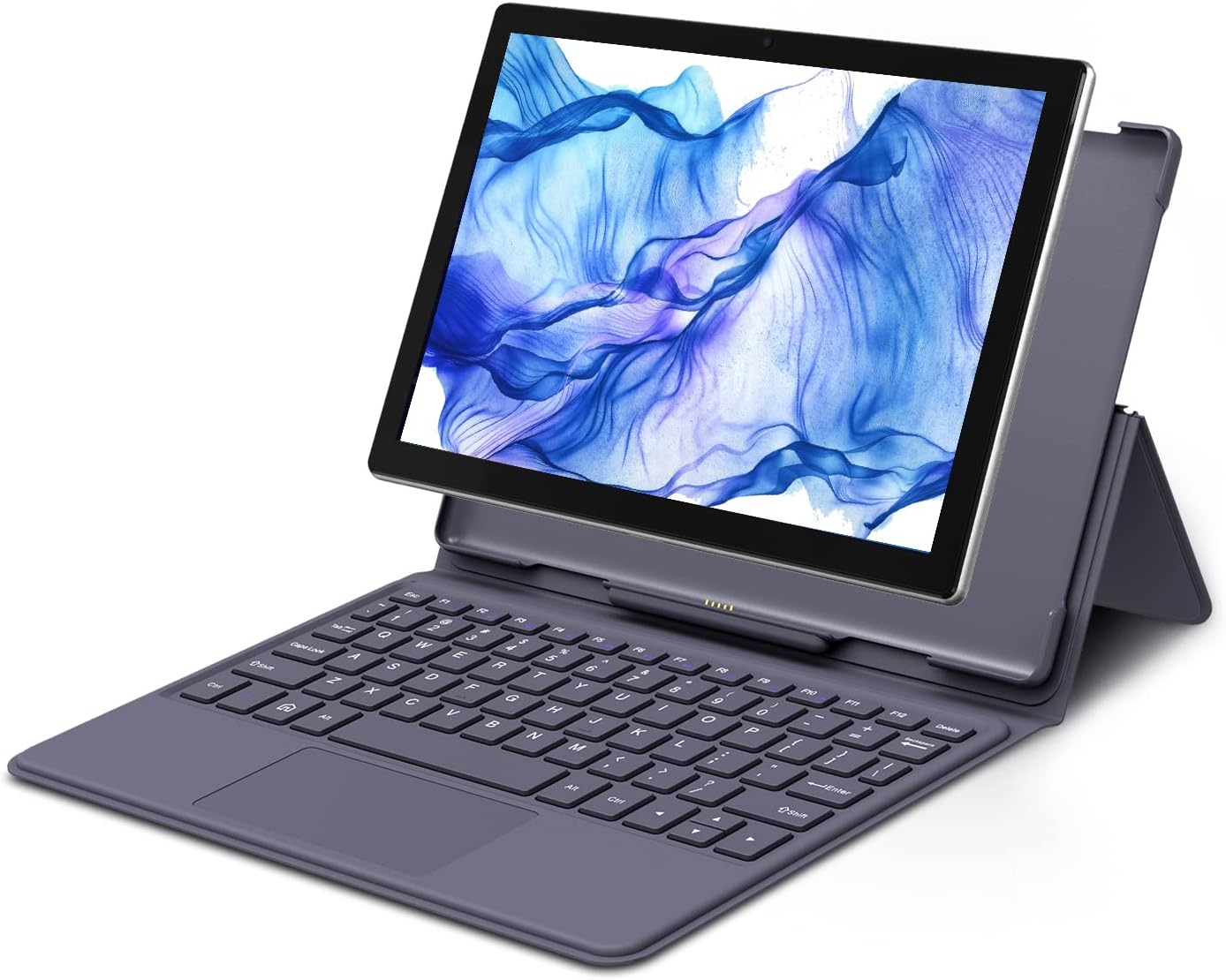
Figure 2: Tablet docked and ready for use with the keyboard.
Operating Instructions
This section details how to use the various features of your Plimpton P50/P60 Docking Keyboard.
Using the Keyboard
The keyboard functions like a standard computer keyboard. Simply type as you would on a laptop. The 5-pin connection ensures immediate response.
- Function Keys (Fn): Many keys have secondary functions accessible by holding down the Fn key and pressing the desired function key (e.g., F1-F12 for media control, brightness adjustment, etc.). Refer to your tablet's operating system for specific function key mappings.
Using the Trackpad
The integrated trackpad allows for precise cursor control, similar to a laptop touchpad.
- Single Tap: Functions as a left-click.
- Two-Finger Tap: Functions as a right-click.
- Two-Finger Scroll: Drag two fingers up or down to scroll through content.
- Pinch-to-Zoom: Use two fingers to pinch in or out to zoom.
Using the Integrated Stand
The case features a foldable stand cover for comfortable viewing and typing angles.
- Open the case fully.
- Fold the back cover along its creases to form a triangular stand.
- Rest the tablet, still attached to the keyboard, against the stand to achieve your desired viewing angle.

Figure 3: Keyboard and tablet in stand mode for comfortable use.
Maintenance and Care
Proper care will extend the life of your Plimpton P50/P60 Docking Keyboard.
- Cleaning: Use a soft, damp cloth to wipe the exterior of the case and keyboard. Avoid harsh chemicals or abrasive cleaners.
- Dust Removal: Use a soft brush or compressed air to remove dust and debris from between the keys.
- Storage: When not in use, keep the keyboard case closed to protect both the keyboard and your tablet. Store in a cool, dry place away from direct sunlight.
- Handling: Avoid dropping the case or exposing it to excessive force, which could damage the internal components or the tablet.

Figure 4: Key features of the keyboard case, including durability and ease of maintenance.
Troubleshooting
If you encounter issues with your docking keyboard, please refer to the following common solutions:
| Problem | Possible Cause | Solution |
|---|---|---|
| Keyboard not responding. | Loose 5-pin connection. | Ensure the tablet is securely docked and the 5-pin connector is fully engaged. Detach and reattach the tablet to ensure a proper connection. |
| Trackpad not working. | Connection issue or software glitch. | Check the 5-pin connection. Restart your tablet. Ensure no settings on your tablet have disabled the external input device. |
| Tablet not staying securely in case. | Improper seating or case wear. | Ensure the tablet is pressed firmly into all four corner holders. If the issue persists, inspect the case for any damage or deformation. |
| Keys are not registering correctly. | Debris under keys or connection issue. | Clean the keyboard surface and between keys. Re-establish the 5-pin connection. |
If these solutions do not resolve your issue, please contact Plimpton customer support.
Specifications
| Feature | Detail |
|---|---|
| Model Number | PlimPad P50 (Compatible with P50 & P60 10.1" Tablets) |
| Dimensions | 10 x 7 x 1 inches (approx.) |
| Weight | 1.5 pounds (approx.) |
| Connectivity | 5-Pin Magnetic Connection |
| Number of Keys | 80 |
| Material | Polyurethane (PU) |
| Compatible Devices | PlimPad P50 10.1" Tablet, PlimPad P60 10.1" Tablet |
| Special Features | Detachable, Foldable Stand, Integrated Trackpad, Lightweight |

Figure 5: Compatibility with PlimPad P50 and P60 10.1" Tablets.
Warranty and Support
Plimpton is committed to providing quality products and customer satisfaction.
Warranty Information
Specific warranty details may vary by region and purchase location. Please retain your proof of purchase for warranty claims. For any product issues, Plimpton will do its best to help you resolve the problem.
Customer Support
If you have any questions, require technical assistance, or need to report a problem with your Plimpton P50/P60 Docking Keyboard, please contact our customer support team:
- Email: support@plimptonline.com
- Our team typically responds to inquiries within 24 hours.


