
OPPO CPH2343
OPPO Reno 7 Z CPH2343 User Manual
Model: CPH2343
1. Introduction
This user manual provides essential information for operating your new OPPO Reno 7 Z CPH2343 smartphone. Please read this manual carefully before using the device to ensure proper and safe operation. Keep this manual for future reference.
The OPPO Reno 7 Z CPH2343 is a 5G-enabled smartphone featuring a 6.43-inch OLED display, a 64MP triple rear camera system, a 16MP front camera, and powered by a Snapdragon CPU with 8GB RAM and 128GB storage. It runs on ColorOS 12 based on Android 11.
2. Safety Information
To prevent injury to yourself and others, or damage to your device, read all safety information before using the device.
- Battery Safety: Do not disassemble, impact, crush, or put the battery into fire. If the battery appears swollen or damaged, discontinue use immediately.
- Charging: Use only OPPO-approved chargers, batteries, and cables. Unapproved chargers or cables may cause the battery to explode or damage the device.
- Water and Dust Resistance: This device is not water or dust resistant. Avoid exposing it to liquids or excessive dust.
- Driving Safety: Always prioritize driving safety. Do not use your phone while driving unless absolutely necessary and permitted by law.
- Medical Devices: Maintain a safe distance between your phone and medical devices (e.g., pacemakers) to avoid interference.
- Disposal: Dispose of the device and battery properly according to local regulations. Do not dispose of them with household waste.
3. Package Contents
Ensure all items are present in your product package:
- OPPO Reno 7 Z CPH2343 Device
- Charger
- USB Cable
- Quick Start Guide and Safety Information (this manual)
If any items are missing or damaged, please contact your retailer or OPPO customer service.
4. Product Overview
Familiarize yourself with the physical components of your OPPO Reno 7 Z CPH2343.

Figure 4.1: Front View. Shows the full display, front camera punch-hole in the top-left corner, and earpiece speaker at the top edge.

Figure 4.2: Back View. Displays the rear camera module with two prominent lenses and a smaller sensor, along with the OPPO branding at the bottom right.

Figure 4.3: Right Side View. Illustrates the location of the power button on the right edge of the device.
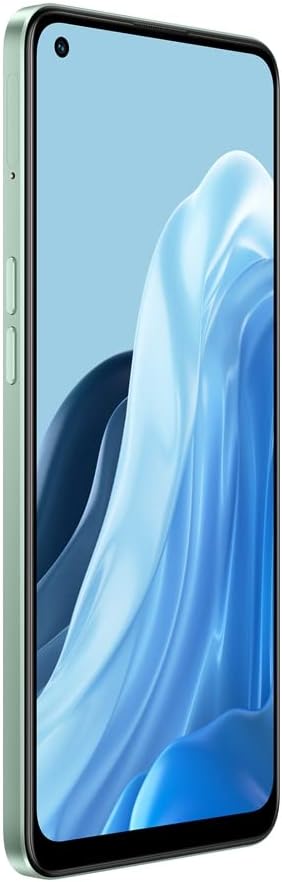
Figure 4.4: Left Side View. Shows the volume up and down buttons and the SIM card tray slot on the left edge.
Component Identification:
- Front Camera: Located at the top-left of the display.
- Earpiece: Located at the top center edge for calls.
- Volume Buttons: On the left side, for adjusting media and call volume.
- Power Button: On the right side, for turning the device on/off and locking/unlocking the screen.
- SIM Card Tray: On the left side, for inserting SIM and microSD cards.
- USB-C Port: At the bottom, for charging and data transfer.
- Speaker: At the bottom, for audio output.
- Microphone: At the bottom, for voice input.
- Rear Cameras: Located on the back, for taking photos and videos.
- Flash: Next to the rear cameras, for illumination.
5. Setup
5.1 Inserting SIM and SD Card
- Locate the SIM card tray on the left side of the device.
- Insert the SIM ejector tool (not included, but typically comes with phones) into the small hole next to the tray. Press firmly until the tray pops out.
- Carefully pull out the tray.
- Place your Nano-SIM card(s) and/or microSD card into the designated slots on the tray, ensuring the gold contacts face downwards.
- Gently push the tray back into the slot until it is flush with the device.
5.2 Initial Power On and Setup
- Press and hold the Power Button on the right side of the device until the OPPO logo appears.
- Follow the on-screen prompts to complete the initial setup process. This includes selecting your language, connecting to Wi-Fi, setting up your Google account, and configuring security features like fingerprint or face unlock.
- Ensure your device is sufficiently charged before starting the setup.
6. Operating Your Device
6.1 Basic Navigation
- Touchscreen Gestures: Tap to select, swipe to scroll, pinch to zoom.
- Home Screen: The central hub for your apps and widgets.
- Notification Panel: Swipe down from the top of the screen to access notifications and quick settings.
- App Drawer: Swipe up from the bottom of the screen to view all installed applications.
6.2 Making Calls and Sending Messages
- Calls: Open the Phone app, enter the number, and tap the call icon.
- Messages: Open the Messages app, tap the new message icon, enter the recipient and your message, then send.
6.3 Camera Usage
Your OPPO Reno 7 Z CPH2343 features a 64MP main rear camera and a 16MP front camera.
- Open the Camera app.
- Select your desired mode (Photo, Video, Portrait, Night, etc.).
- Tap the shutter button to capture a photo or start/stop recording a video.
- Tap the switch camera icon to toggle between front and rear cameras.
6.4 Connectivity
- Wi-Fi: Go to Settings > Wi-Fi to connect to available networks.
- Bluetooth: Go to Settings > Bluetooth to pair with other Bluetooth devices.
- Mobile Data (5G): Ensure your SIM card has an active data plan. Enable mobile data in Quick Settings or Settings > Mobile Network.
- USB: Connect your device to a computer using the USB cable for file transfer or charging.
6.5 Operating System (ColorOS 12 based on Android 11)
Your device runs on ColorOS 12, which offers a user-friendly interface and various customization options. Explore the Settings app to personalize your device, manage apps, and configure privacy settings.
7. Maintenance
7.1 Cleaning Your Device
- Use a soft, lint-free cloth to clean the screen and body of the phone.
- Avoid using harsh chemicals, abrasive cleaners, or aerosol sprays.
- Do not spray cleaners directly onto the device.
7.2 Battery Care
- Avoid extreme temperatures, as they can degrade battery life.
- Do not leave the device charging for extended periods after it is fully charged.
- For optimal battery longevity, try to keep the charge level between 20% and 80%.
7.3 Software Updates
Regularly check for software updates to ensure your device has the latest features, security patches, and performance improvements. Go to Settings > About device > Up to date (or similar path depending on ColorOS version) to check for updates.
8. Troubleshooting
If you encounter issues with your device, try the following solutions:
| Problem | Solution |
|---|---|
| Device not turning on | Ensure the battery is charged. Connect the charger and wait a few minutes before attempting to power on. If unresponsive, perform a force restart by holding the Power button and Volume Up button simultaneously for about 10 seconds. |
| Apps crashing or freezing | Close the problematic app and reopen it. Clear the app's cache (Settings > Apps > [App Name] > Storage > Clear cache). If the issue persists, restart the device. |
| Poor battery life | Check battery usage in Settings to identify power-hungry apps. Reduce screen brightness, disable unnecessary features (Bluetooth, GPS, Wi-Fi when not in use), and close background apps. |
| Cannot connect to Wi-Fi | Ensure Wi-Fi is enabled on your device. Restart your router. Forget the network in phone settings and reconnect. |
| No network signal | Check if your SIM card is properly inserted. Restart the device. Try toggling Airplane Mode on and off. Contact your network provider if the issue persists. |
For more complex issues, consider performing a factory reset (Settings > System settings > Back up and reset > Reset phone > Erase all data). Warning: A factory reset will erase all data on your device. Back up important data before proceeding.
9. Specifications
| Feature | Detail |
|---|---|
| Model Name | OPPO Reno 7 Z |
| Model Number | CPH2343 |
| Operating System | ColorOS 12 (based on Android 11.0) |
| Processor | Snapdragon (CPU speed: 1.8, 2 GHz) |
| RAM | 8 GB |
| Internal Storage | 128 GB |
| Display Size | 6.43 Inches |
| Display Type | OLED |
| Resolution | 1080 x 2400 pixels |
| Refresh Rate | 90 Hz |
| Rear Camera | 64MP + 2MP + 2MP |
| Front Camera | 16MP |
| Cellular Technology | 5G |
| Battery Capacity | 4500 mAh (typical) |
| Connectivity | USB, Cellular, Wireless |
| Audio Jack | No headphone jack |
| Item Weight | 320 g |
| Color | Blue (Rainbow Spectrum) |
10. Warranty and Support
Your OPPO Reno 7 Z CPH2343 comes with a standard manufacturer's warranty. Please refer to the warranty card included in your package for specific terms and conditions, including warranty period and coverage details.
For technical support, service, or warranty claims, please contact OPPO Customer Service through their official website or the contact information provided in your product documentation. You may also visit the OPPO Store on Amazon for additional product information and support resources.
Keep your proof of purchase for warranty purposes.
Related documentsCPH2343


Ask a question about this manual
Ask about setup, troubleshooting, compatibility, parts, safety, or missing instructions. Manuals+ will review the question and use this page’s manual context to help answer it.