1. Introduction
This manual provides detailed instructions for setting up, operating, maintaining, and troubleshooting your Dell Pro Wireless Keyboard and Mouse KM5221W. This wireless combo offers a seamless and efficient computing experience with its 2.4 GHz interface and USB wireless receiver.
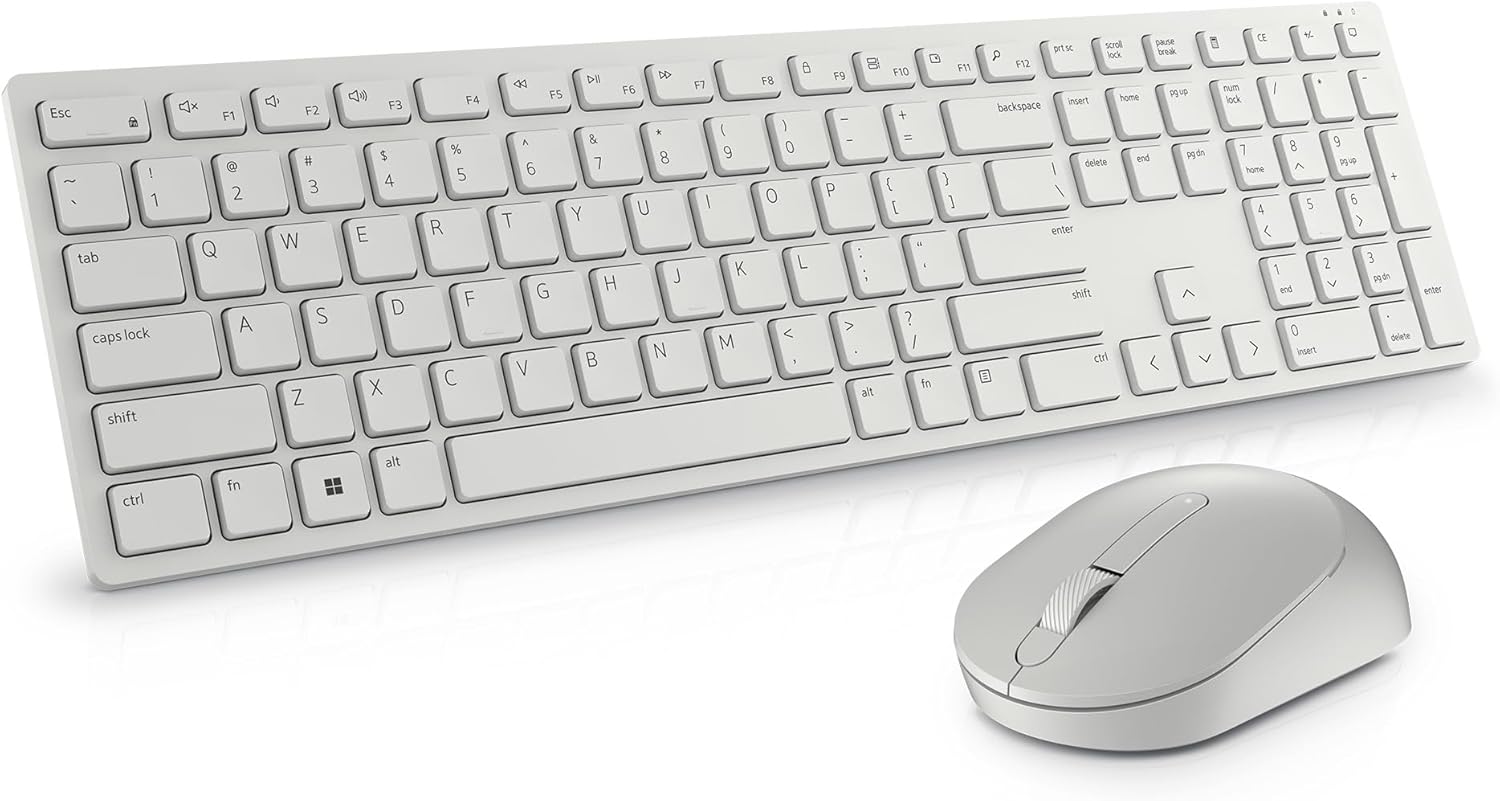
Image: The Dell Pro Wireless Keyboard and Mouse KM5221W in white, showcasing its sleek design.
2. What's in the Box
Your Dell Pro Wireless Keyboard and Mouse KM5221W package should contain the following items:
- Dell Pro Wireless Keyboard
- Dell Pro Wireless Mouse
- USB Wireless Receiver
- 1 AA Battery (for mouse)
- 2 AAA Batteries (for keyboard)
- Documentation (Quick Start Guide, Safety Information)
3. Setup Instructions
Follow these steps to set up your Dell Pro Wireless Keyboard and Mouse:
- Insert Batteries:
- For the mouse: Open the battery compartment cover on the underside of the mouse and insert one AA battery.
- For the keyboard: Open the battery compartment cover on the underside of the keyboard and insert two AAA batteries.
- Connect USB Receiver: Plug the USB wireless receiver into an available USB-A port on your computer.
- Power On: Turn on the keyboard and mouse using their respective On/Off switches. The devices should automatically connect to your computer.
- Install Dell Peripheral Manager (Optional): For advanced customization of programmable keys and DPI settings, download and install the Dell Peripheral Manager software from the official Dell support website.

Image: Labeled diagram of the Dell Pro Wireless Keyboard and Mouse, showing key features like battery indicators and programmable keys.
4. Operating Instructions
Keyboard Features:
- Quiet Typing: The keyboard features plunger key switch technology for a quiet typing experience.
- Programmable Keys: Utilize 12 programmable keys for quick access to frequently used applications, folders, and functions. Customize these using Dell Peripheral Manager.
- Adjustable Tilt: The keyboard includes tilt legs on the underside, offering two adjustable angles for a preferred typing position.
- Spill-Resistant: Designed with spill-resistant keys for added protection against accidental liquid spills.
- Secure Connection: Features 128-bit AES (Advanced Encryption Standard) encryption to protect data transmission.

Image: Hands typing on the Dell Pro Wireless Keyboard, illustrating the ease of use for productivity.
Mouse Features:
- Optical Tracking: The mouse uses optical LED technology for precise and smooth movements.
- Adjustable DPI: Customize the mouse sensitivity (DPI) to 1000, 1600, 2400, or 4000 using Dell Peripheral Manager.
- Programmable Scroll Wheel: The scroll wheel includes a programmable middle click function.
- Ergonomic Design: The mouse is designed to fit comfortably in hand for extended use.

Image: Close-up of the Dell Pro Wireless Mouse next to the keyboard's numeric keypad, highlighting its design.
5. Maintenance
Battery Replacement:
When the battery indicator light on your keyboard or mouse signals low power, replace the batteries:
- Mouse: Replace with one AA battery.
- Keyboard: Replace with two AAA batteries.
Cleaning:
To clean your keyboard and mouse, use a soft, lint-free cloth lightly dampened with water or a mild cleaning solution. Avoid harsh chemicals or abrasive materials.
6. Troubleshooting
If you encounter issues with your Dell Pro Wireless Keyboard and Mouse, try the following solutions:
- No Connectivity: Ensure the USB wireless receiver is securely plugged into a working USB port. Check that both the keyboard and mouse are powered on.
- Lag or Disconnection: Move the keyboard and mouse closer to the USB receiver. Ensure there are no large metal objects or other wireless devices interfering with the 2.4 GHz signal.
- Keys/Mouse Not Responding: Replace the batteries in both the keyboard and mouse.
- No Indicator Lights (Num Lock, Caps Lock): Please note that this model does not feature dedicated indicator lights for Num Lock or Caps Lock on the keyboard itself.
- Mouse Movement Issues: Clean the optical sensor on the underside of the mouse. Ensure you are using the mouse on a suitable surface.
7. Specifications
| Feature | Detail |
|---|---|
| Brand | Dell |
| Model Number | KM5221W |
| Connectivity Technology | Wireless (2.4 GHz) |
| Interface | USB Wireless Receiver |
| Keyboard Type | Plunger Key Switch |
| Mouse Type | Optical (LED) |
| Mouse DPI | Adjustable (1000, 1600, 2400, 4000) |
| Keyboard Batteries | 2 x AAA (included) |
| Mouse Batteries | 1 x AA (included) |
| Operating System Compatibility | Windows |
| Color | White |
| Item Weight | 1.59 pounds |
| Product Dimensions | 17.8 x 5.4 x 2.9 inches |
| Special Feature | Ergonomic, Spill-resistant keys, 128-bit AES Encryption |
8. Warranty and Support
Your Dell Pro Wireless Keyboard and Mouse KM5221W comes with a 3-Year Advanced Exchange Service. For warranty claims, technical support, or additional product information, please visit the official Dell support website or contact Dell customer service.
Dell Support Website: www.dell.com/support


