
Introduction
This manual provides comprehensive instructions for the RemotesReplaced replacement remote control, specifically designed for the Vanguard V40180D-SMART television model. This remote is electronically identical to the original and offers all the same functionalities. Please read this manual carefully before use to ensure proper operation and to maximize your viewing experience.
Setup
1. Battery Installation
The remote control requires two AAA batteries (not included). Follow these steps to install them:
- Locate the battery compartment on the back of the remote control.
- Press down on the latch and slide the battery cover downwards to open it.
- Insert two AAA batteries, ensuring the positive (+) and negative (-) terminals match the diagrams inside the compartment.
- Slide the battery cover back into place until it clicks securely.

Image: Back view of the remote control with the battery compartment visible. The compartment is located at the bottom rear of the remote, designed for easy access to insert or replace batteries.
2. Initial Use
This RemotesReplaced remote control is pre-programmed for the Vanguard V40180D-SMART TV. No setup codes or programming are required. Simply insert the batteries, and the remote is ready for immediate use with your television.
Operating Instructions
Familiarize yourself with the layout and functions of the remote control buttons:

Image: Front view of the RemotesReplaced remote control. This image displays the full button layout, including power, channel, volume, navigation, and special function buttons.
- POWER (●): Turns the TV on or off.
- MUTE: Mutes or unmutes the TV sound.
- TV/SAT/DVD/AUX: Selects the input source.
- MENU: Accesses the TV's main menu.
- EXIT: Exits the current menu or function.
- SHIFT: Used for accessing secondary functions of certain buttons (if applicable).
- Number Buttons (0-9): Directly selects channels or inputs numerical data.
- SOURCE: Cycles through available input sources.
- -/--: Toggles between single and double-digit channel entry.
- GUIDE: Displays the electronic program guide (EPG).
- VOL (+/-): Adjusts the volume level.
- CH (+/-): Changes the channel up or down.
- Navigation Pad (Up, Down, Left, Right, OK): Navigates through menus and confirms selections.
- BACK: Returns to the previous screen or menu.
- SLEEP: Sets the TV's sleep timer.
- TV/DTV: Switches between analog and digital TV modes.
- INFO: Displays information about the current program.
- EPG: Accesses the Electronic Program Guide.
- FAV: Accesses favorite channels list.
- NET TV / SMART: Accesses smart TV features and internet applications.
- Color Buttons (Red, Green, Yellow, Blue): Functions vary depending on the TV menu or application.
- Playback Controls (Rewind, Play/Pause, Fast Forward, Stop): Controls media playback.
Maintenance
Cleaning the Remote Control
To maintain the remote control's appearance and functionality:
- Wipe the surface with a soft, dry cloth.
- For stubborn dirt, slightly dampen the cloth with water or a mild, non-abrasive cleaner.
- Do not use harsh chemicals or abrasive cleaning agents, as these can damage the remote's finish or internal components.
Battery Replacement
Replace the batteries when the remote control's response becomes sluggish or stops working. Refer to the "Battery Installation" section for instructions. Always replace both batteries at the same time with new AAA batteries.

Image: Side profile of the remote control, illustrating its ergonomic design and slim form factor. This view highlights the overall shape and button placement from a lateral perspective.
Troubleshooting
If you experience issues with your remote control, try the following solutions:
- Remote not responding:
- Check if the batteries are inserted correctly with the correct polarity.
- Replace old batteries with new AAA batteries.
- Ensure there are no obstructions between the remote control and the TV's infrared sensor.
- Make sure you are within the effective range of the TV's IR receiver.
- Specific buttons not working:
- Clean the remote control surface, especially around the non-working buttons, to remove any dirt or debris that might be preventing proper contact.
- If only certain functions are affected, ensure the TV is in the correct input mode (e.g., TV mode for channel changes).
- TV not turning on/off:
- Verify that the TV is plugged into a working power outlet.
- Test the remote with another function (e.g., volume) to confirm it's transmitting a signal.
Specifications
| Brand | RemotesReplaced |
| Model Number | V40180D-SMART |
| Compatible With | Vanguard V40180D-SMART TV |
| Battery Type | 2 x AAA batteries (not included) |
| Item Weight | 120 Grams |
| Part Number | 8662-VANGUARD-V40180D-SMART |
| Manufacturer | Linkwebb |
Warranty Information
This RemotesReplaced remote control comes with a 1-year warranty from the date of purchase. This warranty covers manufacturing defects and ensures the remote functions as intended. Please retain your proof of purchase for warranty claims. For warranty service, refer to the support section.
Support
If you require further assistance or have questions not covered in this manual, please contact RemotesReplaced customer support. You can typically find contact information on the product packaging or the retailer's website where the remote was purchased. When contacting support, please have your product model number (V40180D-SMART) and purchase details ready.
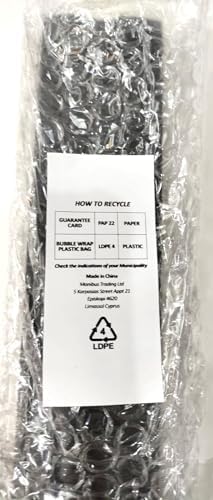
Image: Packaging of the remote control, showing recycling information for the bubble wrap and paper. This label provides guidance on how to properly dispose of the packaging materials.