
REVODATA I712-P-HS
Contents
User Manual for REVODATA HD 5MP POE IP Indoor Security Camera
Model: I712-P-HS | Brand: REVODATA
1. Introduction
This manual provides comprehensive instructions for the REVODATA HD 5MP Small POE IP Indoor Security Camera, model I712-P-HS. This camera is designed for indoor surveillance, offering high-resolution video, flexible power options, and remote viewing capabilities. Please read this manual thoroughly before installation and operation to ensure proper use and optimal performance.

Image 1.1: Front view of the REVODATA HD 5MP POE IP Indoor Security Camera.
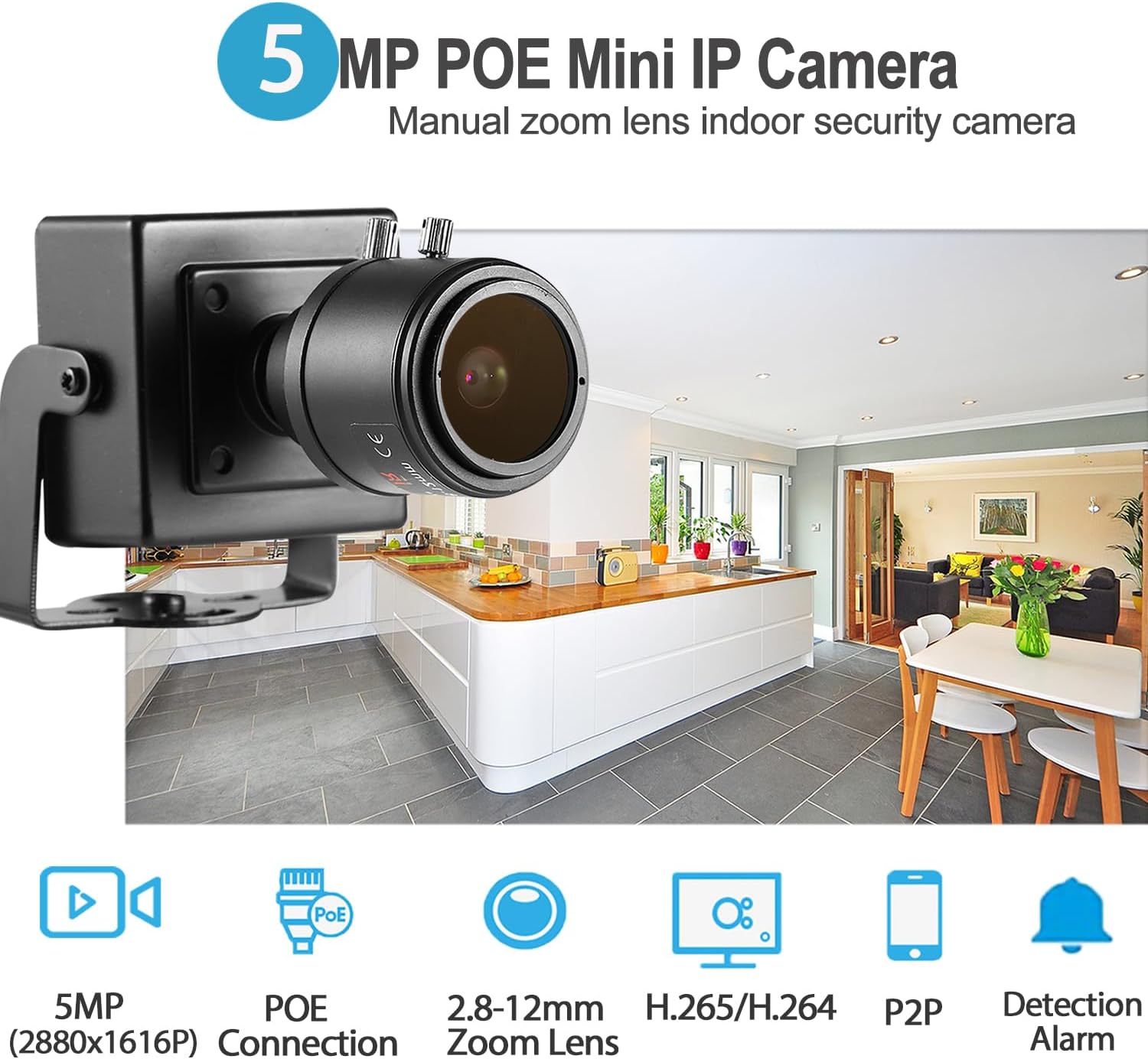
Image 1.2: Overview of key features including 5MP resolution, POE connection, 2.8-12mm zoom lens, H.265/H.264 encoding, P2P, and detection alarm.
2. Package Contents
Verify that all items are present in the package before proceeding with installation.
- 1 x HD 5MP POE IP Indoor Security Camera (Model I712-P-HS)
- 1 x User Manual
- 1 x Screw Set for mounting

Image 2.1: Diagram showing the camera with its 2.8-12mm zoom lens, mounting brackets, screw hole, POE 48V version with RJ45 port and DC power port, and included accessories like the user manual and screw set. Dimensions are also indicated.
3. Setup and Installation
3.1 Powering the Camera
The camera supports two power options:
- Power over Ethernet (POE): This product is powered by POE and requires an external 802.3AF standard 48V POE switch. This method reduces wiring complexity by delivering both power and data through a single Ethernet cable.
- DC Power: The camera also features an auxiliary power interface, allowing it to be powered by a standard 12V 2A power supply. This option is suitable for non-POE network setups.
Note: A power adapter is not included in the package. You must provide your own 48V POE switch or 12V 2A DC power supply.

Image 3.1: Illustration of the POE cable connection, highlighting the RJ45 port for Power over Ethernet.
3.2 Physical Installation
The camera is designed for indoor use and typically supports ceiling mount installation. Use the provided screw set to securely attach the camera to your desired location. Ensure the camera has a clear line of sight to the area you wish to monitor.
- Mounting Type: Ceiling Mount.
- Dimensions: 2.2 x 1.81 x 2.48 inches (5.6 x 4.6 x 6.3 cm).
3.3 Network Connection
Connect the camera to your network using an Ethernet cable. The camera supports 10M/100M mbps Ethernet (RJ-45). For POE setups, connect the Ethernet cable from your POE switch directly to the camera's RJ45 port.
3.4 Initial Configuration
Upon initial connection, the camera will typically obtain an IP address dynamically via DHCP. You can access the camera's web interface using a browser (IE6.0 and above recommended) or through compatible VMS software. The default ONVIF port is 80.
Important Note on Resolution and Encoding: The camera defaults to 5MP resolution and H.265 encoding. If your Network Video Recorder (NVR) does not support 5MP or H.265, you may need to adjust the camera's settings to 1080P (2MP) and H.264 for compatibility. Refer to the camera's web interface or VMS software for these adjustments.
4. Operating Instructions
4.1 Remote Viewing (P2P)
The camera supports P2P cloud functionality, allowing you to view live video and playback recordings remotely from various devices.
- Mobile Clients: Download and install the "Linklemo" app on your iOS or Android smartphone.
- PC Software: Use the VMS software for Windows computers. (Note: Not compatible with MAC OS and Linux).
Important: This device does not support Cloud Storage. Do not purchase Cloud Storage from the "Linklemo" app.

Image 4.1: Depiction of P2P remote viewing, illustrating how the camera feed can be accessed on a smartphone or tablet, showing a scene with a mother and baby.

Image 4.2: Screenshots demonstrating the user interface of the "Linklemo" mobile application and the VMS software for PC, both displaying the camera's video feed.
4.2 Motion Detection and Alarm
The camera features intelligent motion detection. When human movement is detected, the system can trigger an alarm message to be sent to your phone via the "Linklemo" app. This feature helps in monitoring specific areas and receiving timely alerts.
- Intelligent Alarm: Motion detection, email alarm.
- Storage: Recordings can be stored on an NVR or PC.

Image 4.3: Visual representation of the motion detection alarm, showing a detected human figure highlighted and a smartphone displaying a "Human body detected" notification from the Linklemo app.
4.3 Lens Adjustment (Manual Zoom)
The camera is equipped with a 2.8-12mm manual zoom lens. This allows you to adjust the focal length to achieve your desired field of view and level of detail.
- Adjusting Zoom: Rotate the lens ring to change the focal length. A larger focal length (e.g., 12mm) provides a narrower field of view and greater magnification for distant objects. A smaller focal length (e.g., 2.8mm) offers a wider field of view for closer surveillance.
- Adjusting Focus: After adjusting the zoom, fine-tune the focus by rotating the focus ring until the image is clear.

Image 4.4: Close-up of the camera lens with an explanation of its manual zoom function, accompanied by example images demonstrating different zoom levels (1, 2, 3, 4) of an outdoor scene.
4.4 Video Encoding
The camera supports both H.265 and H.264 compression formats. H.265 encoding offers more efficient video compression, requiring less bandwidth and storage space compared to H.264 for the same video quality. This allows for longer recording times and reduced network load.
Image 4.5: Diagram illustrating the benefits of H.265/H.264 dual encoding, showing 50% less bandwidth and 50% less storage required compared to H.264 alone, while maintaining compatibility.
5. Maintenance
To ensure the longevity and optimal performance of your security camera, follow these maintenance guidelines:
- Cleaning: Gently wipe the camera lens and body with a soft, dry cloth. Avoid using harsh chemicals or abrasive materials that could damage the surfaces.
- Firmware Updates: Periodically check the manufacturer's website (REVODATA) for any available firmware updates. Keeping the firmware updated can improve performance, add new features, and enhance security.
- Environmental Conditions: Ensure the camera operates within its specified temperature range (-25°C to 60°C) and humidity (10% to 90%). Avoid exposing the camera to extreme conditions or direct water spray, as it is designed for indoor use.
- Cable Management: Ensure all cables are securely connected and not under strain. Regularly inspect cables for any signs of wear or damage.
6. Troubleshooting
This section addresses common issues you might encounter with your REVODATA security camera.
6.1 Camera is Hot During Operation
Issue: The camera casing feels very hot after operating for a while.
Solution: This is normal. IP cameras generate heat, and the compact casing of this model can cause it to feel hot to the touch. This does not indicate a malfunction and is considered safe.
6.2 No Video Output or Poor Image Quality
- Check Power: Ensure the camera is receiving adequate power, either via a 48V 802.3af POE switch or a 12V 2A DC power supply.
- Network Connection: Verify the Ethernet cable is securely connected to both the camera and the network device (router/switch/NVR). Check network indicator lights.
- NVR Compatibility: If using an NVR, ensure it supports 5MP resolution and H.265 encoding. If not, adjust the camera's settings to 1080P (2MP) and H.264 via its web interface or VMS software.
- Lens Adjustment: For blurry images, manually adjust the zoom and focus rings on the lens until the image is clear.
- Lighting Conditions: Ensure sufficient lighting for optimal image quality. While the camera has low light technology (0.01Lux), extreme darkness will affect visibility.

Image 6.1: Comparison of real-world image quality captured by the camera during daytime and nighttime conditions, demonstrating its performance in varying light.
6.3 Cannot Access Camera Remotely (P2P)
- App/Software Check: Ensure the "Linklemo" app or VMS software is correctly installed and configured.
- Internet Connection: Verify that both your camera's network and your remote viewing device have active internet connections.
- P2P Status: Check the P2P status in the camera's web interface. Ensure it is enabled and connected.
- Firewall/Router Settings: Ensure your network firewall or router settings are not blocking the camera's access to the internet or P2P services.
7. Specifications
| Feature | Detail |
|---|---|
| Model | I712-P-HS |
| Resolution | 5.0 Megapixel (2880 x 1616P) |
| Sensor | FH8852V200+GC5053 |
| Minimum Illumination | 0.01Lux @(F1.2, AGC ON) |
| Frame Rate | 5MP/25fps |
| Shutter Speed | 1/25 sec - 1/100,000 sec |
| Lens | 2.8-12mm Manual Zoom Lens |
| Lens Mount Type | M12 |
| Compression Format | H.265/H.264 |
| Input Protocol | Standard NVR ONVIF Port |
| ONVIF Port | 80 |
| Storage | NVR or PC |
| IP Address | Dynamic (default)/Static |
| Intelligent Alarm | Motion detection, email alarm |
| Supported Protocols | HTTP, TCP/IP, RTSP, RTP, UPNP, SMTP, DHCP, DDNS, DNS, FTP, NTP |
| General Functions | Dual stream, password protection, video hiding |
| Ethernet | 10M / 100M mbps Ethernet (RJ-45) |
| Operating Temperature | -25°C ~ 60°C |
| Working Humidity | 10% ~ 90% |
| Power Supply | POE (802.3af standard) or 12V DC (not included) |
| Dimensions (L x W x H) | 2.2 x 1.81 x 2.48 inches (5.6 x 4.6 x 6.3 cm) |
| Weight | 0.25 kg (7.4 ounces) |
| Material | Metal shell |
| Indoor/Outdoor Usage | Indoor |
| Connectivity Protocol | Ethernet |
| Controller Type | Android, iOS, Windows |
| Mounting Type | Ceiling Mount |
| Special Feature | HD Resolution, Manual Zoom Lens |
8. Warranty and Support
For warranty information, please refer to the specific terms and conditions provided at the time of purchase or contact your retailer. REVODATA products are designed for reliability and performance.
For technical support or further assistance, please visit the official REVODATA website or contact their customer service department. You may also refer to the User Manual (PDF) for additional details.
Documents and downloads
Ask a question about this manual
Ask about setup, troubleshooting, compatibility, parts, safety, or missing instructions. Manuals+ will review the question and use this page’s manual context to help answer it.