
1. Introduction
This manual provides detailed instructions for the installation, operation, and maintenance of your REVODATA 5MP Mini POE Fisheye IP Security Camera, Model I706-4-P-HS. Please read this manual thoroughly before using the product to ensure proper setup and functionality.

Image 1.1: Overview of the REVODATA 5MP Mini POE Fisheye IP Security Camera.
2. Important Notes
- This product utilizes Power over Ethernet (POE) and requires an external 802.3AF standard 48V POE switch for power supply.
- The camera defaults to 5MP resolution and H.265 video compression. If your Network Video Recorder (NVR) does not support these specifications, you can adjust the camera settings to 1080P (2MP) resolution and H.264 compression.
- Due to its compact casing, the IP camera may generate noticeable heat during operation. This is normal and safe, and does not indicate a malfunction.
- This device does not support Cloud Storage. Please do not purchase cloud storage services from the application.
3. Package Contents
Verify that all items are present in the package:
- 1 x REVODATA 5MP Mini POE Fisheye IP Security Camera
- 1 x Instruction Manual (this document)
- 1 x Screw Set for mounting

Image 3.1: Included components and camera dimensions.
4. Product Features
- 5MP HD Resolution: Features a 1/3-inch 5.0-megapixel CMOS sensor, providing clear 2880x1616P resolution at 25 frames per second.
- Fisheye Lens Design: Equipped with a 1.44mm fisheye lens offering a 175° wide viewing angle to cover extensive areas.
- POE and DC Power Support: Built-in POE module supports 48V 802.3af POE. Also includes an auxiliary power interface for standard 12V 2A power supply, allowing use as a non-POE network camera.
- H.265/H.264 Dual Encoding: Supports both H.264 and H.265 compression formats, optimizing bandwidth and storage space. H.265 requires approximately half the bandwidth and storage compared to H.264 for the same image quality.
- Motion Detection and Alarm: Supports motion detection with email alarm functionality.
- Remote Viewing: Access live view and playback surveillance images remotely via mobile phone APP (iOS, Android) and VMS software for Windows computers.
- Web Interface Support: Compatible with IE6.0 and later browsers for web-based configuration and monitoring.
- P2P Cloud Function: Enables peer-to-peer connectivity for simplified remote access.
- Durable Design: Mini camera design with a metal shell.
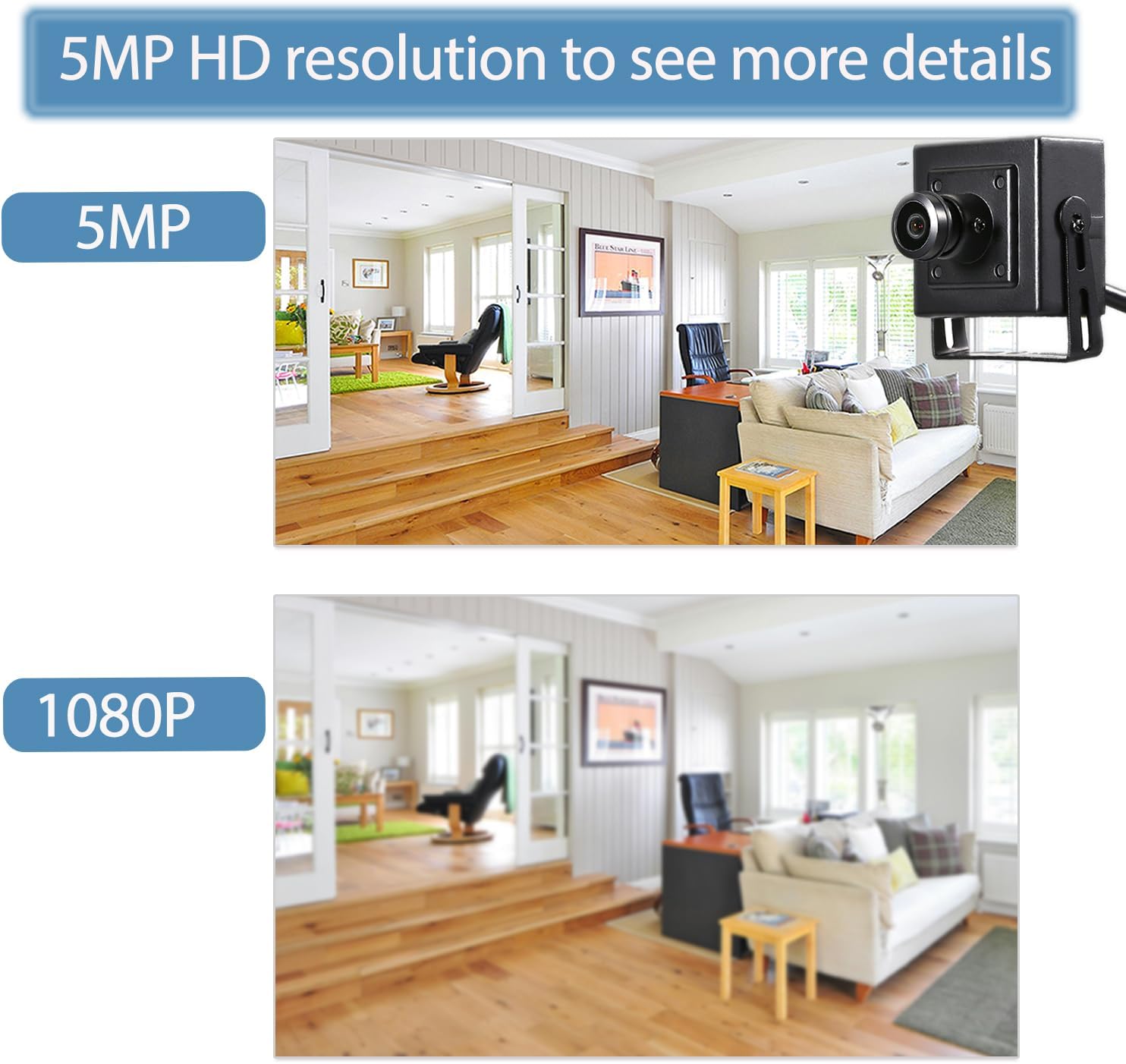
Image 4.1: Comparison of 5MP and 1080P resolution.
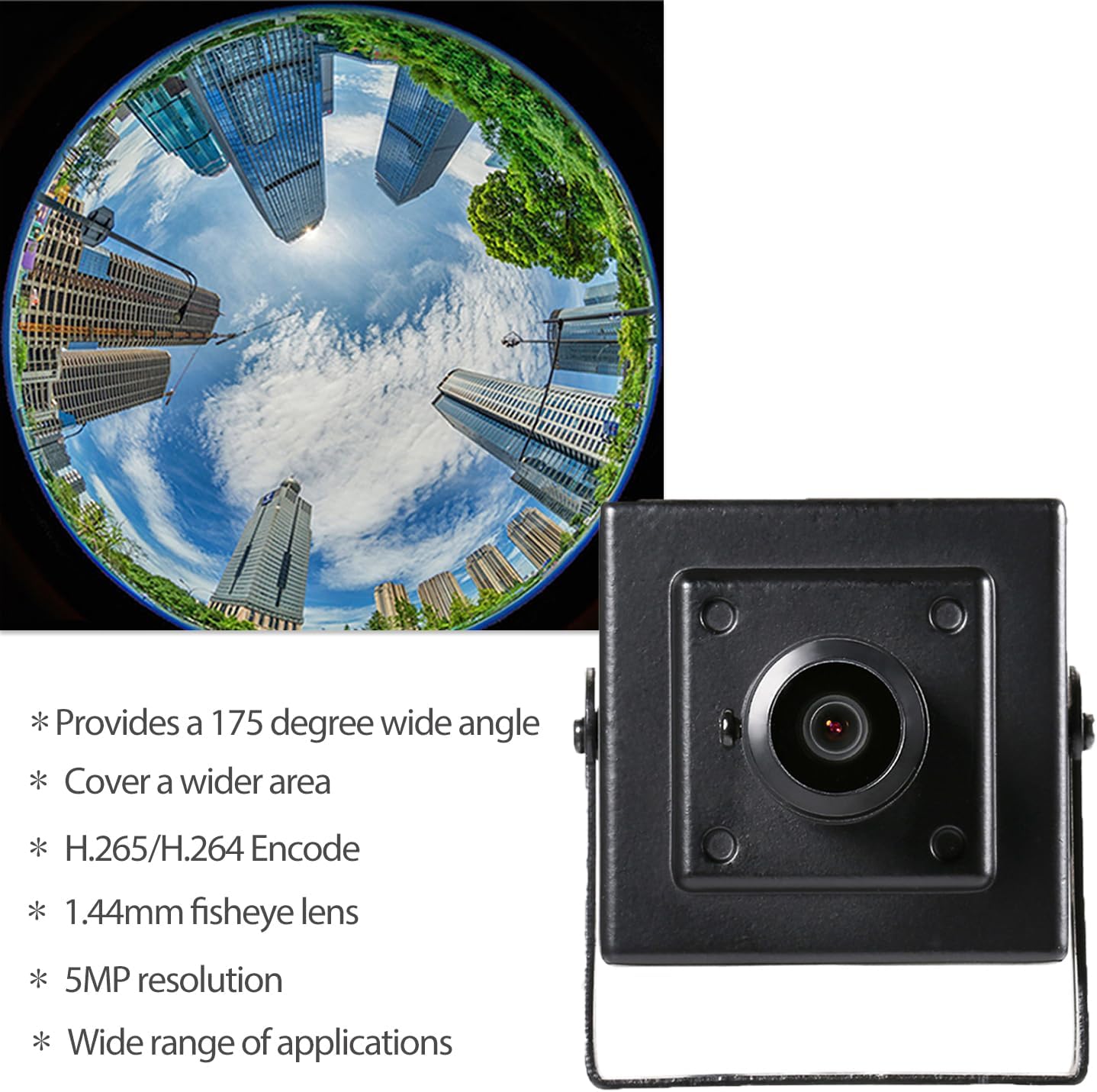
Image 4.2: Fisheye lens wide-angle view.
5. Setup and Installation
5.1 Power Supply
The camera supports Power over Ethernet (POE) and can be powered directly via an Ethernet cable connected to an 802.3AF standard 48V POE switch. Alternatively, it can be powered by a 12V 2A DC power adapter (not included) using the auxiliary power interface.

Image 5.1: POE cable connection for power and data.
5.2 Physical Installation
- Choose a suitable indoor location for mounting the camera. The camera is designed for indoor use.
- Use the provided screw set to securely attach the camera's adjustable mounting brackets to a ceiling or wall.
- Adjust the camera angle as needed to achieve the desired field of view.
6. Operation
6.1 Connecting to VMS Software, Web Interface, and Mobile App
The camera supports multiple viewing and configuration methods:
- VMS Software: Install the VMS software on your Windows computer. The default username is 'admin' and default password is 'admin'. Use the device manager to search for and add your camera.
- Web Interface: Obtain the camera's dynamic IP address from the VMS software. Enter this IP address into a web browser (IE6.0 or later recommended). The default username is 'admin' and default password is '123456'.
- Mobile App: Download the Linklemo app (or similar recommended app) from your smartphone's app store (iOS/Android). Create an account, then add the device by scanning or manually entering its details.
Video 6.1: Guide on connecting the camera to VMS software, web browser, and smartphone app for remote viewing.

Image 6.2: Interface examples for mobile app and VMS software.
6.2 Motion Detection Configuration
Configure motion detection settings via the web interface or VMS software. You can set schedules for detection, adjust sensitivity, and enable email notifications for alerts.

Image 6.3: Motion detection alarm notification on a smartphone.
6.3 Video Encoding and Resolution Adjustment
If your NVR requires different settings, you can change the video encoding (H.265/H.264) and resolution (5MP/1080P) through the camera's configuration interface (web or VMS). This ensures compatibility with your recording system.
6.4 Day and Night Vision
The camera automatically adjusts between day and night vision modes to provide continuous surveillance. Ensure adequate lighting for optimal night vision performance.

Image 6.4: Example of day and night vision footage.
7. Specifications
| Feature | Specification |
|---|---|
| Model Name | I706-4-P-HS |
| Resolution | 5MP (2880 x 1616P) |
| Sensor | FH8852V200+GC5053 1/3 inch CMOS |
| Minimum Illumination | 0.01Lux @ (F1.2, AGC ON) |
| Shutter Speed | 1/25 sec - 1/100,000 sec |
| Frame Rate | 5MP/25fps |
| Compression Format | H.264 / H.265 |
| Output Compression Rate | 128 Kbps ~ 8Mbps |
| Lens | 1.44mm Fisheye Lens (175° FOV) |
| Lens Mount Type | M12 |
| Storage | NVR or PC (No Cloud Storage support) |
| IP Address | Dynamic (default) / Static |
| Intelligent Alarm | Motion Detection, Email Alarm |
| Supported Protocols | HTTP, TCP/IP, RTSP, RTP, UPNP, SMTP, DHCP, DDNS, DNS, FTP, NTP |
| Incoming Protocol | Standard NVR ONVIF port: 80 |
| General Functions | Dual Stream, Password Protection, Video Fade Out |
| Ethernet | 10M/100M Mbit/s Ethernet (RJ-45) |
| Operating Temperature | -25°C ~ 60°C |
| Working Humidity | 10% ~ 90% |
| Power Supply Mode | POE (48V 802.3af) or DC 12V 2A (adapter not included) |
| Dimensions (cm) | 5.3cm x 4.5cm x 4cm (2.09 x 1.77 x 1.57 inches) |
| Weight | 0.2kg |
| Enclosure Material | Metal |
| Indoor/Outdoor Usage | Indoor |
8. Troubleshooting
8.1 Camera Not Powering On
- Ensure the POE switch is 802.3AF standard and providing 48V.
- Check the Ethernet cable connection for proper seating and integrity.
- If using a DC adapter, ensure it is 12V 2A and properly connected.
8.2 No Video Feed or Poor Image Quality
- Verify network connectivity to the camera.
- Check if your NVR supports 5MP resolution and H.265 compression. If not, adjust camera settings to 1080P (2MP) and H.264.
- Ensure the lens is clean and free from obstructions.
- Confirm the camera's IP address is correctly configured in your viewing software/browser.
8.3 Camera Feels Hot
It is normal for this compact IP camera to generate heat during operation. This is not a defect and does not pose a safety risk.
8.4 Mobile App Connection Issues
- Ensure your smartphone and the camera are on the same local network during initial setup.
- Check that the app has necessary permissions (e.g., network access).
- Verify the camera's Cloud ID or IP address is correctly entered if adding manually.
9. Maintenance
- Cleaning: Gently wipe the camera lens and body with a soft, dry cloth. Avoid abrasive cleaners or solvents.
- Firmware Updates: Periodically check the manufacturer's website or app for available firmware updates to ensure optimal performance and security.
- Network Security: Regularly change default passwords for the camera's web interface and VMS software to prevent unauthorized access.
10. Warranty and Support
For warranty information or technical support, please refer to the documentation provided at the time of purchase or contact REVODATA customer service directly. You can often find support contact details on the manufacturer's official website or through your retailer.
Manufacturer: REVODATA
Website: Visit the REVODATA Store on Amazon
