
REVODATA I706-3-P-HS
REVODATA 5MP Mini Fisheye POE IP Camera User Manual
Model: I706-3-P-HS
Introduction
This manual provides comprehensive instructions for the installation, operation, and maintenance of your REVODATA 5MP Mini Fisheye POE IP Camera (Model: I706-3-P-HS). This compact security camera offers a wide 180° viewing angle and supports both Power over Ethernet (PoE) and standard DC power, making it versatile for various indoor surveillance needs. Please read this manual thoroughly before using the product to ensure proper setup and functionality.
What's in the Box
Verify that all components are present in the package:
- Camera (1 unit)
- Screws set (1 set)
- User Manual (1 unit)

Figure 1: Package Contents and Camera Dimensions. This image displays the camera's dimensions (5.3cm x 4.5cm x 4cm), its metal case, 1.7mm fisheye lens, adjustable mounting brackets, and screw holes. It also shows the included items: the camera, user manual, and screw set, along with the POE 48V version's RJ45 port for PoE and DC power port (support 12V 2A).
Product Features
- High Definition 5MP Resolution: Equipped with a 1/3 inch 5.0 pixel CMOS sensor, delivering 2880x1616P resolution at 25 frames per second for clear and smooth video.
- Dual Power Options: Supports 48V 802.3af Power over Ethernet (PoE) for simplified wiring, and also includes an auxiliary power interface for standard 12V 2A power supply.
- Efficient Video Compression: Features H.265/H.264 dual encoding, reducing bandwidth and storage requirements by approximately half compared to H.264 for the same image quality.
- Wide Fisheye Lens: The 1.7mm fisheye lens provides a 180° wide viewing angle, covering a larger area and minimizing blind spots.
- Motion Detection & Alarm: Supports motion detection and P2P cloud function, sending alarm messages to your smartphone upon human movement detection.
- Remote Viewing: Access and playback surveillance images remotely via the "Linklemo" mobile app (iOS, Android) or VMS software for Windows computers.
- Compact Design: Mini camera design with a durable metal shell, allowing for discreet placement in small spaces.
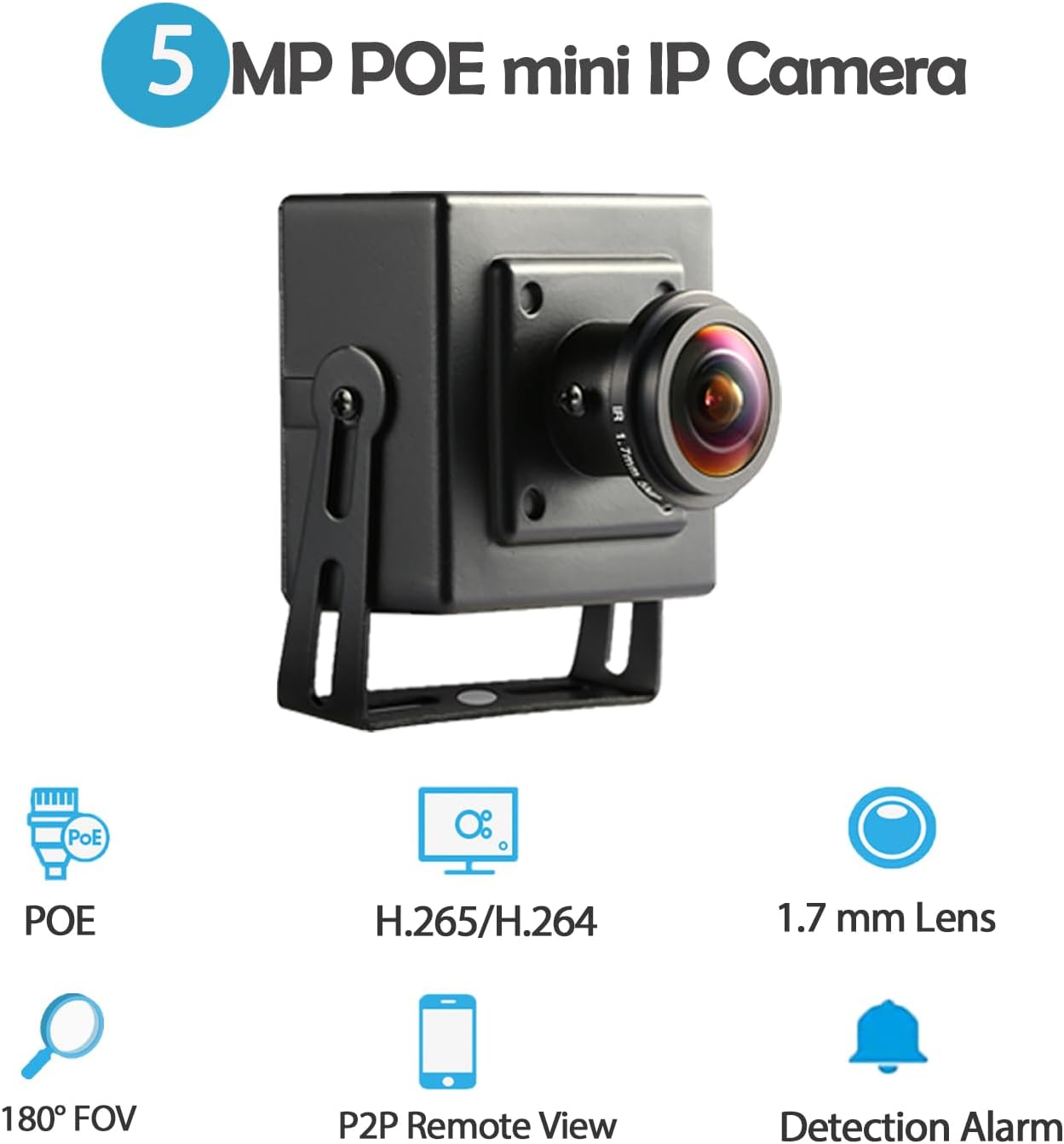
Figure 2: Key Features of the 5MP POE Mini IP Camera. This graphic highlights the camera's main features: 5MP resolution, PoE support, H.265/H.264 compatibility, 1.7mm lens, 180° Field of View (FOV), P2P remote view, and detection alarm.

Figure 3: Mini Camera Design. This image emphasizes the camera's small size, making it easy to hide in small corners without being discovered. It also notes the HD 5MP design for clear images and accurate information.
Specifications
| Feature | Detail |
|---|---|
| Model | I706-3-P-HS |
| Resolution | 5.0 Megapixel (2880 x 1616P) |
| Sensor | FH8852V200+GC5053 (1/3 inch CMOS) |
| Minimum Illumination | 0.01Lux @ (F1.2, AGC ON) |
| Shutter Speed | 1/25 sec - 1/100,000 sec |
| Frame Rate | 5MP/25fps |
| Compression Format | H.264 / H.265 |
| Output Compression Rate | 128 Kbps ~ 8Mbps |
| Lens | 1.7mm Fisheye Lens |
| Lens Mount Type | M12 |
| Storage | NVR or PC (Note: Does not support Cloud Storage via Linklemo app) |
| IP Address | Dynamic (default) / Static |
| Intelligent Alarm | Motion detection, Email alarm |
| Supported Protocols | HTTP, TCP/IP, RTSP, RTP, UPNP, SMTP, DHCP, DDNS, DNS, FTP, NTP |
| Incoming Protocol | Standard NVR ONVIF port (Port 80) |
| General Functions | Dual stream, password protection, video fade out |
| Ethernet | 10M/100M Mbit/s Ethernet (RJ-45) |
| Operating Temperature | -25°C ~ 60°C (-13°F ~ 140°F) |
| Working Humidity | 10% ~ 90% |
| Power Supply | PoE (802.3AF standard 48V) or 12V 2A DC |
| Dimensions (L x W x H) | 5.3cm x 4.5cm x 4cm (2.09 x 1.77 x 1.57 inches) |
| Weight | 0.2kg (7 ounces) |
| Material | Metal |
| Indoor/Outdoor Usage | Indoor |
| Mounting Type | Ceiling Mount |
Setup and Installation
1. Physical Installation
The camera is designed for indoor use and can be mounted on a ceiling or other flat surface. Use the provided screw set to secure the camera in your desired location. Ensure the mounting surface is stable and can support the camera's weight.

Figure 4: Camera Views. This image shows the camera from multiple angles, including front, side, and back, illustrating its compact design and mounting bracket.
2. Powering the Camera
The camera supports two power methods:
- Power over Ethernet (PoE): Connect an Ethernet cable from an 802.3AF standard 48V PoE switch directly to the camera's RJ45 port. This method provides both power and data connectivity through a single cable.
- DC Power: Alternatively, you can power the camera using a standard 12V 2A DC power adapter (not included) connected to the auxiliary DC power port.

Figure 5: POE Support. This image illustrates the POE cable connection, highlighting the built-in POE module that supports 48V 802.3af POE function, simplifying wiring.
3. Network Connection
Connect the camera to your network via an Ethernet cable. The camera supports 10M/100M Mbit/s Ethernet (RJ-45). Ensure your network setup allows for proper IP address assignment (dynamic by default).
Operating Instructions
1. Accessing via VMS Software (Windows)
The camera can be managed and viewed using VMS software on a Windows computer. The default username is "admin" and the default password is "admin".
Video 1: Connect to Software, Browser, Smartphone APP for Remote View. This video demonstrates the process of connecting the camera to VMS software, accessing its web interface via a browser, and setting up remote viewing through a smartphone application. It covers initial login, device search, adding devices, and live view setup for VMS, as well as browser access and mobile app configuration.
Follow the steps shown in the video to:
- Launch the VMS software.
- Log in using the default credentials.
- Navigate to the Device Manager to search for and add your camera.
- Once added, drag the camera to a viewing pane in Live View to see the feed.
2. Accessing via Web Interface
You can also access the camera's settings and live view through a web browser. The camera's dynamic IP address can be found within the VMS software (Device Manager section). The default username is "admin" and the default password is "123456".
Enter the camera's IP address into your web browser's address bar. You will be prompted to log in. After logging in, you can view the live feed and configure various settings such as video resolution (e.g., changing from 5MP H.265 to 1080P (2MP) and encoding to H.264 if your NVR does not support 5MP or H.265), image settings, and alarm configurations.
3. Accessing via Smartphone APP ("Linklemo")
For remote viewing on your mobile device, download the "Linklemo" app from your app store (available for iOS and Android). Follow the in-app instructions to create an account and add your device. The app allows for live viewing, playback, and receiving motion detection alerts.

Figure 6: Linklemo APP and VMS Software Interface. This image shows the user interfaces for both the Linklemo mobile application and the VMS desktop software, demonstrating how the camera feed can be viewed on different platforms.
Important Note: This device does not support Cloud Storage through the "Linklemo" app. Do not purchase cloud storage services from within the app.
4. Motion Detection and Alarm Function
The camera supports motion detection. When motion is detected, the camera can trigger an alarm and send notifications to your configured smartphone app. Configure motion detection sensitivity and alarm schedules through the web interface or VMS software.
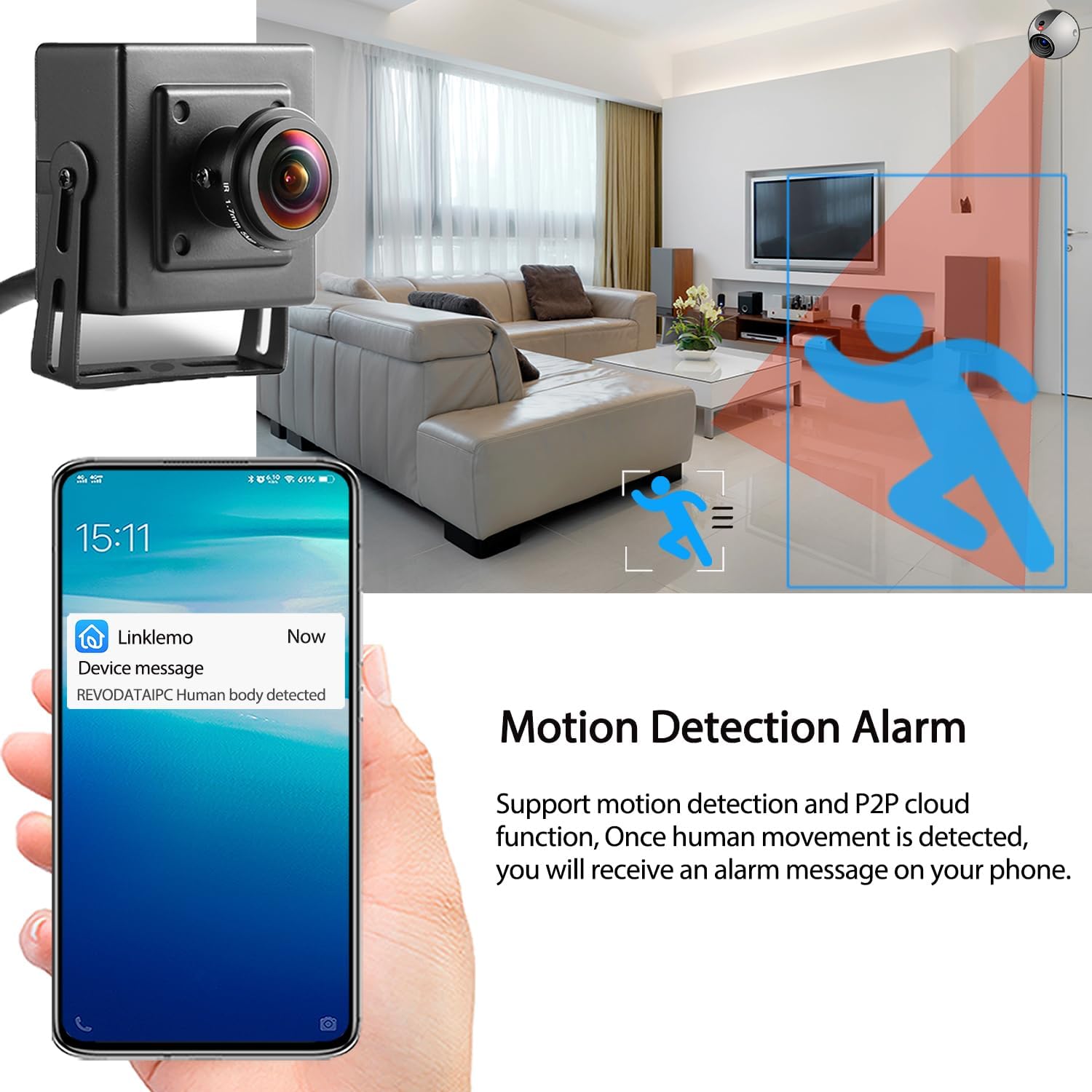
Figure 7: Motion Detection Alarm. This graphic illustrates how the camera detects human movement and sends an alarm message to your phone, showcasing the P2P cloud function.
The camera also supports email alarms. Ensure your email settings are correctly configured in the camera's web interface for this feature to function.
Maintenance
- Cleaning: Use a soft, dry cloth to clean the camera lens and body. Avoid using harsh chemicals or abrasive materials.
- Heat Dissipation: It is normal for the camera casing to feel warm during operation, especially given its compact size. This is due to heat generated by the IP camera components and is considered safe. Ensure adequate ventilation around the camera to prevent excessive heat buildup.
- Firmware Updates: Periodically check the manufacturer's website for any available firmware updates to ensure optimal performance and security.
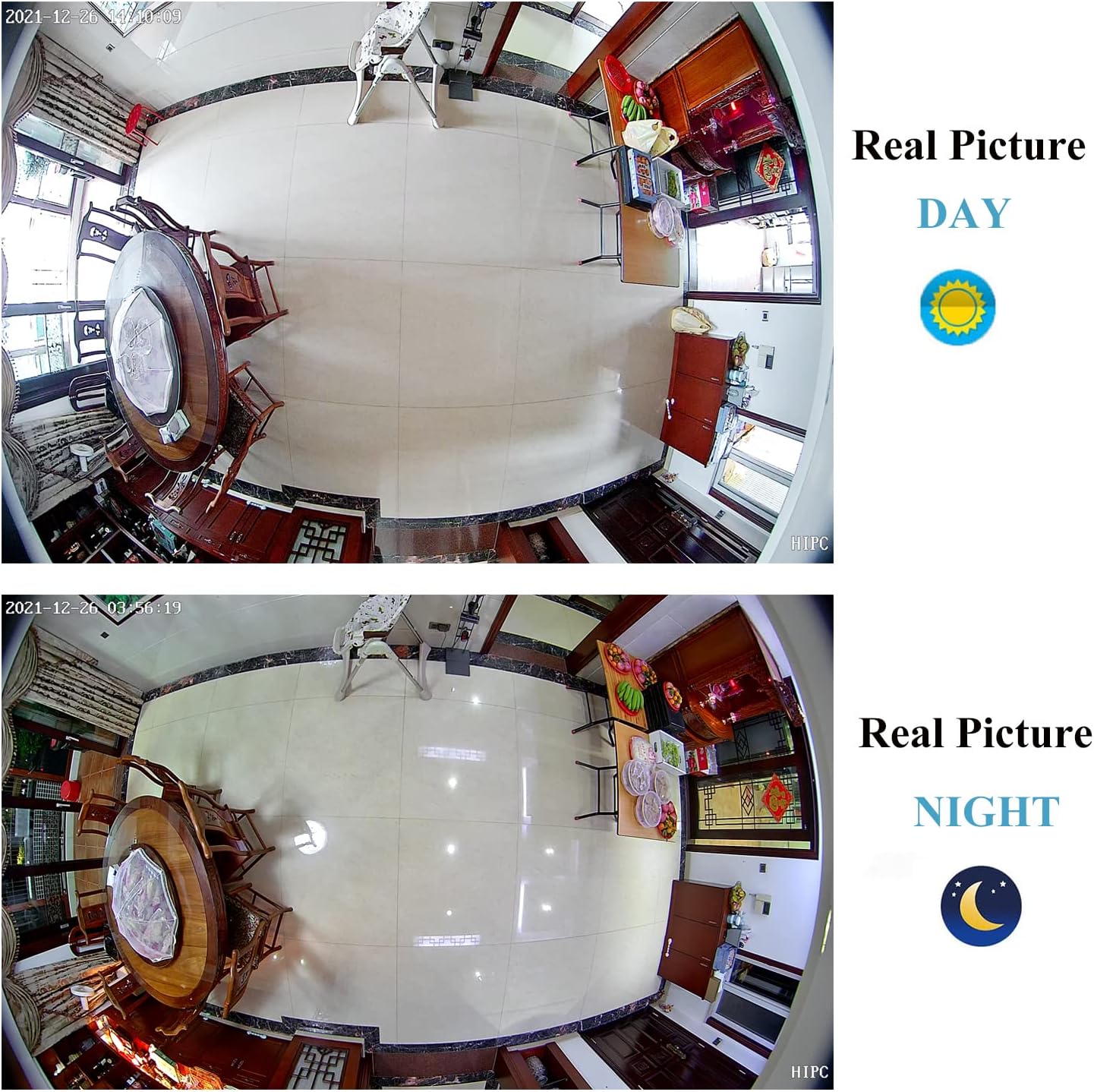
Figure 8: Day and Night View. This image provides a comparison of the camera's view during the day and at night, demonstrating its visual performance under different lighting conditions.
Troubleshooting
- Camera is hot: This is normal due to the compact size and internal components. It does not indicate a malfunction.
- No image/connection:
- Ensure the camera is properly powered (PoE or 12V DC).
- Verify the Ethernet cable is securely connected to both the camera and the network device (router/switch/NVR).
- Check network settings. If using a static IP, ensure it's correctly configured and not conflicting with other devices.
- Confirm your NVR supports 5MP resolution and H.265 encoding. If not, change the camera's resolution to 1080P (2MP) and encoding to H.264 via the web interface.
- Cannot access web interface:
- Ensure you have the correct dynamic IP address from the VMS software.
- Verify the default username ("admin") and password ("123456").
- Check your browser's compatibility. The web interface supports IE6.0 and later browsers.
- "Linklemo" app issues:
- Ensure your smartphone is connected to the internet.
- Verify the camera is online and connected to your network.
- Confirm you have granted necessary permissions (e.g., Bluetooth information) to the app during setup.
Warranty and Support
For warranty information and technical support, please refer to the official REVODATA website or contact their customer service. Keep your purchase receipt as proof of purchase for any warranty claims.
You can also find additional support and resources on the REVODATA Store on Amazon.
A PDF version of the user manual is available at: User Manual (PDF).
Related documentsI706-3-P-HS


Ask a question about this manual
Ask about setup, troubleshooting, compatibility, parts, safety, or missing instructions. Manuals+ will review the question and use this page’s manual context to help answer it.