
UGREEN 90408
UGREEN M.2 NVMe SATA SSD Enclosure User Manual
Model: 90408 | Brand: UGREEN
1. Introduction
The UGREEN M.2 NVMe SATA SSD Enclosure is designed to provide a high-speed, portable solution for your M.2 NVMe and SATA SSDs. Featuring USB 3.2 Gen 2 and PCIe 3.0 (NVMe) support, it delivers data transmission rates up to 10Gbps, allowing for rapid file transfers. The enclosure also incorporates UASP TRIM for enhanced read and write speeds, ensuring efficient performance and data protection.

Figure 1: UGREEN M.2 NVMe SATA SSD Enclosure with included cables.
Package Contents:
- UGREEN M.2 NVMe and SATA Hard Drive Enclosure x 1
- USB C to USB C cable (0.8ft) x 1
- USB C to USB A cable (0.8ft) x 1
- Thermal Pad x 1
- Position Fixed Screw x 1
- Screwdriver x 1
- User Manual x 1
2. Specifications
| Feature | Detail |
|---|---|
| Brand | UGREEN |
| Model Number | 90408 |
| Compatible SSD Types | M.2 NVMe (M Key, B+M Key) and M.2 SATA (B+M Key) SSDs |
| Supported SSD Sizes | 2230, 2242, 2260, 2280 |
| Interface | USB 3.2 Gen 2 Type-C |
| Data Transfer Rate | Up to 10Gbps |
| Max Storage Capacity | 8 TB |
| Features | UASP, TRIM, S.M.A.R.T. |
| Material | Aluminum Alloy with Silicone Cover |
| Dimensions | 5.04 x 1.5 x 0.49 inches (128 x 38 x 12.5 mm) |
| Weight | 5.3 ounces (0.15 kg) |
| Color | Grey |

Figure 2: Compatible SSD types and sizes for the enclosure.
3. Setup and Installation
Follow these steps to install your M.2 SSD into the UGREEN enclosure:
- Loosen the fixed screws: Use the included screwdriver to loosen the fixed screws and slide open the cover of the enclosure.
- Insert your SSD: Carefully insert your M.2 NVMe or SATA SSD into the slot. Ensure it is fully seated.
- Secure the SSD: Use the included rubber screws to secure the SSD firmly in place.
- Apply the thermal pad: Stick the thermal pad onto the SSD chip. Ensure the protective films are removed from both sides of the thermal pad before application. This helps with heat dissipation.
- Close the cover: Slide the cover back onto the enclosure and fix it with the screwdriver.
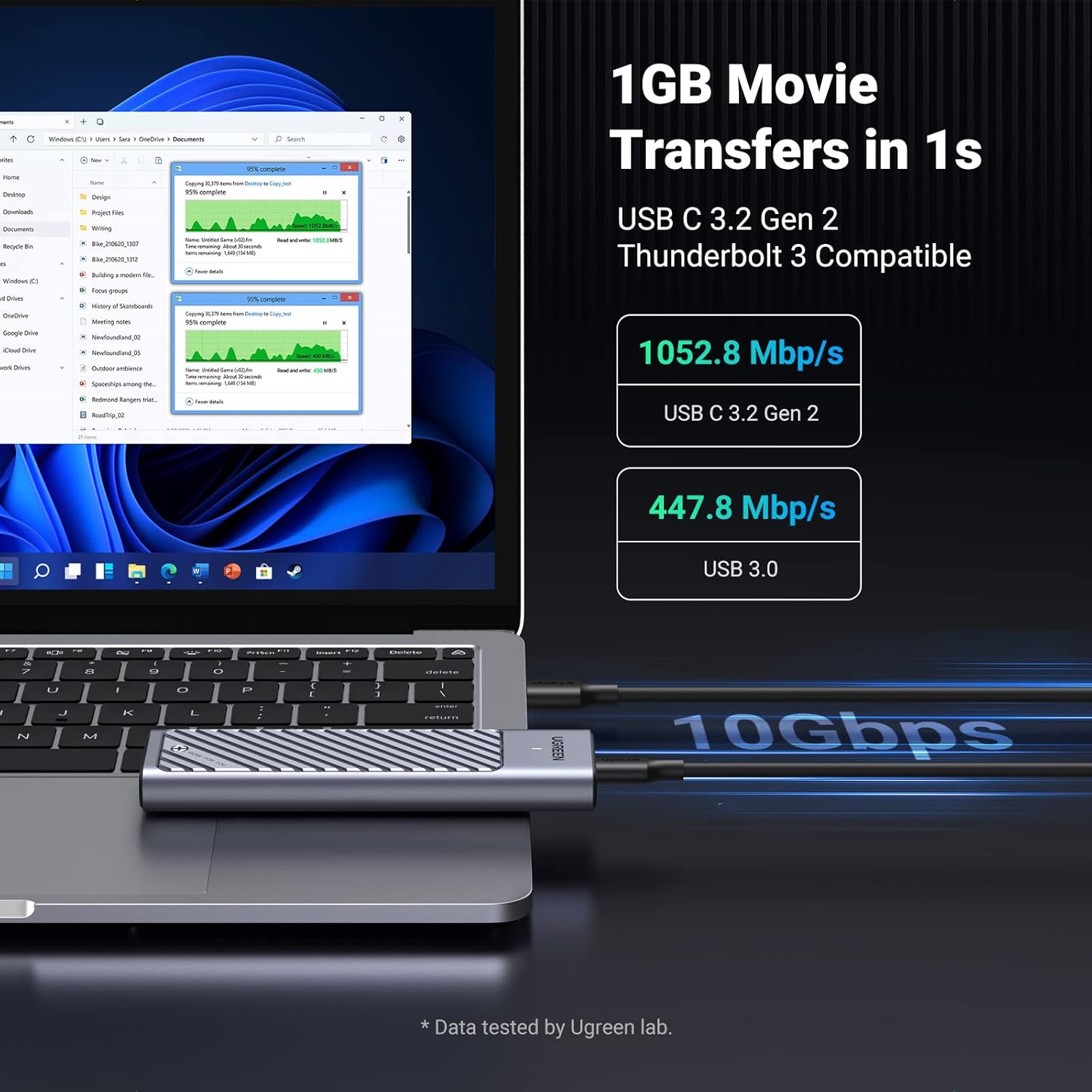
Figure 3: Visual guide for SSD installation.

Figure 4: Internal components highlighting the thermal management system.
Installation Video Guide:
Video 1: UGREEN M.2 Enclosure Operation Guide. This video demonstrates the complete installation process and initial setup for the enclosure.
4. Operating Instructions
The UGREEN M.2 SSD Enclosure is designed for plug-and-play functionality across various operating systems, offering high-speed data transfer and efficient performance.
Connectivity and Performance:
- Connect the enclosure to your device using the provided USB-C to USB-C or USB-C to USB-A cable.
- The enclosure supports USB 3.2 Gen 2, delivering speeds up to 10Gbps, enabling transfer of 1GB of files in approximately 1 second.
- It incorporates UASP (USB Attached SCSI Protocol) and TRIM commands, which optimize data transfer efficiency and extend SSD lifespan.
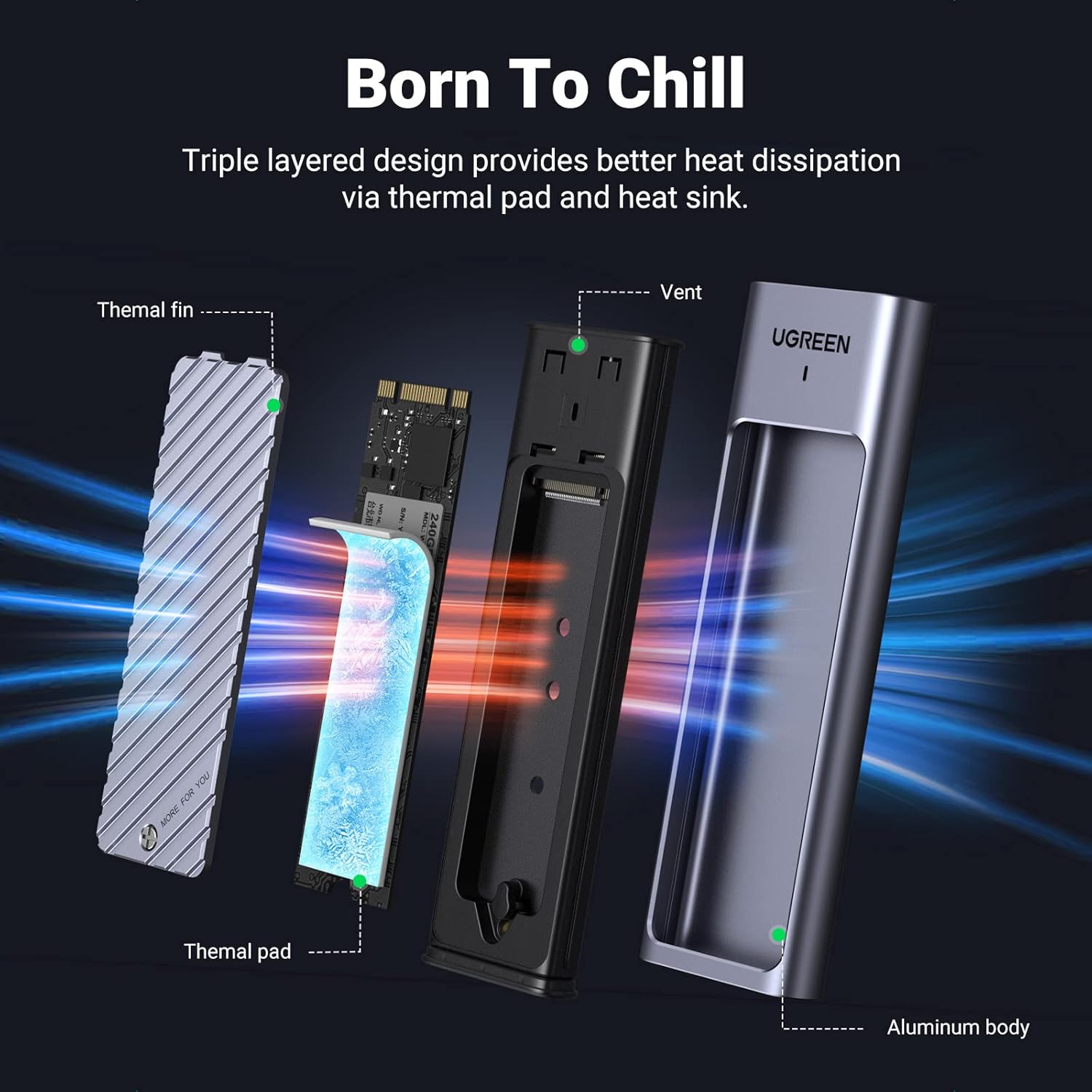
Figure 5: High-speed data transfer capabilities of the enclosure.

Figure 6: Advanced features for optimized performance and drive health.
System Compatibility:
The enclosure is widely compatible with various operating systems and devices, requiring no additional drivers for most modern systems.
- Operating Systems: Windows, macOS, Linux, iOS, Android.
- Devices: Laptops (e.g., MacBook Air/Pro, DELL XPS), Tablets (e.g., iPad Pro), Smartphones (e.g., Samsung, Huawei Mate).
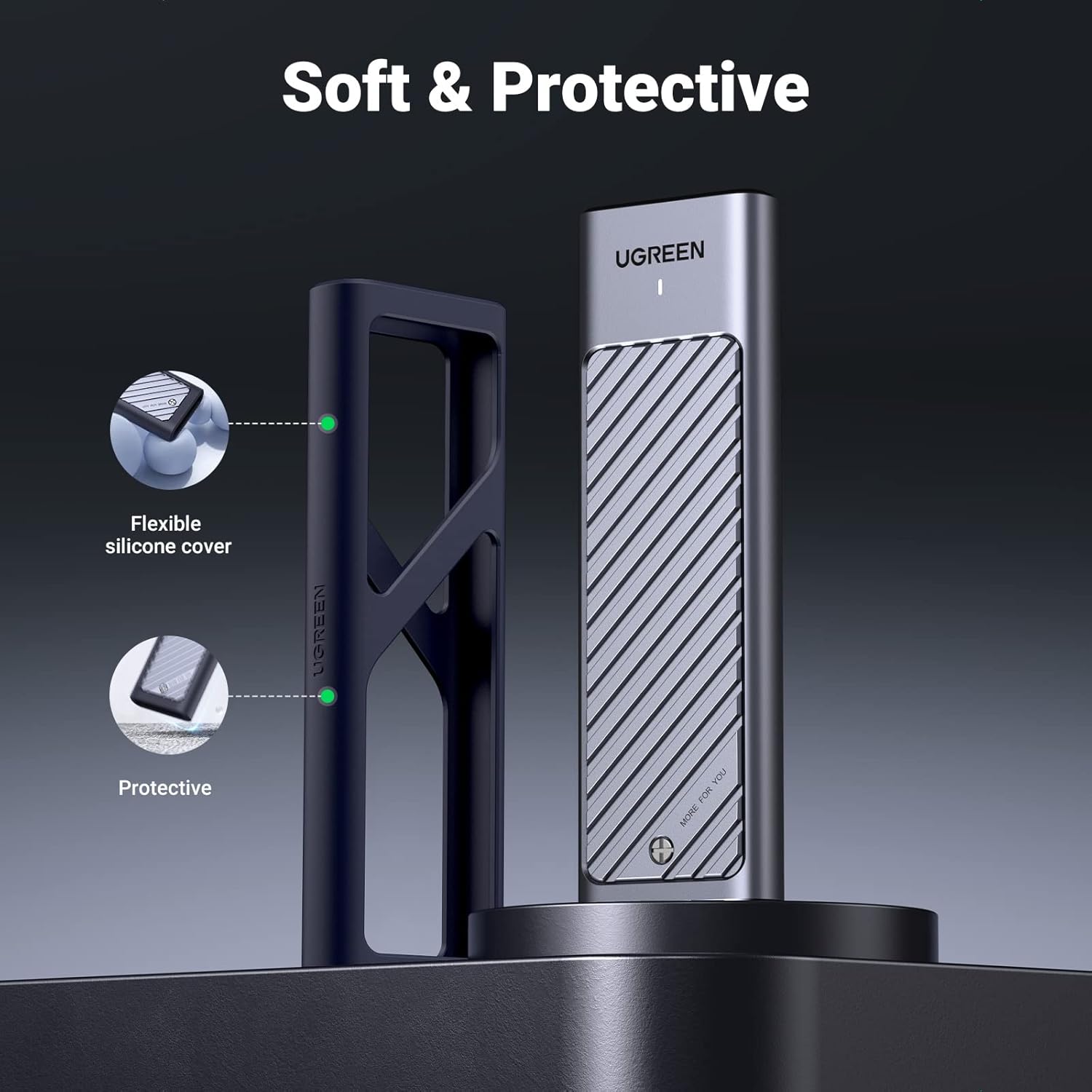
Figure 7: Plug & Play compatibility across multiple platforms.
Disk Formatting and Partitioning:
For a new SSD, you may need to initialize and format it before use. Refer to the video guide below for detailed steps on formatting and partitioning your hard disk in Windows, macOS, and Linux systems.
Video 2: UGREEN M.2 Enclosure Operation Guide. This video also covers the steps for formatting and partitioning your SSD on Windows, macOS, and Linux operating systems.
5. Maintenance
To ensure the longevity and optimal performance of your UGREEN M.2 SSD Enclosure and the installed SSD, consider the following maintenance tips:
- Heat Dissipation: The enclosure features an aluminum body and a thermal pad for efficient heat dissipation. Ensure proper airflow around the enclosure during prolonged use, especially during large data transfers, to prevent overheating.
- Protective Cover: Utilize the flexible silicone cover to protect the enclosure from scratches, minor impacts, and dust when not in use or during transport.
- Cleanliness: Keep the enclosure and its ports clean and free from dust and debris. Use a soft, dry cloth for cleaning. Avoid liquid cleaners.
- Safe Removal: Always safely eject the enclosure from your computer's operating system before disconnecting the USB cable to prevent data corruption.

Figure 8: The soft and protective silicone cover for the enclosure.
6. Troubleshooting
If you encounter issues with your UGREEN M.2 NVMe SATA SSD Enclosure, please refer to the following common troubleshooting steps:
- Enclosure Not Detected:
- Ensure the SSD is correctly installed and secured within the enclosure.
- Try connecting the enclosure to a different USB port on your computer.
- Test with both included USB cables (USB-C to USB-C and USB-C to USB-A) if applicable.
- Verify that the SSD itself is functional by testing it in another compatible device if possible.
- For new SSDs, ensure they are initialized and formatted through Disk Management (Windows) or Disk Utility (macOS/Linux). Refer to the "Operating Instructions" section for video guides.
- Slow Transfer Speeds:
- Ensure you are using a USB 3.0 (or higher) port on your computer. USB 2.0 ports will limit speeds.
- Verify that your computer's USB drivers are up to date.
- The actual speed may vary depending on the SSD's performance, the operating system, and the files being transferred.
- Ensure the thermal pad is correctly applied to the SSD to prevent thermal throttling.
- Enclosure Gets Hot:
- It is normal for the aluminum enclosure to get warm during operation, as it acts as a heatsink to dissipate heat from the SSD.
- If it feels excessively hot, ensure the thermal pad is properly installed and making good contact with the SSD.
- Avoid placing the enclosure in enclosed spaces that restrict airflow.
7. Warranty and Support
UGREEN products are manufactured to high quality standards. For warranty information or technical support, please contact UGREEN customer service through their official website or the platform where you purchased the product. Please have your model number (90408) and purchase details ready when contacting support.
Manufacturer: Ugreen Group Limited
Related Documents - 90408
 |
UGREEN CM400 M.2 NVMe SSD Enclosure User Manual User manual for the UGREEN CM400 M.2 NVMe SSD Enclosure. Learn about product details, specifications, how it works, and package contents for this 10 Gbps USB-C external SSD adapter. |
 |
UGREEN M.2 SSD Enclosure Troubleshooting Guide This troubleshooting guide from UGREEN provides solutions for common issues with M.2 SATA NGFF SSD enclosures, including detection problems, slow read/write speeds, and disconnection errors. Compatible with various SSD sizes and brands like Samsung, WD, Crucial, and Kingston. |
 |
UGREEN CM353 M.2 NVMe SSD Enclosure User Manual Comprehensive user manual for the UGREEN CM353 M.2 NVMe SSD Enclosure, detailing product overview, installation, specifications, notes, warranty, and compliance information. |
 |
UGREEN M.2 SATA/NVMe Hard Drive Enclosure User Manual User manual for the UGREEN M.2 SATA/NVMe Hard Drive Enclosure, providing instructions on product overview, usage, specifications, and warranty conditions. |
 |
UGREEN CM578 M.2 NVMe SSD Enclosure Installation Guide Detailed guide for installing and using the UGREEN CM578 M.2 NVMe SSD Enclosure, including product features, specifications, and installation steps. |
 |
UGREEN CM400 M.2 NVMe SSD Enclosure - User Manual and Installation Guide Comprehensive user manual for the UGREEN CM400 M.2 NVMe SSD enclosure. Learn how to install your SSD, understand product specifications, safety notes, package contents, and warranty information. |