1. Introduction
This manual provides detailed instructions for the installation, operation, and maintenance of your AeroCool Prism-G v1 Midi Tower Case. This chassis is designed to accommodate MicroATX, ATX, and MiniITX motherboards, offering a robust and aesthetically pleasing solution for your PC build. It features a tempered glass front panel and a tempered glass side panel for showcasing internal components, along with support for advanced cooling solutions.
2. Safety Information
Please read all safety instructions before installing or operating the case. Failure to do so may result in damage to the product or personal injury.
- Always disconnect the power supply from the wall outlet before performing any installation or maintenance inside the case.
- Handle tempered glass panels with care. They are fragile and can shatter if dropped or subjected to impact.
- Avoid placing the case in direct sunlight or near heat sources.
- Ensure proper ventilation around the case to prevent overheating.
- Keep small components and screws away from children.
3. Package Contents
Verify that all components are present in the package:
- AeroCool Prism-G v1 Midi Tower Case
- Accessory box (screws, standoffs, cable ties, etc.)
- User Manual (this document)
4. Setup and Installation
Follow these steps for proper assembly and installation of your PC components into the AeroCool Prism-G v1 case.
4.1. Removing Side Panels
Carefully remove the tempered glass side panel by unscrewing the thumb screws located at the rear of the case. For the solid side panel, unscrew the two thumb screws and slide the panel backward to remove it.
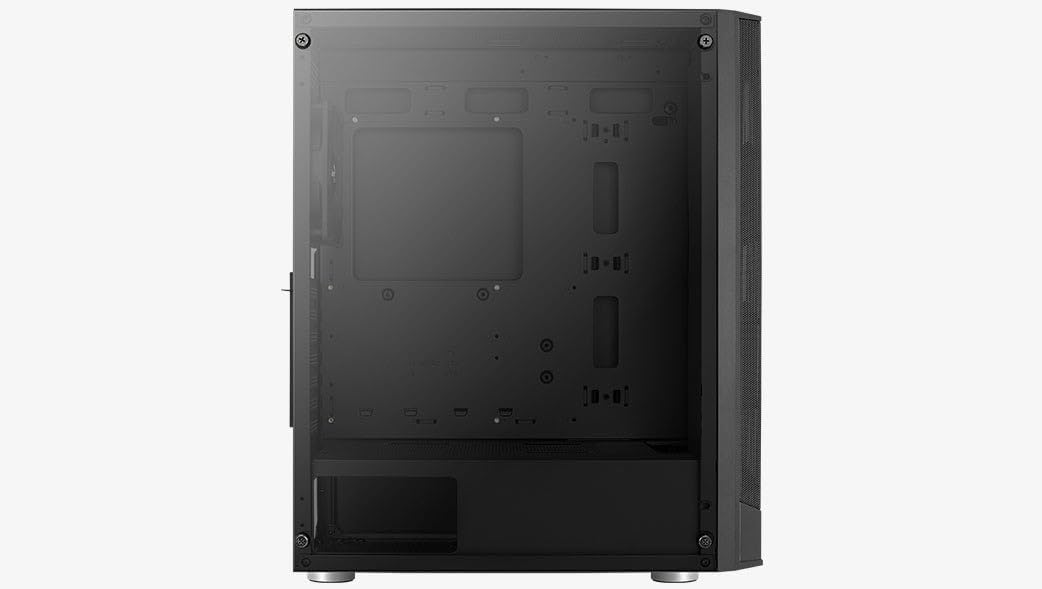
Figure 4.1: Interior view with the main side panel removed, revealing the spacious internal layout for component installation.
4.2. Motherboard Installation
Install the appropriate standoffs for your motherboard size (MicroATX, ATX, or MiniITX). Carefully place your motherboard into the case, aligning it with the standoffs and the I/O shield opening. Secure the motherboard with screws.
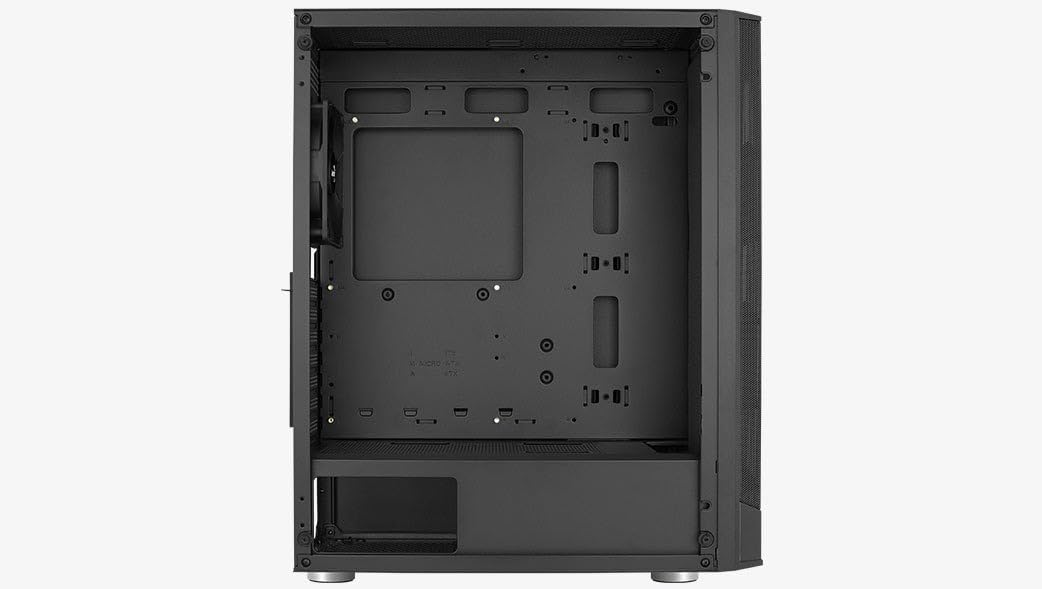
Figure 4.2: Motherboard tray with mounting points for MicroATX, ATX, and MiniITX motherboards.
4.3. Power Supply Unit (PSU) Installation
The Prism-G v1 supports a front-mount power supply. Slide your PSU into the designated compartment at the front of the case and secure it with screws from the rear.
4.4. Storage Drive Installation
Install 2.5" SSDs and 3.5" HDDs into the designated drive bays. Refer to the accessory box for specific mounting hardware.
4.5. Graphics Card and Expansion Card Installation
Remove the necessary PCI-E slot covers at the rear of the case. Insert your graphics card or other expansion cards into the motherboard's PCI-E slots and secure them with screws. The case also features two additional vertical expansion slots for vertical graphics card installation (requires a separate riser cable, not included).
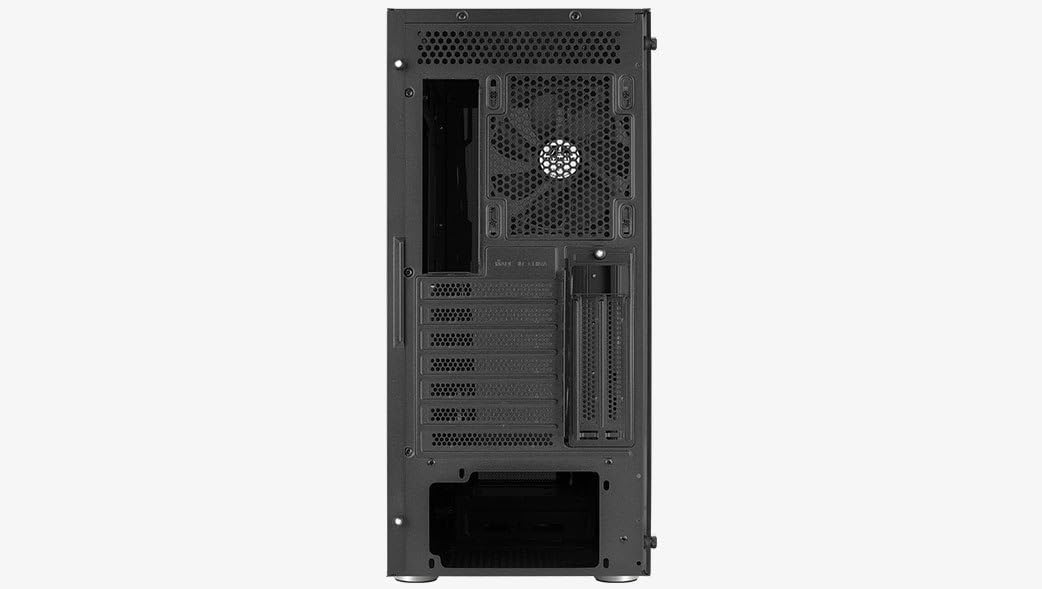
Figure 4.3: Rear panel detailing the standard and vertical PCI-E expansion slots.
4.6. Cooling System Installation (Fans/Liquid Cooling)
The case supports various cooling configurations:
- Front: Supports liquid cooling radiators.
- Top: Supports liquid cooling radiators.
- Rear: Supports a 120mm fan.
Ensure fans are oriented correctly for optimal airflow (intake/exhaust).
4.7. Cable Management
Utilize the cable routing cutouts and tie-down points behind the motherboard tray to manage cables. This improves airflow and aesthetics.

Figure 4.4: Cable management area behind the motherboard tray, featuring routing holes and tie-down points.
4.8. Front Panel Connections
Connect the front panel cables (USB, audio, power switch, reset switch, LED indicators) to the corresponding headers on your motherboard. Refer to your motherboard manual for header locations.
5. Operating Instructions
5.1. Powering On/Off
After all components are installed and cables connected, plug the power supply into a wall outlet. Press the power button on the top front panel of the case to turn on your system. To turn off, use the operating system's shutdown function or press and hold the power button for several seconds.

Figure 5.1: Top panel with front I/O ports and power button.
5.2. Airflow Management
The Prism-G v1 features front panel vents for increased airflow. Ensure that fans are installed to create an efficient airflow path, typically intake from the front/bottom and exhaust from the rear/top, to maintain optimal component temperatures.

Figure 5.2: Front view of the case, showcasing the tempered glass and ventilation design.
6. Maintenance
Regular maintenance helps ensure the longevity and performance of your PC components.
- Dust Filters: Periodically clean the dust filters (if present) to maintain optimal airflow and prevent dust buildup inside the case.
- Exterior Cleaning: Wipe the exterior surfaces with a soft, damp cloth. Avoid abrasive cleaners or solvents.
- Interior Cleaning: Use compressed air to remove dust from internal components and fan blades. Ensure the system is powered off and unplugged before cleaning.
7. Troubleshooting
If you encounter issues, consider the following common solutions:
- System not powering on: Check all power connections, including the PSU to the wall, PSU to motherboard, and front panel power switch cable to the motherboard.
- No display: Ensure the graphics card is properly seated and connected to the power supply (if required). Verify the monitor cable is securely connected to the graphics card.
- Overheating: Check fan orientation and ensure all fans are spinning. Clean any dust buildup on components and filters. Verify proper thermal paste application on the CPU cooler.
- USB ports not working: Ensure the front panel USB cable is correctly connected to the motherboard's USB header.
8. Specifications
| Feature | Detail |
|---|---|
| Brand | AeroCool |
| Model Name | CAJA PC AEROCOOL MIDI PRISM-G V1 MICROATX/ATX/MINIITX ACCM-PB29013.11 |
| Item Model Number | ACCM-PB29013.11 |
| Case Type | Midi Tower |
| Motherboard Compatibility | Micro ATX, ATX, MiniITX |
| Material | Tempered Glass |
| Color | Black |
| Product Dimensions (LxWxH) | 15.87 x 8.54 x 18.78 inches (40.3 x 21.7 x 47.7 cm) |
| Item Weight | 9.02 pounds (4.09 kg) |
| Power Supply Mounting Type | Front Mount |
| Cooling Method | Air |
| Fan Size (Rear) | 120 Millimeters |
| Max CPU Cooler Height | 164 mm |
| Max Graphics Card Length | 346 mm (without front radiator) |
| USB 2.0 Ports | 1 |
| Vertical Expansion Slots | 2 (for vertical GPU installation) |
9. Warranty & Support
AeroCool products are manufactured to high-quality standards. For warranty information, please refer to the warranty card included with your product or visit the official AeroCool website. For technical support or inquiries, please contact AeroCool customer service through their official support channels.
Please retain your proof of purchase for warranty claims.


