
1. Product Overview
The Epson EcoTank L4260 is an A4 Wi-Fi Duplex All-in-One Ink Tank Printer designed for printing, scanning, and copying. It features an integrated ink tank system for convenient refilling and supports auto-duplex printing to reduce paper consumption. Wireless connectivity options include Wi-Fi and Wi-Fi Direct, with support for Apple Airprint™ and Mopria™ Service.
Key features include:
- A4 Wi-Fi Duplex All-in-One functionality: Print, scan, and copy.
- Integrated ink tank system for high-volume, low-cost printing.
- Auto-duplex printing for automatic double-sided document printing.
- Wireless connectivity via Wi-Fi and Wi-Fi Direct.
- Compatibility with Apple Airprint™ and Mopria™ Print Service.
- Maximum print resolution: 5760 x 1440 dpi.
- Scanning optical resolution: 1200 x 2400 dpi.
2. Initial Setup
2.1 Unboxing and Placement
- Remove the printer from its packaging and remove all protective materials, tapes, and stickers.
- Place the printer on a flat, stable surface with adequate space around it for operation and ventilation.
- Connect the power cord to the printer and then to an electrical outlet. Do not turn on the printer yet.
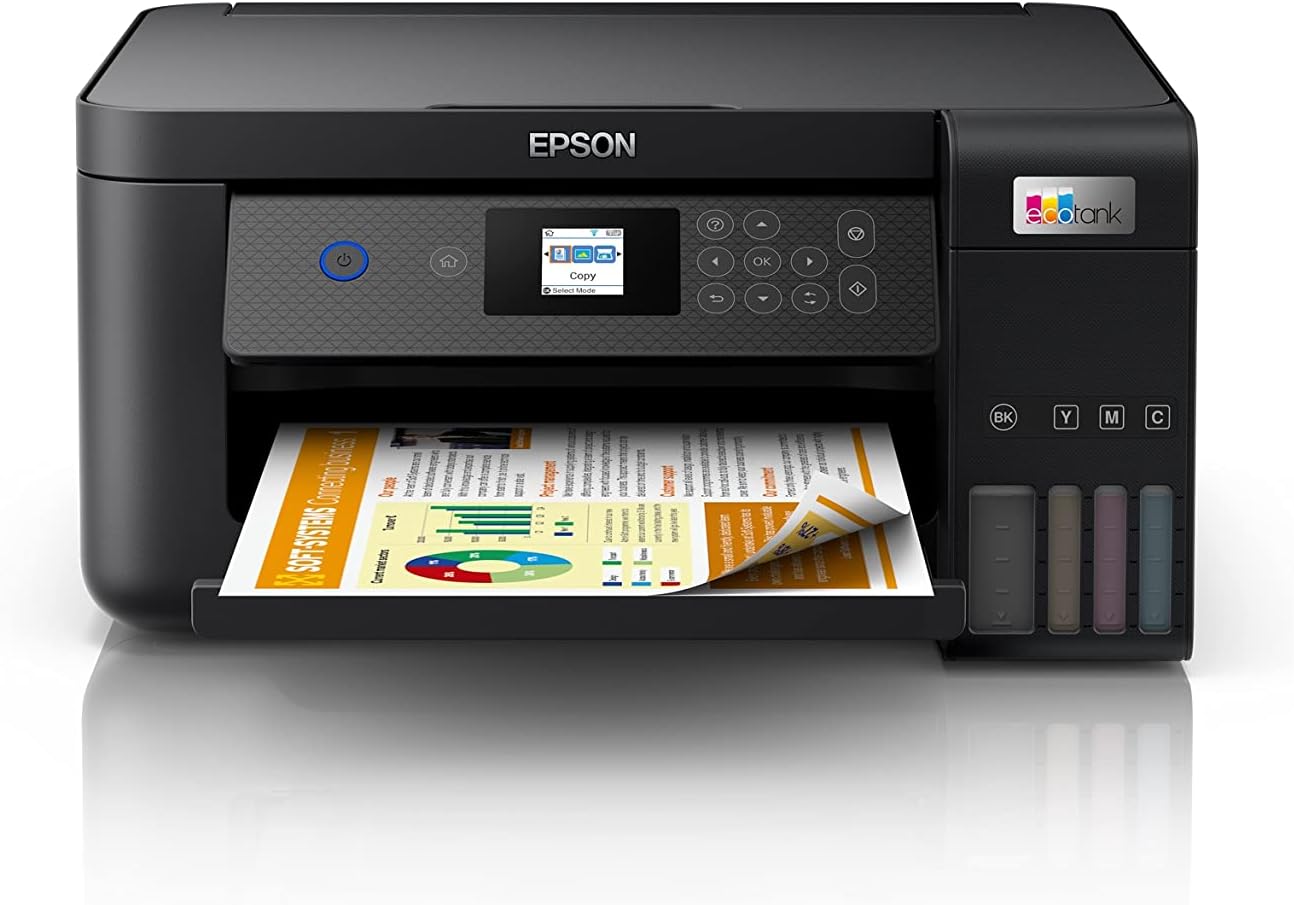
Image: Front view of the Epson EcoTank L4260 printer with paper loaded in the output tray.
2.2 Filling the Ink Tanks
The EcoTank L4260 uses an integrated ink tank system. Use only genuine Epson ink bottles (Compatible Ink: 001) for optimal performance and to prevent damage.
- Open the ink tank unit cover on the side of the printer.
- Open the cap for the ink tank you wish to fill (Black, Cyan, Magenta, Yellow).
- Uncap the corresponding ink bottle. The bottles are designed with unique nozzles to prevent incorrect filling.
- Insert the ink bottle into the filling port. The ink will begin to flow automatically. Do not squeeze the bottle.
- Once the ink tank is full, the ink flow will stop. Remove the bottle and securely close the ink tank cap and the ink tank unit cover.
- Repeat for all other ink colors.

Image: A hand demonstrating the process of filling an ink tank on the Epson EcoTank L4260 printer using an ink bottle.
2.3 Power On and Initial Ink Charging
- Press the power button to turn on the printer.
- Follow the on-screen instructions on the printer's LCD panel to initiate the initial ink charging process. This process can take approximately 10-15 minutes. Do not turn off the printer during this time.
2.4 Software Installation and Connectivity
To use all printer functions, install the necessary software on your computer or mobile device.
- For Computers: Visit the Epson support website for your region to download the latest drivers and utilities for the L4260. Follow the on-screen instructions for installation.
- For Mobile Devices: Download the Epson Smart Panel app from your device's app store. This app allows for easy setup, monitoring, and operation of the printer.
Wireless Setup:
- Use the printer's control panel to navigate to the Wi-Fi setup menu.
- Select your Wi-Fi network (SSID) and enter the password.
- Alternatively, use Wi-Fi Direct to connect directly from a compatible mobile device without a router.

Image: Top-down view of the Epson EcoTank L4260 printer with the paper input tray open and paper loaded, ready for printing.
3. Operation Guide
3.1 Printing Documents
- Load paper into the rear paper feeder. Ensure the paper guides are adjusted to the paper width.
- From your computer or mobile device, open the document or image you wish to print.
- Select "Print" from the application's menu.
- Choose the Epson EcoTank L4260 as your printer.
- Adjust print settings such as paper size, media type, print quality, and color/monochrome.
- For double-sided printing, select the "Auto-Duplex" option in your printer settings.
- Click "Print".
The printer supports various print media, including high-resolution paper, and can print up to A4 size.
3.2 Scanning Documents and Photos
- Lift the scanner lid and place the document or photo face-down on the scanner glass, aligning it with the registration mark.
- Close the scanner lid gently.
- On your computer, open the Epson ScanSmart software or use the Epson Smart Panel app on your mobile device.
- Select "Scan" and choose your desired scan settings (e.g., document type, resolution, color mode, destination).
- Initiate the scan. The scanned image will appear on your device.
- Save the scanned file in your preferred format and location.
3.3 Copying Documents
- Lift the scanner lid and place the document face-down on the scanner glass.
- Close the scanner lid.
- On the printer's control panel, select the "Copy" function.
- Adjust copy settings such as number of copies, paper size, and quality.
- Press the Start button (color or black-and-white) to begin copying.

Image: The Epson EcoTank L4260 printer with its scanner lid open, revealing the scanner glass.
4. Maintenance
4.1 Ink Refilling
Monitor ink levels regularly. When an ink tank is low, refill it using the corresponding genuine Epson ink bottle (001 series). Refer to section 2.2 for detailed instructions on filling ink tanks.
4.2 Print Head Cleaning
If print quality declines (e.g., missing lines, faded prints), perform a print head cleaning. This can be done through the printer's control panel or via the printer utility software on your computer.
- Access the maintenance menu on the printer's control panel.
- Select "Head Cleaning" and follow the on-screen prompts.
- After cleaning, print a nozzle check pattern to verify print quality. If necessary, repeat the cleaning process.
4.3 General Cleaning
Regularly clean the exterior of the printer with a soft, damp cloth. Avoid using abrasive cleaners or solvents. For the scanner glass, use a lint-free cloth and a mild glass cleaner.
5. Troubleshooting
This section addresses common issues you might encounter with your Epson EcoTank L4260 printer.
| Problem | Possible Cause | Solution |
|---|---|---|
| Printer does not turn on | Power cord not connected securely; power outlet not working. | Ensure power cord is firmly connected. Test the power outlet with another device. |
| Poor print quality (streaks, faded colors) | Low ink levels; clogged print nozzles. | Check ink levels and refill if necessary. Perform a print head cleaning and nozzle check. |
| Paper jam | Incorrect paper loading; foreign object in paper path. | Remove all jammed paper carefully. Ensure paper is loaded correctly and not creased. |
| Cannot connect to Wi-Fi | Incorrect Wi-Fi password; printer too far from router; network issues. | Verify Wi-Fi password. Move printer closer to the router. Restart router and printer. |
| Printer is offline | Printer driver issue; network connection lost. | Check network connection. Restart printer and computer. Reinstall printer drivers if necessary. |
6. Technical Specifications
| Feature | Specification |
|---|---|
| Model Name | ECOTANK L4260 |
| Product Dimensions | 38D x 35W x 19H centimetres |
| Item Weight | 5.4 Kilograms |
| Printing Technology | Inkjet |
| Connectivity Technology | Wi-Fi, USB 2.0 |
| Maximum Print Resolution | 5760 x 1440 dpi |
| Max Monochrome Printing Speed | 10.5 ppm (ISO) |
| Maximum Print Speed (Colour) | 5 ppm (ISO) |
| Scanner Type | Flatbed |
| Scanning Optical Resolution | 1200 x 2400 dpi |
| Supported Media Sizes | A4 (documents), A6 (photos/smaller prints) |
| Compatible Ink | Epson 001 series |
| Special Features | Auto-Duplex Printing, Wi-Fi Direct, Apple Airprint™, Mopria™ Service |
7. Warranty and Support
For warranty information specific to your region and purchase, please refer to the documentation included with your printer or visit the official Epson website.
If you encounter issues that cannot be resolved using the troubleshooting guide, please contact Epson customer support for assistance. You can find contact details on the official Epson support website:
- Epson Official Website: www.epson.com
- Epson Support Page: www.epson.com/support
When contacting support, please have your printer model (L4260) and serial number ready.


