
1. Introduction
The Perixx PERIMICE-819B is an ergonomic vertical mouse designed for comfort and versatility. It features 3-in-1 wireless connectivity, allowing connection via Bluetooth, 2.4 GHz USB-A receiver, or 2.4 GHz USB-C receiver. This mouse is equipped with silent-click buttons, adjustable DPI settings, and a built-in rechargeable battery, making it suitable for prolonged use across various devices.

Image: The ergonomic design promotes a natural handshake position, reducing wrist strain.

Image: The compact size of the PERIMICE-819B makes it highly portable for on-the-go use.
2. Package Contents
Please verify that all items are present in your package:
- Perixx PERIMICE-819B Vertical Mouse
- USB-A Receiver
- USB-C Receiver
- Charging Cable
- User Manual
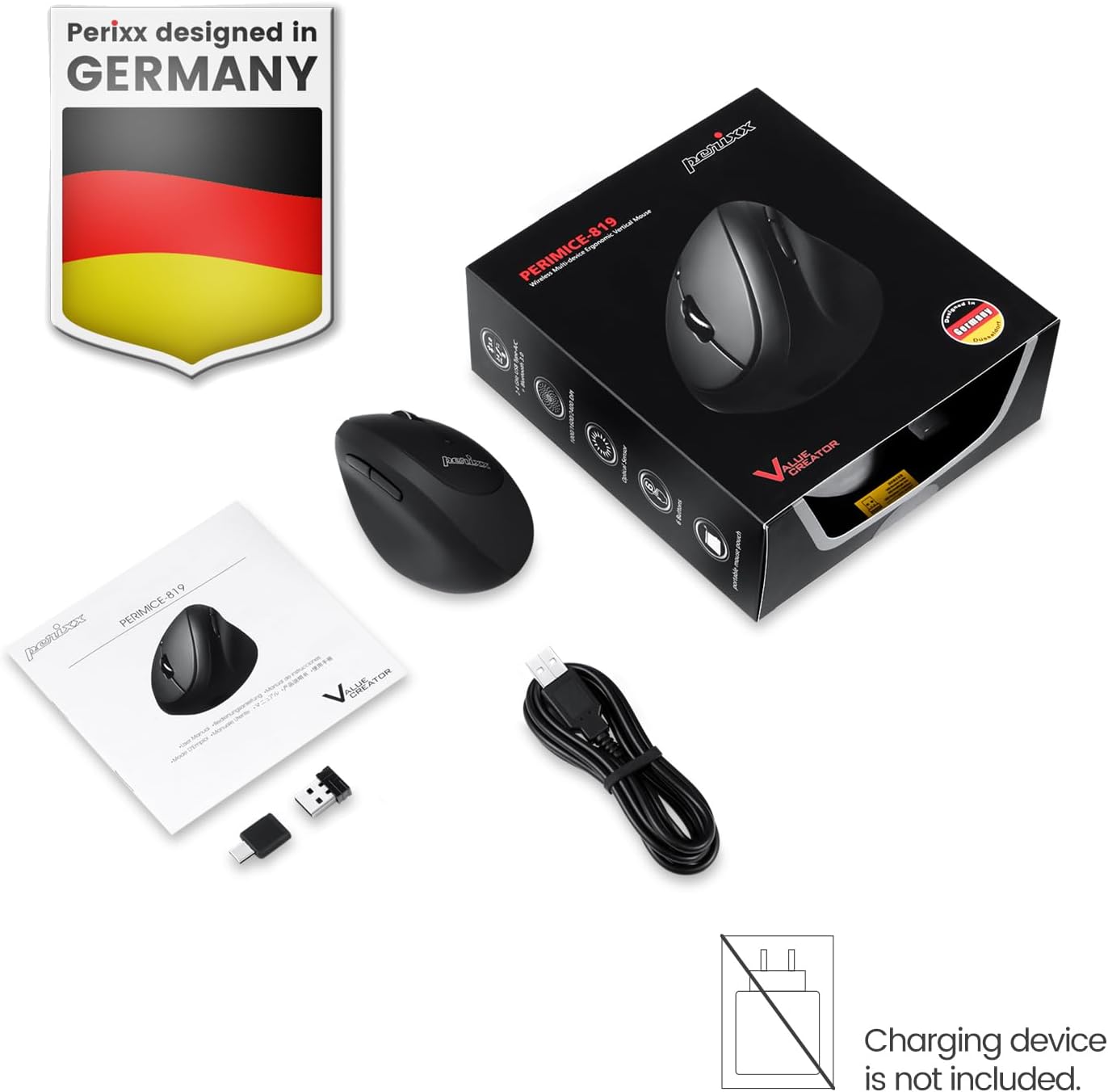
Image: The package includes the mouse, USB-A and USB-C receivers, a charging cable, and the user manual.
3. Setup Instructions
3.1 Charging the Mouse
Before initial use, fully charge the mouse. Connect the provided charging cable to the mouse's charging port and to a USB power source. The LED indicator will show charging status. A full charge can last up to 15 days with typical use (4 hours/day).

Image: Connect the mouse to a USB port using the charging cable to recharge its internal battery.
3.2 Connecting the Mouse
The PERIMICE-819B offers three wireless connection methods:

Image: The bottom of the mouse displays the connectivity switch and receiver storage.
- 2.4 GHz Wireless (USB-A or USB-C Receiver):
- Locate the USB-A or USB-C receiver stored in the mouse's bottom compartment.
- Plug the desired receiver into an available USB port on your computer.
- Turn on the mouse using the ON/OFF switch located on the bottom.
- The mouse should connect automatically.
- Bluetooth Connection:
- Turn on the mouse using the ON/OFF switch.
- Press the 'Connect' button on the bottom of the mouse to enter Bluetooth pairing mode. The LED indicator will flash.
- On your device (computer, tablet, smartphone), go to Bluetooth settings and search for new devices.
- Select "PERIMICE-819B" from the list of available devices to pair.

Image: The mouse supports Bluetooth, 2.4 GHz USB-A, and 2.4 GHz USB-C wireless connections.
4. Operating Instructions
4.1 DPI Adjustment
The PERIMICE-819B features an adjustable DPI (Dots Per Inch) switch, allowing you to change the mouse cursor speed and sensitivity. Press the DPI button, located behind the scroll wheel, to cycle through the available settings: 1000, 1600, and 2400 DPI. Choose the setting that best suits your task and preference.
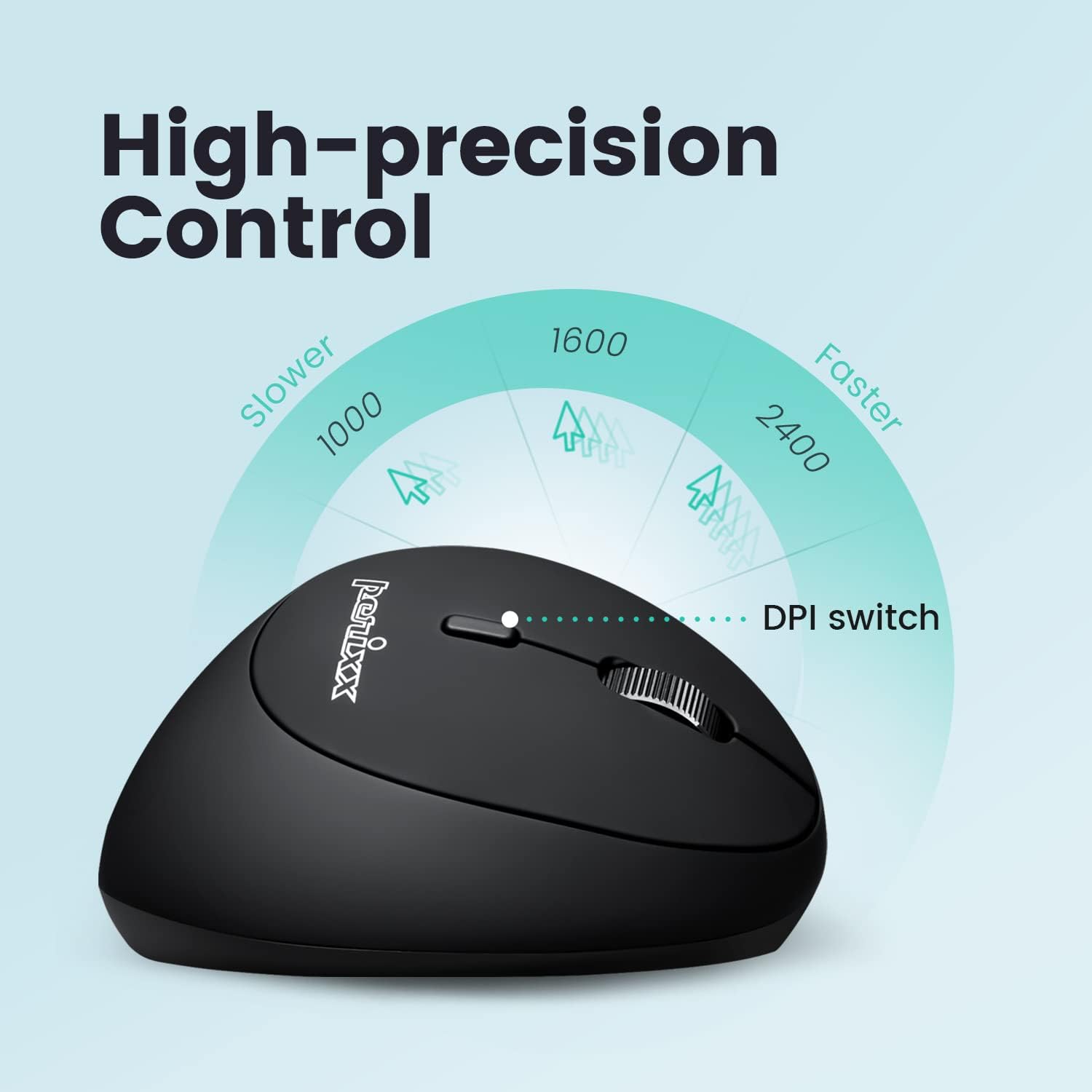
Image: Adjust the mouse sensitivity using the DPI switch for optimal control.
4.2 Silent Click Buttons
The left and right mouse buttons are designed for silent clicking, providing a quiet working environment.
4.3 Navigation Buttons
The mouse includes convenient forward and backward buttons located on the side, typically operated by the thumb. These buttons allow for quick navigation in web browsers and file explorers. Note: Forward and backward buttons may not be fully functional on macOS.

Image: Use the side buttons for quick page navigation (backward and forward).
5. Maintenance
5.1 Battery Management
The PERIMICE-819B features a built-in rechargeable Li-Po 300mAh battery. To conserve power, the mouse will automatically enter sleep mode after a period of inactivity. Move the mouse or click a button to wake it up. Recharge the mouse when the battery indicator shows low power to ensure uninterrupted use.
5.2 Cleaning
To clean the mouse, use a soft, dry cloth. Avoid using harsh chemicals or abrasive materials that could damage the surface.
6. Troubleshooting
- Mouse not responding:
- Ensure the mouse is turned ON.
- Check battery level and recharge if necessary.
- For 2.4 GHz connection, ensure the receiver is securely plugged into a USB port. Try a different USB port.
- For Bluetooth connection, ensure Bluetooth is enabled on your device and the mouse is paired correctly. Try re-pairing.
- Cursor movement is erratic or stops:
- Ensure the mouse sensor is clean and free from obstructions.
- Use the mouse on a suitable surface (e.g., a mouse pad).
- Check for low battery.
- Interference from other wireless devices can affect performance. Try moving closer to the receiver or device.
- DPI setting not changing:
- Ensure you are pressing the correct DPI switch button.
- The change in cursor speed should be noticeable. If not, try restarting the mouse and your device.
7. Specifications
| Feature | Detail |
|---|---|
| Model Number | PERIMICE-819 (12013) |
| Connectivity Technology | Bluetooth, 2.4 GHz Radio Frequency (USB-A, USB-C) |
| Movement Detection | Optical |
| DPI Settings | 1000 / 1600 / 2400 |
| Special Features | Ergonomic Design, Portable, Rechargeable, Silent-Click |
| Battery Type | Built-in Li-Po 300mAh |
| Average Battery Life | Up to 60 hours (approx. 15 days at 4 hours/day) |
| Item Weight | 2.93 ounces |
| Product Dimensions (LxWxH) | 4.5 x 2.64 x 2.28 inches |
| Color | Black |
| Compatibility | Windows OS, Linux Ubuntu 16.04, Chromebook, iPadOS, Android, Amazon Fire Tablet. Partial compatibility with macOS (forward/backward buttons not available). |
8. Warranty and Support
Perixx products typically come with a manufacturer's warranty. For specific warranty details, please refer to the warranty information included with your purchase or visit the official Perixx website. For technical support, product inquiries, or assistance with troubleshooting, please contact Perixx customer service through their official channels.
Manufacturer: Perixx Computer GmbH
Website: www.perixx.com


