
1. Introduction
This manual provides detailed instructions for the operation and maintenance of your JRHC S-3309 1D Wireless Barcode Scanner. This device is designed for efficient data collection and inventory management in various environments.

2. Product Overview
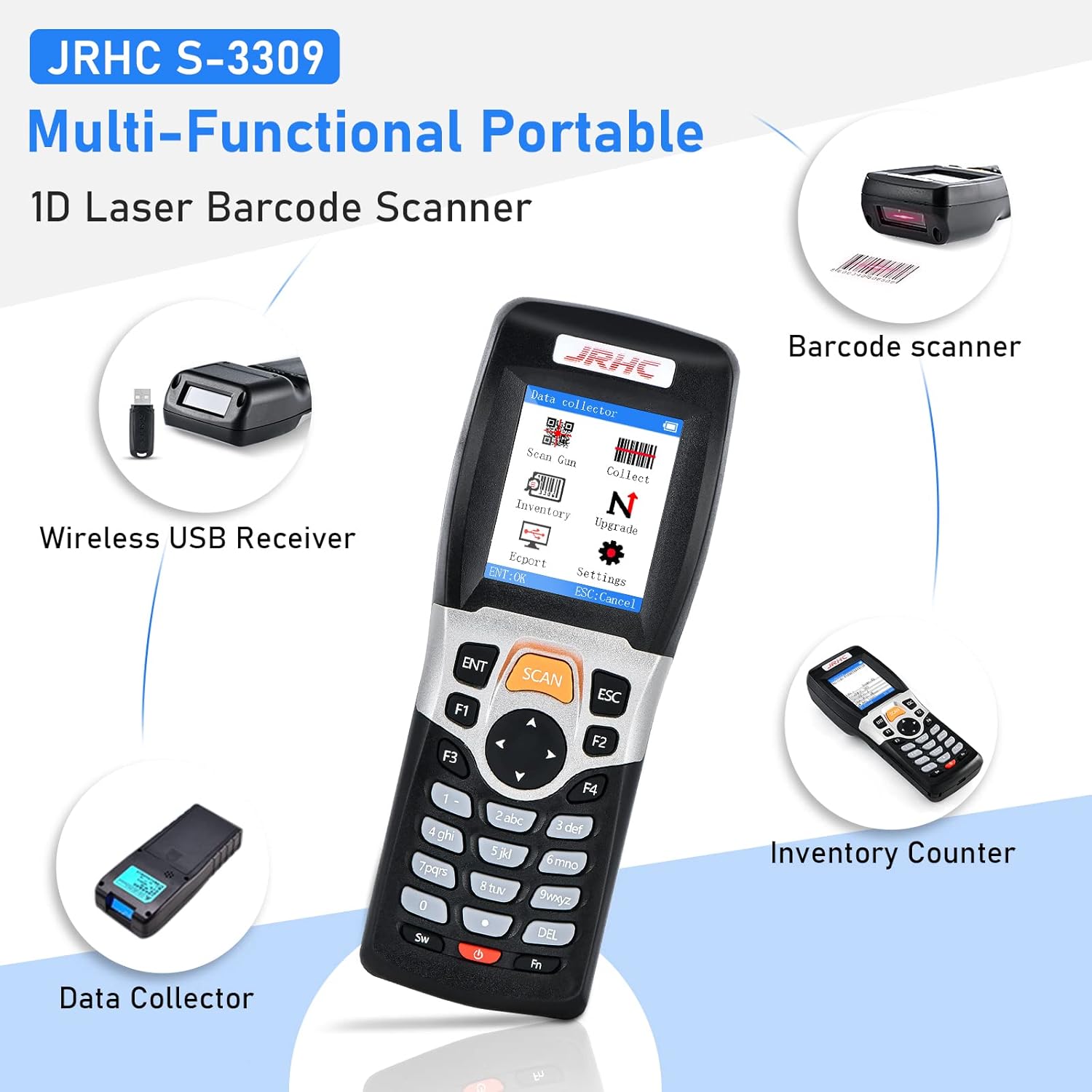
The JRHC S-3309 is a versatile 3-in-1 device functioning as a wireless barcode scanner, data collector, and inventory management tool. It features a 2.2-inch LCD screen and an ergonomic design for comfortable use.

3. Package Contents
Please verify that all items are present in the package:
- JRHC S-3309 1D Wireless Barcode Scanner
- 2.4G Wireless USB Receiver
- USB Charging/Data Cable
- User Manual (this document)

4. Setup
4.1 Battery Installation
The JRHC S-3309 requires 2 AA batteries for operation. Open the battery compartment on the back of the device and insert the batteries, ensuring correct polarity. Close the compartment securely.
4.2 Connecting to a Computer
The scanner supports both 2.4G wireless and wired USB connections.
4.2.1 Wireless Connection (Plug and Play)
- Insert the 2.4G wireless USB receiver into an available USB port on your computer.
- Power on the barcode scanner. It will automatically connect to the computer.
- No additional drivers or software installation is required.

4.2.2 Wired Connection
- Connect the scanner to your computer using the provided USB cable.
- The scanner will function as a wired device and can also charge its internal battery (if applicable) or draw power directly.

4.3 System Compatibility
The JRHC S-3309 is compatible with Windows and Mac operating systems. It is suitable for use with desktop computers and laptops. It is not compatible with tablets, iPads, or mobile phones.

5. Operating Modes
The scanner integrates three primary functions:
- Scan Gun Mode: For real-time scanning and direct data input into applications like Word, Excel, or TXT.
- Data Collector Mode: Stores scanned barcode data internally for later batch upload.
- Inventory Mode: Facilitates inventory management by allowing users to scan items and manage quantities.
Navigate through the modes using the device's LCD screen and keypad.
6. Barcode Scanning
6.1 Supported Barcode Types
The JRHC S-3309 is capable of reading various 1D barcode types, including:
- Codabar
- Code 11
- Code 93
- MSI
- Code 128
- EAN
- UPC
- Code 39
- UPC-A
- ISBN
- Industrial 25
- Standard 25
- Matrix
6.2 Scanning Capabilities
The laser scanning mechanism (650nm width) supports flash scanning and can read fuzzy or damaged barcodes, as well as those in strong or dim light conditions. However, it cannot scan 2D barcodes (e.g., QR codes) or barcodes displayed on screens.

7. Data Transmission
7.1 Wireless Transmission Range
The 2.4G wireless transmission offers a long range:
- Up to 150 meters in barrier-free environments.
- Up to 50 meters when obstacles such as walls are present.

7.2 Data Export
When operating in Data Collector or Inventory mode, collected data can be exported to your computer. The scanner supports text transmission mode, which is efficient for transferring large datasets (e.g., up to 10,000 data entries).

8. Maintenance
8.1 Cleaning
To clean the scanner, use a soft, dry cloth. For stubborn dirt, a slightly damp cloth with mild detergent can be used. Avoid abrasive cleaners or solvents that could damage the device.
8.2 Battery Care
If the scanner will not be used for an extended period, remove the AA batteries to prevent leakage and potential damage to the device. Replace batteries when the low battery indicator appears or performance degrades.
9. Troubleshooting
| Problem | Possible Cause | Solution |
|---|---|---|
| Scanner does not power on | Dead or incorrectly installed batteries. | Replace batteries with fresh AA batteries, ensuring correct polarity. |
| No connection to computer (wireless) | USB receiver not plugged in; scanner out of range; interference. | Ensure receiver is securely plugged in. Move scanner closer to receiver. Check for other 2.4G devices causing interference. |
| No connection to computer (wired) | USB cable faulty or not properly connected. | Try a different USB port or cable. Ensure cable is fully inserted. |
| Cannot scan barcodes | Barcode type not supported (e.g., 2D code); barcode too damaged; scanner lens dirty. | Verify it's a 1D barcode. Clean the scanner lens. Try scanning a different, clear 1D barcode. |
| Scanner freezes during operation | Temporary software glitch. | Remove and reinsert the batteries to reset the device. |
| Rapid battery drain | Old batteries; device left on for extended periods. | Use new, high-quality AA batteries. Power off the device when not in use. Remove batteries for long-term storage. |
10. Specifications
| Feature | Detail |
|---|---|
| Brand | JRHC |
| Model | S-3309 |
| Connectivity Technology | 2.4G Wireless USB, USB Wired |
| Compatible Devices | Laptop, Desktop Computer |
| Operating System Compatibility | Windows, Mac |
| Barcode Type Support | 1D Barcodes (Codabar, Code 11, Code93, MSI, Code 128, EAN, UPC, Code 39, UPC-A, ISBN, Industrial 25, Standard25, Matrix) |
| 2D Barcode Support | No |
| Screen Barcode Support | No |
| Scan Rate | 150 frames/second |
| Wireless Transmission Range (Barrier-free) | Up to 150 meters |
| Wireless Transmission Range (With Obstacles) | Up to 50 meters |
| Display | 2.2-inch LCD |
| Power Source | 2 x AA Batteries (User-replaceable) |
| Certifications | CE, RoHS, WEEE |
11. Warranty and Support
For warranty information and technical support, please refer to the documentation provided at the time of purchase or contact your retailer. Specific warranty terms may vary by region and seller.
