1. Introduction
This manual provides essential instructions for setting up, operating, and maintaining your ALLDOCUBE Smile X Tablet. The Smile X is an Android 11 tablet featuring a 10.1-inch FHD IPS display, powered by a UNISOC T610 Octa-core processor, 4GB RAM, and 64GB internal storage, expandable up to 2TB. It supports 2.4G+5G WiFi, Bluetooth 5.0, and dual 4G SIM connectivity.
2. Device Overview
Familiarize yourself with the physical components and key features of your ALLDOCUBE Smile X Tablet.

Figure 2.1: Front and back view of the ALLDOCUBE Smile X Tablet, showcasing the display and rear camera module.
2.1 Key Features
- Processor: UNISOC T610 Octa-core chip with 2x A75 and 6x A55 cores, optimized for performance and energy efficiency.
- Operating System: Android 11 with an optimized UI for tablets.
- Memory & Storage: 4GB RAM and 64GB internal storage, expandable up to 2TB via MicroSD card.
- Display: 10.1-inch IPS screen with 1920x1200 resolution, offering vivid and clear visuals.
- Battery: 6000mAh high-capacity battery with USB-C charging, providing up to 10 hours of local file playback.
- Graphics: Mali G52 GPU for smooth video decoding and gaming.
- Connectivity: Dual-band 2.4G+5G WiFi, Bluetooth 5.0, GPS, and Dual 4G SIM support for unblocked internet and calls.
- Cameras: 5MP rear camera and 5MP front camera for photos and video calls.
- Audio: Dual speakers with a SMART amplifier chip for immersive sound.

Figure 2.2: Illustration of the UNISOC T610 octa-core chipset, highlighting its architecture with A75 and A55 cores.

Figure 2.3: The 10.1-inch IPS touch screen, demonstrating its 1920x1200 resolution and narrow bezels for an enhanced viewing experience.
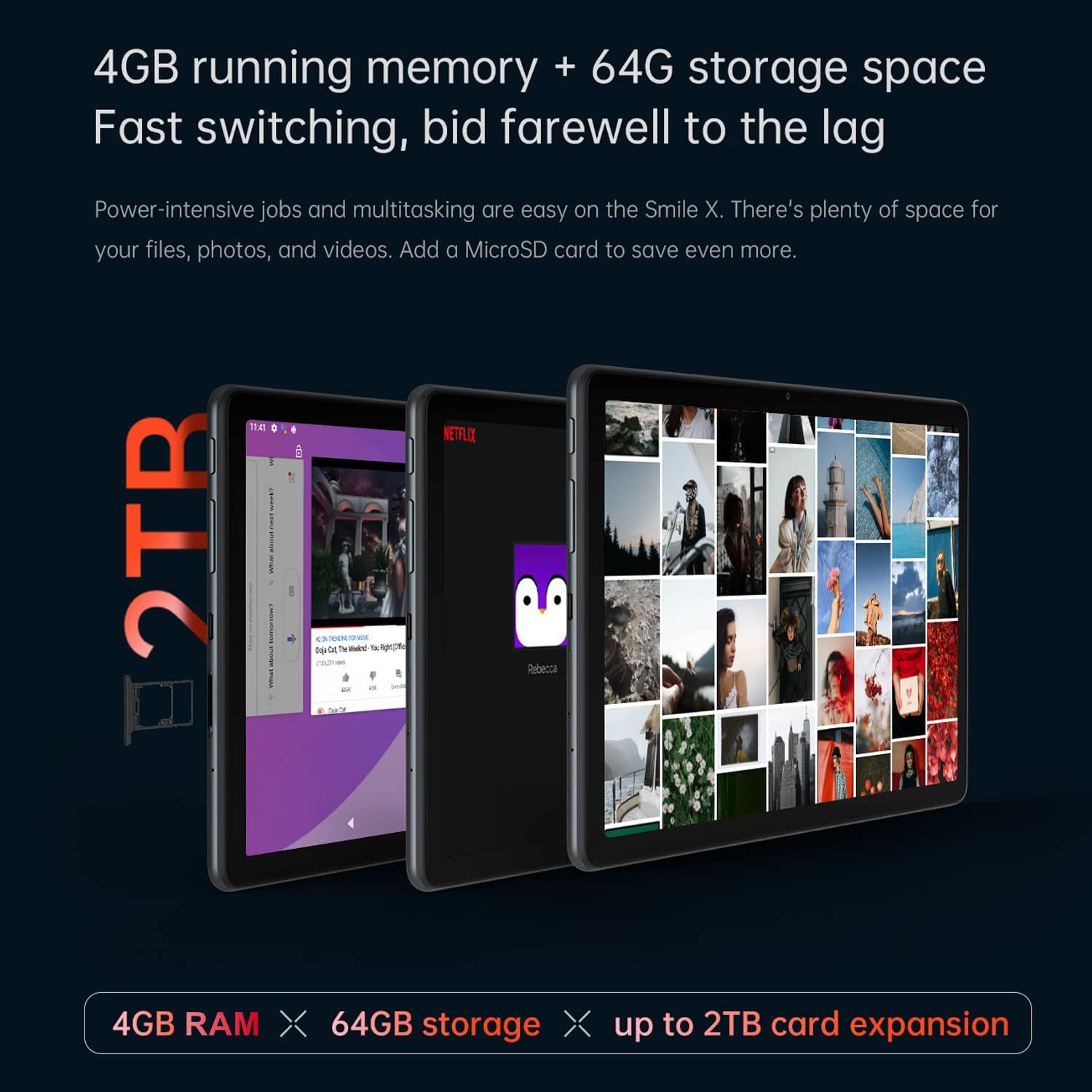
Figure 2.4: Visual representation of the tablet's 4GB RAM and 64GB storage, emphasizing the MicroSD card slot for up to 2TB expansion.

Figure 2.5: Details of the 6000mAh battery and the universal USB-C port for charging and data transfer, alongside the tablet's ergonomic design.

Figure 2.6: The tablet running a mobile game, illustrating the capabilities of the Mali G52 GPU for smooth graphics and an enjoyable gaming experience.

Figure 2.7: Overview of the tablet's connectivity features (Wi-Fi, GPS, Bluetooth 5.0), the Android 11 interface, and the 5MP rear and 2MP front cameras.

Figure 2.8: Close-up of the dual SIM card tray, indicating support for TD-LTE and FDD-LTE 4G networks and VoLTE HD calls.
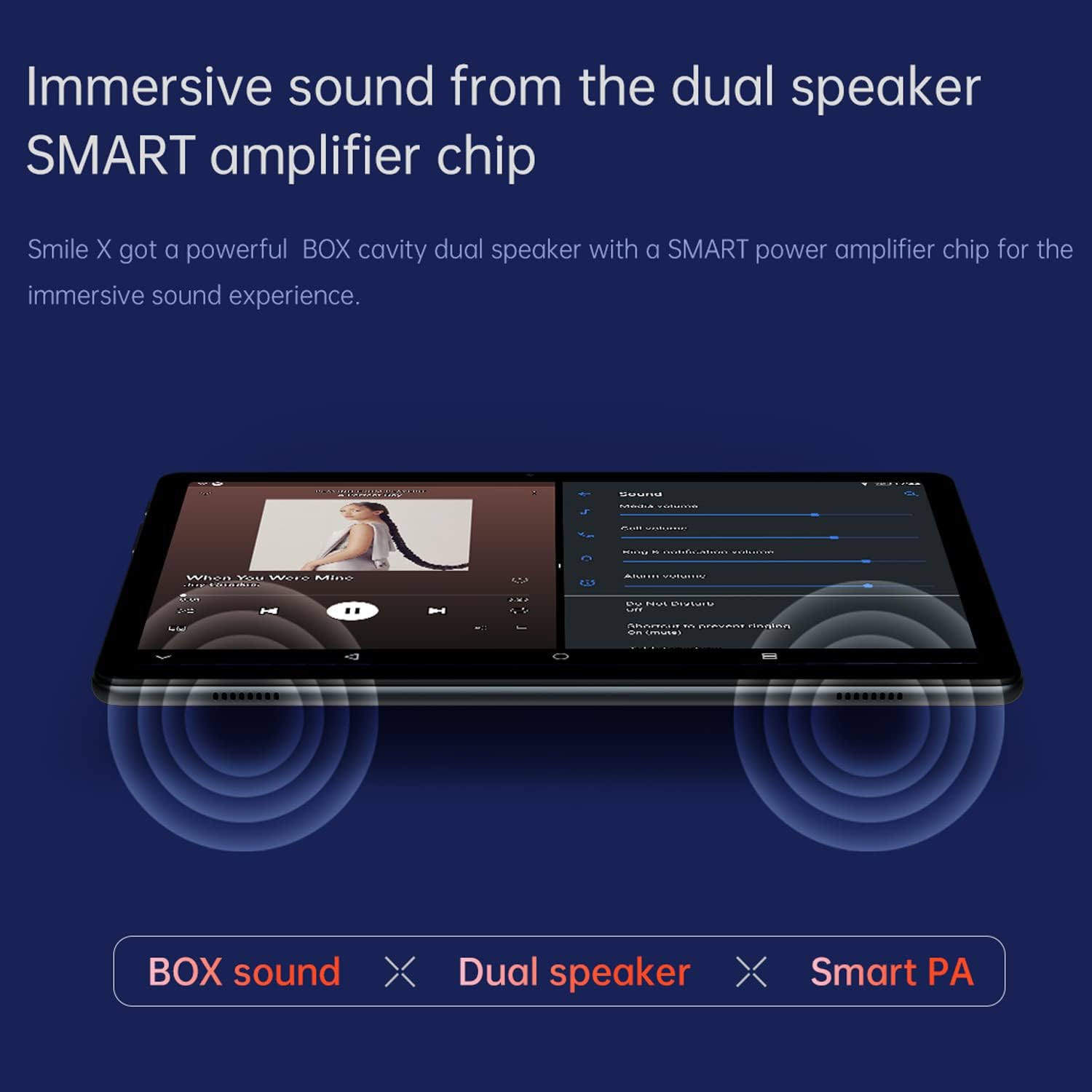
Figure 2.9: Depiction of the tablet's dual speakers with a SMART amplifier chip, designed for an immersive audio experience.
3. Initial Setup
3.1 Charging the Tablet
Before first use, fully charge your ALLDOCUBE Smile X Tablet. Connect the provided USB-C cable to the tablet's USB-C port and the other end to a compatible power adapter. The charging indicator will illuminate. A full charge typically takes several hours.
3.2 Powering On/Off
- To Power On: Press and hold the Power button (usually located on the side) until the ALLDOCUBE logo appears on the screen.
- To Power Off: Press and hold the Power button until the power options menu appears. Select "Power off" and confirm.
- To Restart: From the power options menu, select "Restart" and confirm.
3.3 Initial Configuration
Upon first power-on, the tablet will guide you through the Android 11 setup process. This includes:
- Selecting your language.
- Connecting to a Wi-Fi network.
- Signing in with your Google account (or creating a new one).
- Setting up screen lock (PIN, pattern, password).
- Reviewing and accepting Google services and privacy settings.
4. Operating Instructions
4.1 Android 11 Interface
The ALLDOCUBE Smile X runs on Android 11, offering a user-friendly interface. Navigate using gestures or the traditional navigation bar. Swipe down from the top of the screen to access quick settings and notifications.
4.2 Network and Connectivity
- Wi-Fi: Go to Settings > Network & internet > Wi-Fi to connect to available wireless networks. The tablet supports both 2.4GHz and 5GHz bands.
- Bluetooth: Enable Bluetooth in Settings > Connected devices > Bluetooth to pair with headphones, speakers, or other Bluetooth devices.
- Mobile Data (4G LTE): Insert up to two Nano-SIM cards into the SIM tray. Go to Settings > Network & internet > Mobile network to configure mobile data settings and enable VoLTE for HD calls.
- GPS: Location services are enabled by default. You can manage them in Settings > Location.
4.3 Storage Management
Your tablet comes with 64GB of internal storage. To expand storage, insert a MicroSD card (up to 2TB) into the dedicated slot. Manage storage in Settings > Storage.
4.4 Camera Usage
Open the Camera app to take photos or record videos. The tablet features a 5MP rear camera and a 5MP front camera. Tap the screen to focus and press the shutter button to capture.
4.5 Multimedia Playback
Utilize the pre-installed media players or download your preferred apps from the Google Play Store to enjoy videos, music, and other multimedia content. The dual speakers provide enhanced audio output.
5. Maintenance and Care
- Cleaning: Use a soft, lint-free cloth to clean the screen and body of the tablet. Avoid abrasive materials or harsh chemicals.
- Software Updates: Regularly check for system updates in Settings > System > System update to ensure optimal performance and security.
- Battery Care: Avoid extreme temperatures. Do not let the battery fully discharge frequently. For long-term storage, charge the battery to about 50%.
- Environmental Conditions: Keep the tablet away from direct sunlight, excessive heat, moisture, and dust.
- Data Backup: Regularly back up important data to cloud storage or an external device to prevent data loss.
6. Troubleshooting
| Problem | Solution |
|---|---|
| Tablet does not turn on. | Ensure the battery is charged. Connect the charger and wait a few minutes before attempting to power on again. If unresponsive, perform a forced restart by holding the power button for 10-15 seconds. |
| Wi-Fi connection issues. | Check if Wi-Fi is enabled in settings. Restart your router and the tablet. Forget the network and reconnect. Ensure you are within range of the Wi-Fi signal. |
| Slow performance or freezing. | Close unnecessary background applications. Clear cache for frequently used apps. Restart the tablet. Check for available system updates. Consider a factory reset as a last resort (back up data first). |
| Apps are crashing. | Ensure the app is updated to the latest version. Clear the app's cache and data in Settings > Apps. Reinstall the app if the issue persists. |
| Cannot connect to mobile data. | Ensure SIM card is correctly inserted and activated. Check mobile data settings in Network & internet. Verify your data plan with your service provider. |
7. Technical Specifications
| Feature | Detail |
|---|---|
| Brand | ALLDOCUBE |
| Model Name | Smile X |
| Operating System | Android 11 |
| Processor | UNISOC T610 Octa-core (2x A75, 6x A55) |
| Graphics Coprocessor | Mali G52 (850MHz) |
| RAM Size | 4 GB DDR3 SDRAM |
| Memory Storage Capacity | 64 GB |
| Expandable Storage | MicroSD up to 2 TB |
| Screen Size | 10.1 Inches |
| Screen Resolution | 1920 x 1200 Pixels (FHD IPS) |
| Rear Webcam Resolution | 5 MP |
| Front Webcam Resolution | 5 MP |
| Connectivity Type | Bluetooth 5.0, 2.4G+5G WiFi (802.11abg, 802.11n), Dual 4G LTE, GPS |
| Battery Capacity | 6000 mAh (22.2 Watt-hours) |
| Average Battery Life | Up to 10 Hours (local playback) |
| Product Dimensions | 24.2 x 16.8 x 0.93 cm |
| Item Weight | 528 g |
| Color | Gray |
8. Warranty and Support
For warranty information and technical support, please refer to the warranty card included with your product or visit the official ALLDOCUBE website. You can also contact ALLDOCUBE customer service through their official channels for assistance with product-related inquiries or issues.
Online Resources: For additional support and FAQs, please visit the ALLDOCUBE Store on Amazon.


