
1. Product Overview
The Newmight C721 7-in-1 USB C Hub is a versatile adapter designed to expand the connectivity of your USB-C enabled devices. It integrates multiple essential ports into a single compact unit, providing solutions for video output, network connection, data transfer, and power delivery.

Image: The Newmight C721 USB C Hub, showcasing its compact design and multiple ports connected to various peripherals like an Ethernet cable, HDMI cable, USB flash drive, and SD/TF cards.
Key Features:
- 4K@30Hz HDMI Output: Connect to external displays for high-resolution video.
- 100W Power Delivery (PD): Charge your host device while using the hub.
- 1Gbps RJ45 Ethernet Port: Provides a stable and fast wired internet connection.
- 2 x USB 3.0 Ports: High-speed data transfer up to 5Gbps for peripherals.
- SD/TF Card Reader: Simultaneously read and write data from SD and MicroSD cards at up to 104MB/s.

Image: A detailed diagram of the Newmight C721 hub, labeling each of its 7 ports: 1000Mbps Ethernet, HDMI Port (4K@30Hz), two USB 3.0 Ports (Up to 5Gbps), SD & TF card slots (Up to 104 MB/s), and Fast Charging PD100W.
2. Setup Instructions
Follow these steps to set up your Newmight C721 USB C Hub:
- Connect to Host Device: Plug the USB-C connector cable of the hub into the USB-C port of your laptop, tablet, or compatible smartphone. Ensure the USB-C port on your device supports data transfer, video output (DisplayPort Alternate Mode), and power delivery for full functionality.
- Power Connection (Optional): For optimal performance and to charge your host device, connect your original USB-C power adapter to the PD (Power Delivery) port on the hub.
- Connect Peripherals: You can now connect your desired peripherals to the corresponding ports on the hub.
3. Operating Instructions
3.1 HDMI Output
Connect an HDMI cable from the hub's HDMI port to an external monitor, TV, or projector. Your device should automatically detect the external display. You can configure display settings (mirror or extend) through your operating system's display settings.

Image: A user working with a laptop connected to a large external monitor through the Newmight C721 USB C Hub, demonstrating the HDMI output functionality for extended display.
3.2 Gigabit Ethernet
Plug an Ethernet cable from your router or modem into the RJ45 Ethernet port on the hub. This provides a stable wired network connection up to 1Gbps, ideal for situations where Wi-Fi is unreliable or unavailable.
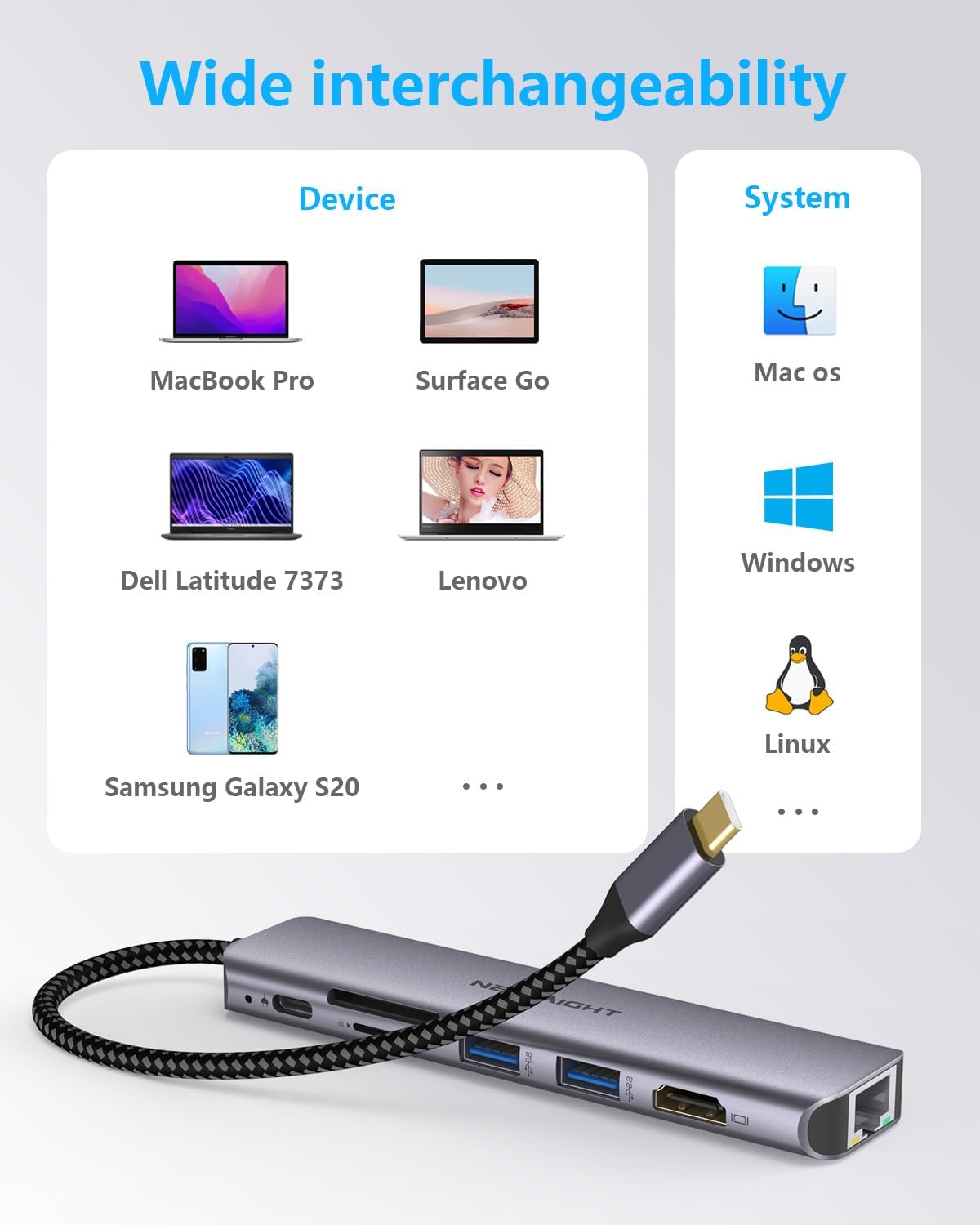
Image: The Newmight C721 USB C Hub connected to a laptop, with an Ethernet cable plugged into the hub's RJ45 port, illustrating the Gigabit Ethernet feature.
3.3 USB 3.0 Ports
Connect USB devices such as flash drives, external hard drives, keyboards, or mice to the two USB 3.0 ports. These ports support data transfer speeds of up to 5Gbps.

Image: A visual comparison showing USB 3.0 data transfer speeds of 5Gbps, significantly faster than USB 2.0's 480Mbps, highlighting the hub's high-speed USB capabilities.
3.4 SD/TF Card Reader
Insert your SD or MicroSD (TF) card into the corresponding slot. The hub supports simultaneous reading and writing for both card types, with speeds up to 104MB/s. This is useful for transferring photos and videos from cameras or drones.

Image: The Newmight C721 USB C Hub with various SD and TF cards, demonstrating the dedicated slots for each card type and their high-speed data transfer capabilities.
3.5 Power Delivery (PD)
The USB-C PD port allows you to charge your host device (laptop, tablet) while using the hub. Connect your device's original USB-C power adapter to this port. The hub supports up to 100W power pass-through.

Image: A laptop being charged through the Newmight C721 USB C Hub, which is connected to a wall adapter, illustrating the 100W Power Delivery feature.
4. Compatibility
The Newmight C721 USB C Hub is designed for wide compatibility with various devices and operating systems that support USB-C DisplayPort Alternate Mode and Power Delivery.
Compatible Operating Systems:
- macOS
- Windows
- Chrome OS
- Linux
- Android (for compatible devices)
Compatible Devices (Examples):
- MacBook Pro / Air
- Surface Go
- Dell Latitude series
- Lenovo laptops
- Samsung Galaxy S series phones/tablets
- Other USB-C enabled laptops, tablets, and smartphones
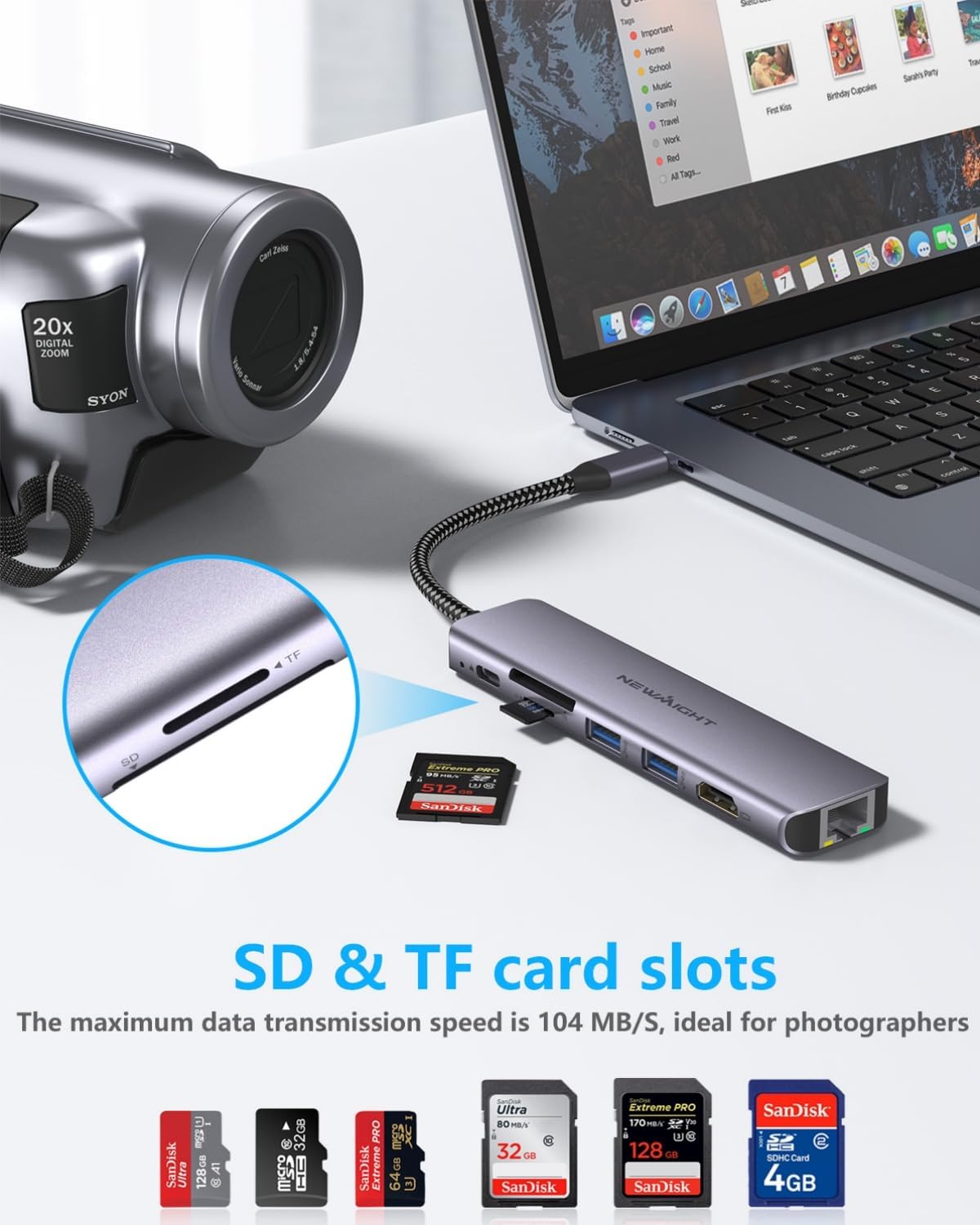
Image: A graphic illustrating the broad compatibility of the Newmight C721 USB C Hub with various devices such as MacBook Pro, Surface Go, Dell Latitude, Lenovo, and Samsung Galaxy S20, across operating systems like macOS, Windows, and Linux.
5. Maintenance
To ensure the longevity and optimal performance of your Newmight C721 USB C Hub:
- Keep the hub clean by wiping it with a soft, dry cloth. Avoid liquid cleaners.
- Do not expose the hub to extreme temperatures, humidity, or direct sunlight.
- Avoid dropping or subjecting the hub to strong impacts.
- Store the hub in a cool, dry place when not in use.
6. Troubleshooting
If you encounter issues with your Newmight C721 USB C Hub, refer to the following common problems and solutions:
| Problem | Possible Solution |
|---|---|
| No display output via HDMI. |
|
| Ethernet connection not working. |
|
| USB devices not recognized. |
|
| SD/TF card not detected. |
|
| Host device not charging via PD port. |
|
| Hub feels warm during use. | This is normal, especially when multiple ports are in use or when charging. The aluminum casing is designed to dissipate heat. If it becomes excessively hot, disconnect it and contact support. |
7. Specifications
| Feature | Specification |
|---|---|
| Model | C721 |
| Ports | 1x HDMI, 1x RJ45 Ethernet, 2x USB 3.0, 1x SD Card Slot, 1x TF Card Slot, 1x USB-C PD |
| HDMI Output | Up to 4K@30Hz |
| Ethernet Speed | 10/100/1000 Mbps (Gigabit) |
| USB 3.0 Data Transfer | Up to 5Gbps |
| SD/TF Card Speed | Up to 104MB/s (simultaneous read/write) |
| Power Delivery | Up to 100W pass-through |
| Material | Aluminum Alloy |
| Dimensions | 13.7 x 3.3 x 1.2 cm |
| Weight | 69.74 g |
| Operating System Compatibility | macOS, Windows, Chrome OS, Linux, Android |
8. Warranty Information
Newmight products are covered by a standard manufacturer's warranty against defects in materials and workmanship. Please refer to the product packaging or the official Newmight website for specific warranty terms and duration. Keep your proof of purchase for warranty claims.
9. Customer Support
For technical assistance, troubleshooting, or warranty inquiries, please contact Newmight customer support through the retailer where you purchased the product or visit the official Newmight website for contact information.
