
1. Introduction
Thank you for purchasing the RUISHINE Astronaut Galaxy Projector. This device combines a starlight projector, galaxy light, moon light, Bluetooth speaker, white noise machine, and night light into one unit. It is designed to create a relaxing and immersive environment with customizable light effects and soothing sounds. Please read this manual carefully to ensure proper setup and operation.

Image 1.1: Overview of the Astronaut Galaxy Projector's key features.
2. Product Overview
2.1 Package Contents
- Astro Alan Star Projector Galaxy Night Light
- USB Cable
- Remote Control
- User Manual (This document)
2.2 Device Components
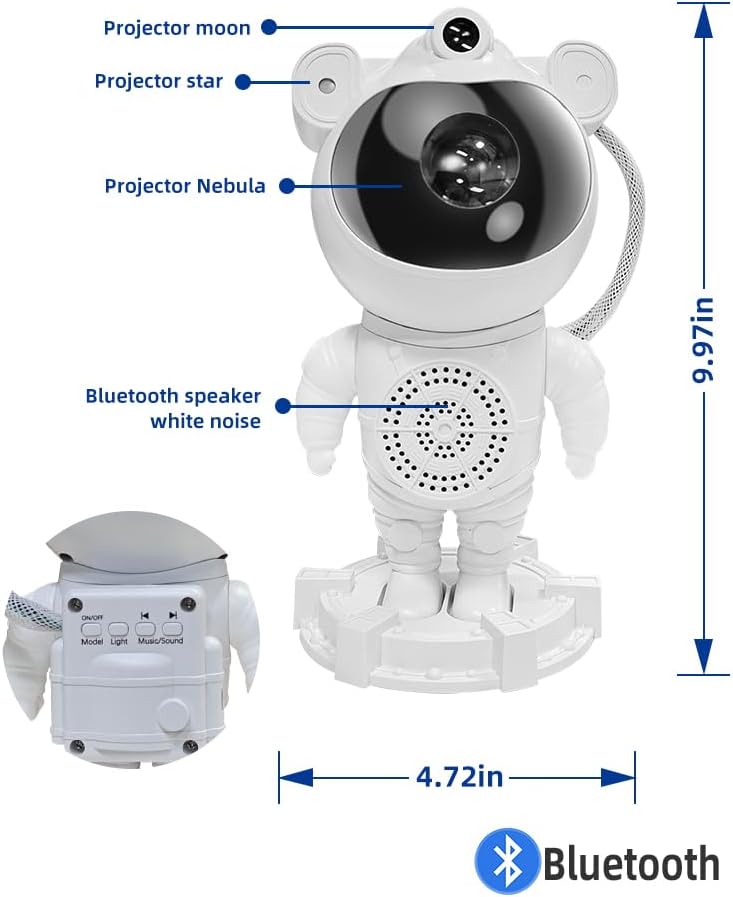
Image 2.1: Labeled components of the Astronaut Galaxy Projector.
- Projector Moon: Projects a moon image.
- Projector Star: Projects green stars.
- Projector Nebula: Projects colorful nebula effects.
- Bluetooth Speaker / White Noise: Integrated speaker for audio playback and white noise functions.
- Adjustable Head: The astronaut's head can be rotated 360° to adjust the projection angle.
- Control Buttons: Located on the back of the astronaut's backpack for basic functions.
3. Setup Instructions
- Unpack: Carefully remove all components from the packaging.
- Position: Place the projector on a stable, flat surface. The astronaut's head can be adjusted to direct the projection onto a ceiling or wall.
- Power Connection: Connect the provided USB cable to the projector's power input port and then to a compatible USB power adapter (not included, 5V/2A recommended).
- Initial Power On: Press the power button on the remote control or the device to turn on the projector.

Image 3.1: The 360° adjustable head allows flexible projection angles.
4. Operating Instructions
4.1 Remote Control Functions
The projector is primarily controlled via the included remote. Ensure the remote is pointed towards the astronaut's body for optimal response.

Image 4.1: Remote control layout and button functions.
- Power On/Off: Turns the device on or off.
- Moon/Star On/Off: Toggles the moon and star projections.
- LED On/Off: Toggles the nebula light.
- R, G, B, W Buttons: Selects Red, Green, Blue, or White nebula colors. Combinations are possible.
- Brightness Adjustment (S+, S-): Adjusts the brightness of the nebula.
- Speed Adjustment (Mode): Changes the rotation speed of the nebula.
- Voice Control: Activates sound-activated mode for lights to sync with music.
- Music/Bluetooth Switch: Toggles between music playback and Bluetooth mode.
- Volume Up/Down: Adjusts speaker volume.
- Previous/Next Track: Skips music tracks.
- Timer (1H, 2H): Sets an automatic shut-off timer for 1 or 2 hours.
4.2 Bluetooth Speaker Function
To use the integrated Bluetooth speaker:
- Ensure the projector is powered on.
- On your smartphone or audio device, enable Bluetooth and search for available devices.
- Select "MXS003" from the list to pair.
- Once paired, you can play audio through the projector's speaker.

Image 4.2: Bluetooth speaker functionality for music synchronization.
4.3 White Noise Function
The projector includes 7 white noise sounds to aid relaxation and sleep:
- Ocean
- Campfire
- Lullabies
- Birdsong
- River
- Natural Morning Sound
- Twinkling Stars
Use the remote control to cycle through the white noise options and adjust the volume.

Image 4.3: White noise feature for enhanced relaxation.
4.4 Timer Function
The projector features a timer function for automatic shut-off:
- Press the 1H button on the remote for a 1-hour timer.
- Press the 2H button on the remote for a 2-hour timer.
- To cancel the timer, press the timer button again or turn off the device.

Image 4.4: Adjustable brightness and timed auto-off feature.
5. Maintenance
- Cleaning: Use a soft, dry cloth to clean the projector's surface. Do not use liquid cleaners or abrasive materials.
- Storage: When not in use, store the projector in a cool, dry place away from direct sunlight.
- Handling: Handle the device with care. Avoid dropping or subjecting it to strong impacts.
6. Troubleshooting
| Problem | Possible Cause | Solution |
|---|---|---|
| Projector does not turn on. | No power connection or faulty cable. | Ensure the USB cable is securely connected and the power adapter is working. Try a different USB port or adapter. |
| Remote control is unresponsive. | Low battery in remote, incorrect aiming, or obstruction. | Replace remote control batteries. Point the remote directly at the astronaut's body. Remove any obstructions between the remote and the projector. |
| Bluetooth pairing fails. | Bluetooth not enabled on device, incorrect device selected, or too far from projector. | Ensure Bluetooth is enabled on your audio device. Select "MXS003". Move closer to the projector. |
| No sound from speaker. | Volume too low, device not paired, or audio source issue. | Increase volume on both the projector and your paired device. Re-pair the Bluetooth connection. Check if the audio source is playing correctly. |
| Projection is blurry or dim. | Lens obstruction, incorrect brightness setting, or ambient light interference. | Ensure the lens is clean and unobstructed. Adjust brightness using the remote. Use in a dark room for best results. |
7. Specifications
- Model: B09SYLY3KZ
- Brand: RUISHINE
- Product Dimensions: 4.57"D x 4.72"W x 9.97"H
- Item Weight: 1.23 pounds (0.56 Kilograms)
- Material: Acrylonitrile Butadiene Styrene (ABS)
- Power Source: Corded Electric (USB)
- Voltage: 24 Volts (DC)
- Light Source Type: LED
- Control Method: Remote Control, Touch Buttons
- Special Features: 5-in-1 device (Starlight Projector, Galaxy Light, Moon Light, Bluetooth Speaker, White Noise Machine, Night Light), 360° Adjustable Head, Timer Function, Sound-Activated Mode.
- Indoor/Outdoor Usage: Indoor Only
- Water Resistance Level: Not Water Resistant
- UPC: 727156873677, 768788363389

Image 7.1: Product dimensions of the Astronaut Galaxy Projector.
8. Warranty and Support
RUISHINE is committed to providing high-quality products. This product is covered by a standard return and replacement policy as per the retailer's terms of sale. For any product-related issues, technical support, or warranty claims, please contact RUISHINE customer service through your purchase platform.
We value our customers and strive to offer satisfactory solutions for any concerns.