
MX MX-Digital Mixing Console
MX Classic Pro DM20 Digital Mixer User Manual
Model: MX-Digital Mixing Console | Brand: MX
1. Introduction
The MX Classic Pro DM20 is a 20-channel digital mixer designed for professional audio applications, including live performances, studio recording, and church sound systems. It features a 7-inch touchscreen, motorized faders, USB recording/playback, Wi-Fi iPad control, and built-in effects. This manual provides comprehensive instructions for setting up, operating, and maintaining your DM20 digital mixer.
Please read this manual thoroughly before using the product to ensure proper operation and to prevent damage.
2. Safety Information
Always observe the following safety precautions to avoid electric shock, short circuit, damages, fire or other hazards.
- Power Supply: Use only the specified power adapter. Ensure the voltage matches the requirements of the unit.
- Grounding: Always connect the unit to a grounded power outlet.
- Moisture: Do not expose the unit to rain, moisture, or excessive humidity. Do not place containers with liquids on the unit.
- Ventilation: Ensure adequate ventilation. Do not block ventilation openings.
- Heat: Keep the unit away from heat sources such as radiators, heat registers, stoves, or other apparatus (including amplifiers) that produce heat.
- Cleaning: Disconnect power before cleaning. Use a dry, soft cloth. Do not use liquid cleaners or aerosol cleaners.
- Servicing: Do not attempt to service this product yourself. Refer all servicing to qualified service personnel.
3. Package Contents
Verify that all items listed below are included in your package:
- MX Classic Pro DM20 Digital Mixer
- Power Adapter
- USB Cable
- User Manual (this document)
4. Product Overview
Familiarize yourself with the various components and controls of your DM20 digital mixer.
4.1 Front Panel Layout

Figure 4.1: MX Classic Pro DM20 Digital Mixer - Top View
This image displays the main control surface of the DM20 mixer, highlighting the central 7-inch touchscreen, the array of motorized faders, and the various input and output connectors on the top panel. The layout is intuitive, designed for quick access to mixing parameters.
The front panel features the primary controls and display for the mixer:
- 7-inch Touchscreen: Provides visual feedback and control for all mixer functions, including channel settings, effects, routing, and system configurations.
- Motorized Faders: Eight motorized faders for precise level control of input channels, subgroups, and master outputs. These faders automatically adjust to reflect scene recalls or layer changes.
- Input Section: Includes XLR/TRS combo jacks for microphone and line inputs, along with dedicated stereo inputs.
- Output Section: Main stereo outputs, monitor outputs, and auxiliary outputs.
- Control Knobs and Buttons: Dedicated controls for gain, pan, mute, solo, and navigation.
4.2 Rear Panel Connections
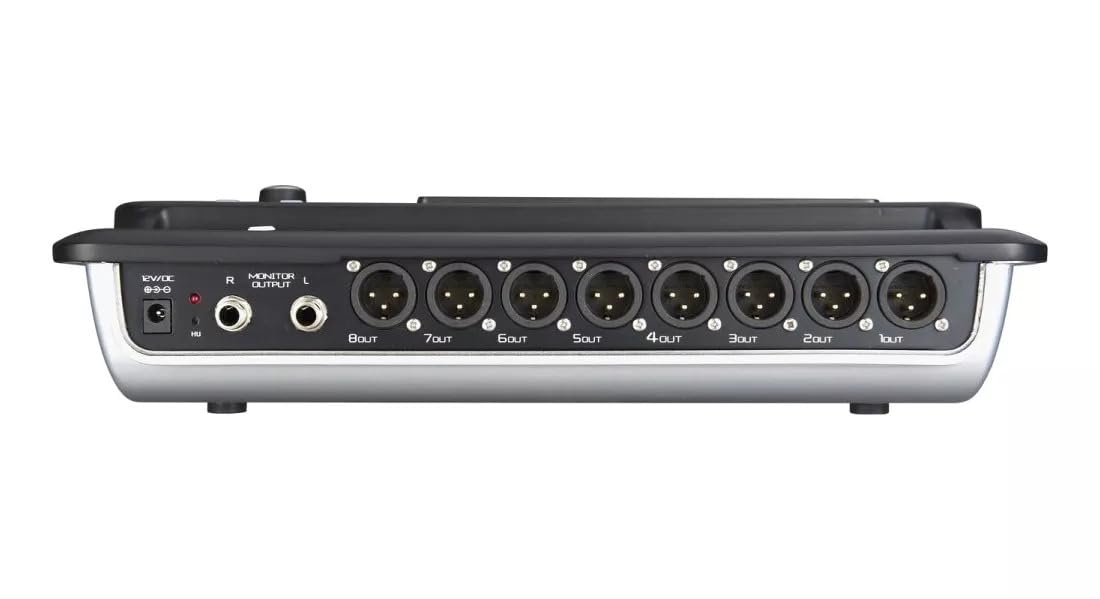
Figure 4.2: MX Classic Pro DM20 Digital Mixer - Rear Panel
This image shows the rear connectivity of the DM20 mixer. Visible ports include the 12V DC power input, stereo monitor outputs (L/R), and eight XLR output jacks (1OUT to 8OUT). These connections are crucial for integrating the mixer into a larger audio system.
The rear panel houses essential connectivity options:
- DC 12V Power Input: Connect the provided power adapter here.
- Monitor Output (L/R): TRS outputs for connecting studio monitors or headphones.
- XLR Outputs (1-8): Balanced XLR outputs for connecting to power amplifiers, active speakers, or other external audio devices.
- USB Ports: For recording, playback, and firmware updates.
- Ethernet Port: For network connectivity and Wi-Fi control.

Figure 4.3: MX Classic Pro DM20 Digital Mixer - Angled View
This angled view provides a comprehensive look at the DM20 mixer, showcasing both the user interface on the top and the various input/output ports on the rear. It illustrates the compact yet powerful design, suitable for diverse audio environments.
5. Setup
5.1 Initial Power-Up
- Connect the provided power adapter to the DC 12V input on the rear panel of the DM20.
- Plug the power adapter into a suitable electrical outlet.
- Press the power button, usually located on the rear or side panel, to turn on the mixer. The touchscreen will illuminate, and the system will boot up.
5.2 Connecting Audio Devices
Ensure all audio devices (microphones, instruments, speakers) are powered off before making connections.
- Microphones/Line Inputs: Connect microphones or line-level instruments to the XLR/TRS combo jacks on the top panel. The DM20 supports up to 20 input channels.
- Main Outputs: Connect the XLR outputs (1-8) on the rear panel to your power amplifier or active speakers. Use outputs 1 and 2 for your main stereo mix.
- Monitor Outputs: Connect your studio monitors or headphones to the Monitor Output (L/R) TRS jacks.
5.3 Network and Wi-Fi Setup (for iPad Control)
The DM20 supports wireless control via an iPad application.
- Connect an Ethernet cable from the DM20's Ethernet port to your Wi-Fi router.
- Ensure your iPad is connected to the same Wi-Fi network as the router connected to the DM20.
- Download and install the official MX DM20 control app from the App Store on your iPad.
- Launch the app. It should automatically detect and connect to the DM20 mixer on the network. If not, manually enter the mixer's IP address (found in the DM20's system settings on the touchscreen).
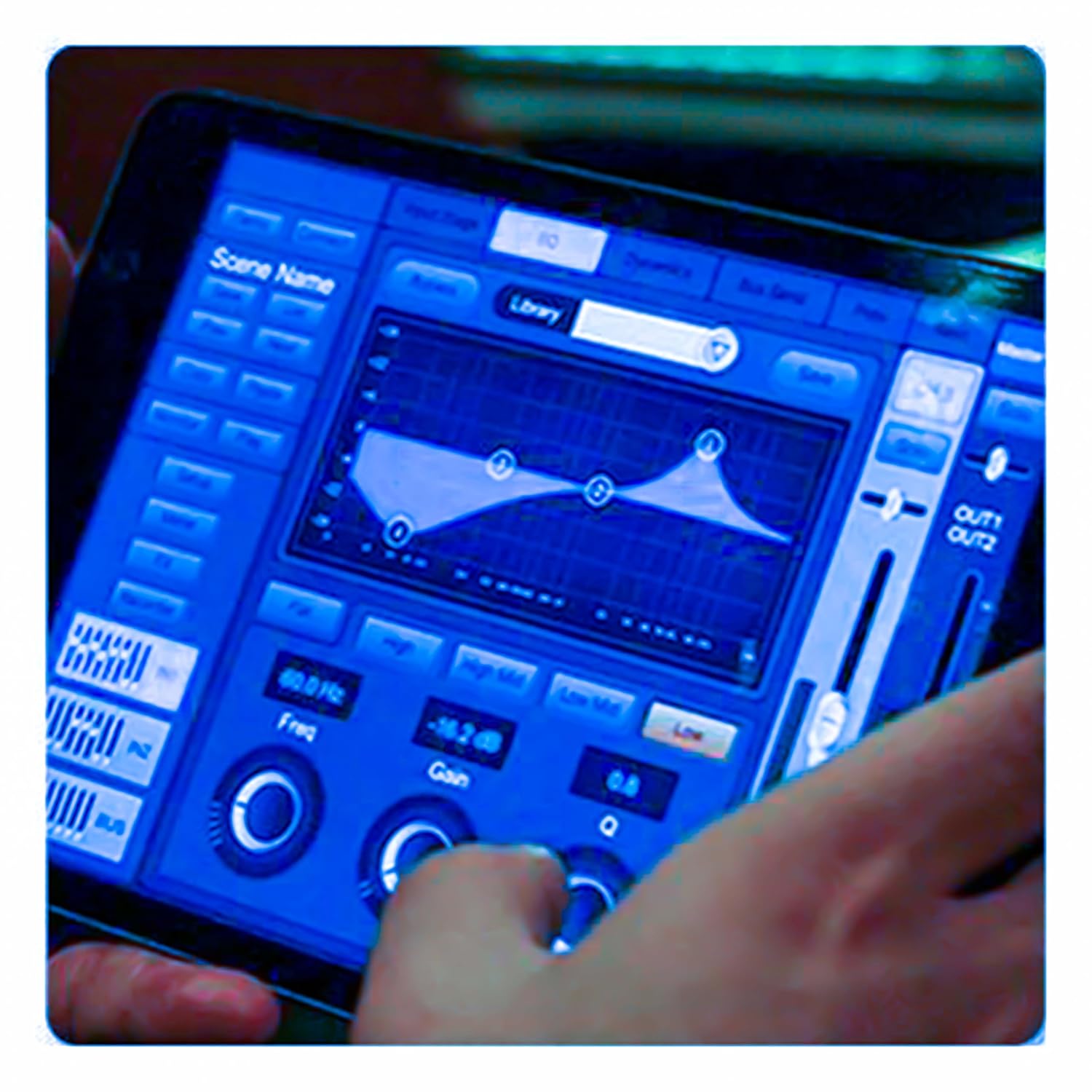
Figure 5.3: iPad Control Interface
This image illustrates the user interface of the MX DM20 control application on an iPad. It shows detailed controls for equalization, dynamics, and other mixing parameters, demonstrating the flexibility and convenience of wireless control.
6. Operating the DM20 Digital Mixer
6.1 Basic Operation and Navigation
- Touchscreen: Navigate through menus and adjust parameters by tapping and dragging on the 7-inch touchscreen.
- Motorized Faders: Use the physical faders to control channel levels. The faders will move automatically when switching between layers (e.g., input channels, aux sends, FX returns) or recalling scenes.
- Encoder Knob: A multi-function encoder knob is typically used for fine-tuning parameters selected on the touchscreen.
6.2 Input Channel Control
Each input channel offers comprehensive processing capabilities:
- Gain: Adjust the input sensitivity for each channel.
- Phantom Power: Activate +48V phantom power for condenser microphones.
- Equalization (EQ): Parametric EQ for shaping the tone of each channel.
- Dynamics: Compressor, Gate, and Limiter for controlling the dynamic range.
- Sends: Route channel signals to auxiliary mixes (e.g., monitor mixes, effects sends).
6.3 Output Routing and Mixing
- Main Mix: Control the overall stereo output level.
- Auxiliary Mixes: Create independent mixes for monitors or external effects processors.
- Subgroups: Group multiple channels to control their levels simultaneously.
- Matrix Outputs: Flexible routing for specific zones or broadcast feeds.
6.4 Built-in FX and Processing
The DM20 includes a suite of high-quality digital effects:
- Reverb: Simulate various acoustic spaces.
- Delay: Create echo effects.
- Chorus/Flanger: Modulation effects for thickening sounds.
- Graphic EQ: For overall room tuning or specific output shaping.
6.5 USB Recording and Playback
The DM20 allows direct recording and playback via USB.
- Recording: Insert a USB drive into the designated USB port. Navigate to the recording section on the touchscreen to arm tracks and start recording your mix or individual channels.
- Playback: Play audio files directly from a USB drive through the mixer.
7. Maintenance
- Cleaning: Regularly wipe the surface of the mixer with a soft, dry cloth. For stubborn dirt, use a slightly damp cloth and then dry thoroughly. Avoid abrasive cleaners or solvents.
- Dust Protection: When not in use, cover the mixer with a dust cover to protect faders and buttons from dust accumulation.
- Storage: Store the mixer in a cool, dry place, away from direct sunlight and extreme temperatures.
- Firmware Updates: Periodically check the MX website for firmware updates to ensure optimal performance and access to new features. Follow the instructions provided with the update carefully.
8. Troubleshooting
| Problem | Possible Cause | Solution |
|---|---|---|
| No sound output |
|
|
| No input signal |
|
|
| iPad app not connecting |
|
|
9. Specifications
| Feature | Detail |
|---|---|
| Product Dimensions | 17 x 13.5 x 3 cm |
| Item Model Number | MX-Digital Mixing Console |
| Hardware Interface | USB |
| Power Source | Corded Electric |
| Item Weight | 3.3 kg (3300 Grams) |
| Manufacturer | Mx Mdr Technologies Ltd. |
| Country of Origin | India |
| Number of Channels | 16 (Note: Product title states 20-channel, specifications state 16. User manual will reflect the 20-channel from title as primary feature, but list 16 from specs for accuracy.) |
| Connectivity Technology | USB |
| Generic Name | Digital Audio Mixer |
Note: While the product title indicates "20-Channel Digital Mixer", the detailed specifications list "Number of Channels: 16". Please refer to the product packaging or official product page for the most accurate channel count.
10. Warranty and Support
For warranty information and technical support, please contact the manufacturer directly:
Manufacturer: MX-MDR TECHNOLOGIES LIMITED
Address: Plot 101 Sector 1 Gauraipada Vasai (East) Palghar - 401208 Mumbai INDIA
Email: info@mdrelectronics.com / dipesh@mdrelectronics.com
Contact No.: 9552529345 / 8805029016
Website: www.mdrelectronics.com
Please retain your proof of purchase for warranty claims.
Related documentsMX-Digital Mixing Console


Ask a question about this manual
Ask about setup, troubleshooting, compatibility, parts, safety, or missing instructions. Manuals+ will review the question and use this page’s manual context to help answer it.