
Introduction
The Everest EV-MK10 is a compact 2.4GHz wireless mini keyboard with an integrated touchpad, designed for versatile use across various devices. It features a 3-color adjustable backlight, making it suitable for use in different lighting conditions. This manual provides detailed instructions for the proper setup, operation, and maintenance of your device.
Package Contents
Please verify that all items are present in your package:
- Everest EV-MK10 Mini Keyboard
- USB Wireless Receiver (typically stored in the battery compartment)
- USB Charging Cable
- User Manual (this document)
Product Overview
The Everest EV-MK10 combines a full QWERTY keyboard layout with a multi-touch touchpad. It includes dedicated media control keys and a rechargeable internal battery.
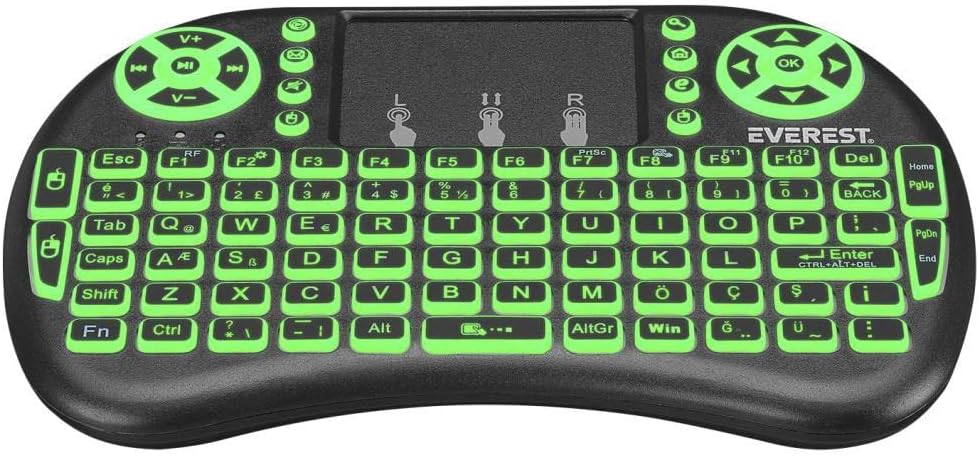
The keyboard features a standard QWERTY layout, a large touchpad for navigation, and dedicated buttons for volume control and media playback. The backlight can be adjusted to three different colors.
Setup
1. Charging the Keyboard
Before first use, fully charge the keyboard. Connect the supplied USB charging cable to the keyboard's charging port and the other end to a USB power source (e.g., computer USB port, USB wall adapter). The charging indicator light will illuminate during charging and turn off when fully charged.
2. Locating the USB Receiver
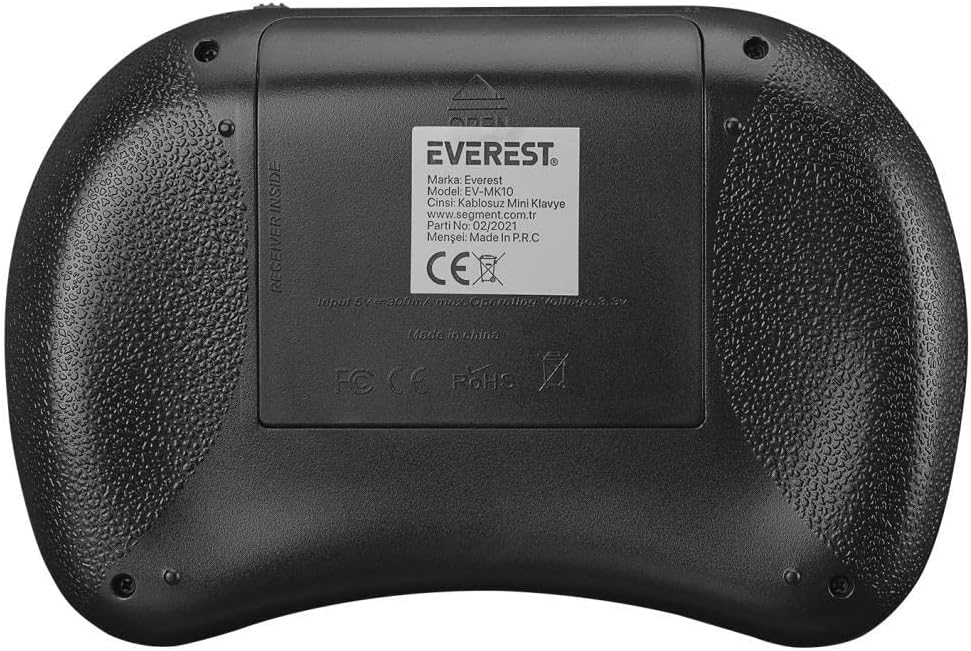
The 2.4GHz USB wireless receiver is typically stored in the battery compartment on the back of the keyboard for safe keeping.
3. Connecting the Receiver
- Open the battery compartment cover on the back of the keyboard.
- Carefully remove the USB wireless receiver.
- Close the battery compartment cover.
- Plug the USB receiver into an available USB port on your device (Smart TV, PC, Android TV Box, etc.).
4. Powering On the Keyboard
Locate the power switch on the side or back of the keyboard and slide it to the "ON" position. The keyboard should automatically connect to your device via the USB receiver. No additional pairing is typically required for 2.4GHz devices.
Operating Instructions
1. Basic Keyboard Functions
The keyboard functions like a standard QWERTY keyboard. Simply type as you would on a regular computer keyboard.
2. Touchpad Usage
- Single Finger Tap: Functions as a left-click.
- Two Finger Tap: Functions as a right-click.
- Two Finger Scroll: Drag two fingers up or down on the touchpad to scroll.
- Mouse Buttons: Dedicated left and right mouse buttons are also available above the touchpad for precise control.
3. Backlight Control
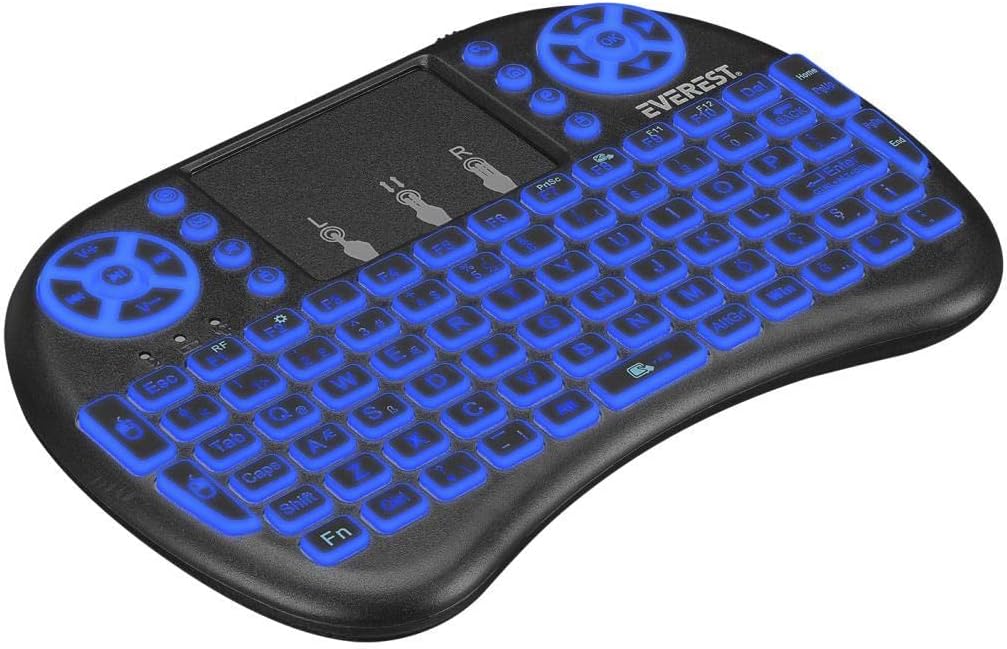
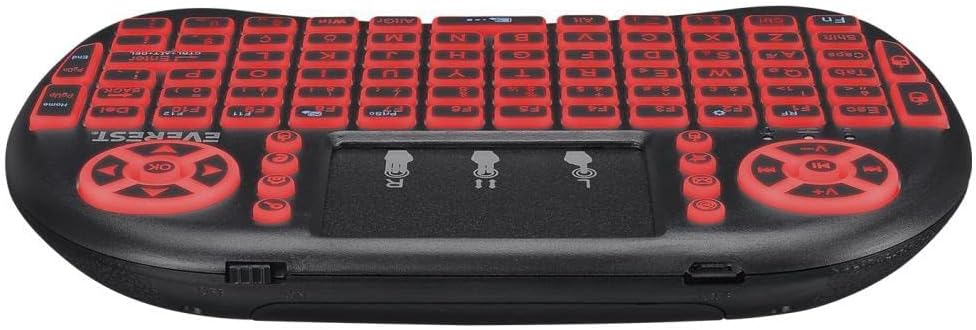
The EV-MK10 features a 3-color backlight. To change the backlight color or turn it on/off, press the Fn key simultaneously with the F2 key (or the key indicated with a light bulb icon). Repeated presses will cycle through the available colors (green, blue, red) and turn the backlight off.
4. Media and Function Keys
The keyboard includes dedicated media control keys (e.g., volume up/down, play/pause) and function keys (F1-F12). Some function keys may require pressing the Fn key simultaneously to activate their secondary functions, indicated by icons on the keys.
5. Compatibility
The Everest EV-MK10 is compatible with a wide range of operating systems and devices, including:
- Windows
- Linux
- Mac OS
- Android TV
- Smart TV
- Smartphones (with OTG support and appropriate adapter)
- PS3
- XBOX
Maintenance
1. Cleaning
To clean the keyboard, power it off and disconnect any cables. Use a soft, dry cloth to wipe the surface. For stubborn dirt, a slightly damp cloth with mild soap can be used, ensuring no liquid enters the device. Avoid abrasive cleaners or solvents.
2. Battery Care
The keyboard contains a rechargeable battery. To prolong battery life:
- Avoid fully discharging the battery frequently.
- Charge the keyboard regularly, even if not in constant use.
- Do not expose the device to extreme temperatures.
3. Storage
When storing the keyboard for extended periods, ensure it is powered off. Store it in a cool, dry place away from direct sunlight and extreme temperatures. If storing for several months, charge the battery to about 50% capacity every few months to prevent deep discharge.
Troubleshooting
| Problem | Possible Cause | Solution |
|---|---|---|
| Keyboard not responding | Low battery; USB receiver not connected; Keyboard not powered on; Device compatibility issue. | Charge the keyboard; Ensure USB receiver is securely plugged in; Turn on the keyboard; Verify device compatibility. |
| Touchpad not working | Software issue on host device; Touchpad disabled (unlikely for this model). | Restart the host device; Ensure no other input devices are interfering. |
| Backlight not working/changing | Low battery; Incorrect key combination. | Charge the keyboard; Press Fn + F2 (or light bulb icon key) repeatedly. |
| Connection issues/lag | Interference; Distance from receiver; Low battery. | Move closer to the receiver; Ensure no large metal objects are between keyboard and receiver; Charge the keyboard; Try a different USB port. |
| Keyboard not charging | Faulty cable; Faulty USB port; Internal battery issue. | Try a different USB cable; Try a different USB power source/port; If issue persists, contact support. |
Specifications
- Brand: Everest
- Model: EV-MK10
- Connectivity: 2.4GHz Wireless
- Backlight: 3 Colors (Green, Blue, Red)
- Power Source: Rechargeable Internal Battery
- Operating Systems: Android, Linux, Windows, Mac OS
- Package Dimensions: Approximately 14 x 9 x 5 cm
- Item Weight: Approximately 200 g
- First Available Date: February 16, 2022
Warranty and Support
For warranty information and technical support, please refer to the documentation provided at the time of purchase or contact your retailer. Keep your proof of purchase for any warranty claims.
